
Connect Slack
Capture selected Slack messages and return reviewed replies to their original threads.
Before you start
Choose the Slack workspace and ordinary user account you use for the conversation. Have one message you can access and want to turn into work.
Connect the workspace
- Open Sources → Add source → Slack in Seflo.
- Start the Slack connection.
- Check the workspace in Slack's account selection; change it if the wrong workspace is shown.
- Complete the access confirmation and return to Seflo.
- Check the connected workspace and user identity.
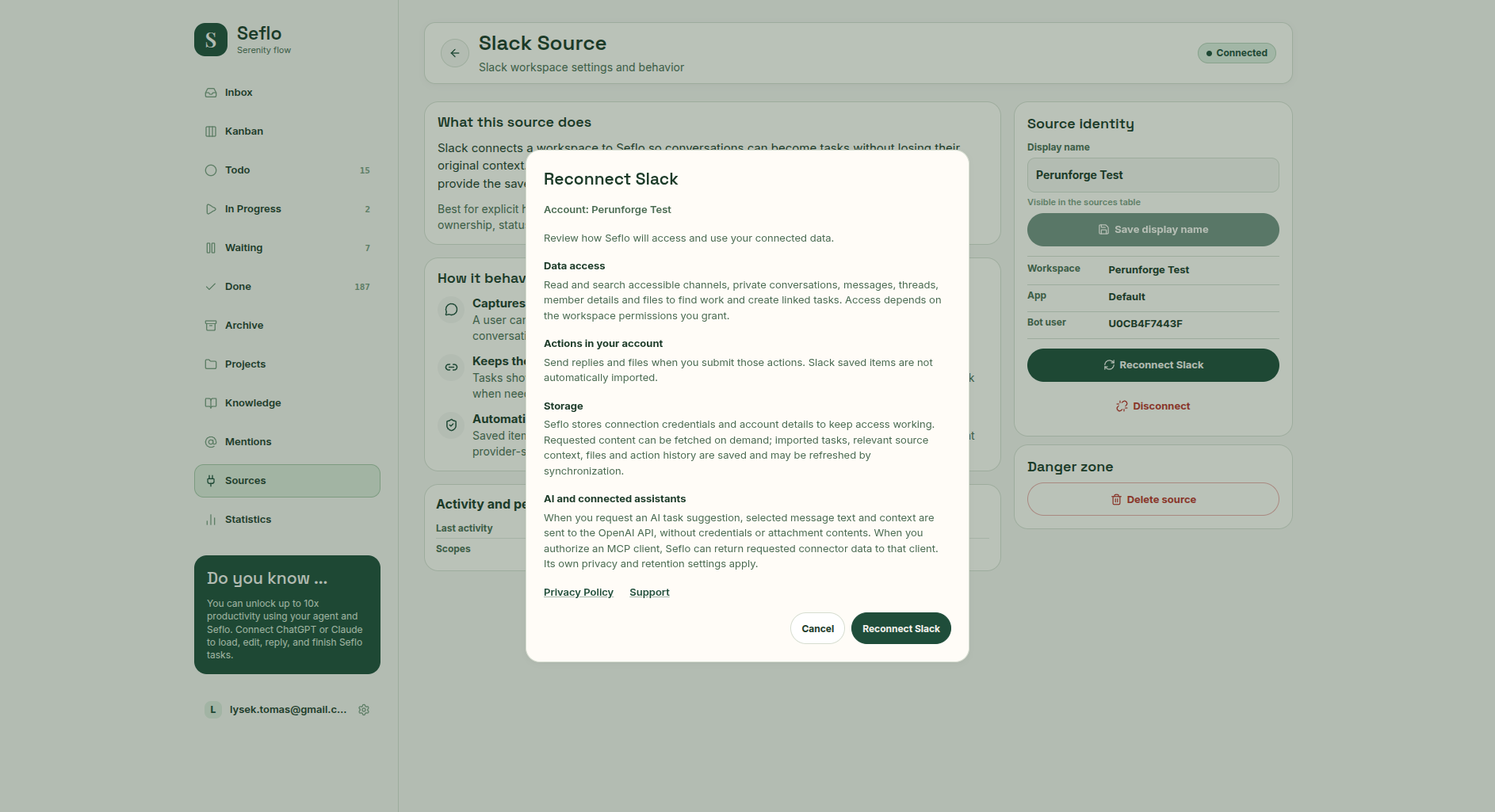
Review the data access and supported actions before continuing. Open full-size image.
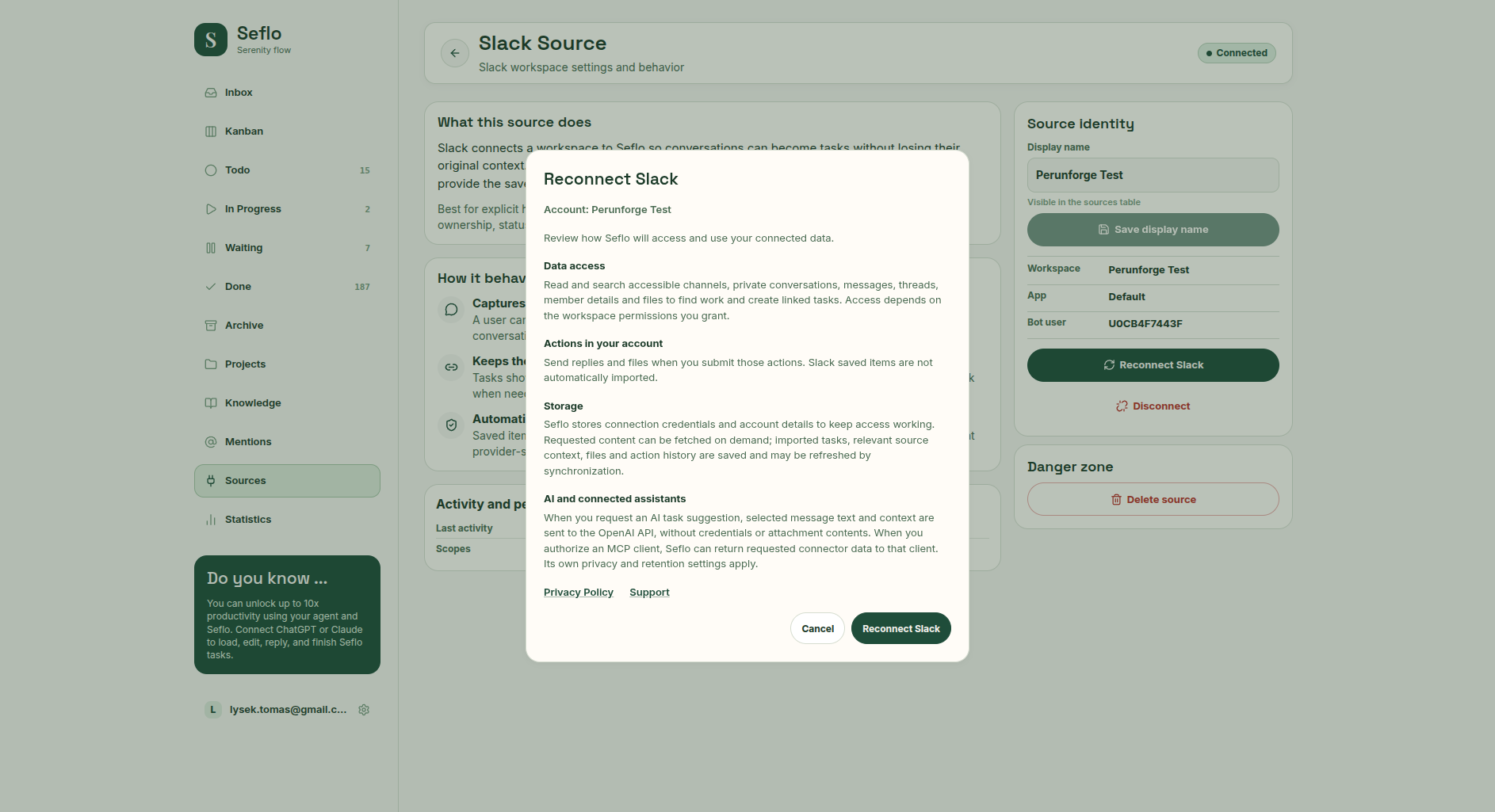
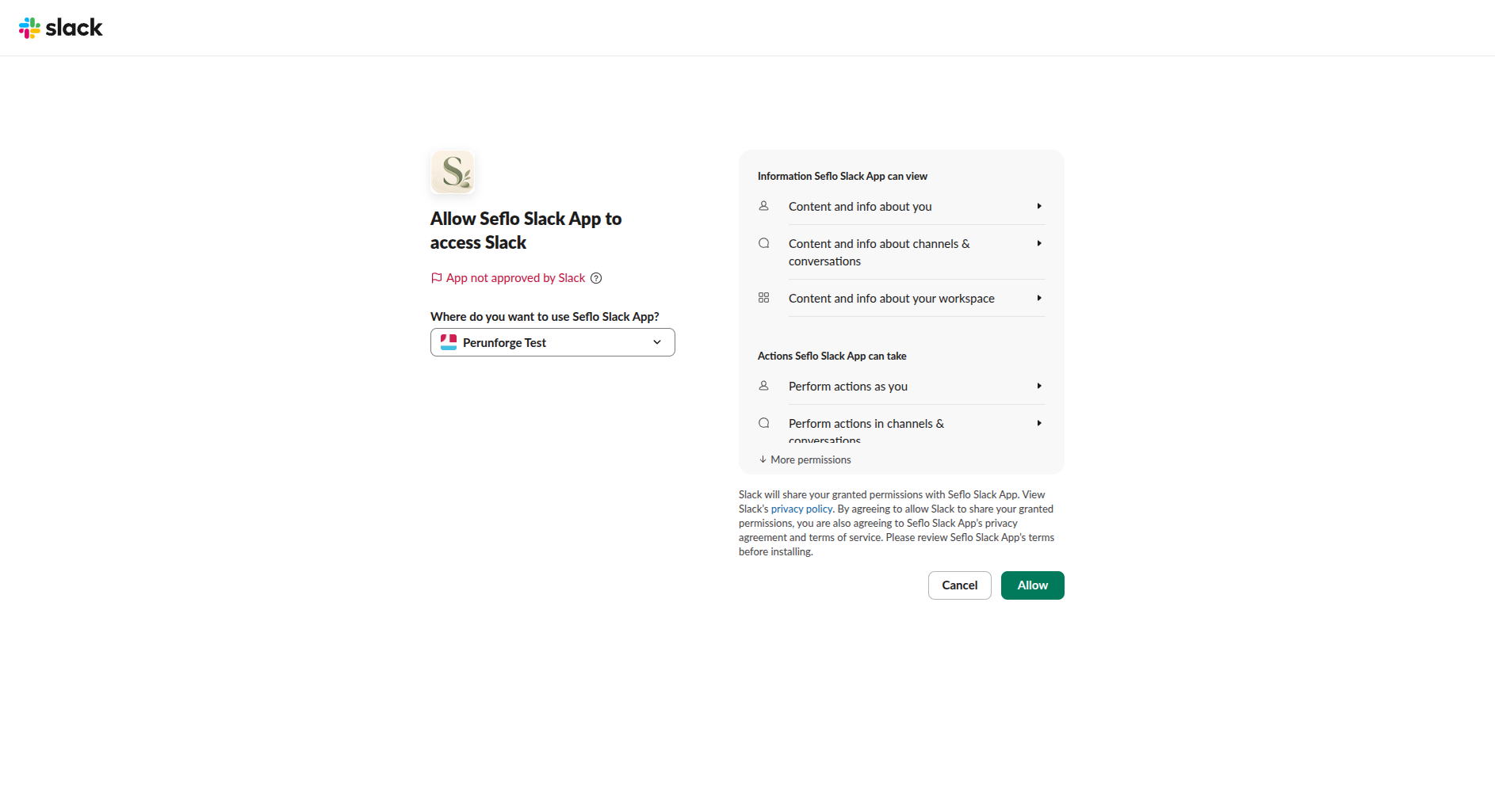
Check the workspace before choosing Allow. This capture uses the direct connection from Seflo; it does not show a public Slack Marketplace installation. Open full-size image.
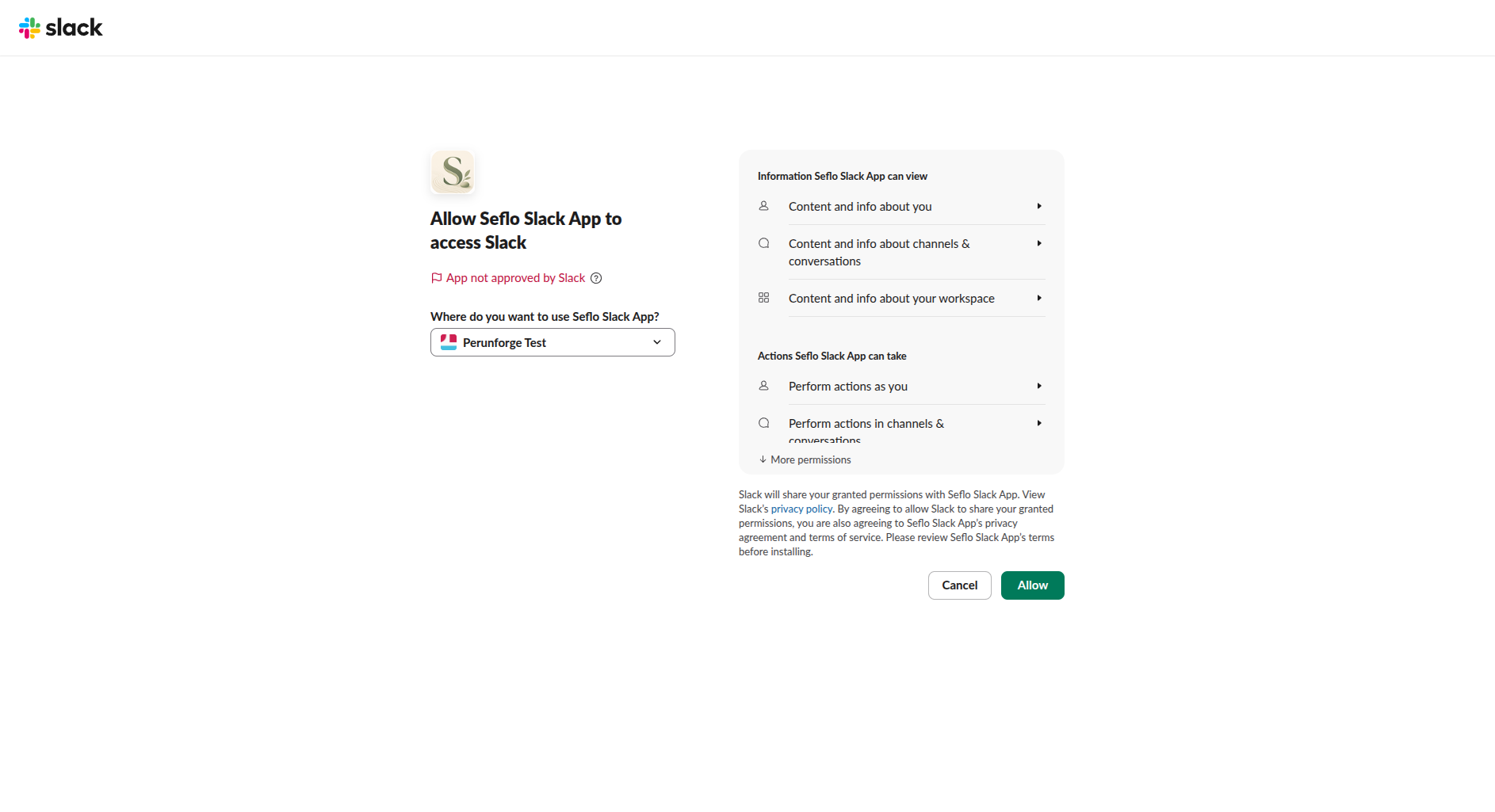
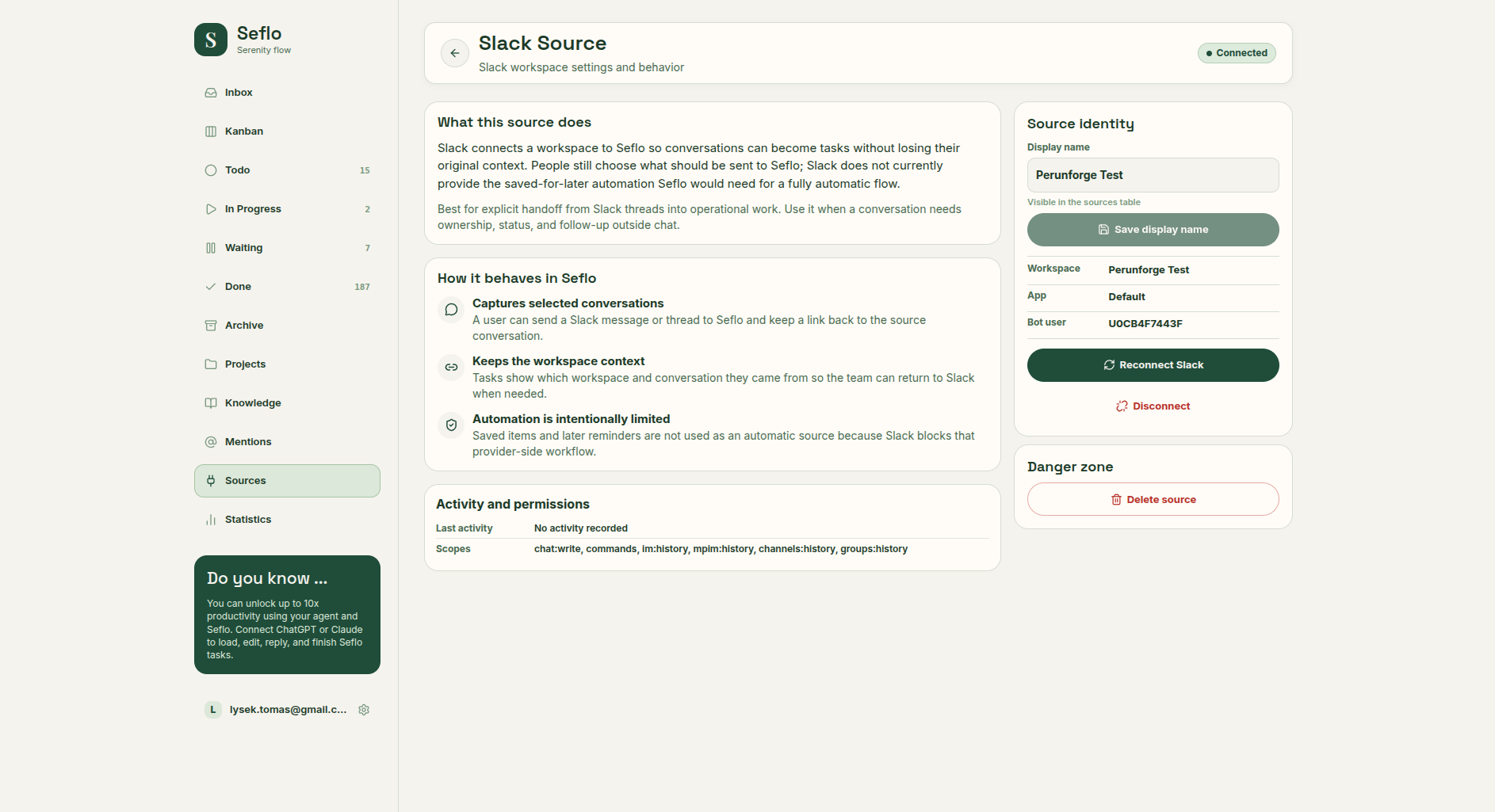
Compare the workspace with the one containing your request. Open full-size image.
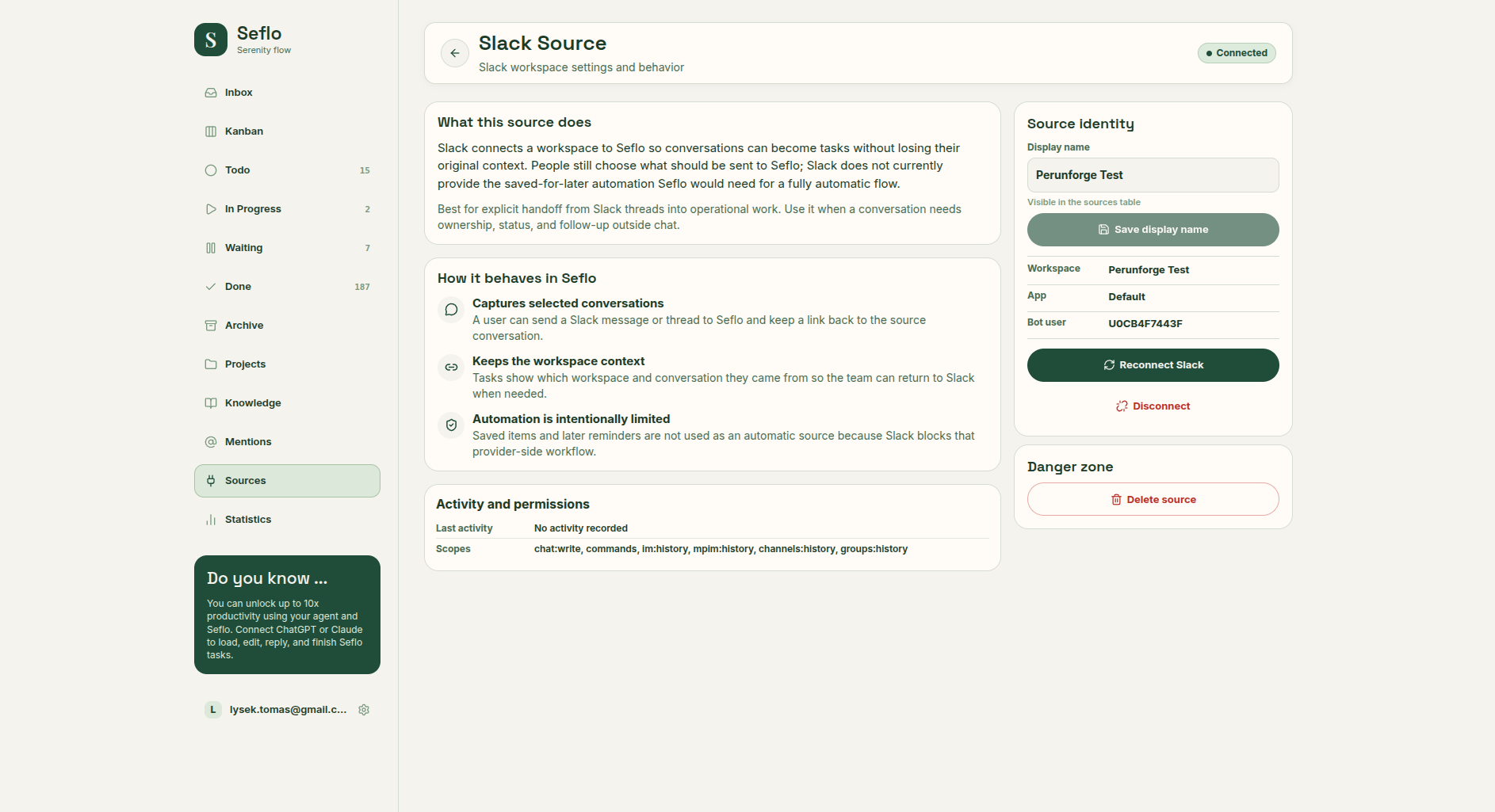
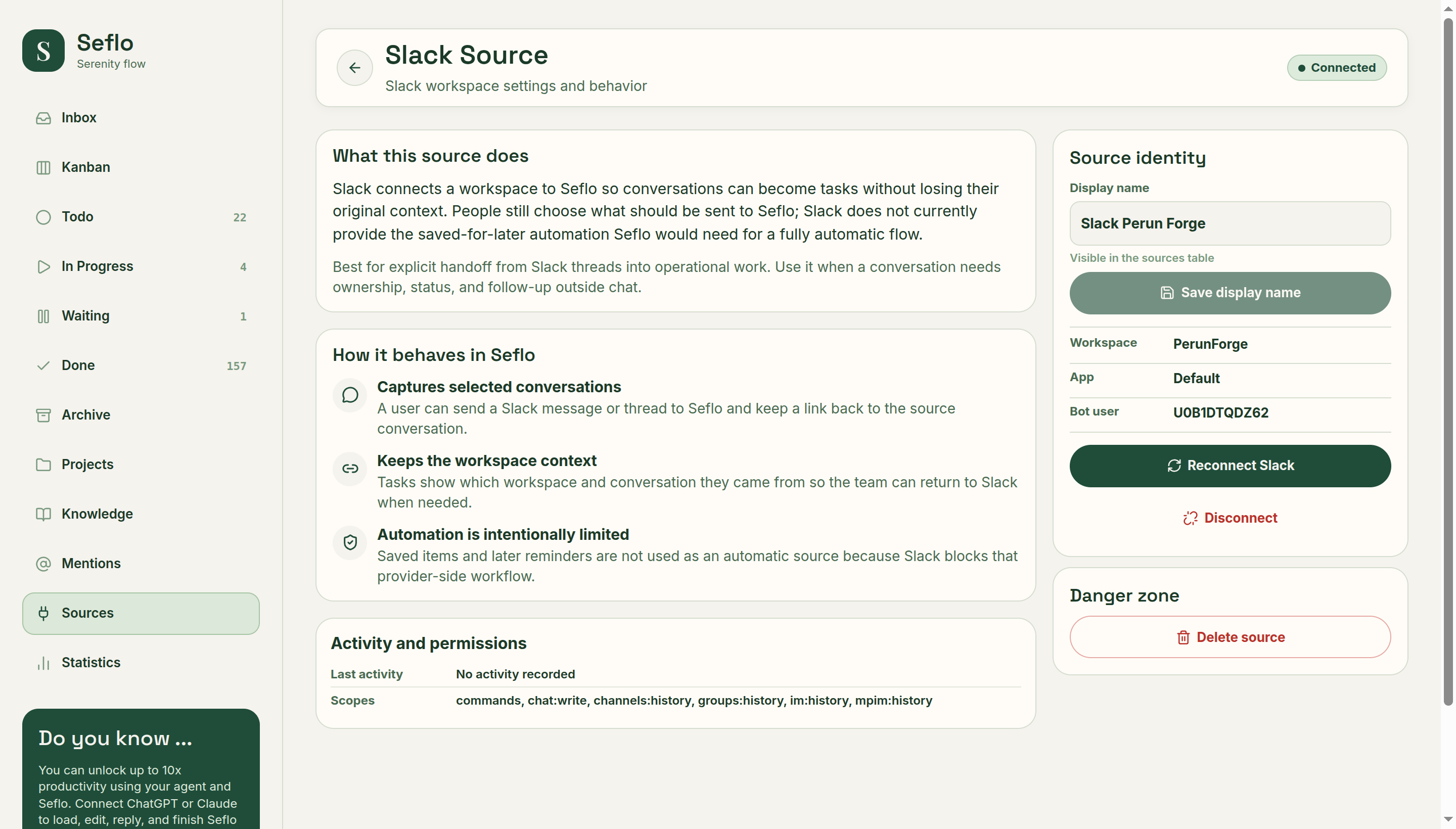
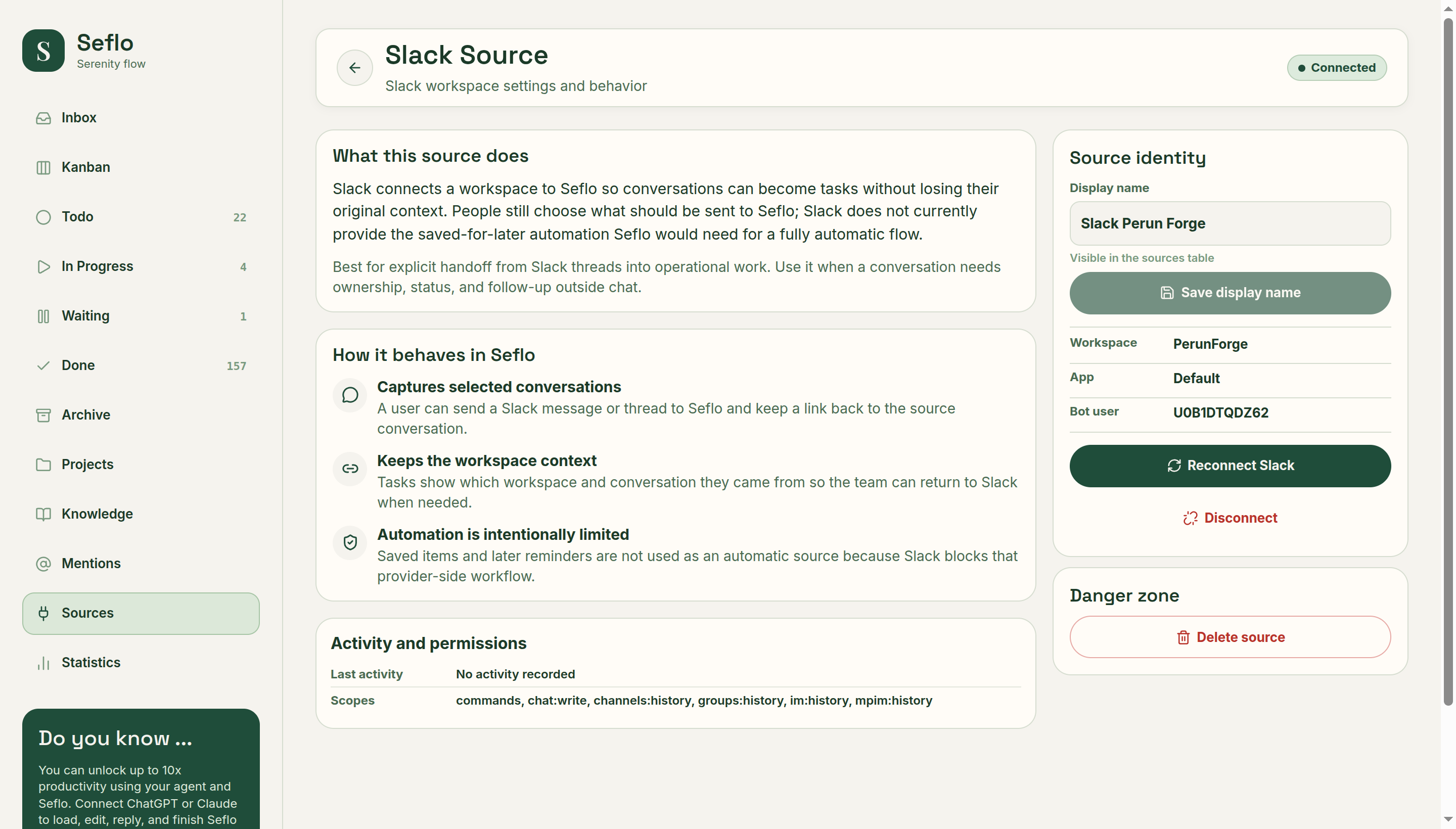
Check the connected identity before capturing a request. This image comes from the existing product demonstration. Open full-size image.
Create your first task
- In Slack, open the message's action menu.
- Choose Connect to apps → Send to Seflo. If necessary, open More message shortcuts to find it.
- Sign in to the intended Seflo account if prompted.
- Look for Seflo's Task created or Task already exists confirmation. For an already connected user, the shortcut creates or reuses the task directly.
- In Seflo, inspect the source thread and any available attachments.
Choose the message carefully before running the shortcut: a separate preview is not part of this connected-user flow.
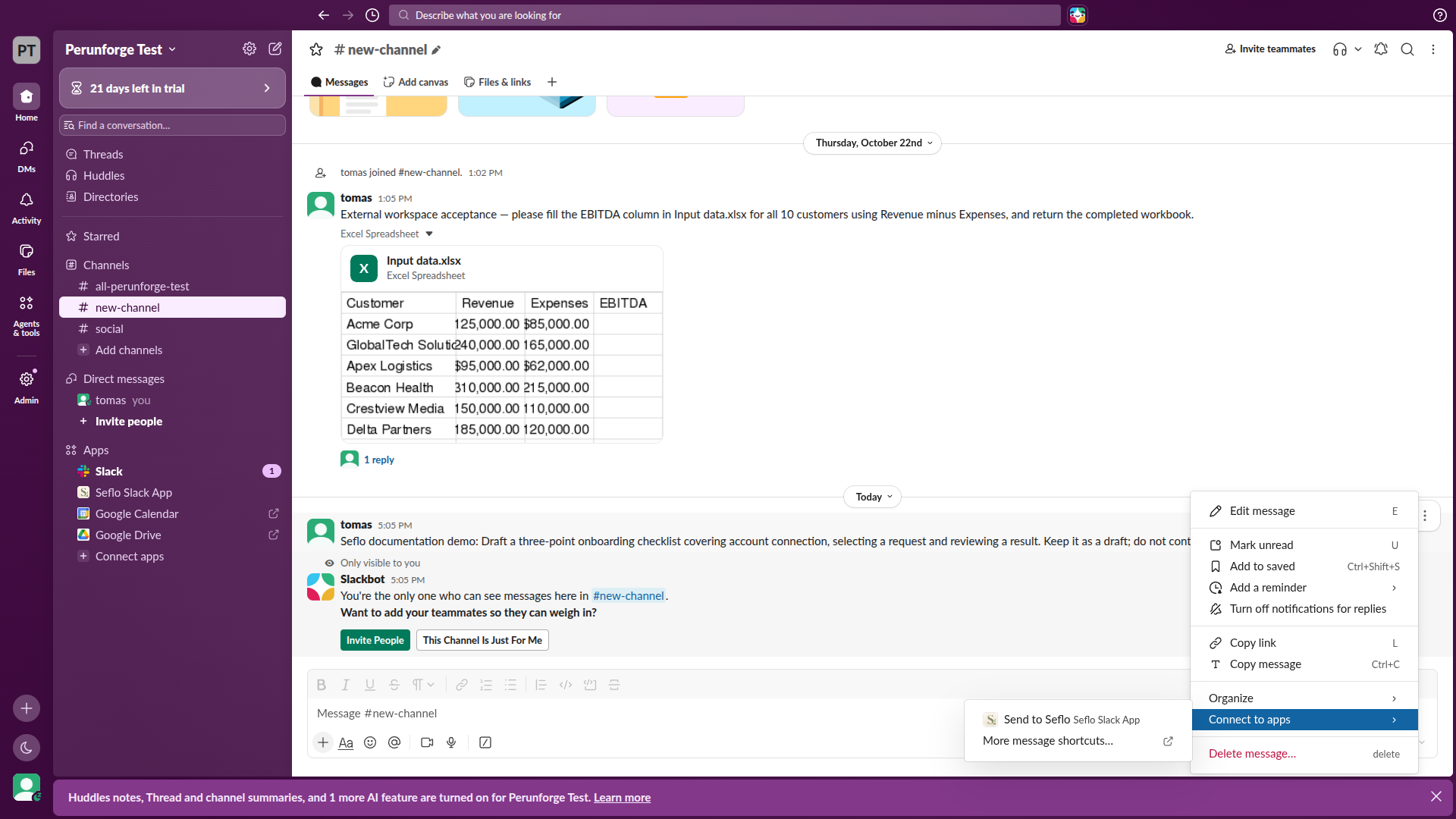
Run the shortcut on the request you want to capture. Open full-size image.
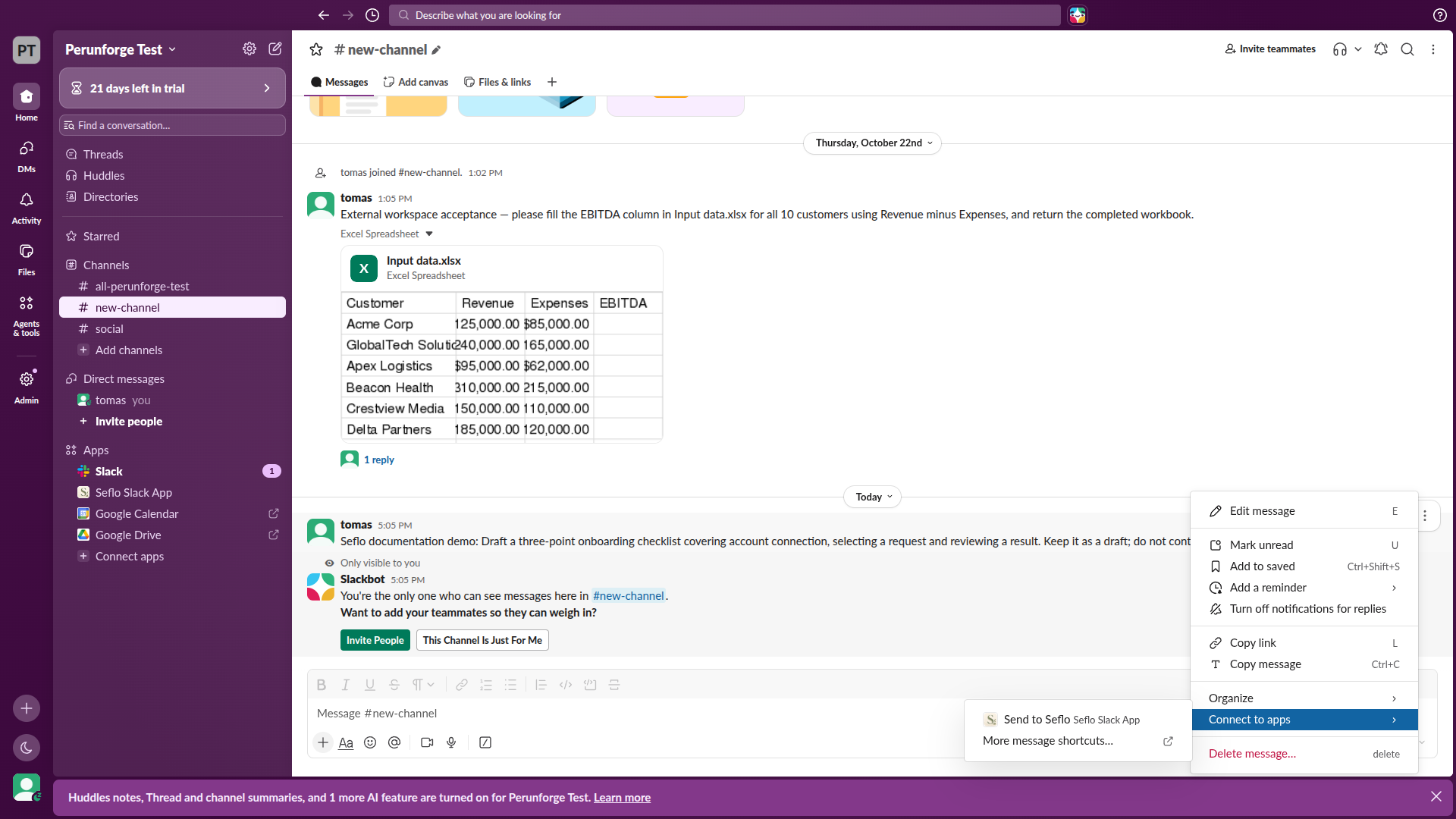
The confirmation is visible only to the invoking user. Open full-size image.
Saving a message to Slack Later, starring it or setting a reminder does not automatically create a Seflo task. Use the message shortcut for explicit capture.
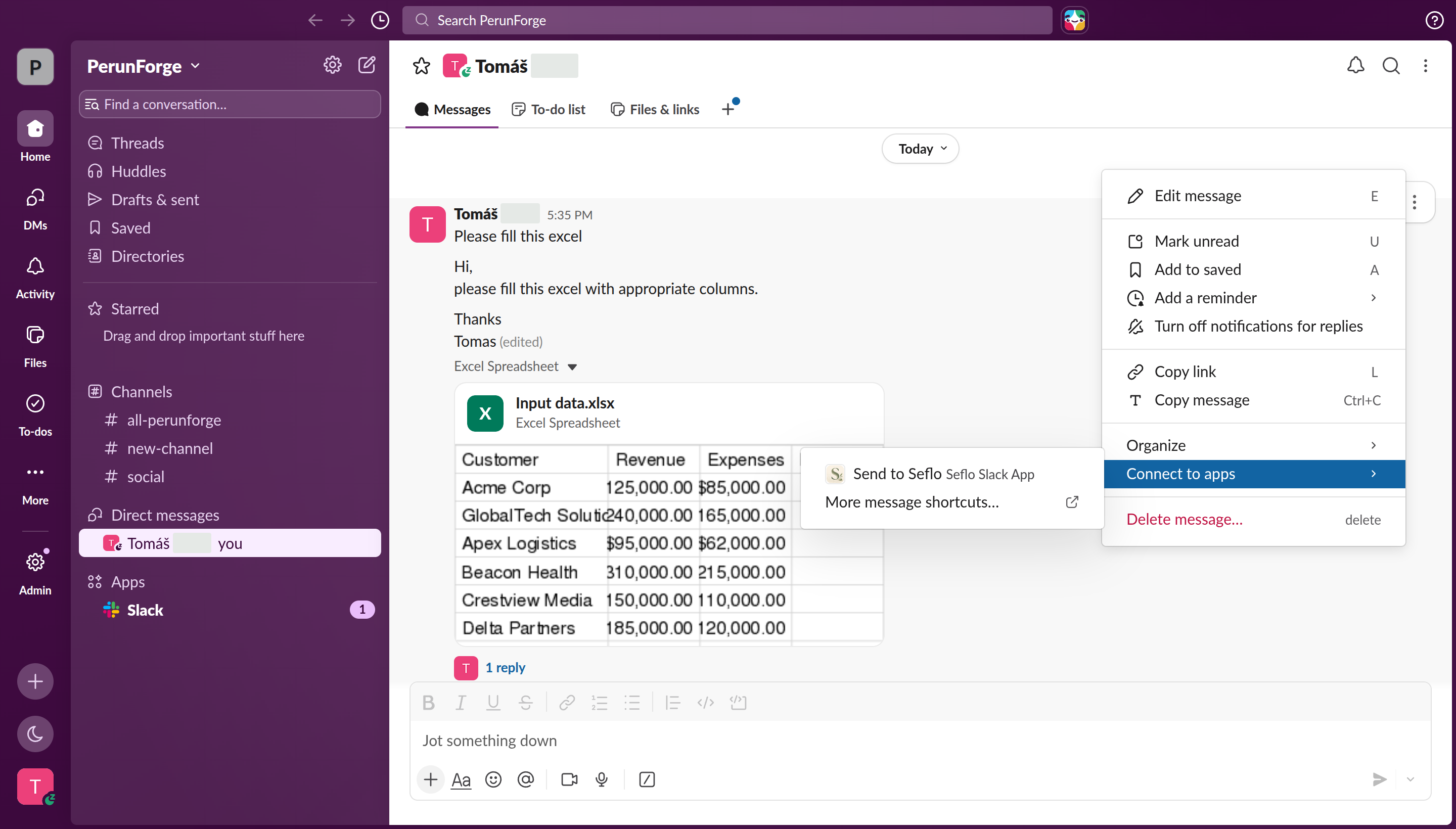
Open the action on the message that contains the request. Open full-size image.
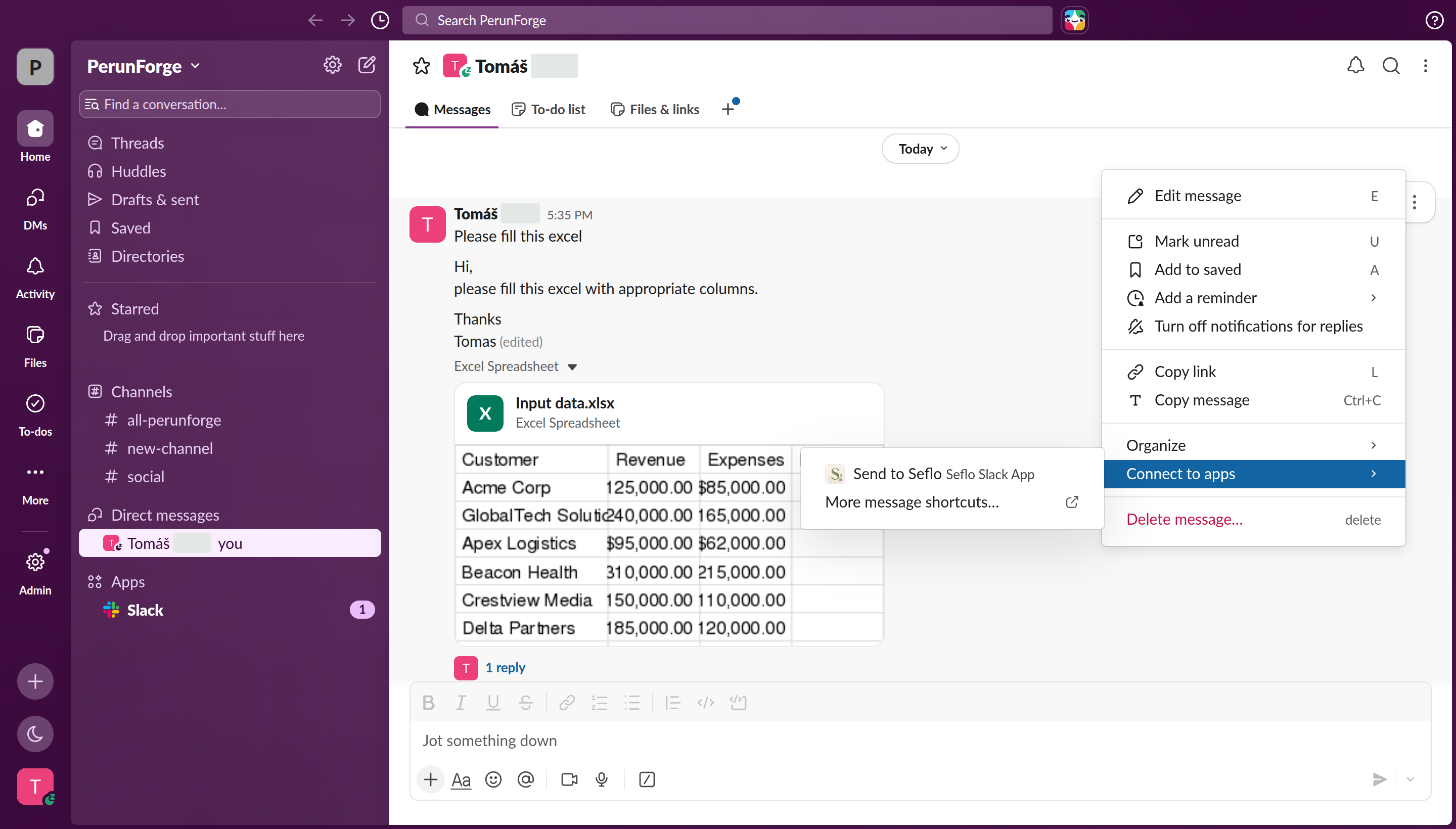
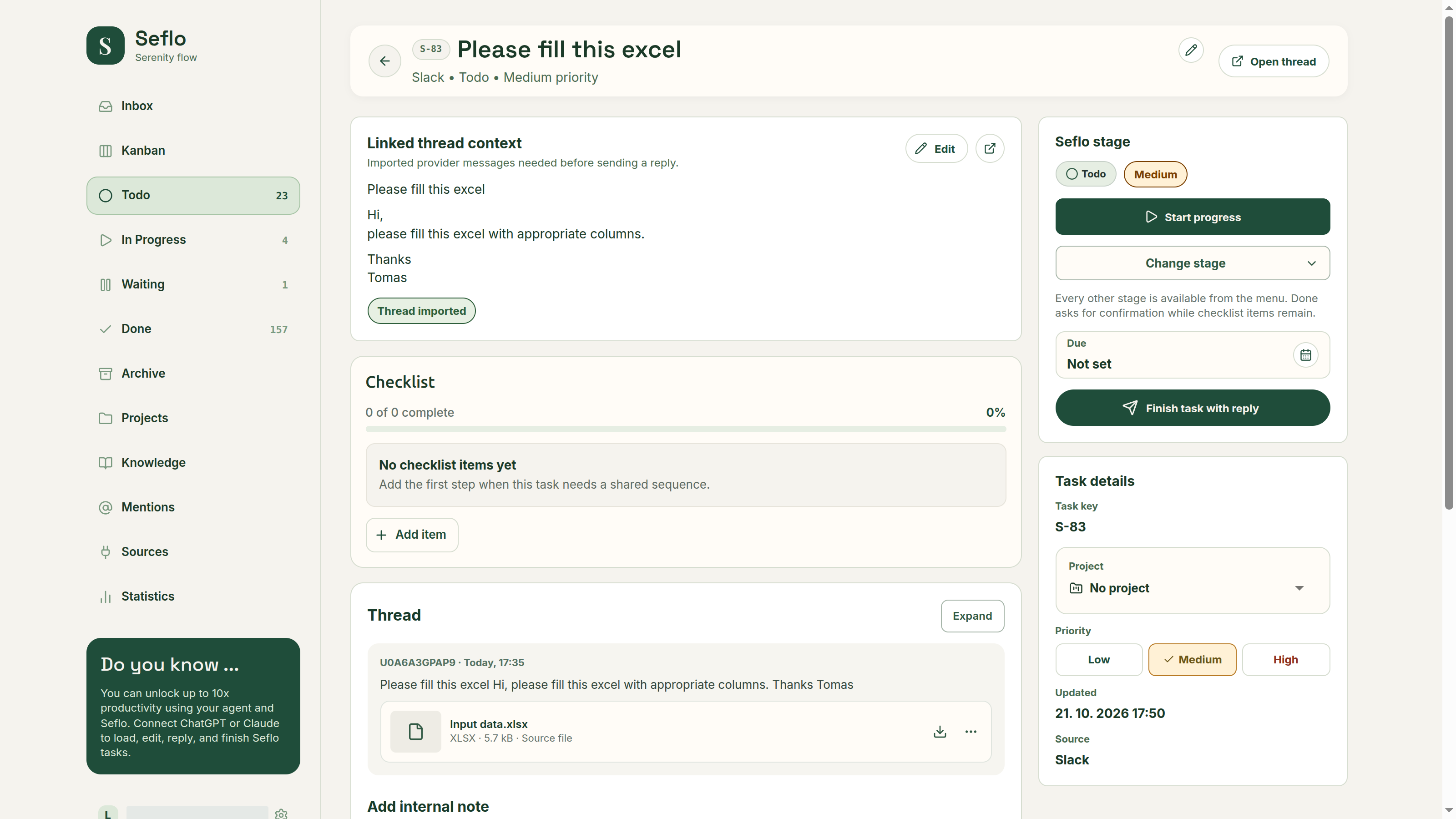
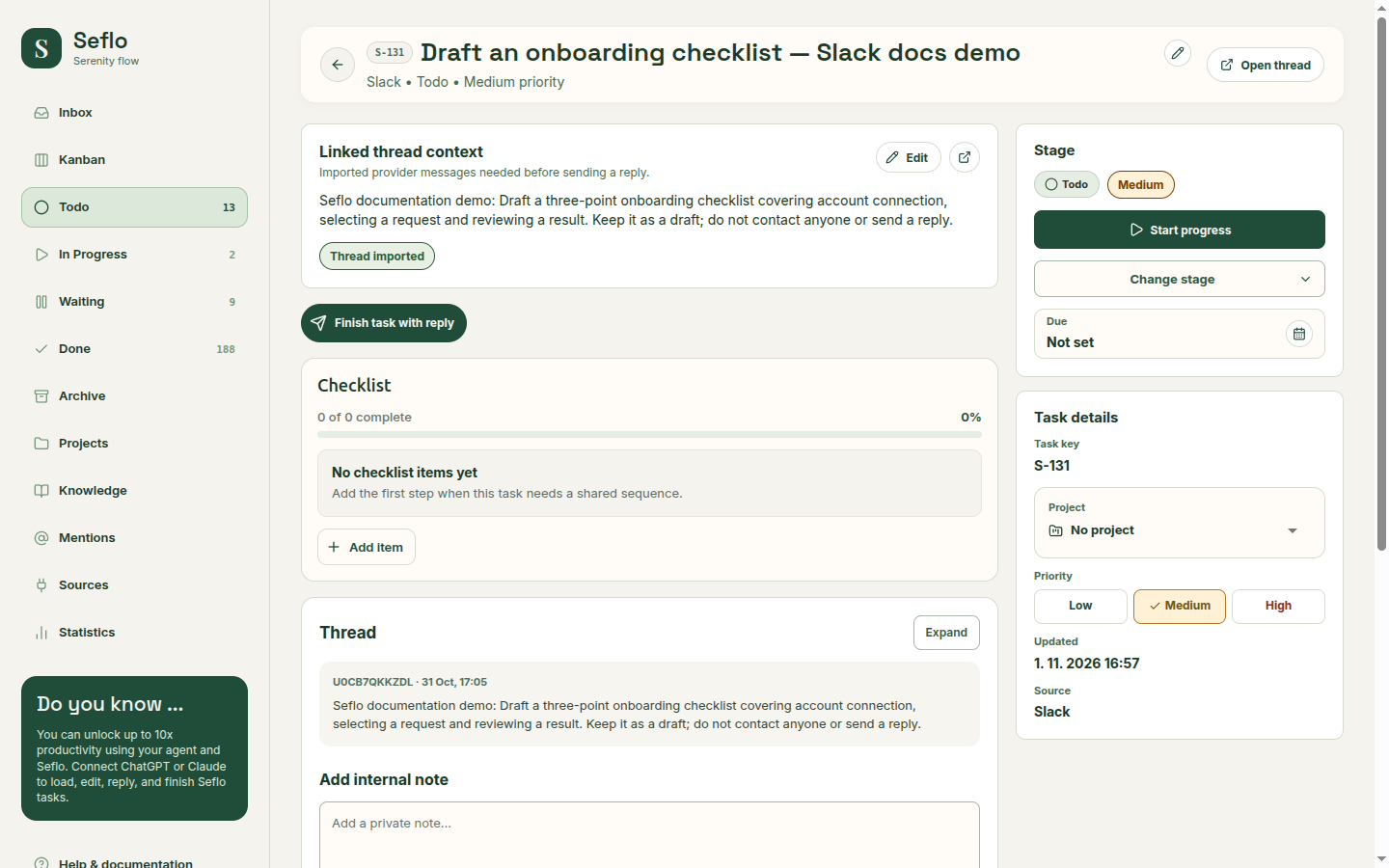
Verify the source context and file before asking your assistant to work. Open full-size image.
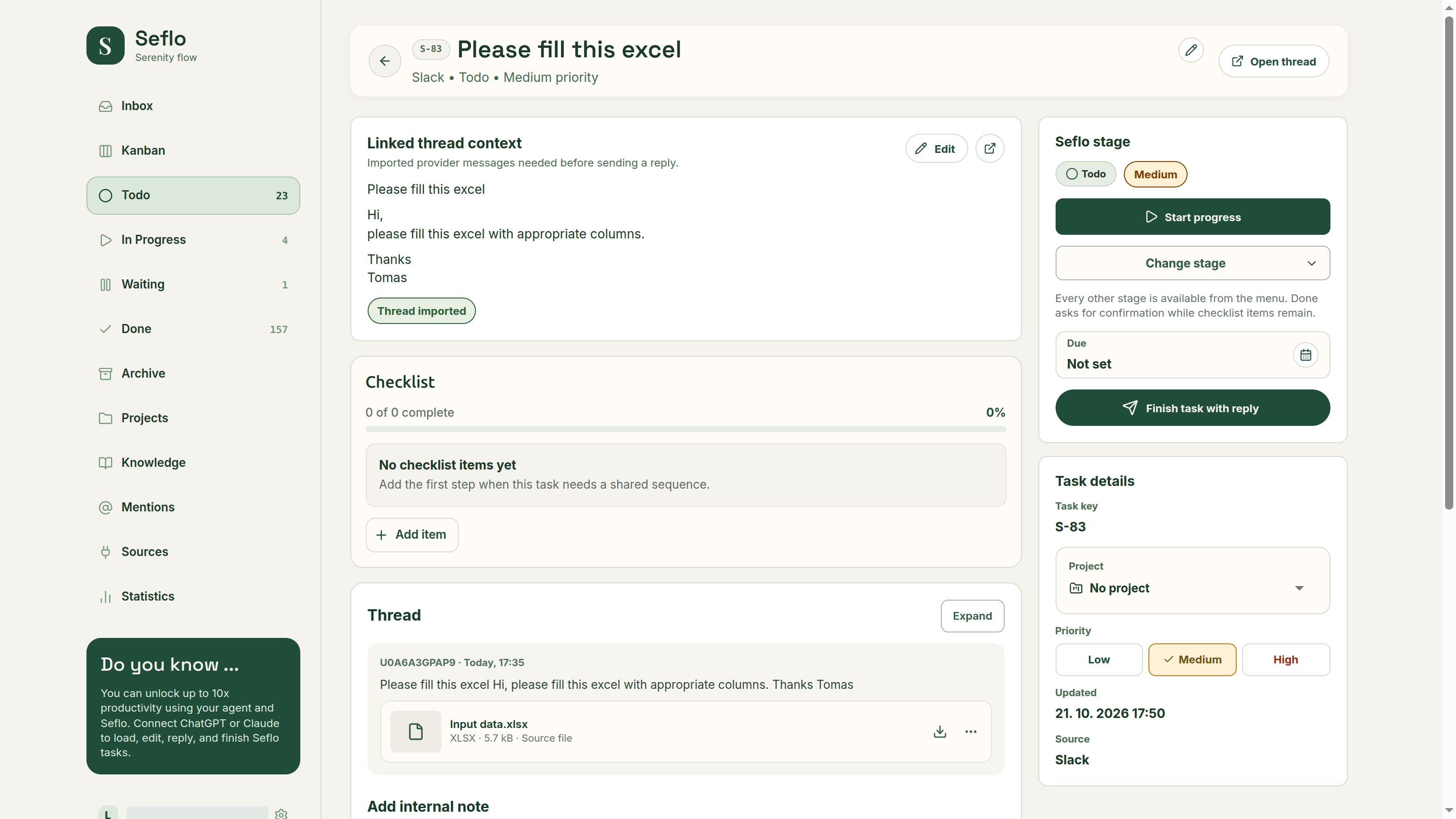
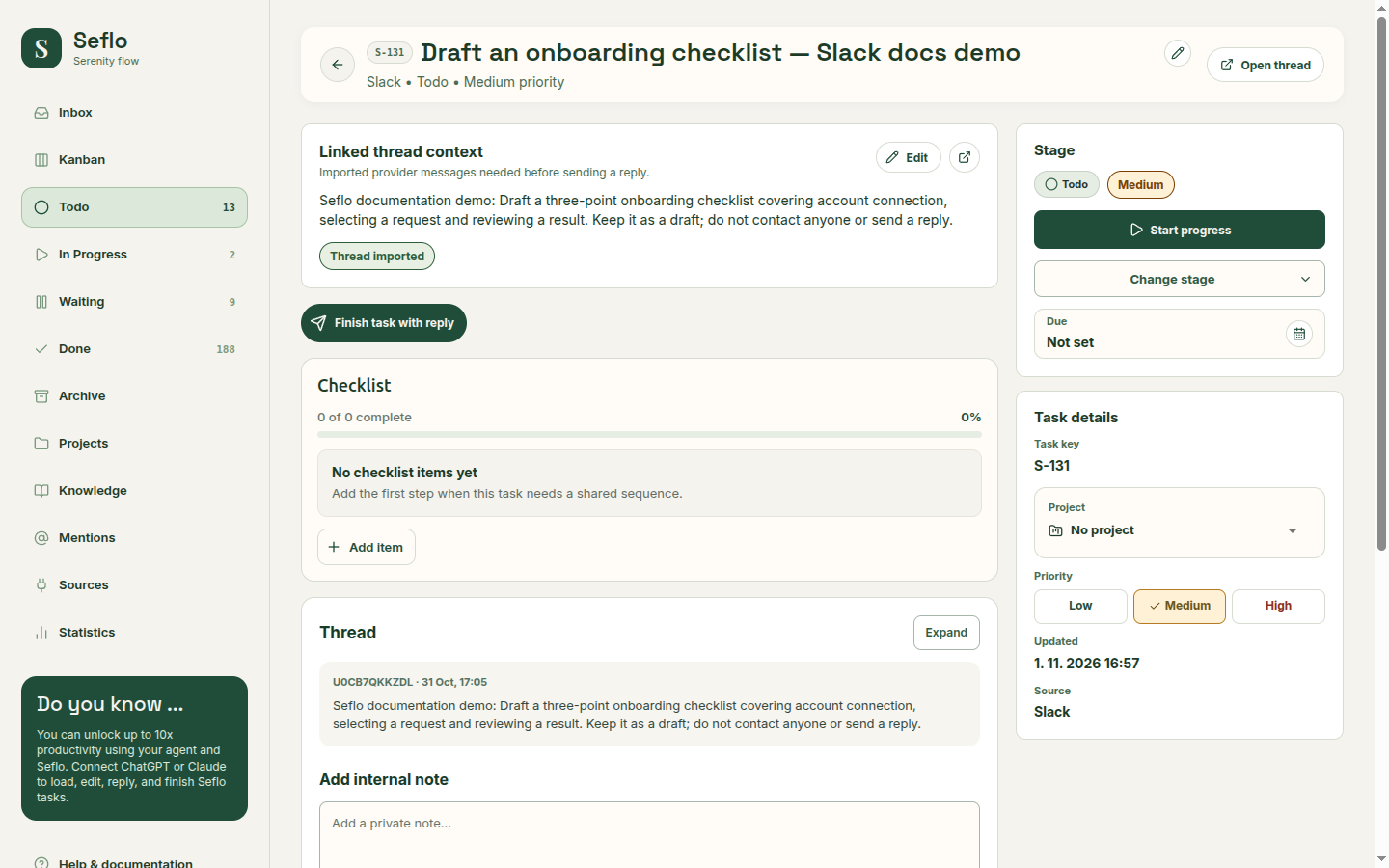
Compare the imported request and original thread. The local task title was shortened; the source message is preserved. This task remains Todo and no reply was sent. Open full-size image.
Reply with the original context
Ask your AI client to open the task, read the thread and prepare a reply. Check the connected sender, conversation, text and files in the review.
The reviewed reply goes back to the linked thread as the connected user. Confirming a reply does not remove an item from Slack Later. Seflo's personal task stage and Slack's saved-item state are separate.
If something does not work
- Shortcut missing: check that Seflo is connected in the workspace containing the message.
- Conversation unavailable: verify that your connected user is still a member and that the conversation is accessible.
- Reply cannot be prepared: the thread may be archived, incomplete, rate limited or no longer accessible. Read the displayed reason; reconnect only for account/access failures.
- Delayed result: check the existing operation and Slack thread before attempting another send.
- Slack says the shortcut did not work: first look for the Seflo confirmation and the task itself. In the captured example, Slack displayed a transient error even though the task and source thread were imported successfully. Avoid creating another task before checking.
For scanning new requests, see communication catch-up; explicit message capture remains useful independently of scanning.
Watch: Seflo for Slack — From a shared spreadsheet to completed work
Capture a Slack request and return a reviewed reply and workbook to the original thread. The edited example condenses the workflow; use the written steps above for setup and checks.
Watch: connect Slack and capture your first request
Authorize the correct workspace, use the message shortcut and compare the resulting task with its original thread. This setup example leaves the task open.