
Working with tasks
Use stages, priorities, due dates, and projects to keep your work organized.
Give each task a clear outcome
Use the title for the action you want to finish. Put supporting context in the description so you can return to the task without reconstructing the whole conversation.
For a first example, follow Create your first task.
Find the same controls in every task
Tasks use the same layout whether you create them in Seflo or import them from a connected service. On desktop, the right panel has two sections:
- Stage contains the current stage, the next action, Change stage, the due date and, when relevant, the reopen date.
- Task details contains the task code, project, Low / Medium / High priority controls, last update and source.
On mobile, stage controls appear above the task content and task details below it. The main column holds the original context and source actions, followed by attachments, the checklist, thread and recent activity. Customer or source-specific information stays with that context.
Some titles, descriptions and due dates are managed by the connected service and are read-only in Seflo. A consistent layout does not change who owns those fields or what a source action does.
Keep the stage current
| Stage | When to use it |
|---|---|
| Todo | The work is captured and ready to be picked up. |
| In Progress | You are actively working on it. |
| Waiting | You are waiting for a reply, decision, or another dependency. |
| Done | The work is complete. |
Open a task to change its stage as the situation changes. When creating a task in Waiting, you can also set an optional Reopen date.
Set priority and a due date
Priority helps you decide what to pick up next:
- High for work that needs attention first.
- Medium for normal work; this is the default for a new task.
- Low for work that can wait.
A Due date records a deadline. Use it when the task needs to be completed by a particular time; you can leave it unset when there is no deadline.
Group related tasks into projects
Choose Project in Task details to move a task to a project or to No project. Review the confirmation before moving: the destination assigns a new task code after the move succeeds. The existing task link continues to work.
Keep the source in mind
A task created directly in Seflo is local to your workspace. Tasks associated with a connected service can have additional source context and service-specific actions. Review the available action and its destination before sending a reply or changing something in that service.
Refer to archived work
Archived tasks retain their title, task code, context and history in the same layout. Editing is disabled. Restore task is available when the task can be restored; otherwise the panel explains the restriction. A task archived by its source may need to become available there again.
Break work into a checklist
Use a checklist for steps within the same outcome, such as checking inputs, preparing a draft and reviewing the result. Use separate tasks when the pieces have different owners, deadlines or source conversations.
You can ask a connected AI client:
Open Seflo task S-123. Add a checklist for verifying the source files,
preparing the result and reviewing it. Keep the task open and do not
send any messages.
Open the task and verify the added items. Check them off as you finish the work. Completing a checklist item does not by itself send a reply or complete a shared source record.
Keep notes and results with the task
Use internal notes for progress, decisions and what still needs checking. Ask the assistant to save a concise result on the task, then open the link to verify it. For information you will reuse beyond this task, create a Knowledge article.
To add steps directly in Seflo, choose Add item under Checklist, type a step and press Enter. Repeat for the remaining steps. In Thread, write under Add internal note and choose Add note to save a draft or progress update.
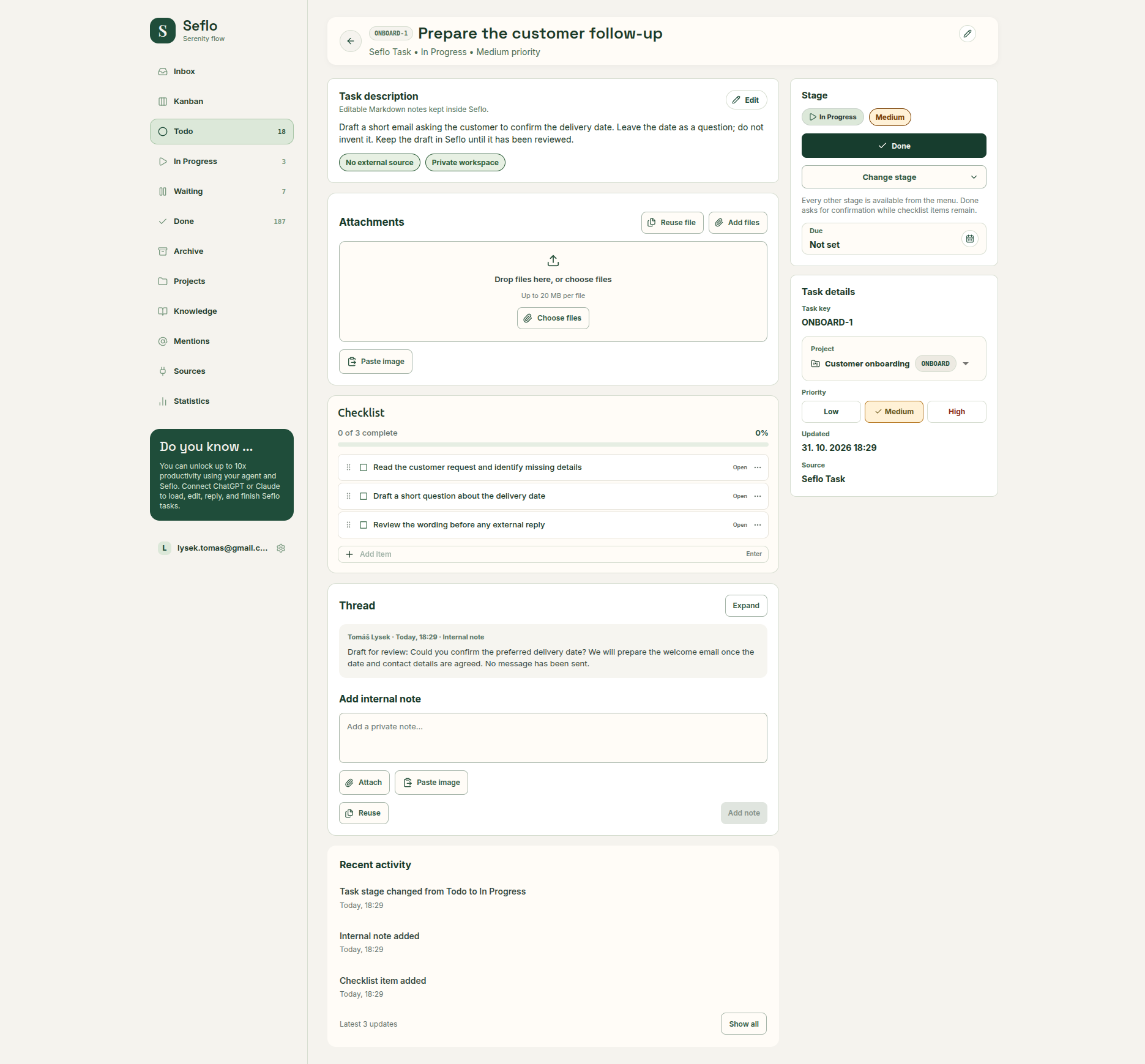
This native task has no external source. The draft is saved as an internal note; it has not been sent. The three checklist items are still open. Open full-size image.
Before returning work to another service, follow Review and confirm actions. For the next task to pick up, try Plan your day.
Open Seflo to review your tasks.