
Organize work into projects
Group related tasks and keep a clear outcome for a larger piece of work.
When to use a project
Use a project for an outcome that needs several tasks, such as a customer onboarding or a monthly report. A single small request can stay as a task without a project.
Create a project in Seflo
- Open Projects and choose Create project.
- Enter a Name, such as “Customer onboarding”.
- Choose an available Prefix, such as
ONBOARD. The form previews the resulting task keys. The prefix locks after the first task key is issued. - Add a short Description of the outcome, then choose Create project.
- Open the project's Tasks section to review its work and Knowledge for saved background.
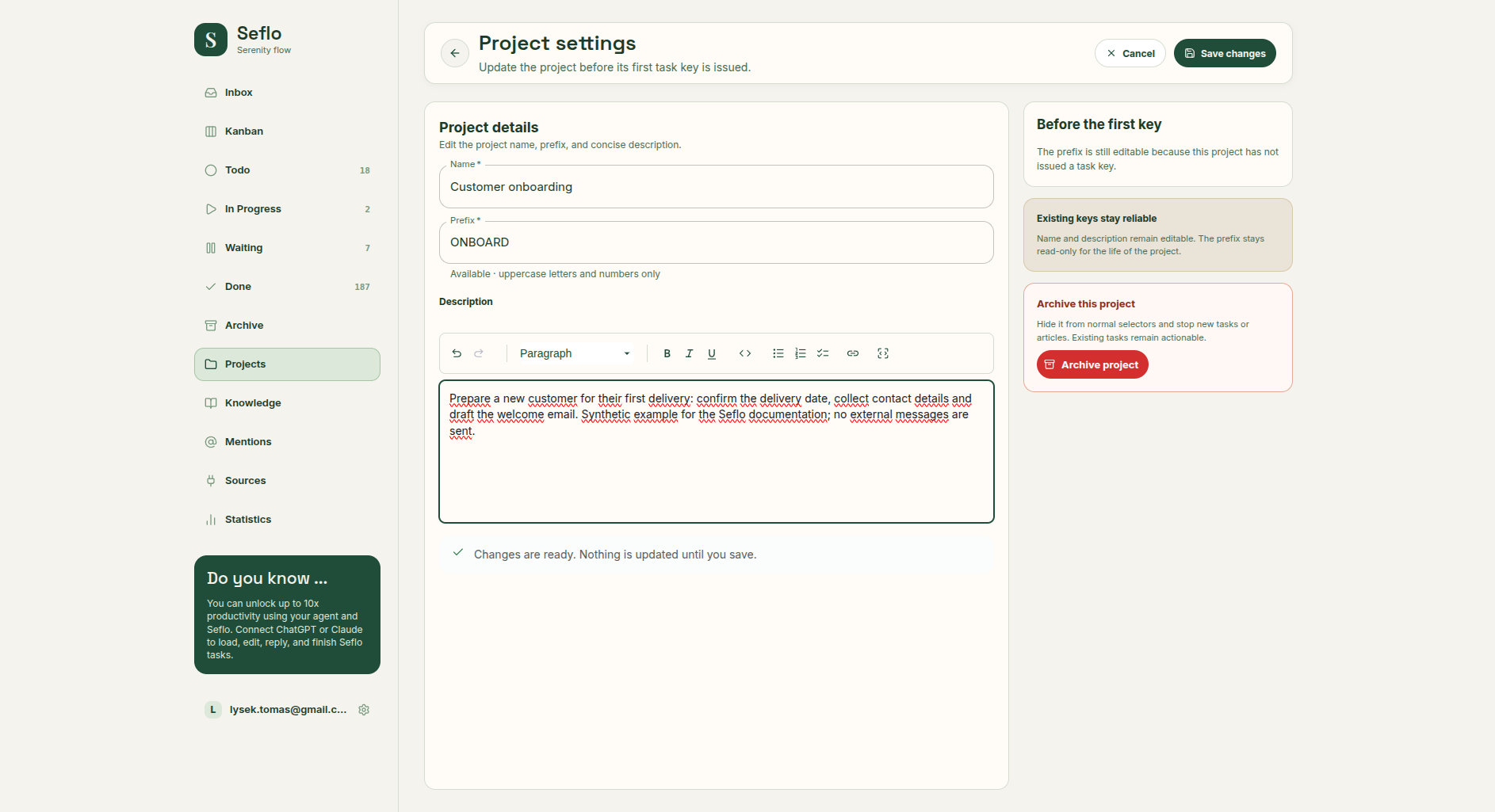
Before the first task is created, Settings lets you adjust the prefix and description. Save changes explicitly. Open full-size image.
Create and populate a project with AI
Connect an AI client to Seflo, then describe the outcome and the first pieces of work:
Create a Seflo project called Customer onboarding.
Its goal is to get the customer ready for their first delivery.
Create tasks to confirm the delivery date, collect the contact details,
and prepare the welcome email. Do not send messages.
Show me the project and task links when finished.- Review the proposed names and scope. Supply real due dates if they matter.
- Open the returned project link in Seflo.
- Check that each task describes one action and belongs to the intended project.
- Assign existing related tasks to the same project using their project selector, or ask the assistant to move the specific tasks.
Use the exact project name or link when several projects have similar names. Ask the assistant to check for an existing project before creating another one.
In Tasks, choose Kanban to compare stages side by side. This controlled example contains ONBOARD-1 — Prepare the customer follow-up in In Progress, ONBOARD-2 — Collect the customer contact details in Waiting and ONBOARD-3 — Draft the welcome email in Todo.
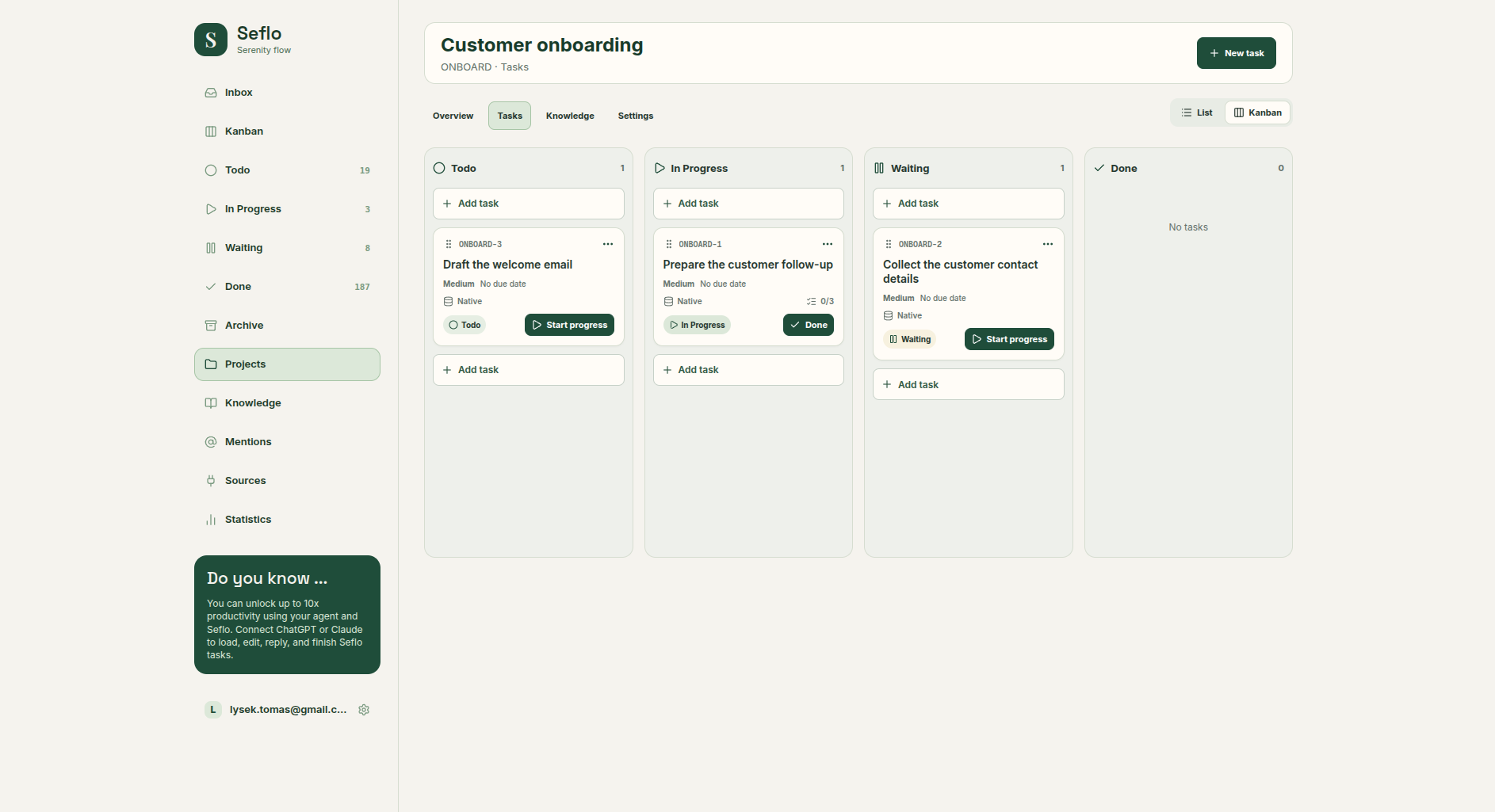
Task codes use the project prefix. No due date has been invented for these examples. Open full-size image.
Keep the project useful
Review open tasks regularly. Use Waiting for dependencies and Done for finished work. A project groups tasks; it does not replace the source-specific rules for replying or completing linked work.
Save reusable background, decisions or a handoff in Knowledge. For the current workload, try a daily brief.
Check the result
You should be able to open the project, find its tasks and understand what remains. If a task is missing, check its project assignment and any active filters before creating a duplicate.
Show archived tasks
On the project's Tasks tab, enable Show archived tasks to include tasks archived manually in Seflo and tasks archived automatically. The choice is kept in the page URL and survives a reload or switching between List and Kanban.
In List, archived tasks appear with an Archived label alongside active tasks. In Kanban, they appear in a separate Archived tasks section below the active board. Open an archived task to inspect its details; archived rows do not offer stage changes or manual reordering. Disable the option to return to the active task view.