
Work with files
Read source attachments, inspect AI output and choose which files to send.
Start with the original file
A source-linked task can include files from its original request. Open the task and its source context to find the file you need. Read the attachment status: a listed file may still be importing or may be unavailable.
- Open the task and identify the attachment by name and purpose.
- Download or preview it to confirm it is the expected input.
- Ask your AI client to read that file from the task, rather than work from a guessed copy.
Open Seflo task S-123 and read its attached spreadsheet.
Tell me which sheet and cells need work before changing anything.
Use the original file and preserve the other sheets and formatting.
Prepare and inspect the output
Explain the requested changes and how the assistant should check them. For a spreadsheet, ask it to verify formulas and preserve unrelated cells. For a document, check names, figures and references yourself.
Ask the assistant to save the finished file with the task or attach it to the prepared action. A file created only inside the AI client's workspace is not automatically an attachment in Seflo.
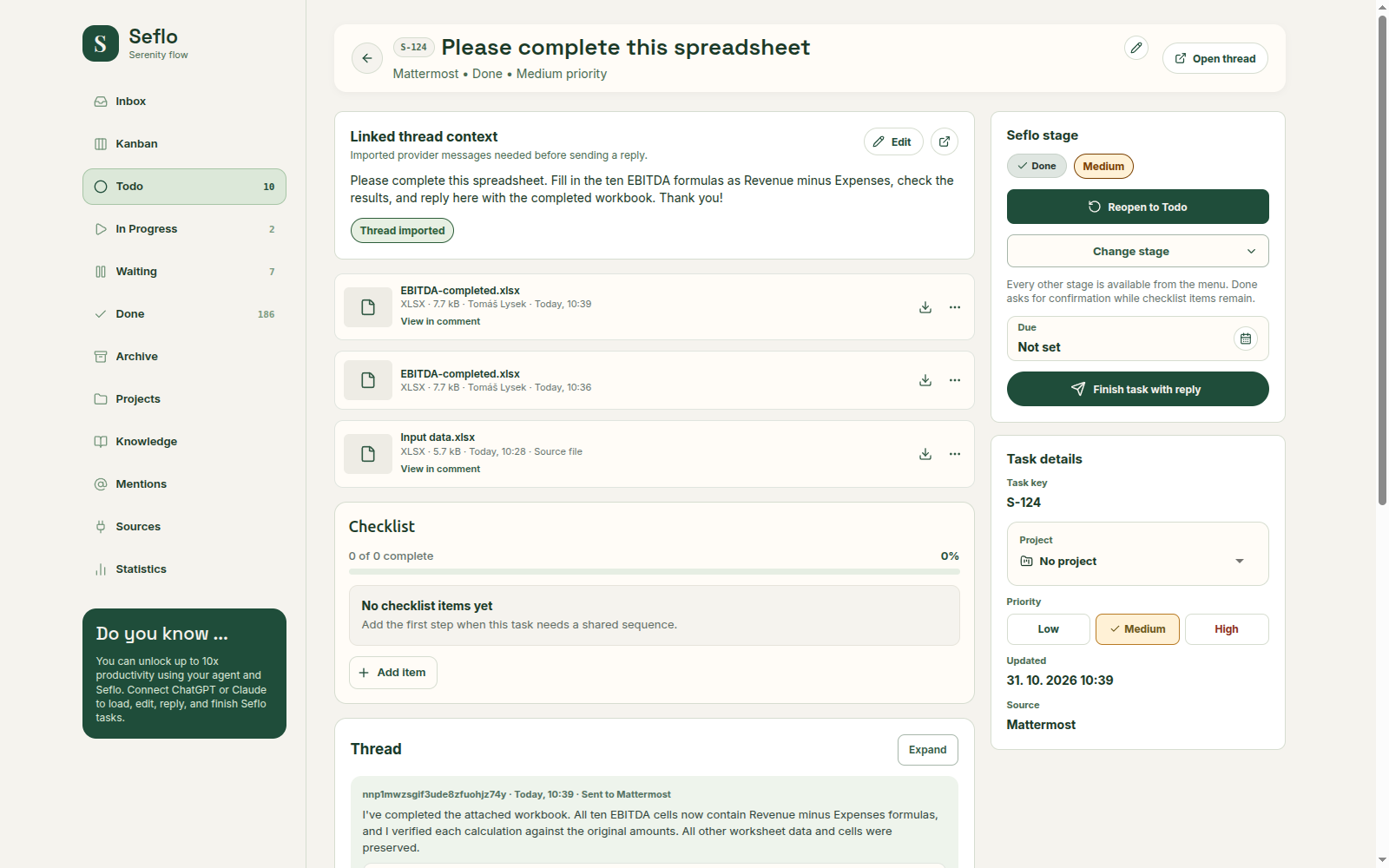
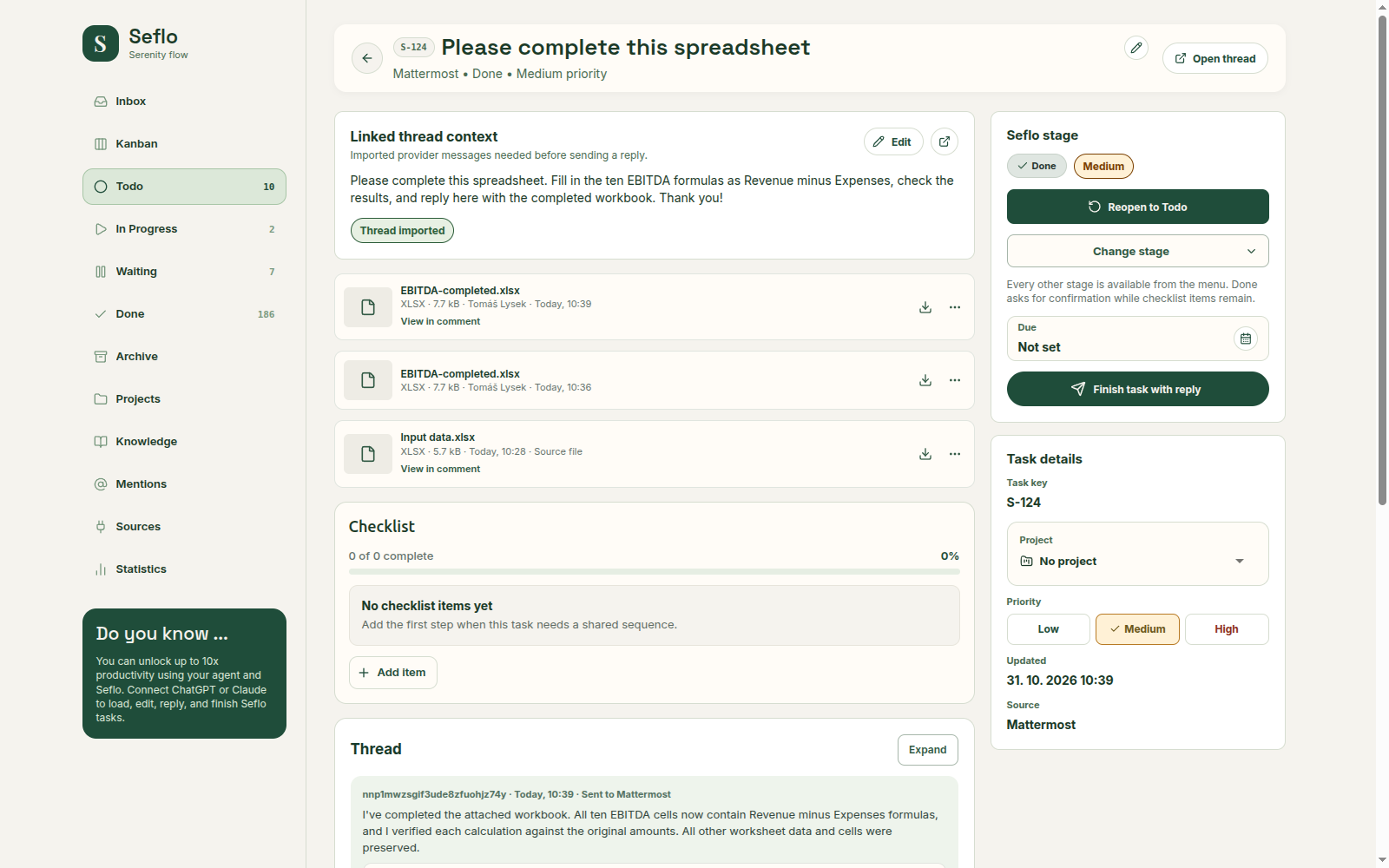
This completed example retains the original Input data.xlsx alongside the finished EBITDA-completed.xlsx. Select the finished output when preparing the reply. Open full-size image.
Send the intended file
- Open the action review.
- Check the actual list of selected attachments.
- Download the prepared output and inspect it before sending.
- Confirm the reply only when its destination, text and files are correct.
- Check the resulting conversation or record for the delivered file.
Mentioning a filename in the reply text does not attach the file. Supported file actions depend on the connected source and the action you selected.
If a file is unavailable
Check whether the source still grants you access and whether the attachment import finished. Reconnect the same source account if its connection expired. If an upload failed, check the displayed size or format error, then upload the corrected file. Avoid confirming a reply while a required attachment is still missing.
See the email and Mattermost examples for complete file workflows.