
Connect Asana
Select projects, map sections and understand native Asana completion.
Before you start
Have the Asana account assigned to your work and identify the projects you want to include. Check which sections your team uses for active and waiting work.
Connect and configure Asana
- Open Sources → Add source → Asana and connect your Asana account.
- Check the connected identity and choose the relevant workspace and projects in the scope form.
- Review the selected project order, then choose Continue to mapping.
- Select Project being configured.
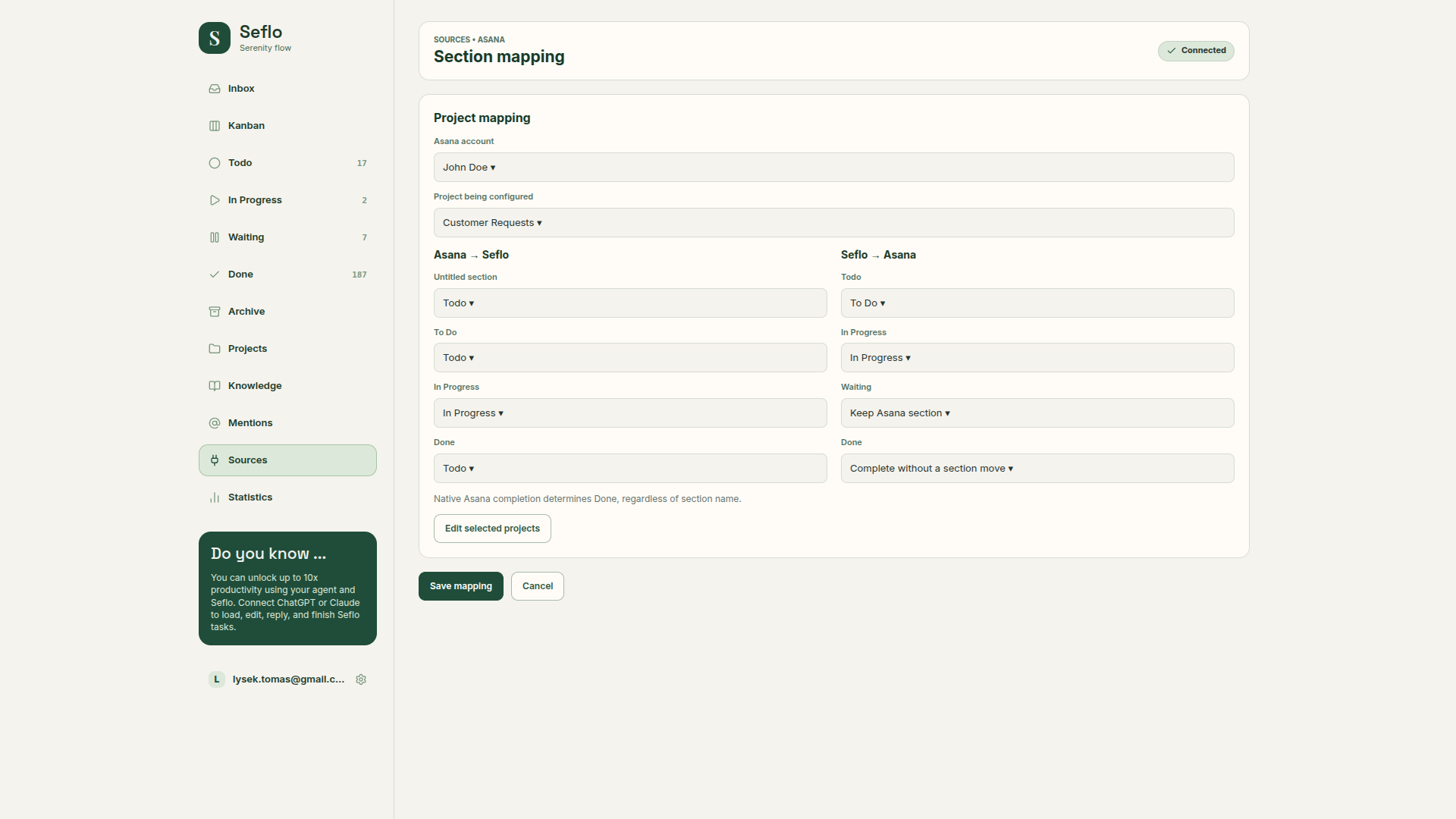
- Under Asana → Seflo, map each section to Todo, In Progress or Waiting.
- Under Seflo → Asana, choose a destination section for stage changes, or keep the current section where offered.
- For Done, choose a destination or Complete without a section move. Review each selected project and save the configuration.
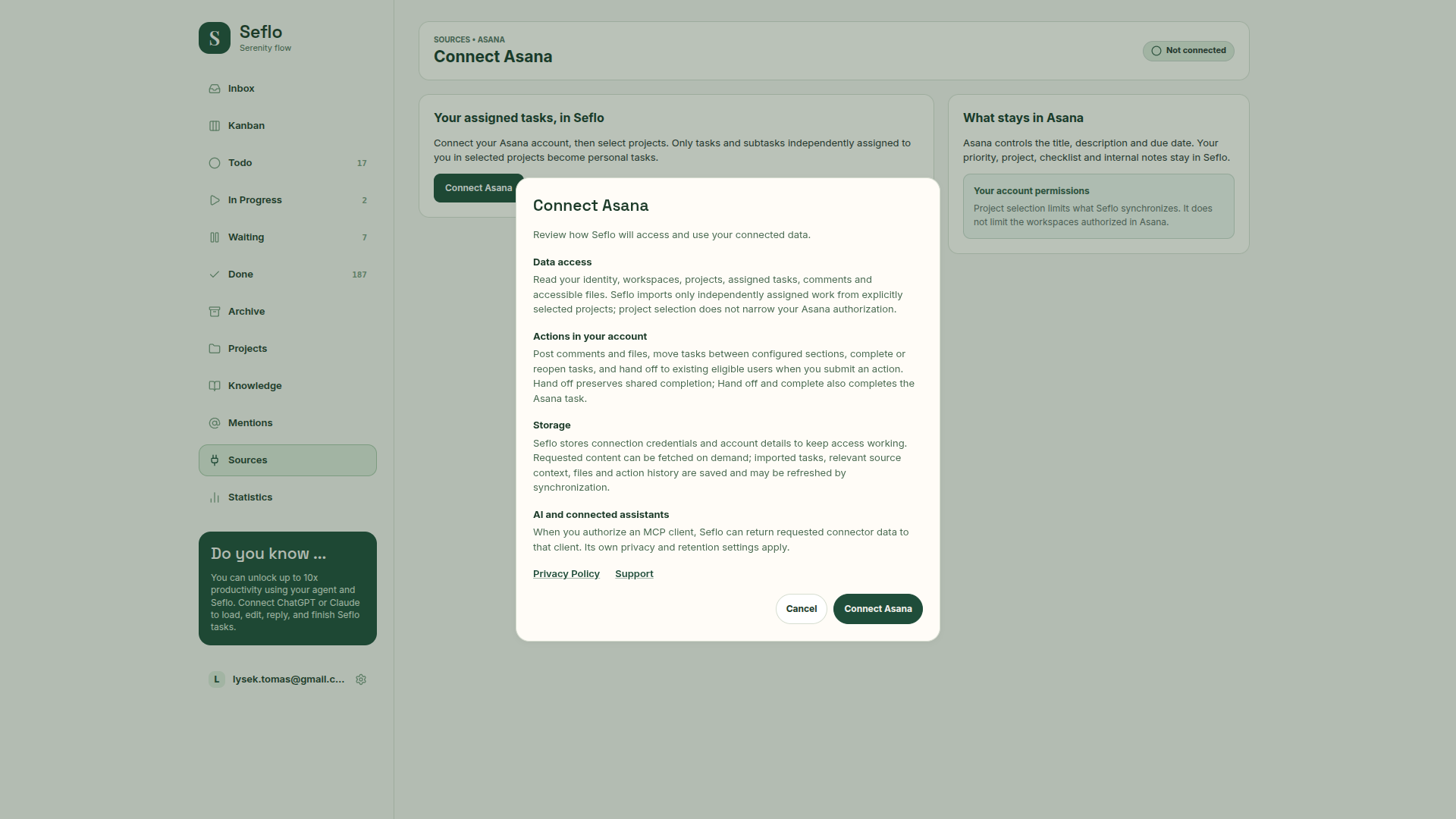
Review access before continuing. On the Asana permission page, verify the signed-in account; cancel if it is not the account you intend to connect. Open full-size image.
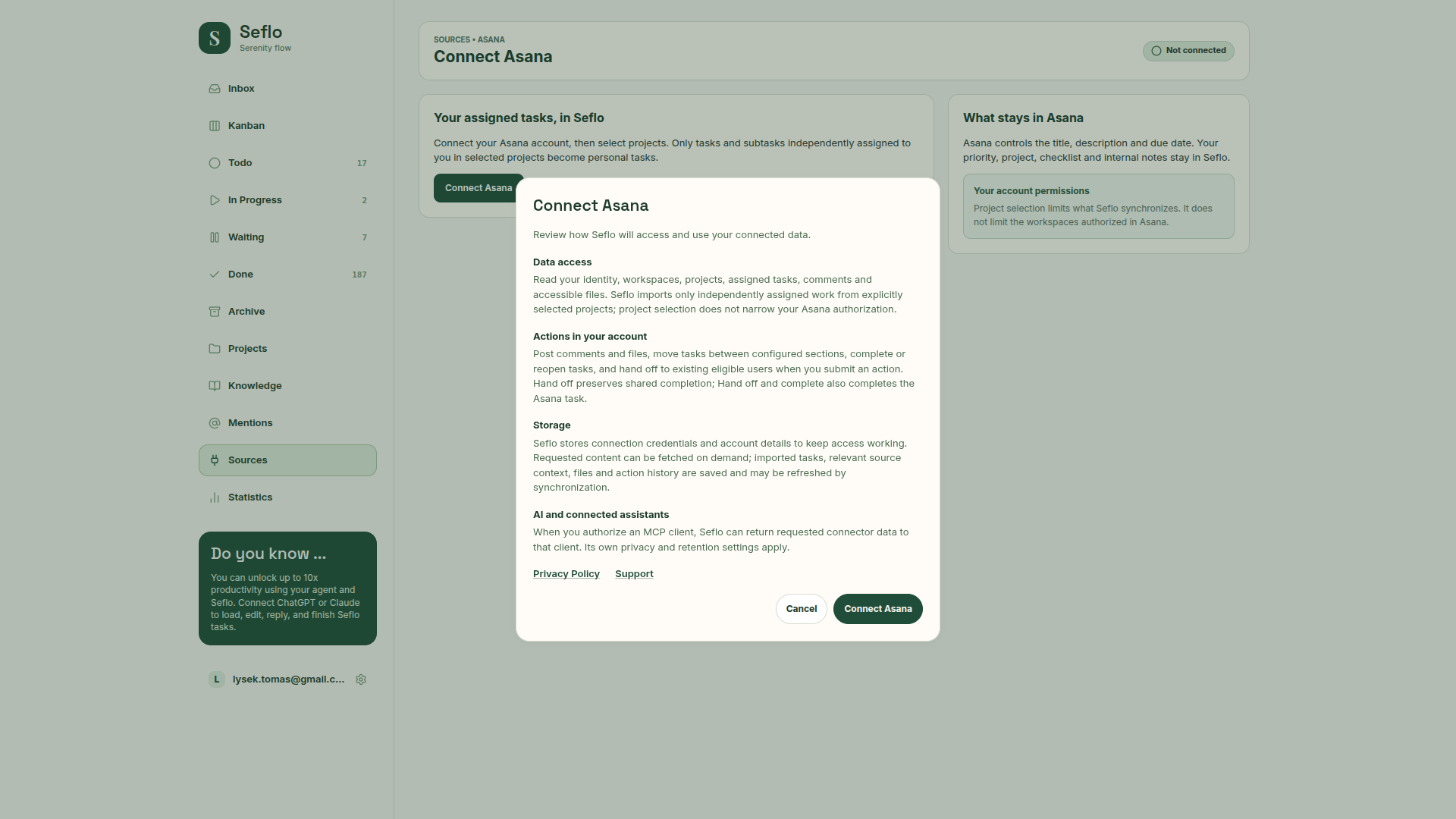
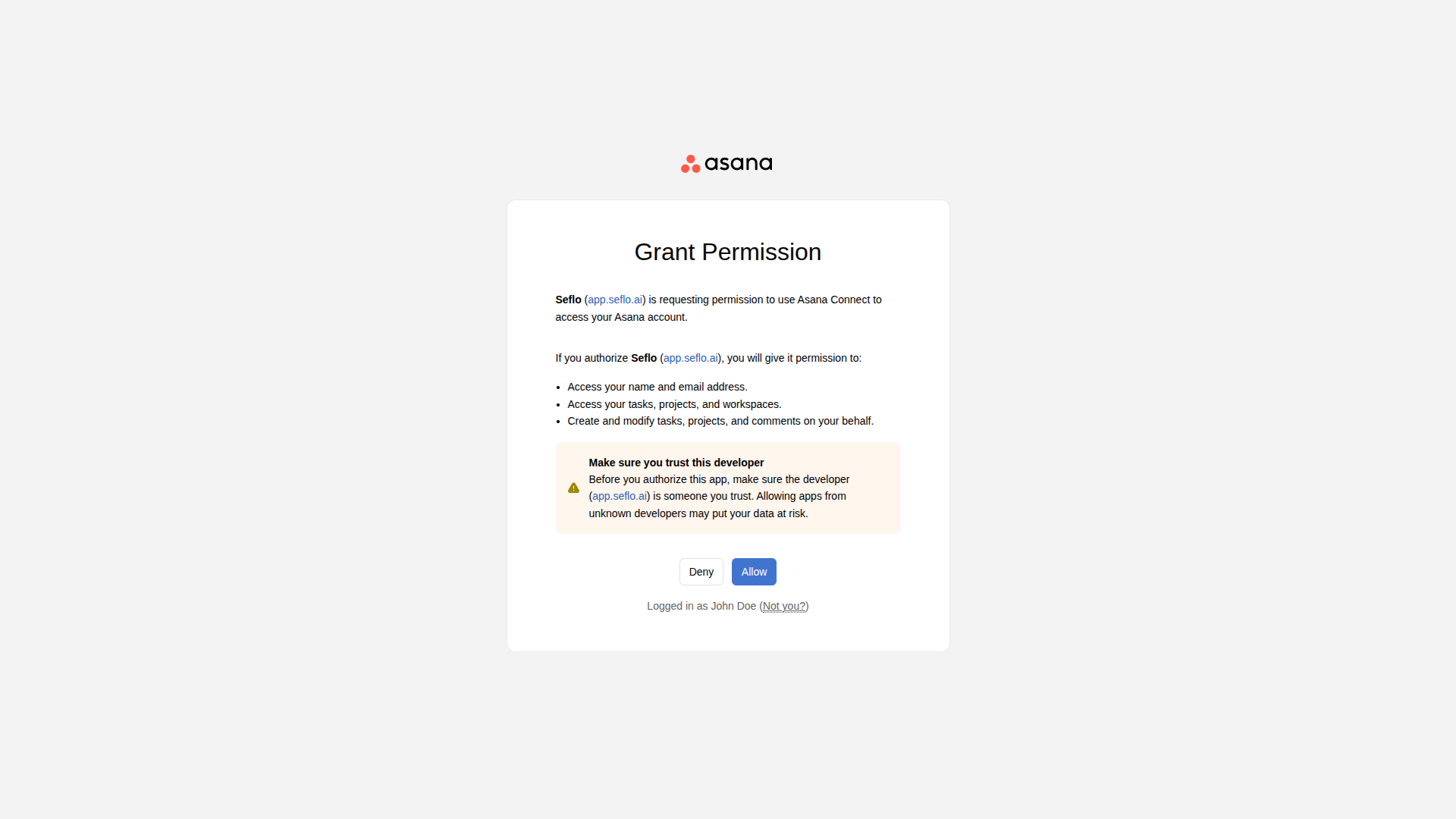
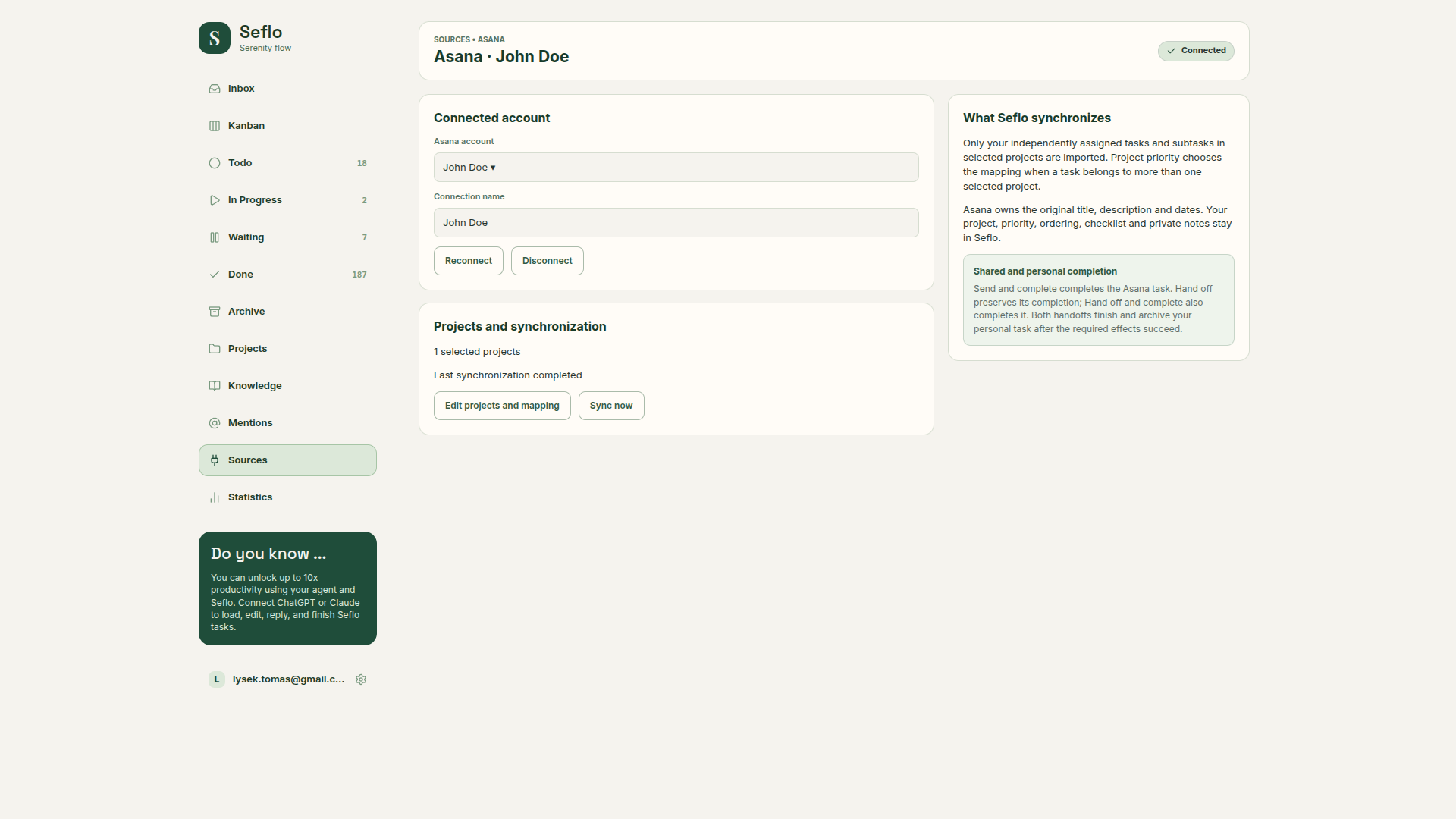
This example creates a separate connection for John Doe. Open full-size image.
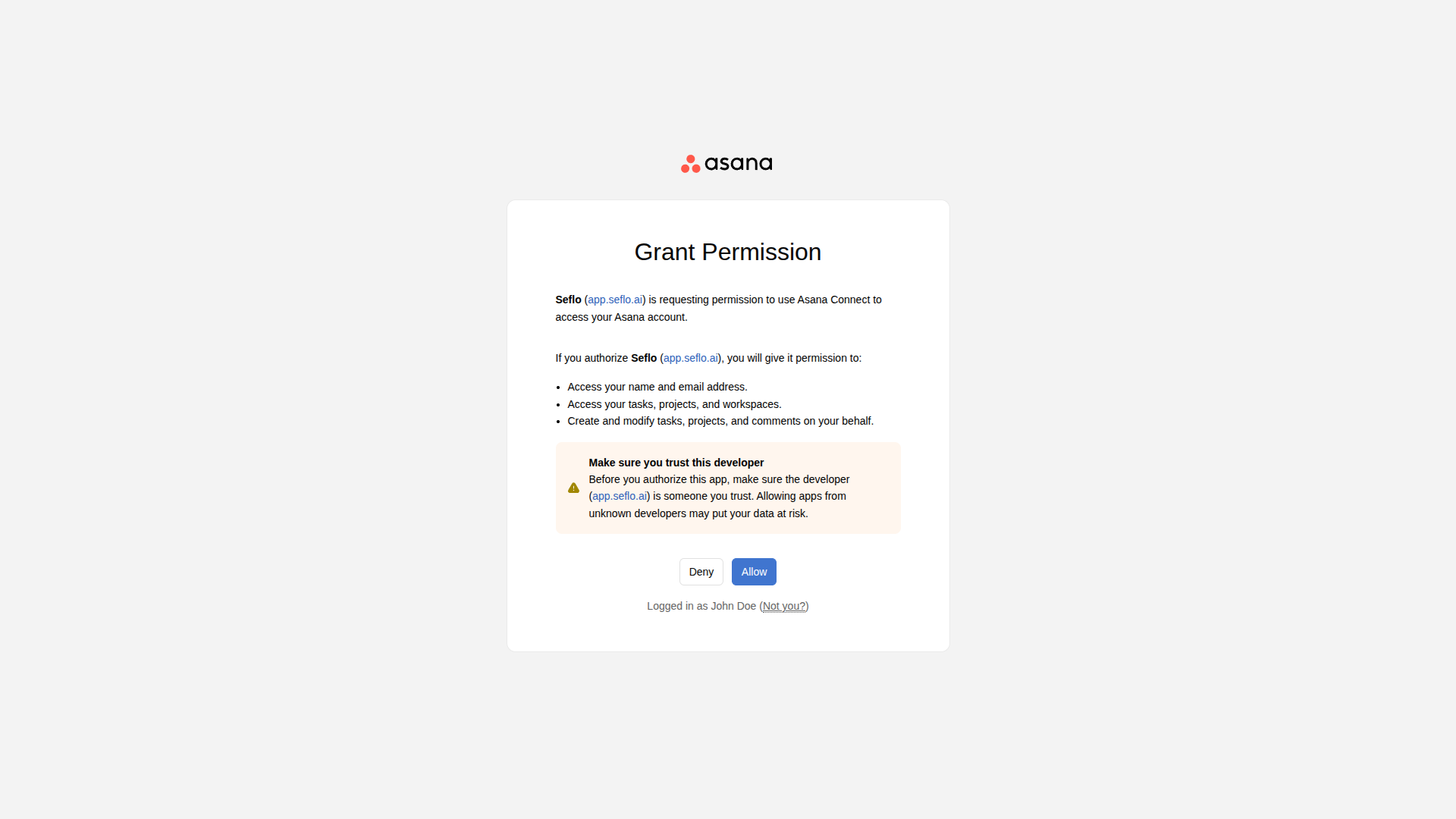
Understand your selection
Native Asana completion determines Done, regardless of a section's name. A section called “Done” does not itself replace Asana's completion flag.
For other stages, Keep Asana section avoids an unnecessary section move. Saving an empty project selection stops project imports.
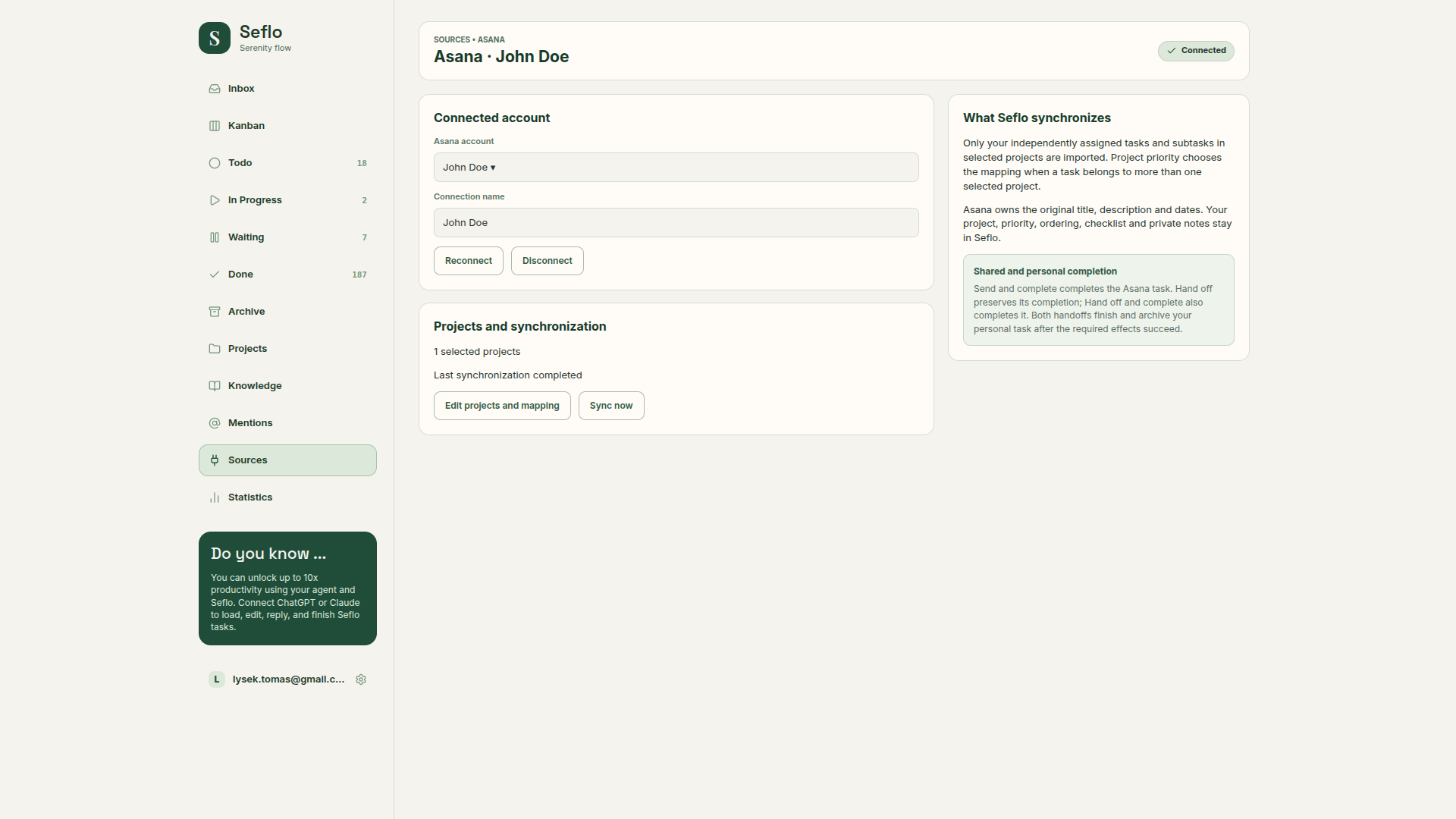
Check the account before opening its projects and mapping. Open full-size image.
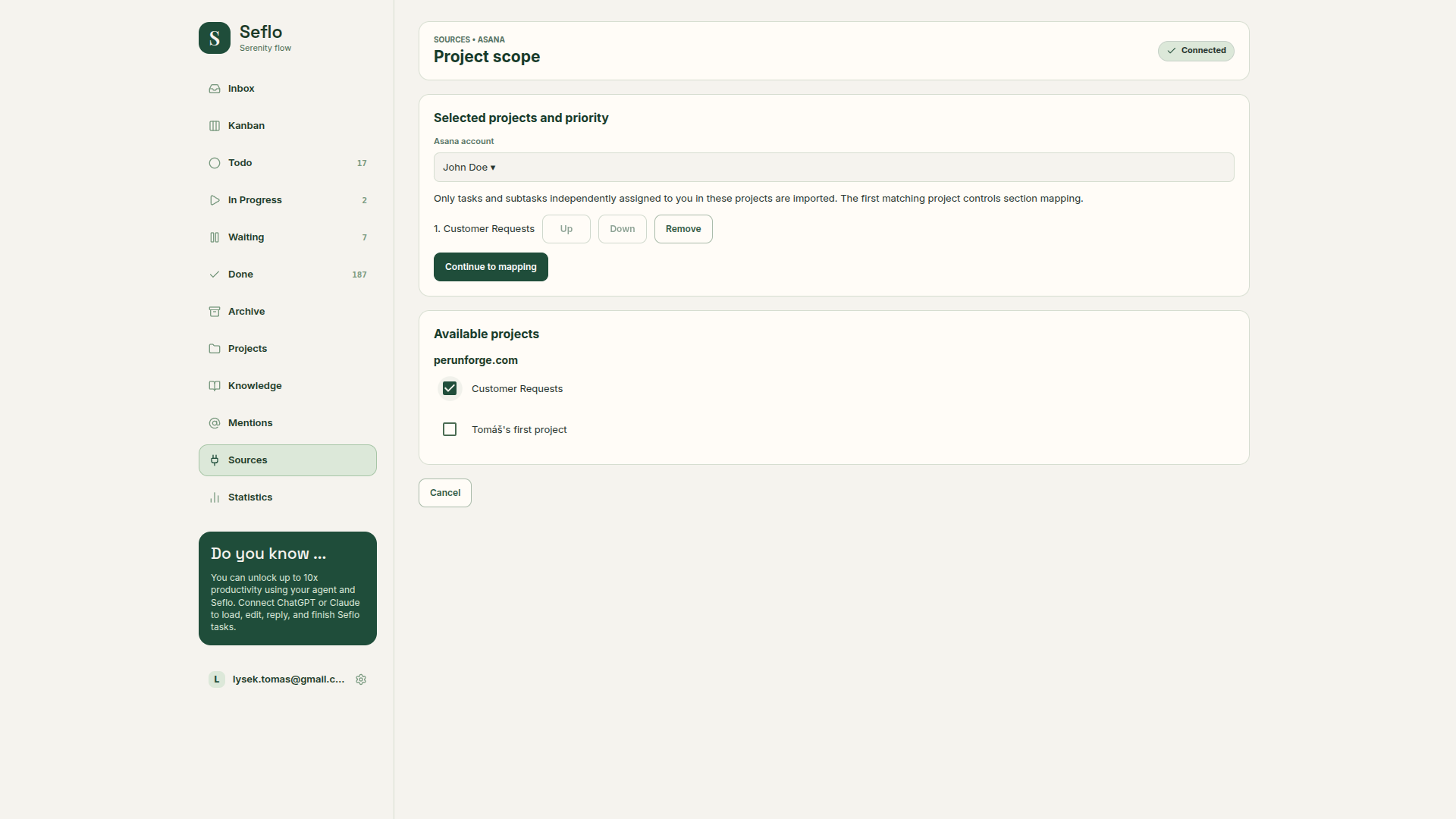
The first matching selected project controls section mapping for a task belonging to several projects. Open full-size image.
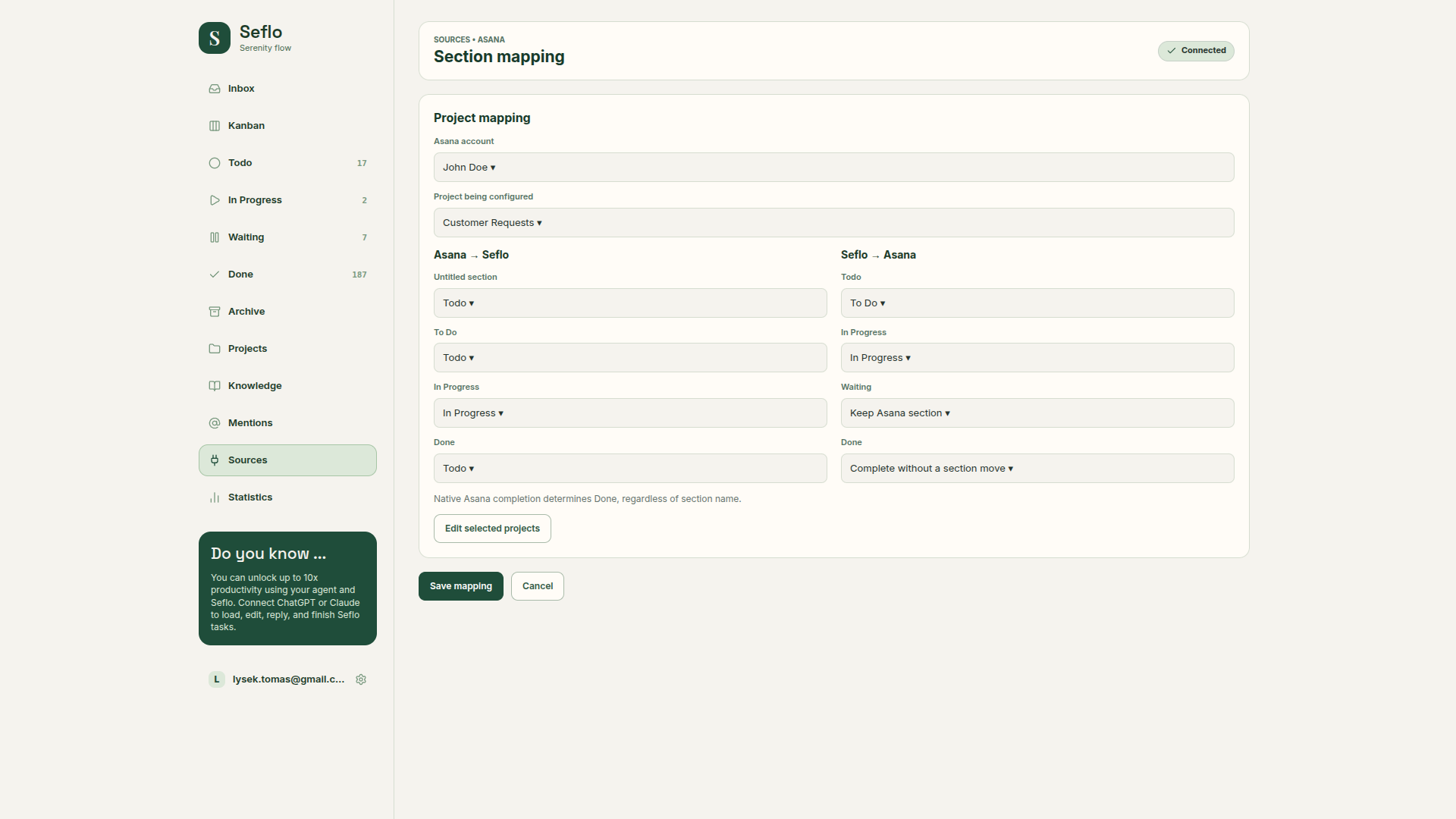
Review both directions. The section named Done can still contain incomplete tasks; native Asana completion determines the Done stage. Open full-size image.
Verify your first task
- Find a task assigned to you in one of the selected projects.
- Open it in Seflo and check its source project, section and completion state.
- Ask your AI client to prepare the requested work and discover the available action.
- Review the comment, files and completion or section-move effects before confirming.
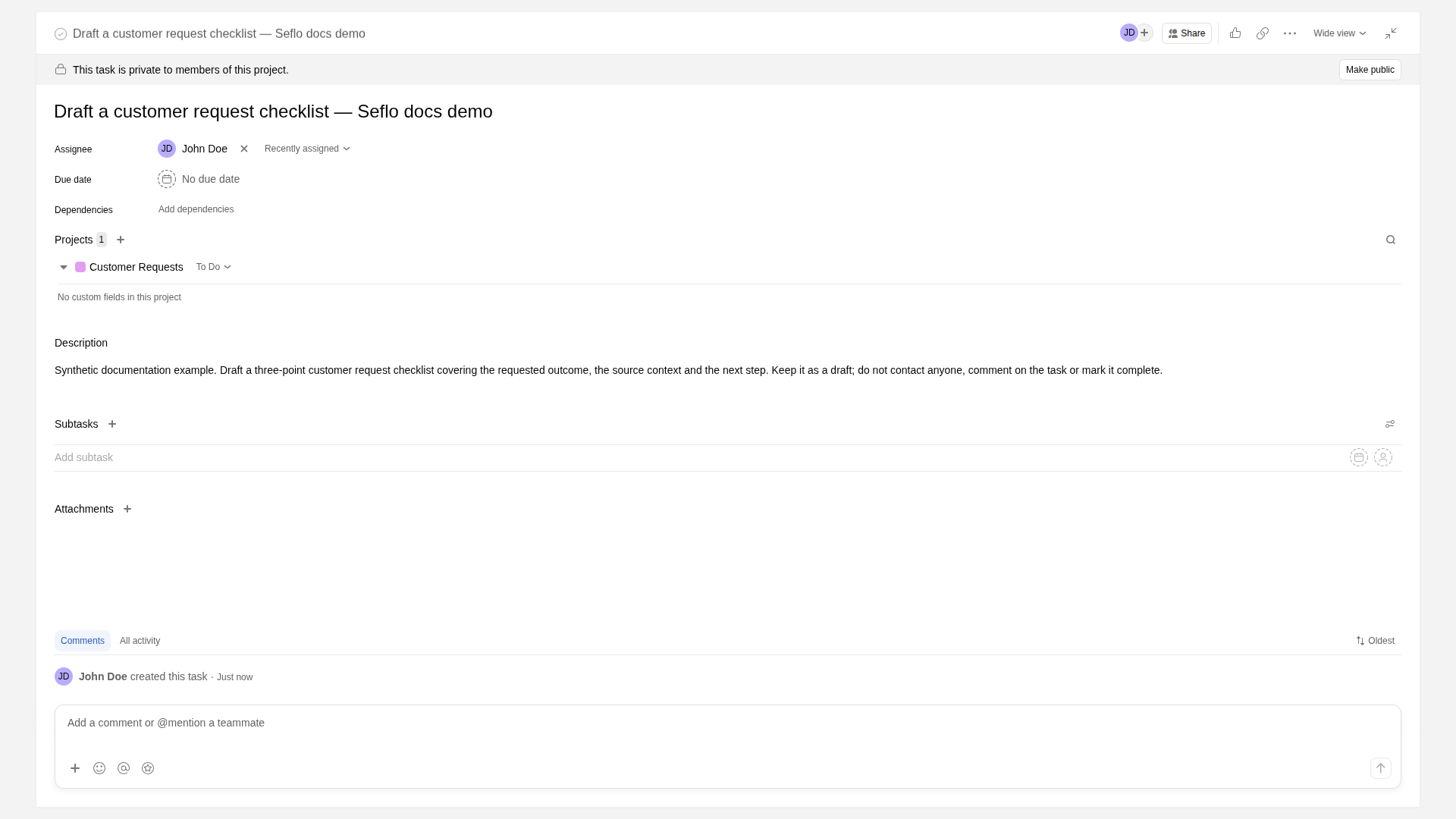
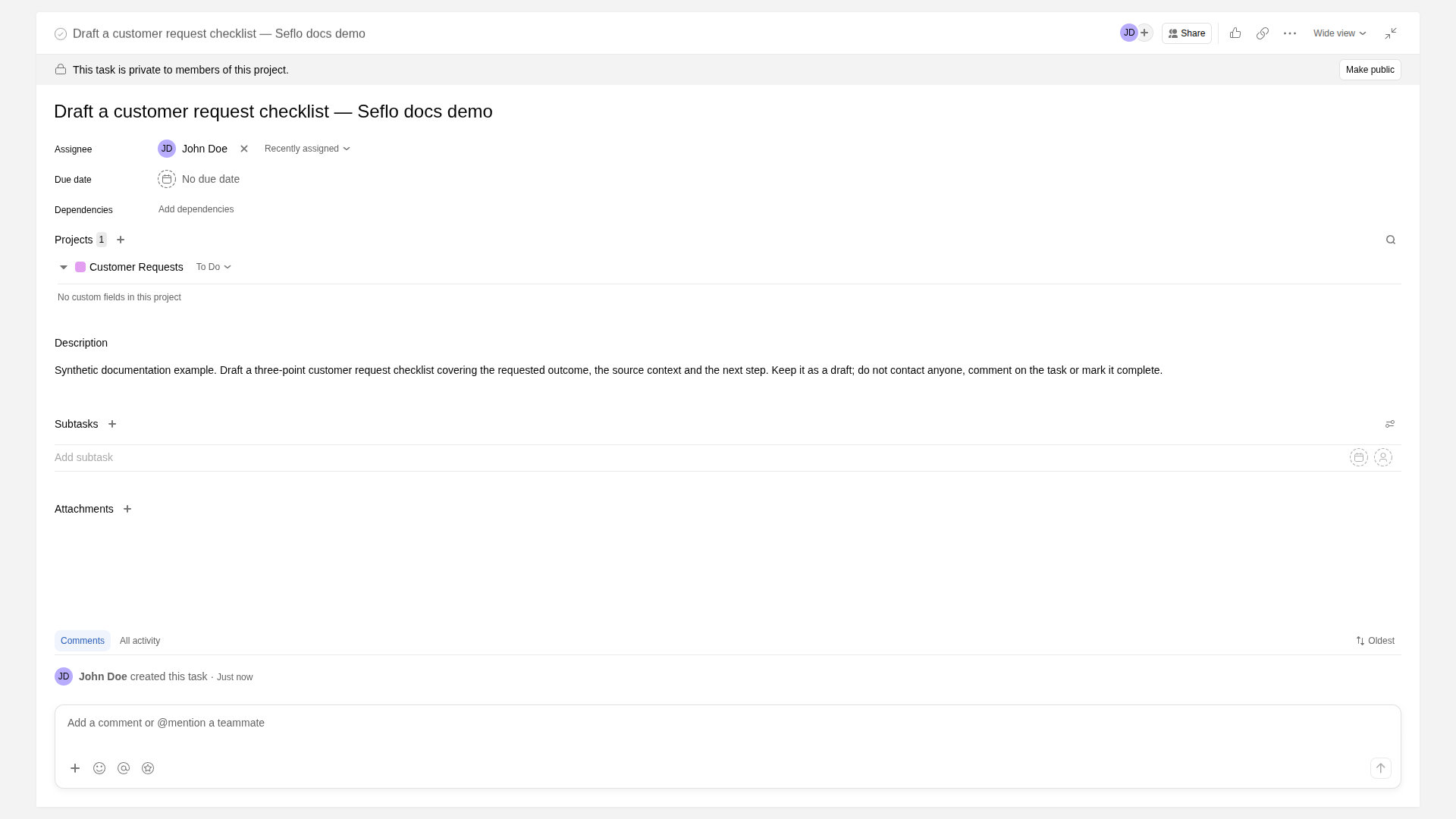
Start with a small assigned request in your selected project. Open full-size image.
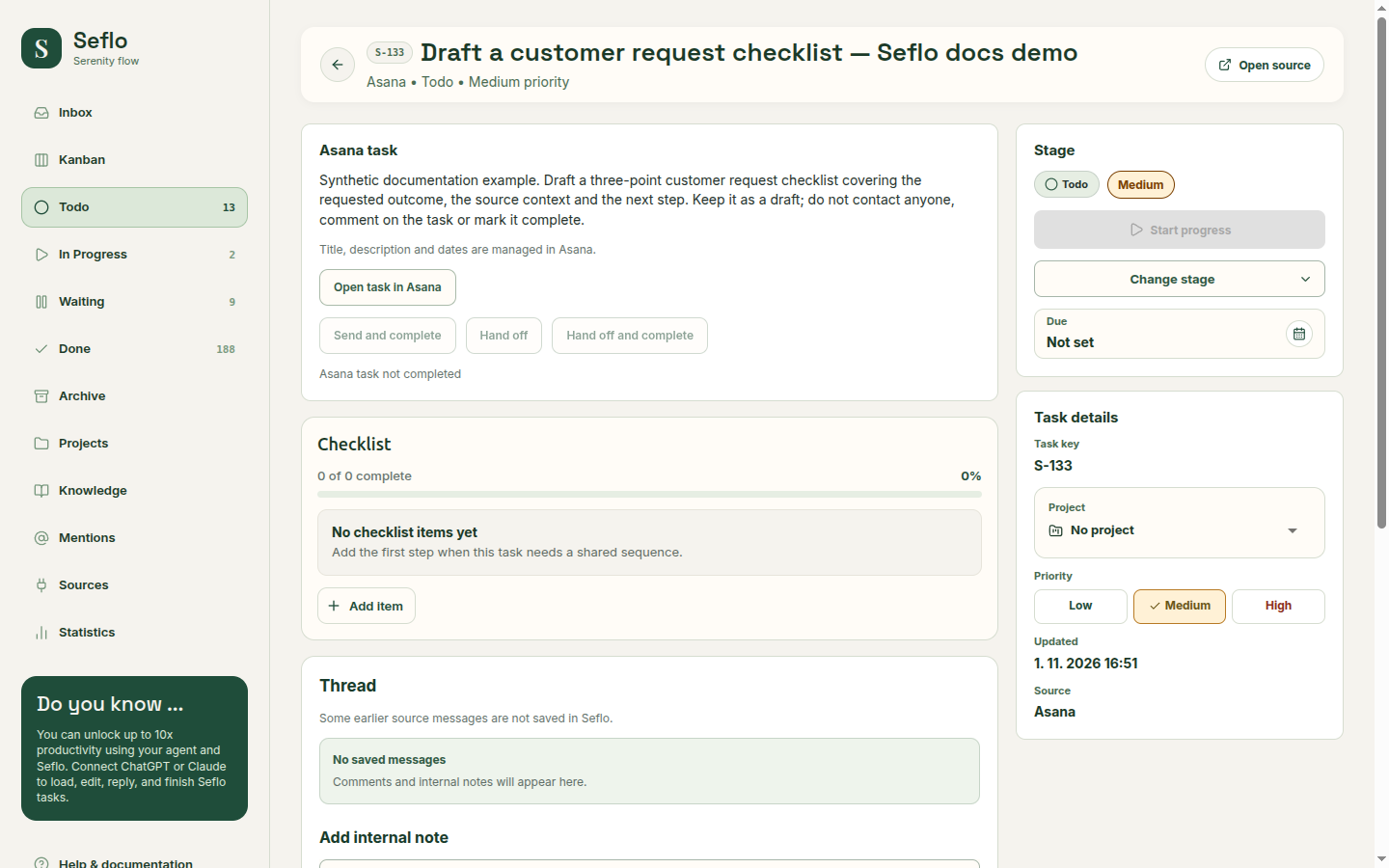
Compare the title, description, source link and native completion state. This task remains Todo; outbound buttons are disabled in the captured state, so this example verifies import only. Open full-size image.
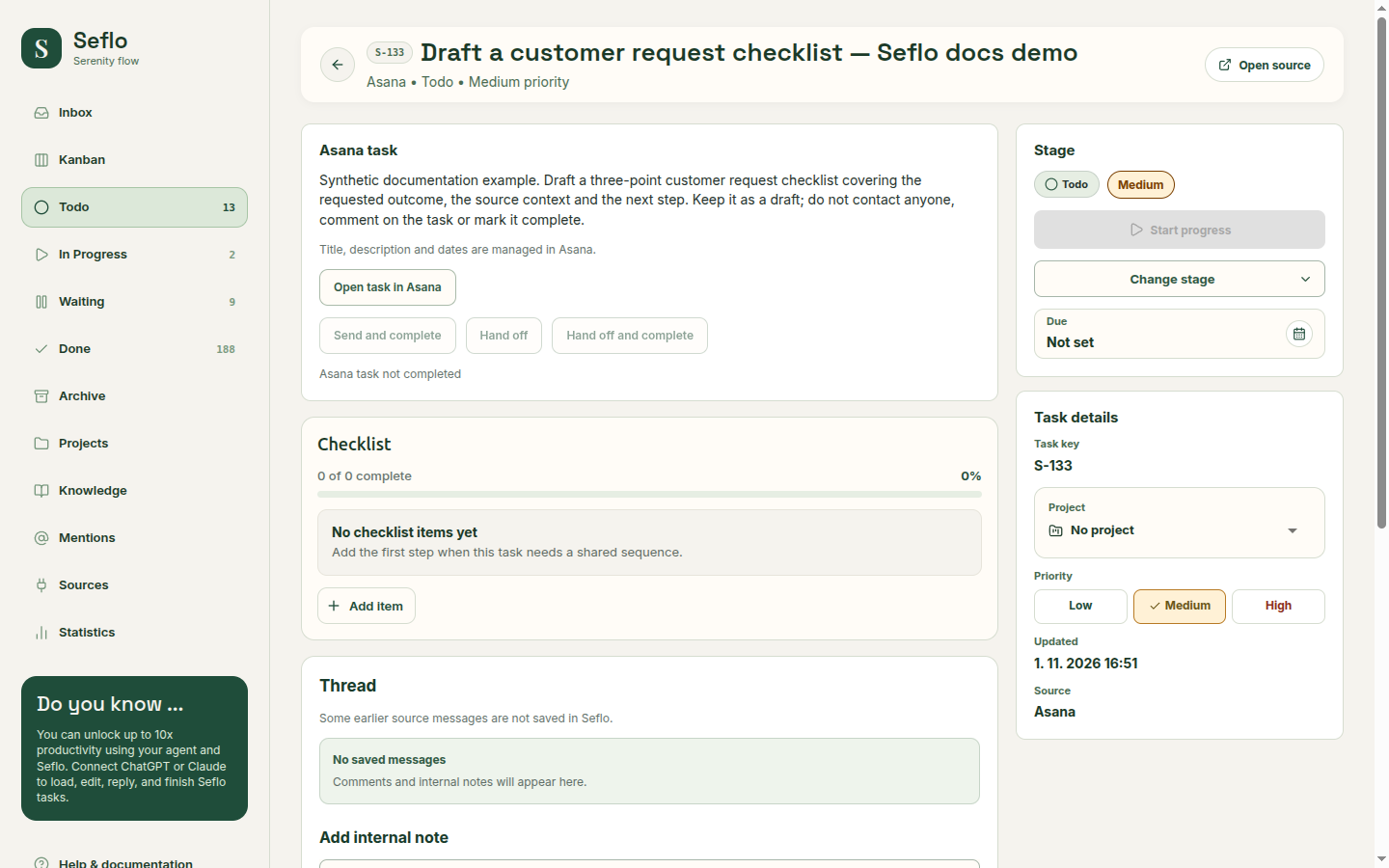
What completion changes
Completing Asana work changes the native task completion state. A configured section move is an additional effect. Keep personal Seflo organization separate from changes visible to other people in the Asana project.
If something does not work
If work is missing, check the account, assignment and selected projects. If sections cannot be discovered, use Retry discovery and keep your draft until access is restored. Review mappings after sections are removed or renamed.
If a synchronization attempt is temporarily busy, wait before retrying and reload the source overview. In the captured setup, a busy response appeared as Access could not be verified; it cleared after waiting and reloading, and the assigned task imported successfully. If the message persists, review access and contact support rather than repeatedly reconnecting.
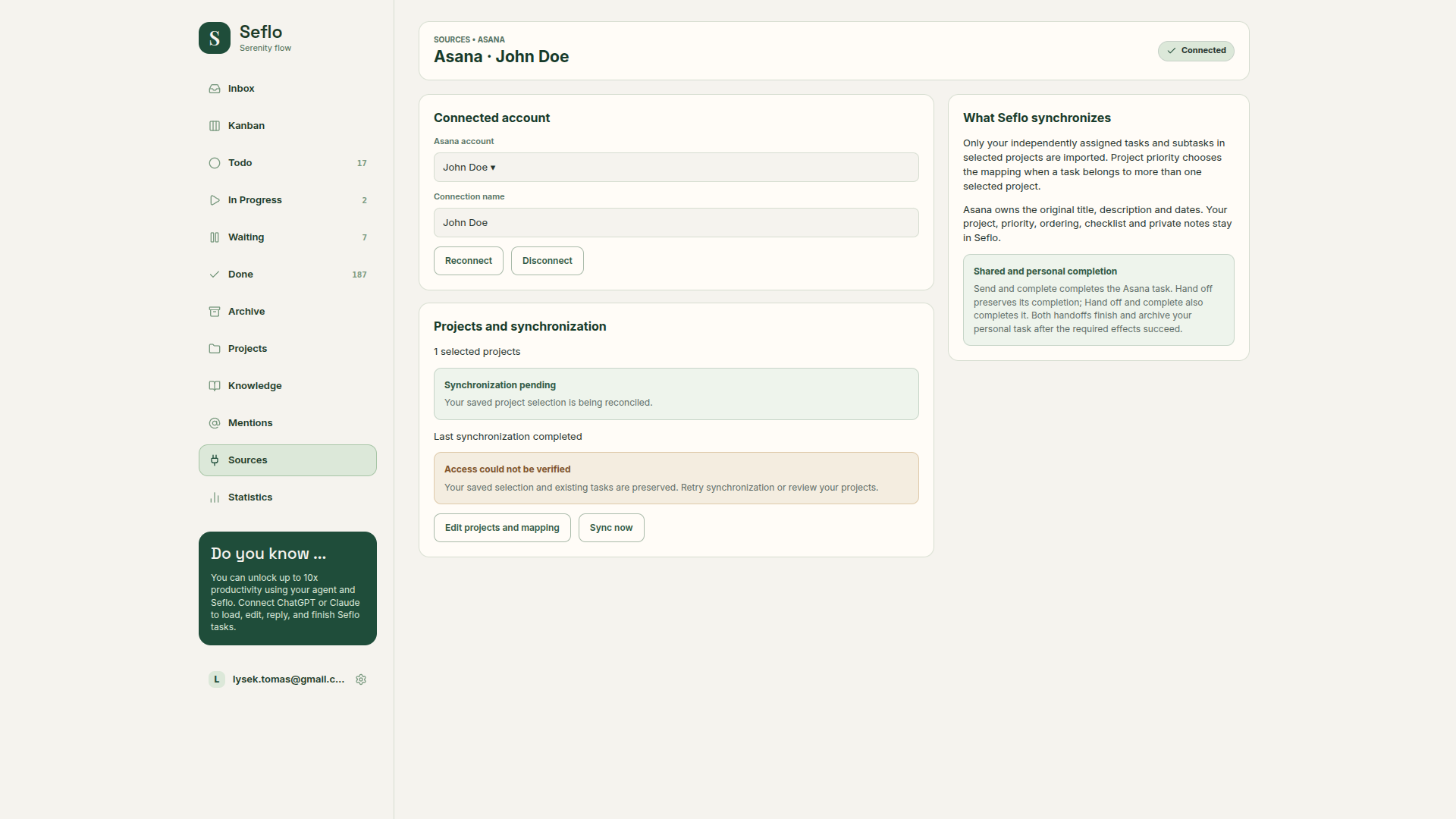
An intermediate state, captured before recovery. The source overview above shows the later completed synchronization. Open full-size image.
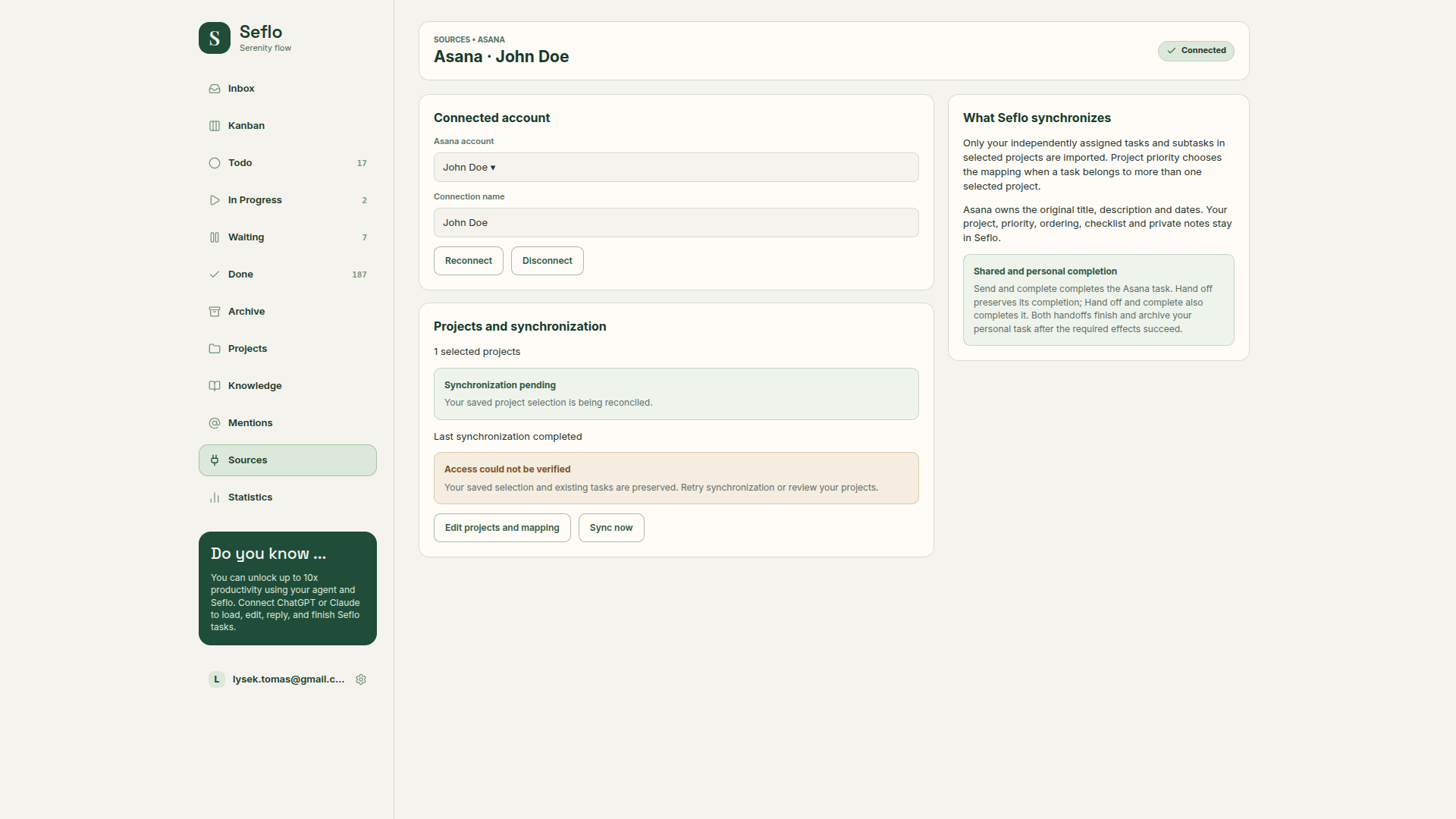
Continue with Connect your AI and Review and confirm actions.
Watch: Seflo for Asana — From an assigned task to completed work
Follow an assigned Asana task through AI preparation, file review and native task completion. The edited example condenses the workflow; use the written steps above for setup and checks.
Watch: connect Asana and verify your first task
Authorize the intended account, select projects and review section mapping, then compare an assigned task with its imported task. The John Doe example shows saved section mapping and a new synthetic request. It verifies import and leaves the original task incomplete.