
Connect Trello
Select boards and map their lists so assigned cards become actionable tasks.
Before you start
Use the Trello account assigned to the cards you want to handle. Identify the boards and lists you use for work in progress and completed work.
Connect and configure Trello
- Open Sources → Add source → Trello and choose Connect Trello.
- Sign in with the intended Trello account and complete the account connection.
- Open Boards and list mapping.
- Under Selected boards, select the boards to synchronize.
- Review the lists on each selected board and map them to Seflo stages.
- Choose the source destination lists for stage changes, especially the shared list that should receive completed cards.
- Choose Save mapping after checking the complete board configuration.
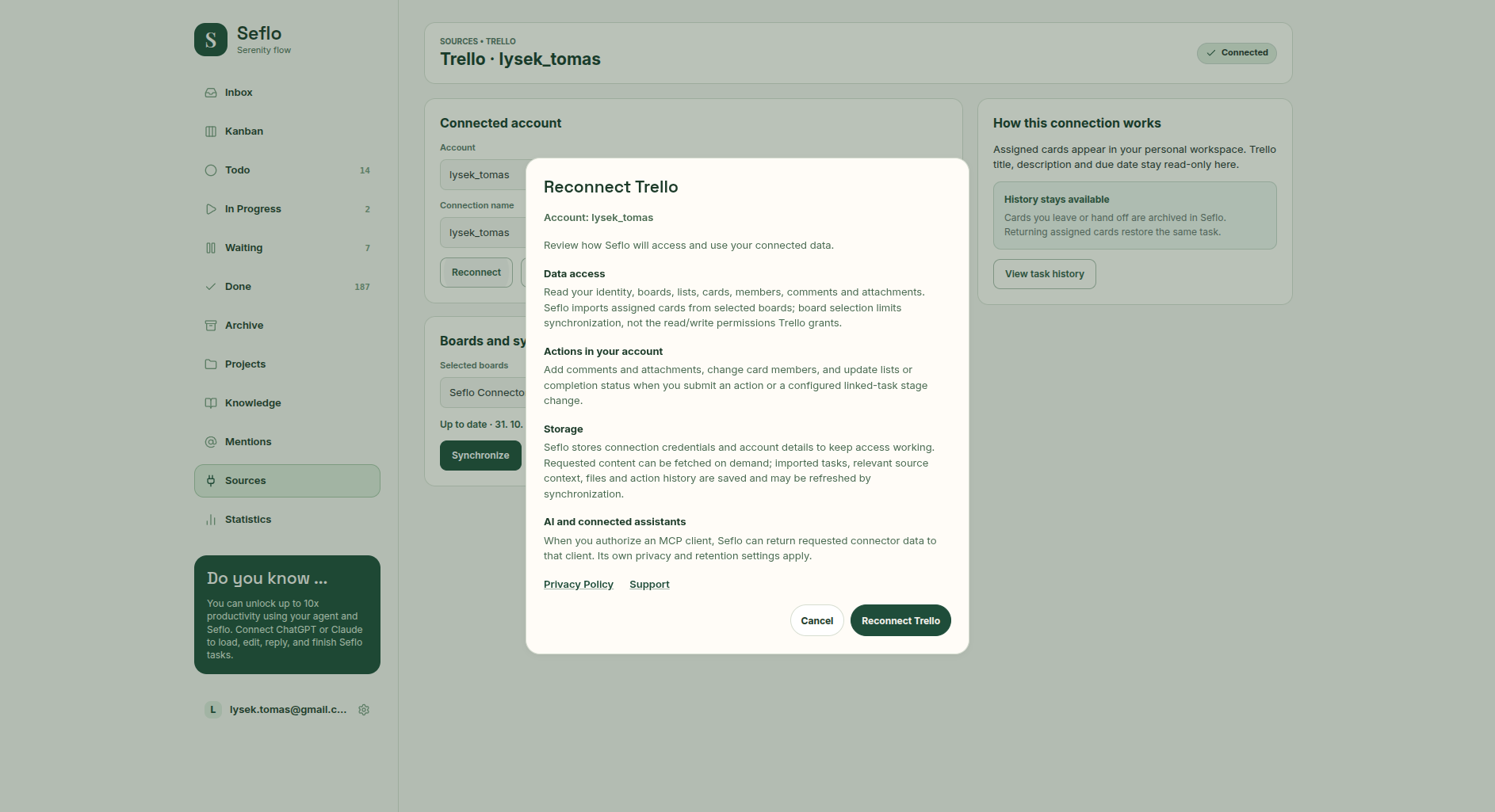
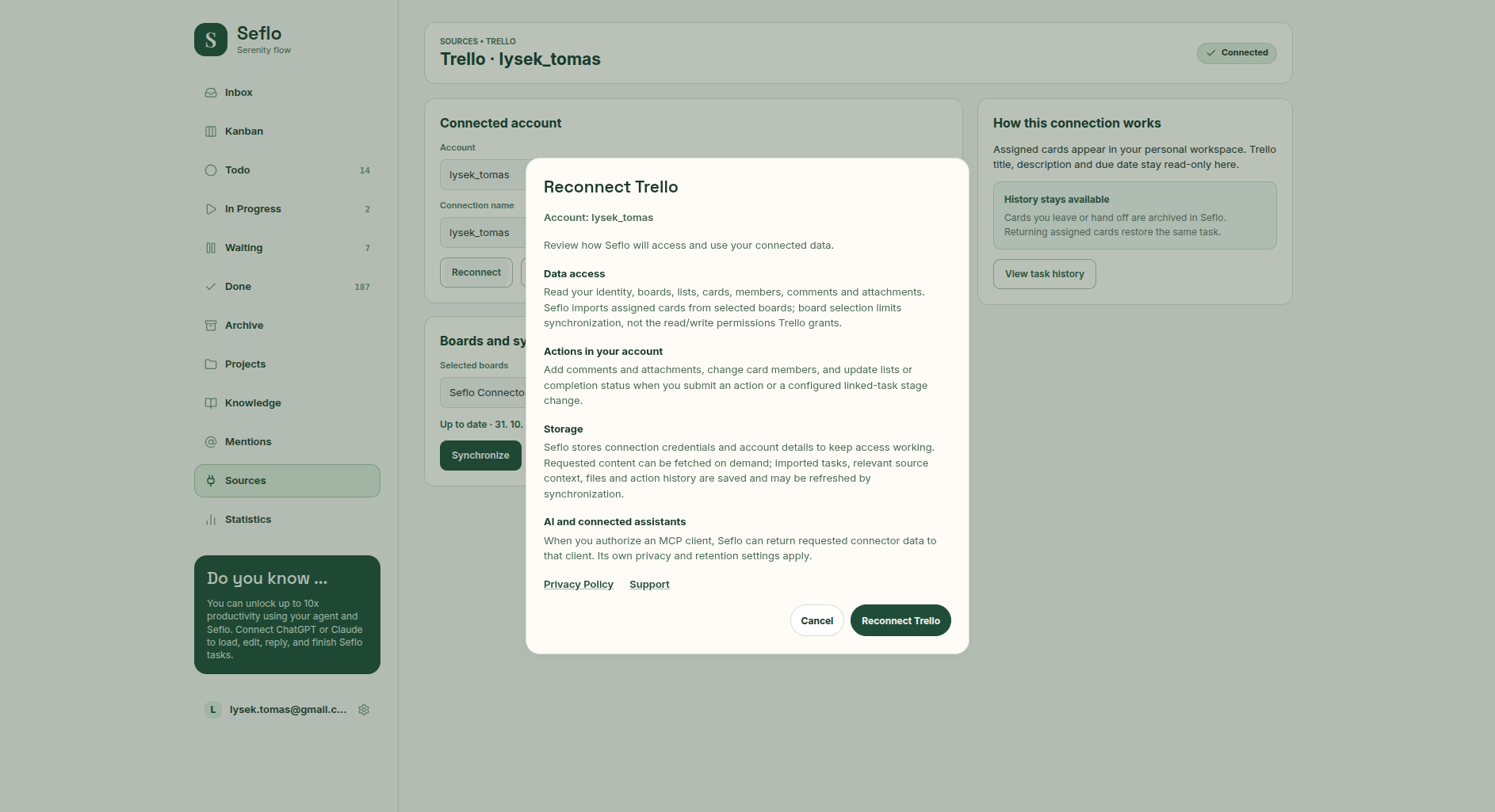
Review access before connecting. An existing connection offers Reconnect. Open full-size image.
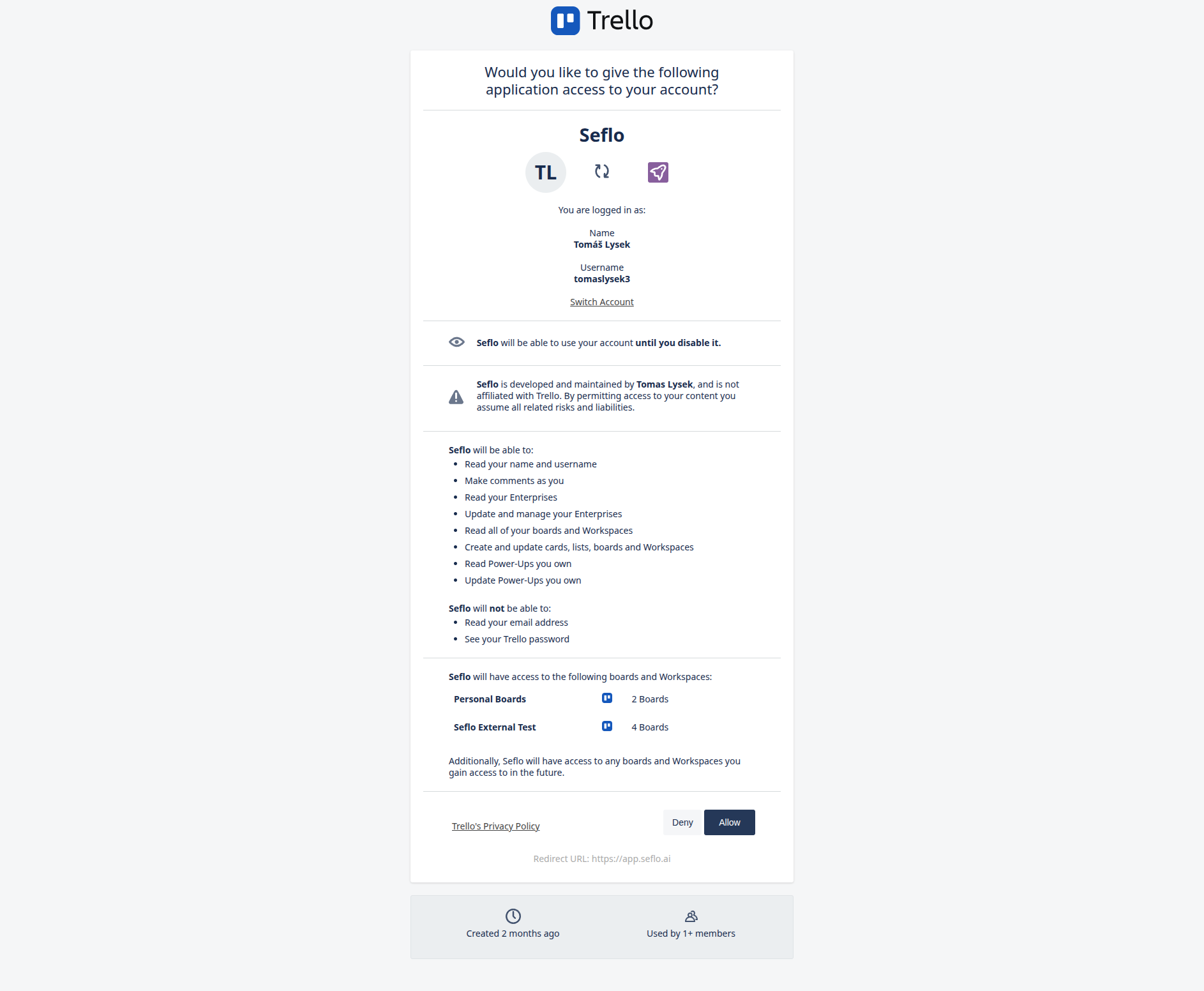
Check the username as well as the display name: two accounts can share a name. Board selection in Seflo limits synchronization, not the permissions Trello grants. Open full-size image.
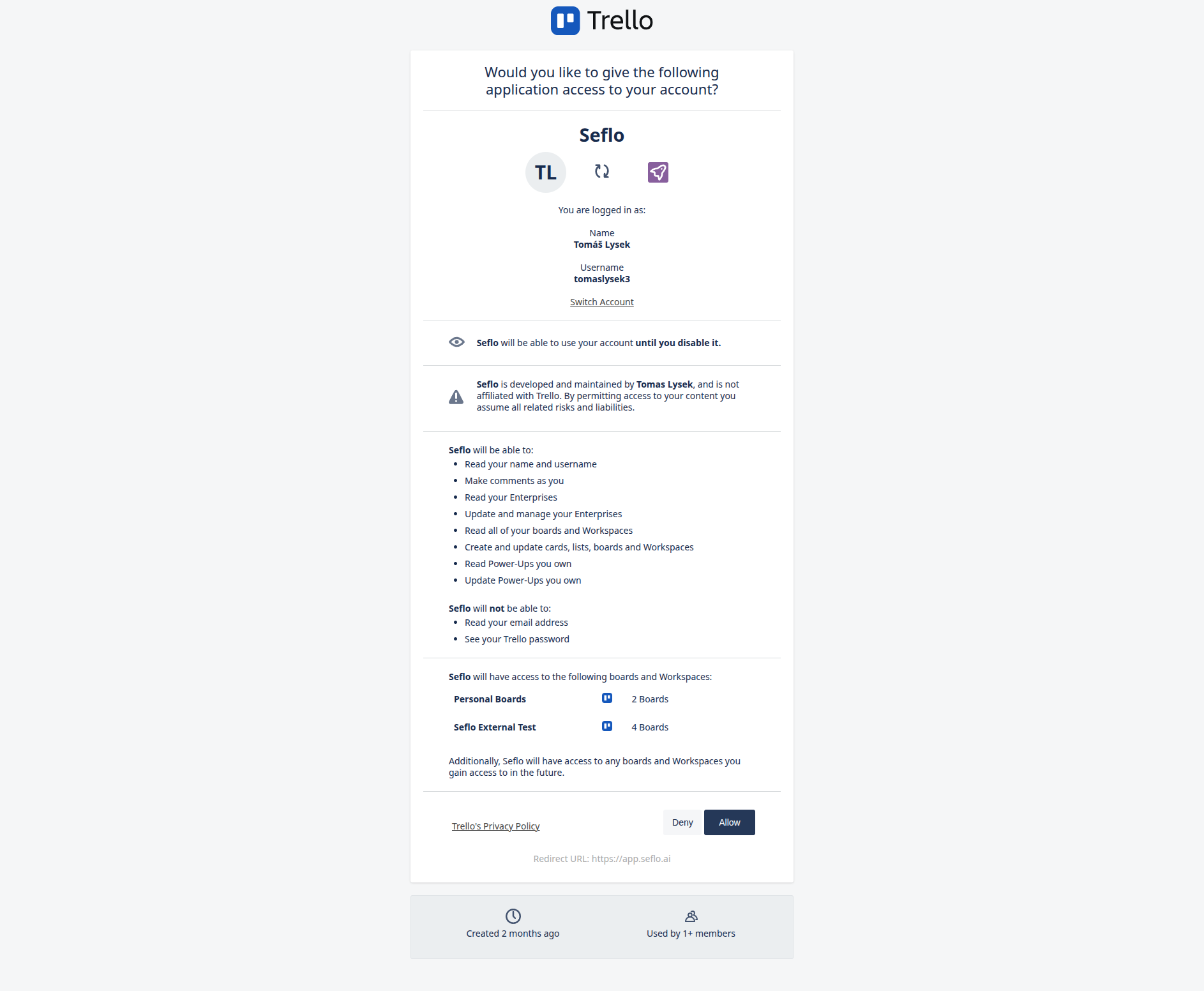
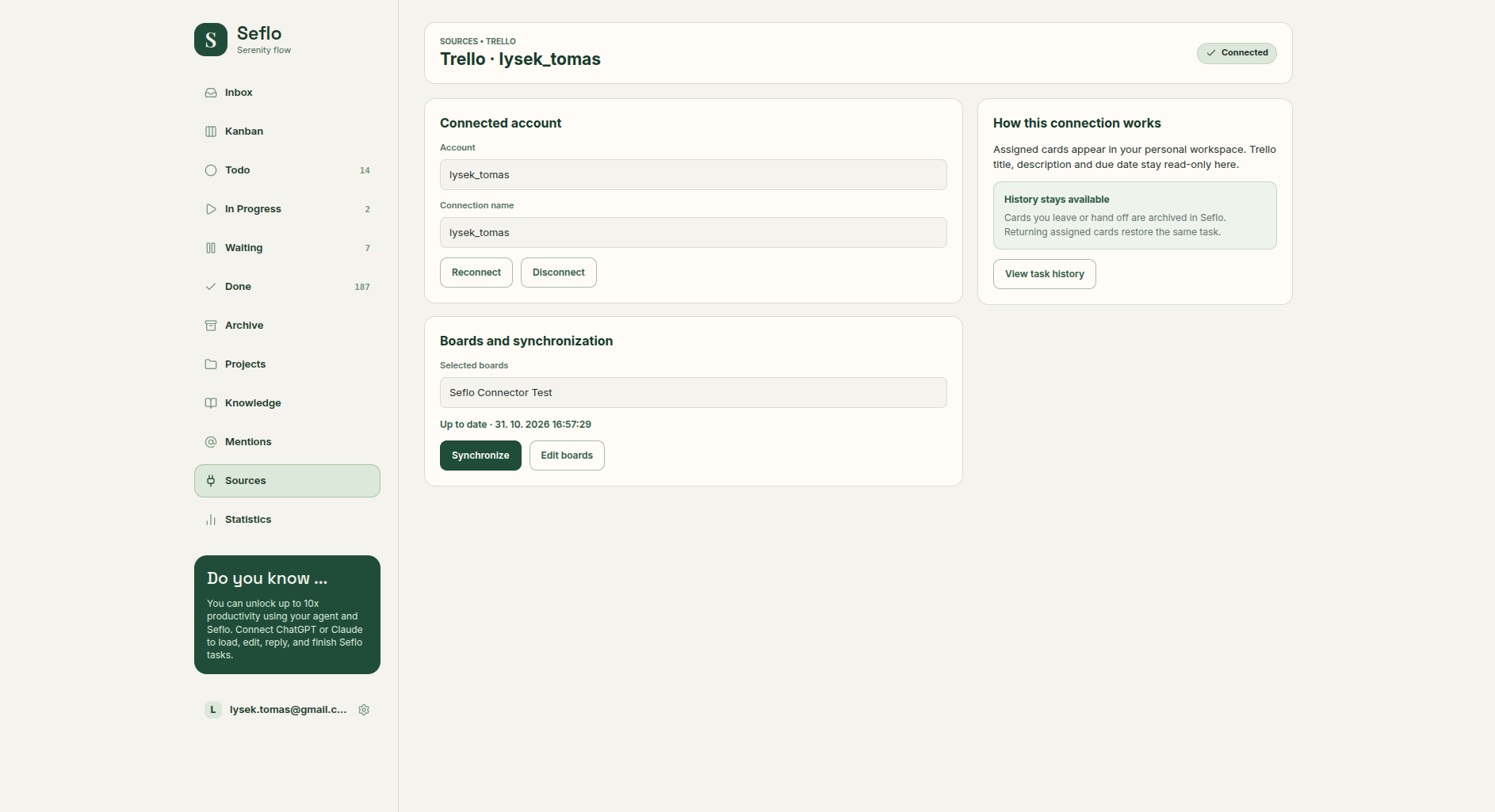
Verify the returned connection and selected boards. Open full-size image.
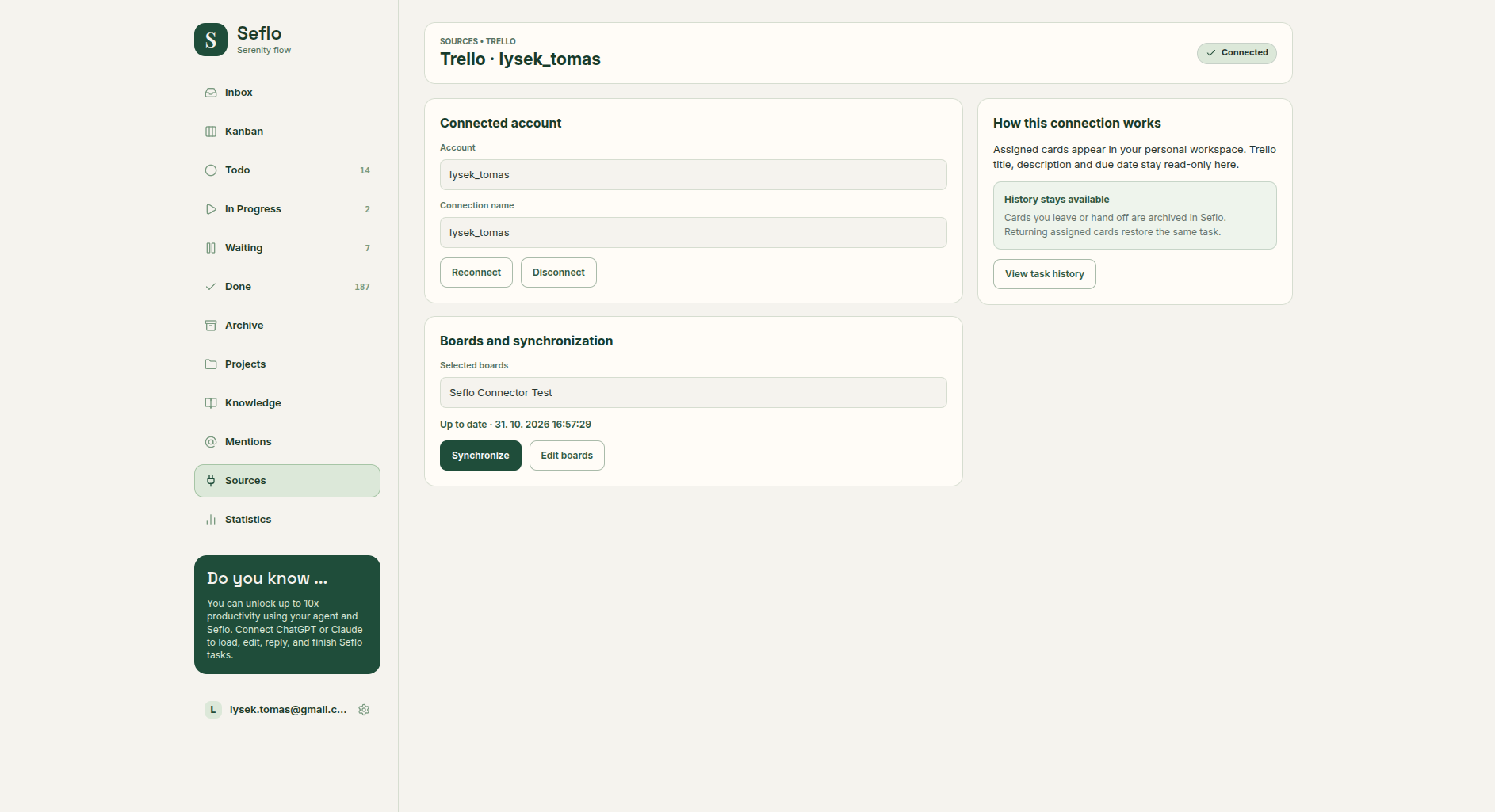
Understand your selection
Only cards assigned to you on selected boards become your imported work. Review suggestions in the mapping instead of assuming that a list's name always matches your team's workflow.
Moving a shared card to a completed list affects everybody on that board. Choose that destination intentionally.
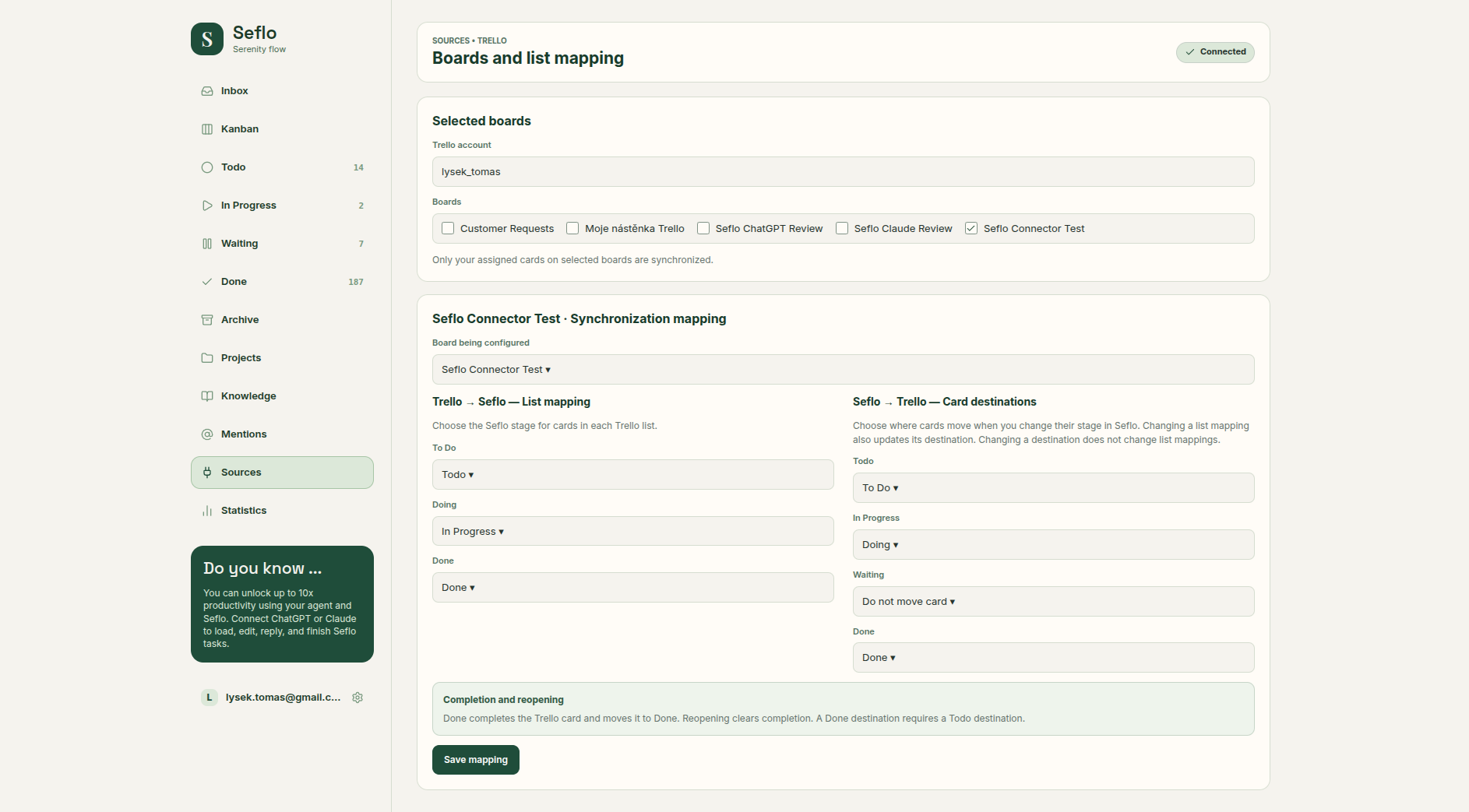
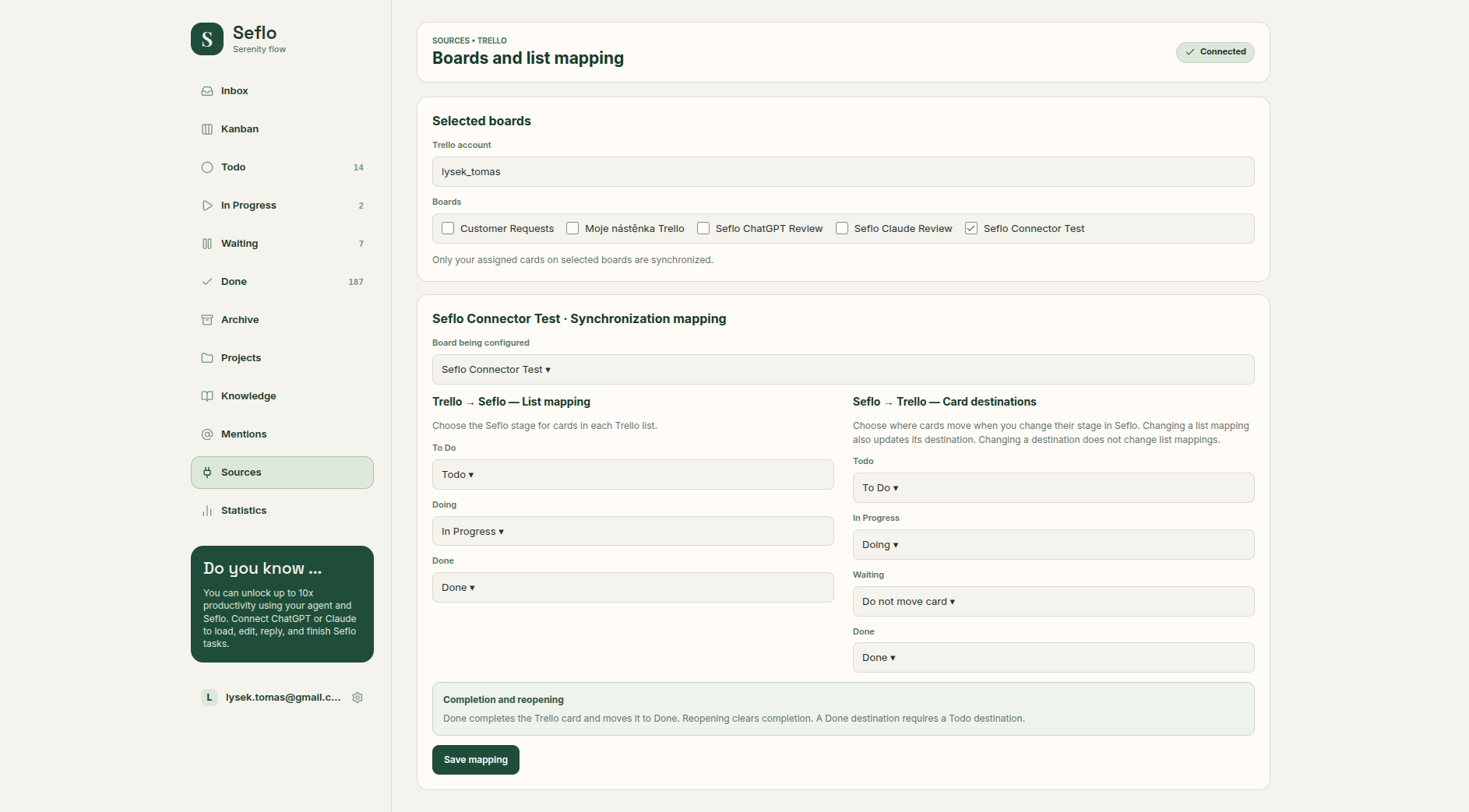
The left column maps incoming lists to your Seflo stage. The right column controls where a card moves after a stage change in Seflo. This example keeps Waiting in the current list and maps Done to shared completion plus the Done list. Reopening clears completion. Open full-size image.
Verify your first task
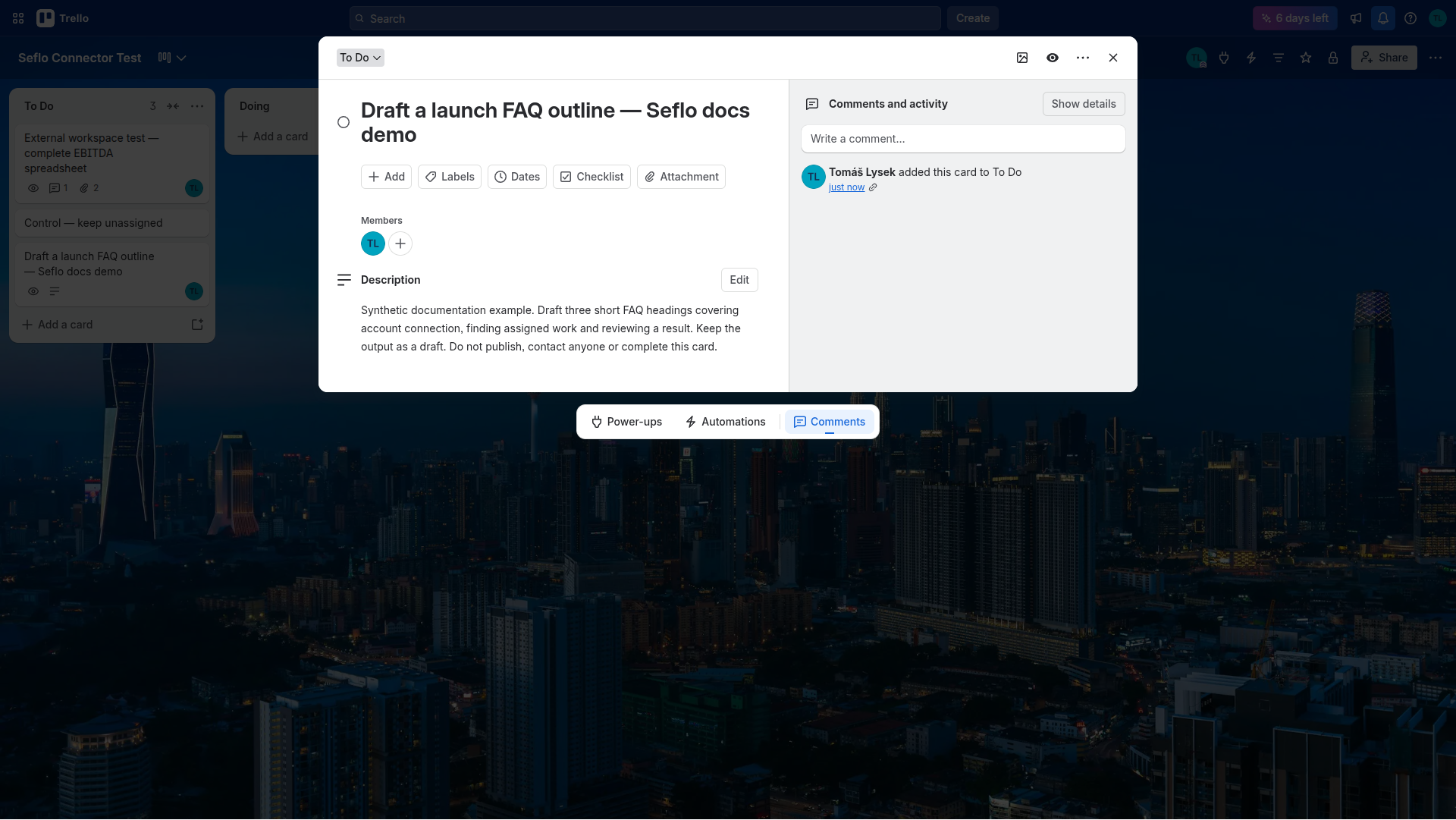
- Find a card assigned to you on a selected board.
- Open the imported Seflo task and compare its title, description, due date and linked board.
- Ask your AI client to prepare the result and any comment or attachment.
- Check the target card and list effect in the review, then confirm the intended action.
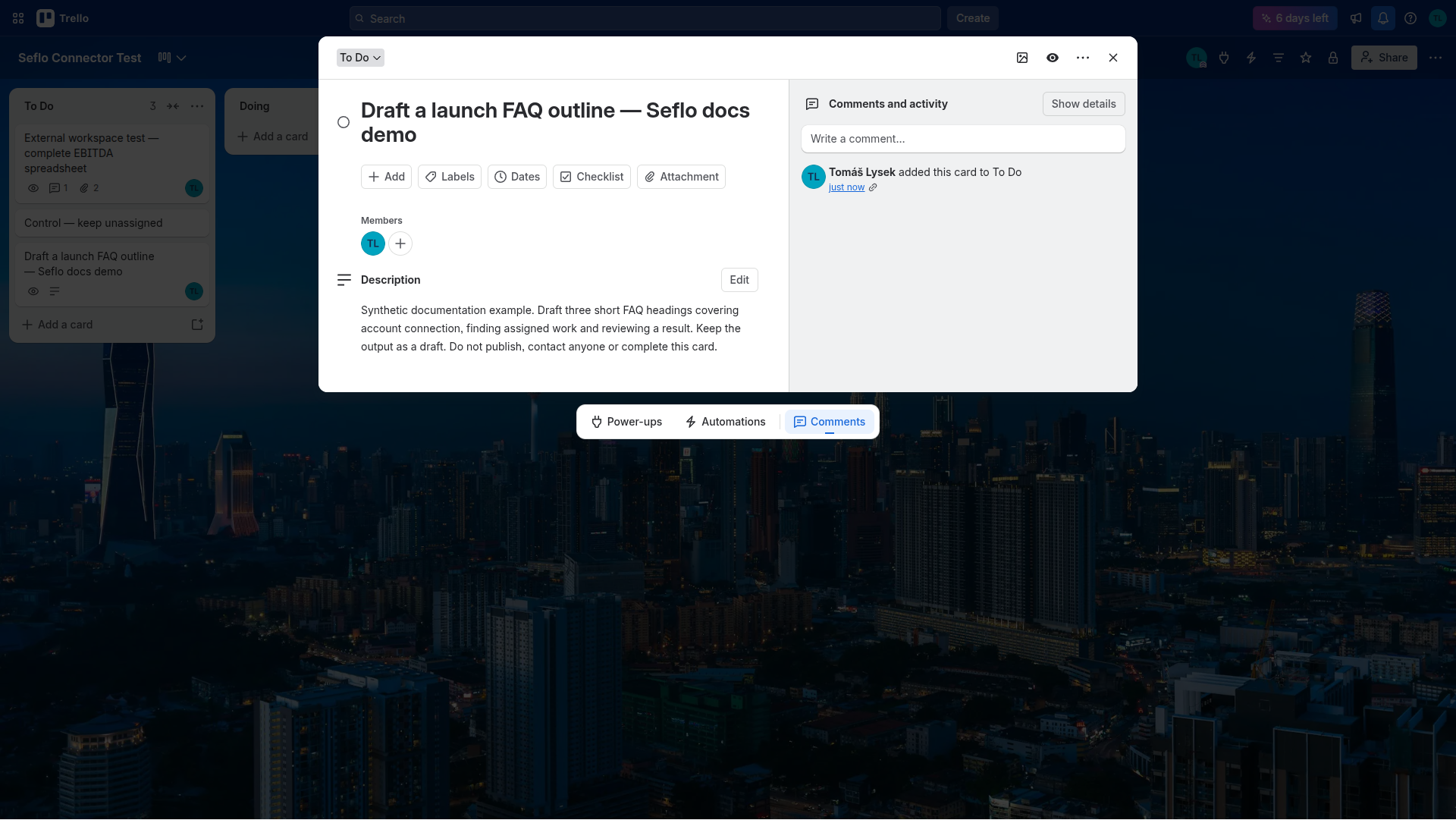
Start with one small request assigned to your connected user. This example asks for a draft only. Open full-size image.
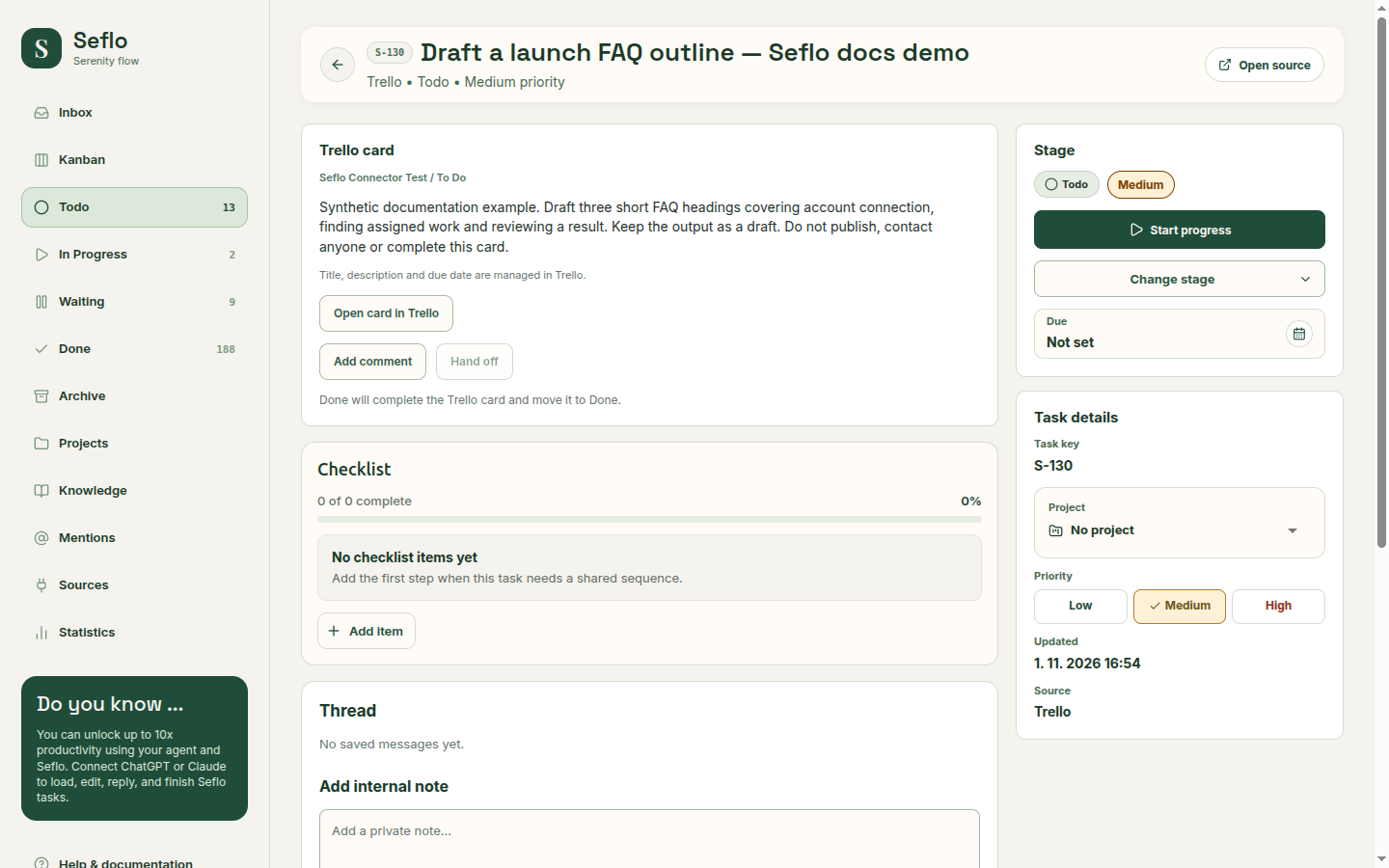
The new task matches the original card and remains Todo. This capture verifies import; its source-action buttons are disabled and no comment or completion was executed. Open full-size image.
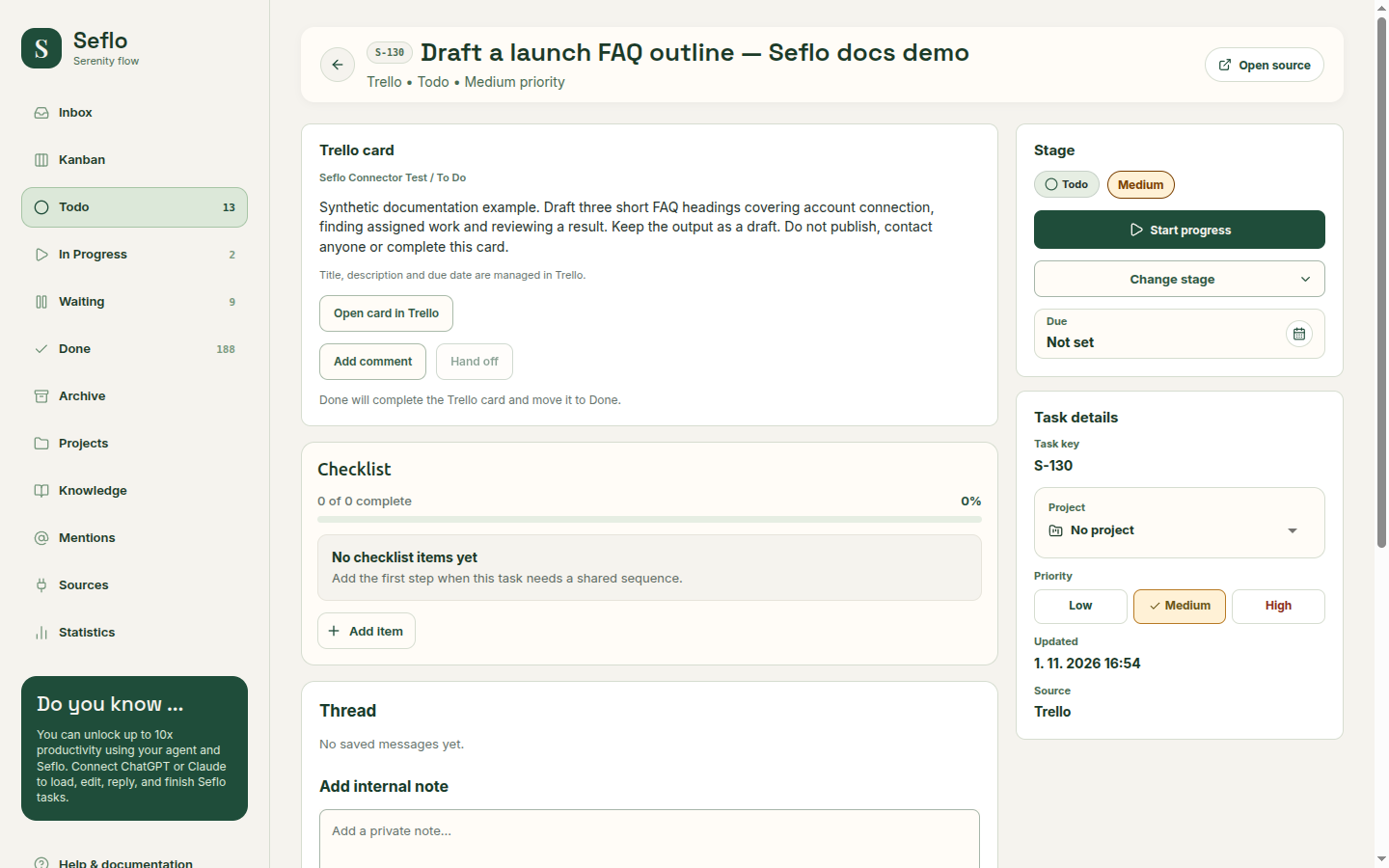
What completion changes
Trello controls the card's title, description and due date. Your Seflo priority and project organize your own work. A source action can add a comment or file and move the card according to the configured destination; read the displayed effects before confirming.
If something does not work
If a card is missing, check assignment and board selection. If a list is unavailable, refresh board discovery and repair its mapping. An archived or inaccessible card may not support the action you want even if the task remains in your history.
If authorization expires or cannot be verified, start a fresh connection attempt and check the provider username again. On the connection page, Synchronize checks assigned cards and existing linked work; verify the actual task after it finishes.
Continue with Connect your AI and Review and confirm actions.
Watch: Seflo for Trello — From an assigned card to completed work
Complete an assigned card, deliver the finished workbook and verify the shared card completion and recipient. The edited example condenses the workflow; use the written steps above for setup and checks.
Watch: connect Trello and verify your first card
Check the provider account, both mapping directions and a newly assigned card in Seflo. This setup example verifies import and leaves the original card open.