
Connect Gmail
Connect your Google account, capture a thread and choose how starred email becomes work.
Before you start
Have the Google account that owns the mailbox and one email thread you want to work on. The capture workflow below requires the Seflo Gmail add-on to be installed. Public Google Workspace Marketplace availability has not yet been verified. After the public listing is released, the intended installation route is to find Seflo in Marketplace and install it for the intended mailbox. The add-on supplies Create task in Seflo; the source connection links the mailbox to your Seflo account.
Connect the mailbox from Seflo
- In Seflo, open Sources → Add source → Gmail.
- Start the connection and choose the Google account for the intended mailbox.
- Complete Google's sign-in and access confirmation.
- Return to Seflo and check the email address shown on the Gmail source.
- Open the source settings before enabling automatic imports.
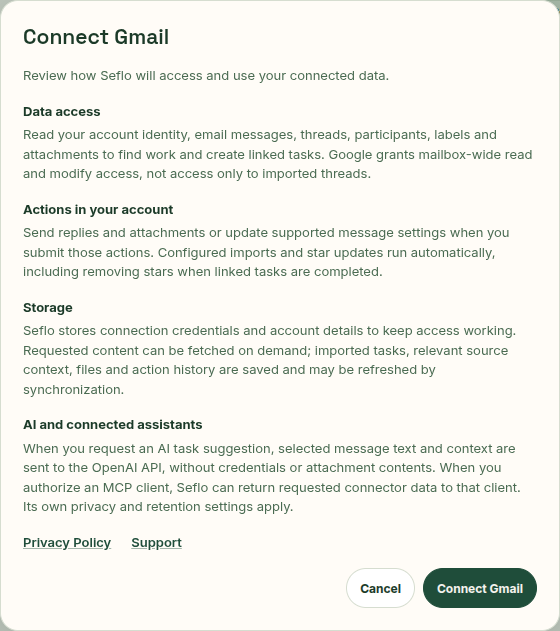
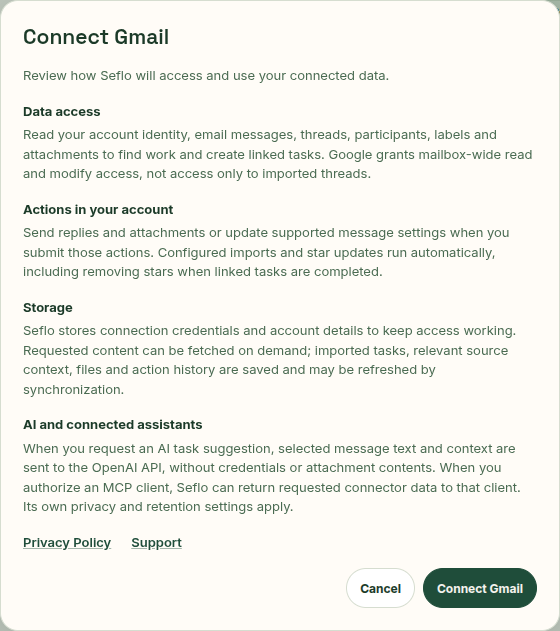
Read what the connection can access and which actions it can perform before continuing. Open full-size image.
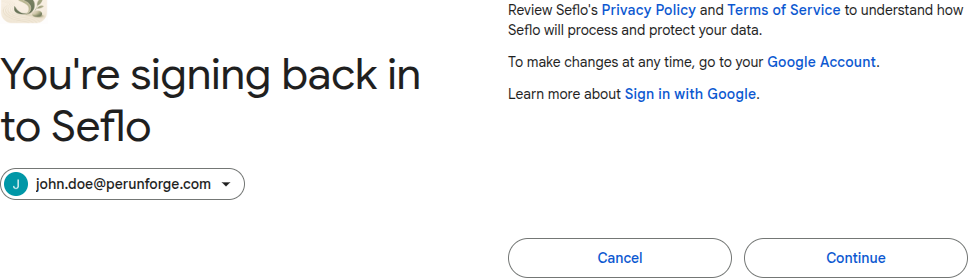
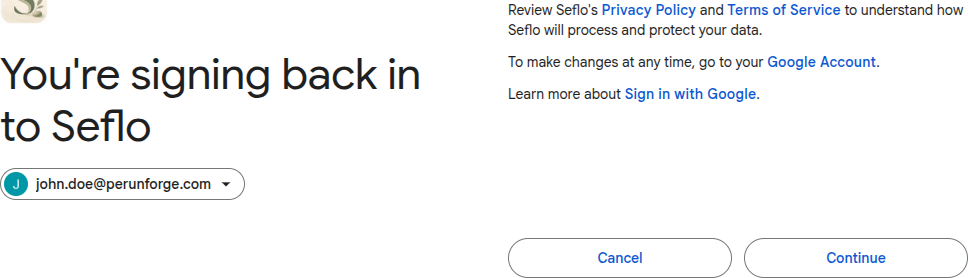
Choose the mailbox you want to use. This example uses John Doe; an existing Google grant may show a signing-back-in screen. Open full-size image.
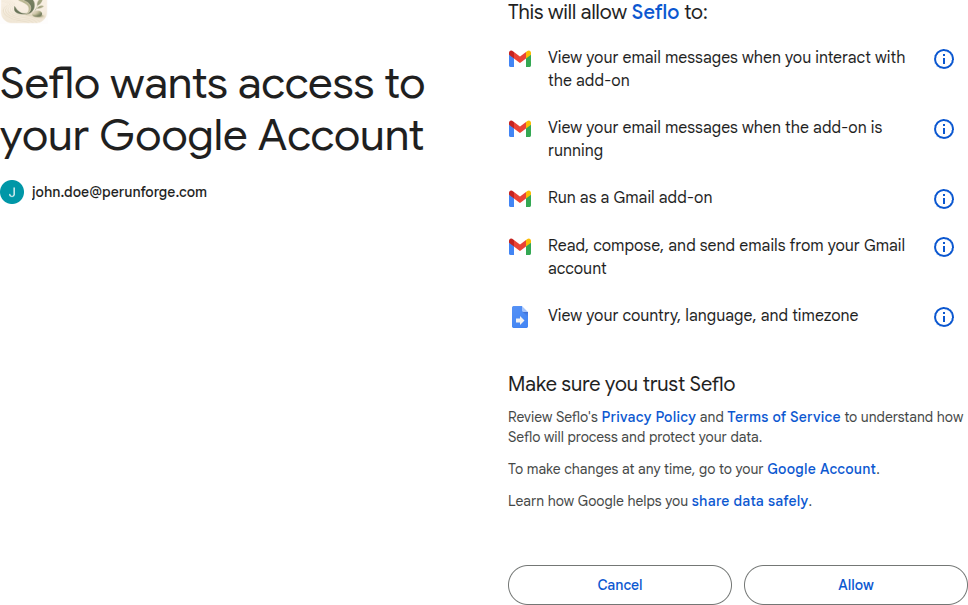
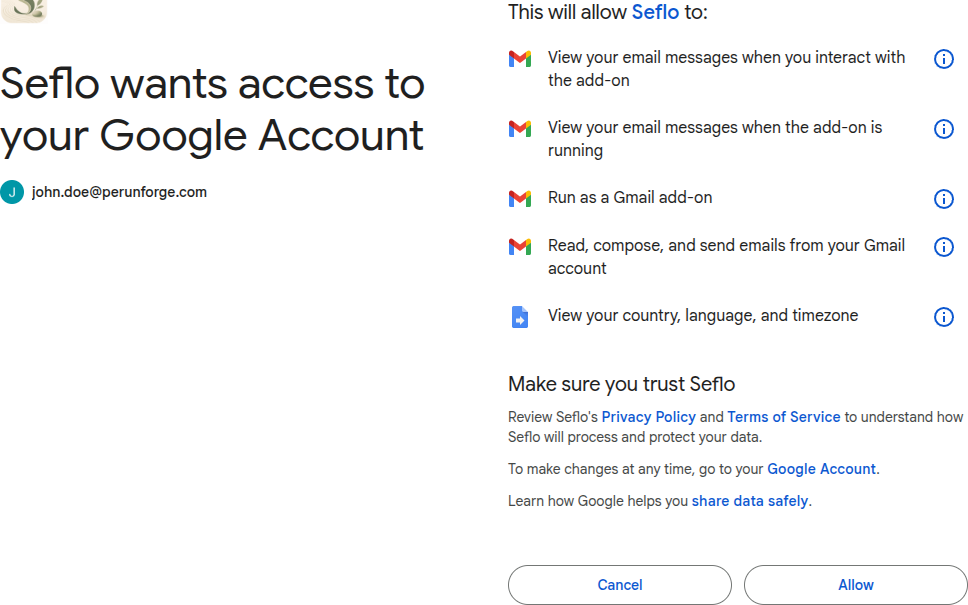
Review the permissions Google displays for your account before choosing Allow. Previously granted add-on permissions can also appear. Open full-size image.
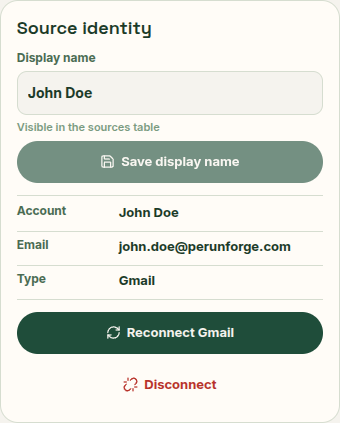
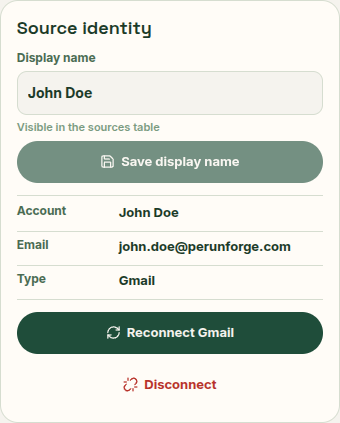
After returning to Seflo, verify the mailbox address under Source identity. Open full-size image.
Install from Marketplace first
Marketplace review is pending. The Apps Script add-on is deployed and available to authorized draft testers. Public installation will become available after Google approves the listing. The following steps describe the tested draft.
For installation, use a browser session signed into only the intended Google account. Installation with multiple Google accounts in the same session has not yet been verified; if Google shows a 404 during authorization, retry in a private window signed into the intended account only.
- Install Seflo for the intended mailbox and approve the Google permissions during installation.
- Open Seflo in Gmail's side panel, then choose Open Seflo to finish account setup.
- Sign in to Seflo, or create your Seflo account if necessary.
- If your Seflo account already has the same verified Google identity, the mailbox connection completes automatically. If you use a different Seflo sign-in, check both account addresses in the connection explanation and confirm Connect Gmail. This selects the Seflo account that will own the mailbox connection; it does not start another Google permissions flow.
- Check the mailbox address and import settings on the resulting Gmail source.
The add-on renews mailbox access in the background, including while its side panel is closed. You will not need to authorize the web app again merely because an access token expires. If renewal is temporarily delayed, a Gmail operation may ask you to retry after access has recovered. Seflo does not automatically send a previously failed reply; review and confirm it again.
A setup link is valid for ten minutes and can be used once. If it expires, reopen the Seflo sidebar in Gmail to get a new link. No mailbox is connected when you cancel account selection.
The Seflo-first route above remains supported. Installing the add-on preserves an existing ongoing mailbox connection. Google can ask you to confirm newly required permissions.
Removing the add-on or revoking Google's permissions can stop mailbox access. Restore the Google installation or connection before retrying. After the installed add-on delivers fresh credentials, background synchronization can retry automatically. An existing source-health warning clears after a successful provider check; it can remain visible until the next synchronization attempt. A source you explicitly disconnected or scheduled for deletion is not silently restored by opening the add-on.
Choose how to capture work
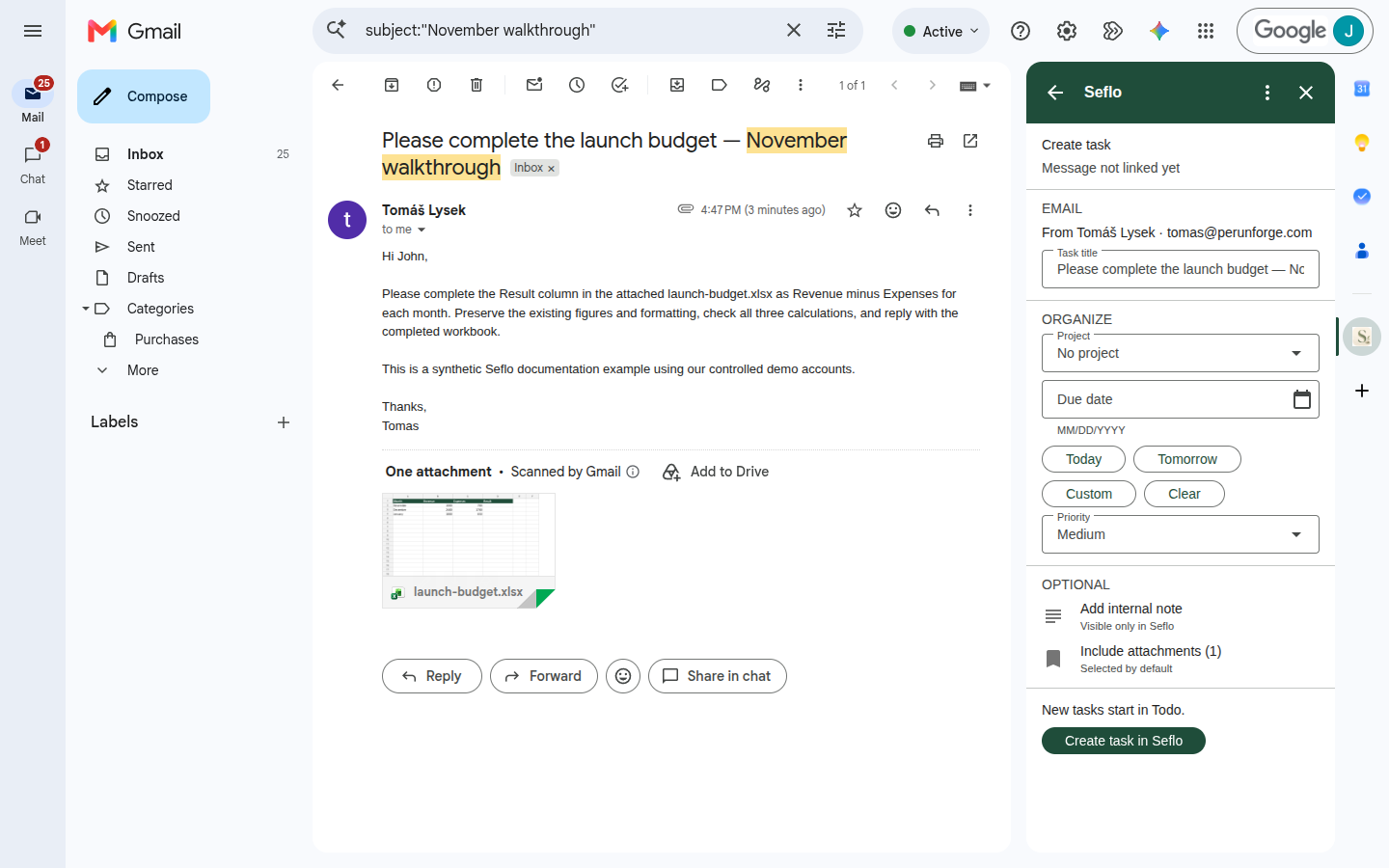
For explicit capture, open an email in Gmail and select Seflo in the right-hand side panel. Review Task title, choose a project or priority if needed, and check Include attachments. Choose Create task in Seflo, then Open in Seflo. If the message is already linked, the add-on shows its existing task instead.
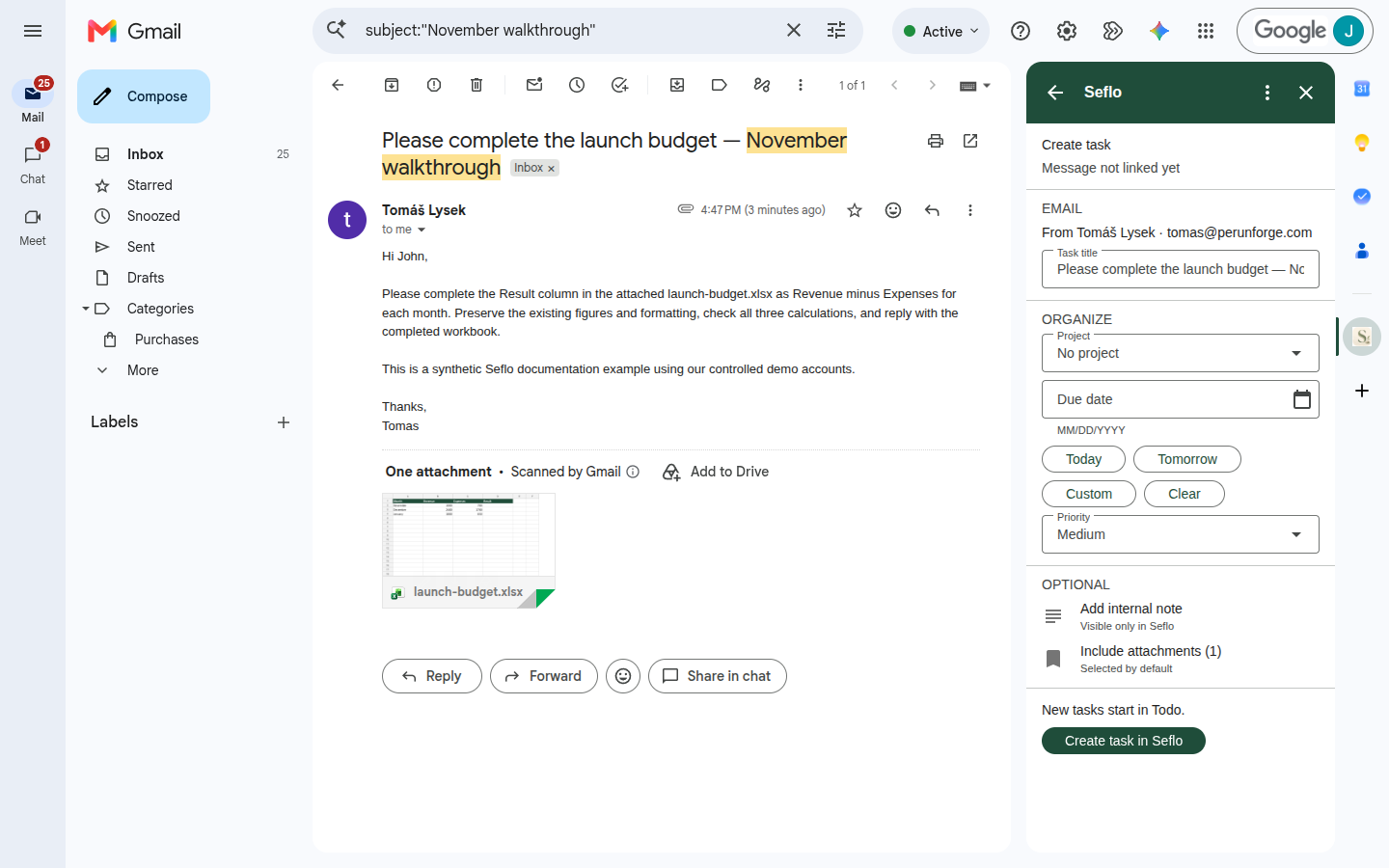
Check the request and keep the original attachment selected before creating the task. Open full-size image.
For marker-based capture, use the Gmail source's Import markers panel:
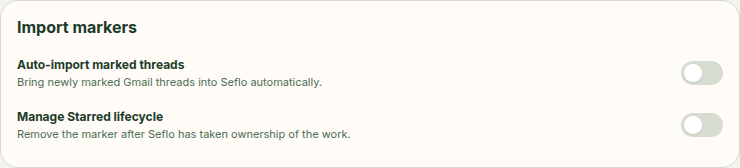
- Auto-import marked threads brings marked work into Seflo using the Gmail Starred marker.
- Manage Starred lifecycle lets Seflo remove the marker after it takes ownership of the work.
These are separate choices. Leave automatic import off if you want to choose individual threads through the add-on. Turning on marker management can change the stars you see in Gmail.
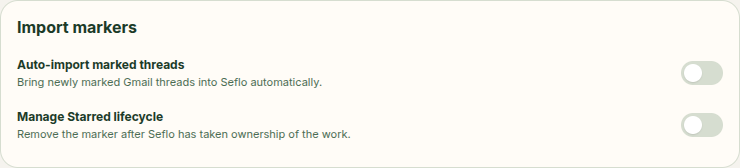
Both options are off in this manual-capture example. Review their saved state explicitly; do not assume a new or reconnected source uses these settings. Open full-size image.
Verify your first task
- Choose one thread with a clear request.
- Send it to Seflo, or star it after enabling automatic import.
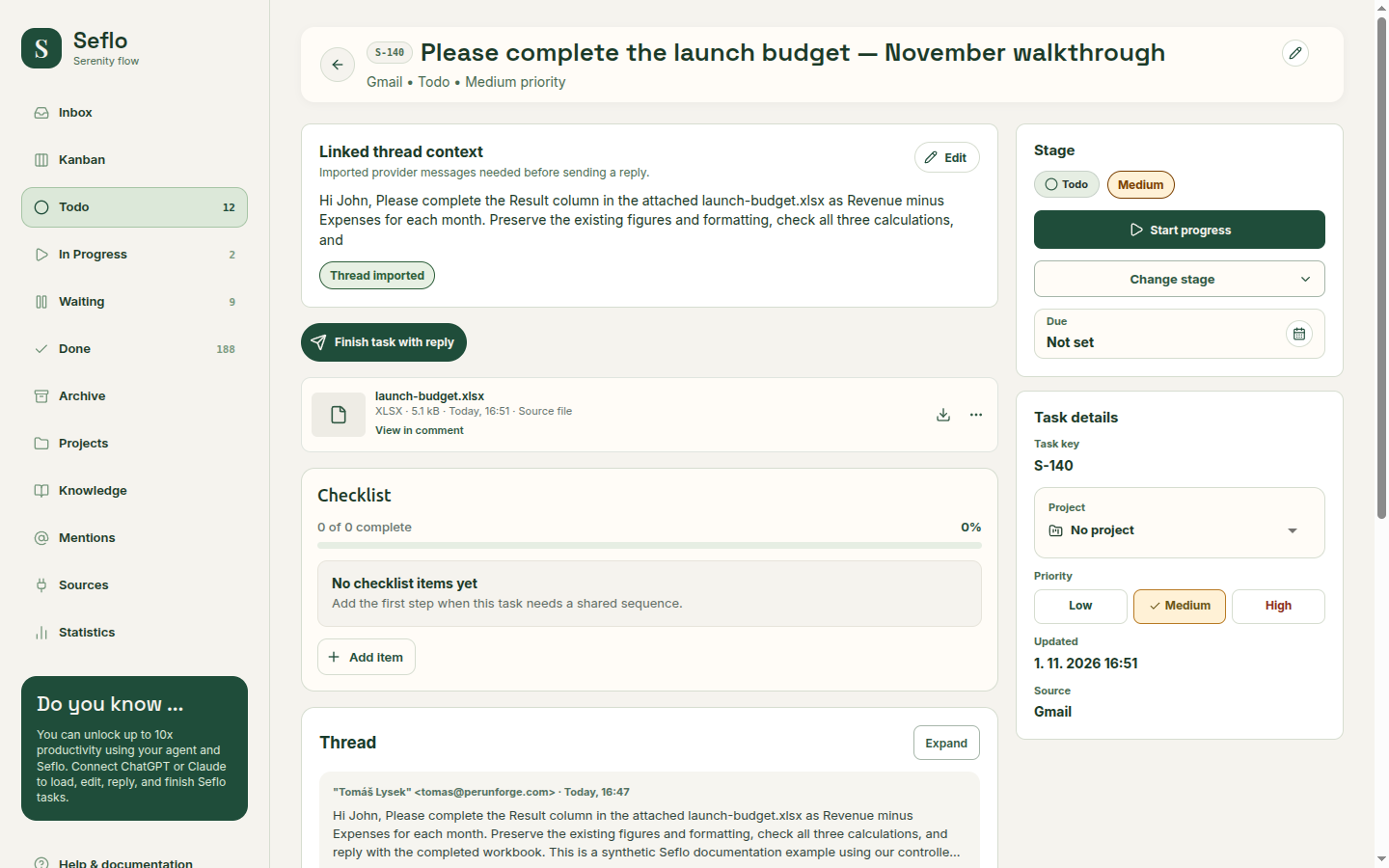
- Open the resulting task and check its subject, source thread and available files.
- Ask your AI client to read that task and prepare a reply.
- Inspect the recipient, message and attachments in review before sending.
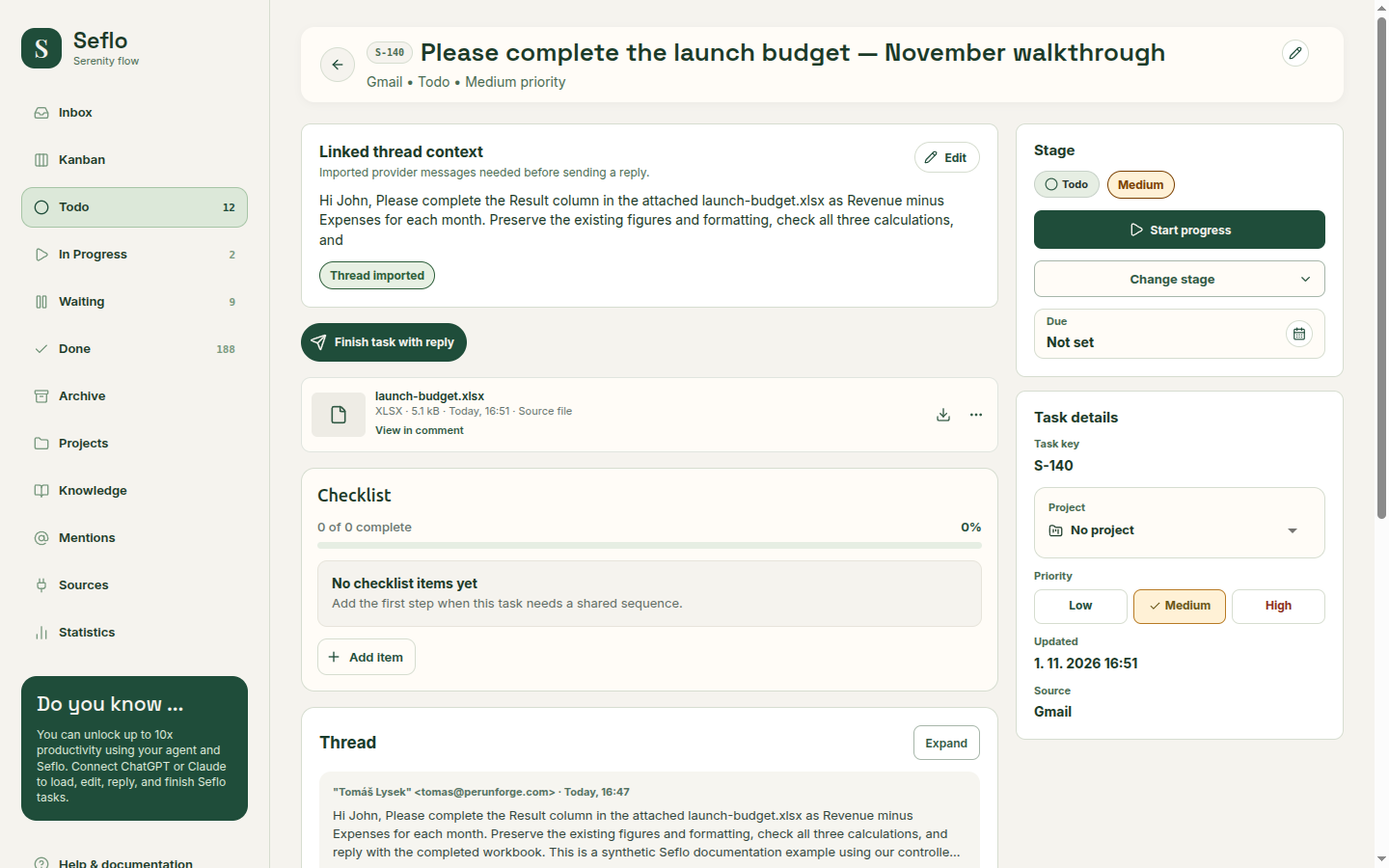
The created task keeps the request and its original workbook. Wait for attachment import to finish before asking the assistant to use the file. Open full-size image.
The reply belongs to the linked Gmail thread. Completing a task alone is not a substitute for confirming a reply.
If something does not work
- Wrong mailbox: reconnect and select the intended Google account; the account signed in to your browser may differ.
- No task after starring: check Auto-import marked threads and the source connection, then use the add-on for an explicit test.
- No Seflo panel or Create task action: check that the add-on is installed for the account currently open in Gmail.
- Background updates stop: open Seflo's sidebar in Gmail using the affected mailbox. This refreshes access immediately and recreates Seflo's hourly schedule if it has stopped for more than two and a half hours. Google can disable a schedule; Seflo cannot restart it while the sidebar remains closed. If updates stop again, contact support so we can inspect the scheduled executions. Do not repeatedly revoke permissions or reinstall the add-on.
- Reply unavailable: reopen the original thread and check source health. If background renewal is temporarily delayed, reopen the installed sidebar and retry. If Google access was revoked, restore the installation or reconnect the source. A normal token expiry does not require a second web authorization.
Continue with email to completed work.
Watch: Seflo for Gmail — From an email to completed work
Capture a Gmail request with its spreadsheet, prepare the completed file and confirm a threaded reply. The edited example condenses the workflow; use the written steps above for setup and checks.
Watch: Apps Script installation and background access
This narrated walkthrough shows the current Marketplace draft installation, its Google permissions, the Gmail sidebar, the linked Seflo task and the background trigger. It uses a single-account reinstall with synthetic data. Public Marketplace review is still pending. The closing results describe the separate eight-hour closed-sidebar test.
Watch: Connect Gmail step by step
Follow the account connection, permissions, import settings and first task with its original attachment. This walkthrough starts with the Seflo Gmail add-on already installed; public Marketplace installation is not demonstrated. The video uses an existing demo installation.