
Connect a source
Choose the service that holds your requests and bring the right work into Seflo.
Choose where your work starts
A source connection links Seflo to an account in another service. It is separate from connecting your AI client.
| Source | What to bring into Seflo |
|---|---|
| Gmail | Selected email threads and optionally starred threads. |
| Microsoft Outlook | Selected conversations and optionally flagged messages. |
| Slack | Messages selected with Send to Seflo. |
| Microsoft Teams | Selected chat messages and channel threads. |
| Mattermost | Selected messages, thread context and files. |
| Basecamp | Assigned to-dos and selected project conversations. |
| Jira | Assigned issues and service requests in chosen projects. |
| ClickUp | Assigned tasks and subtasks in selected home Lists. |
| Trello | Cards assigned to you on selected boards. |
| Asana | Assigned tasks in selected projects. |
| HubSpot | Selected task activities, deals and tickets. |
| Salesforce | Selected Tasks, Opportunities and Cases. |
| Daktela | Open tickets assigned to the connected Daktela user. |
Connect your first source
- Sign in to Seflo.
- Open Sources, then Add source.
- Choose the connector and follow its guide above.
- Check the connected account before selecting import settings.
- Create or import one example task and inspect its original context.
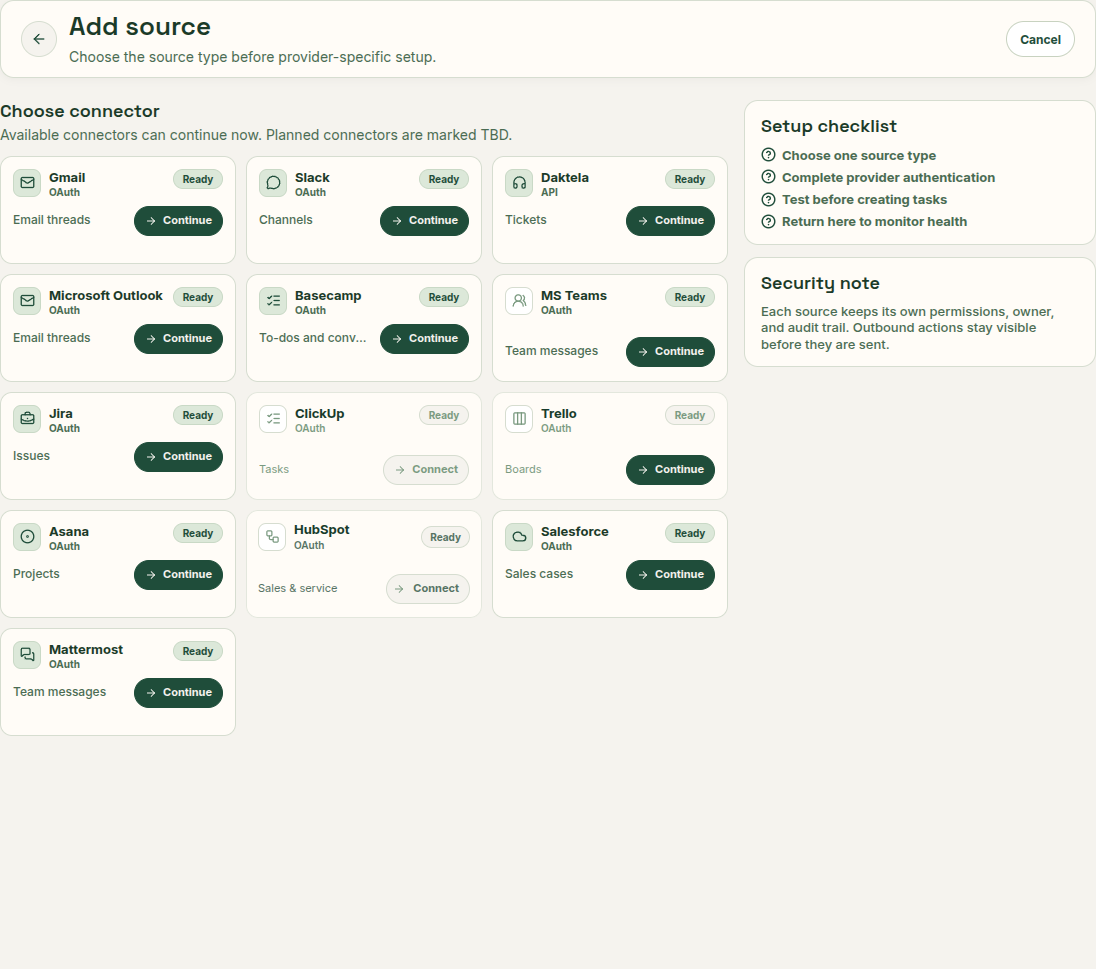
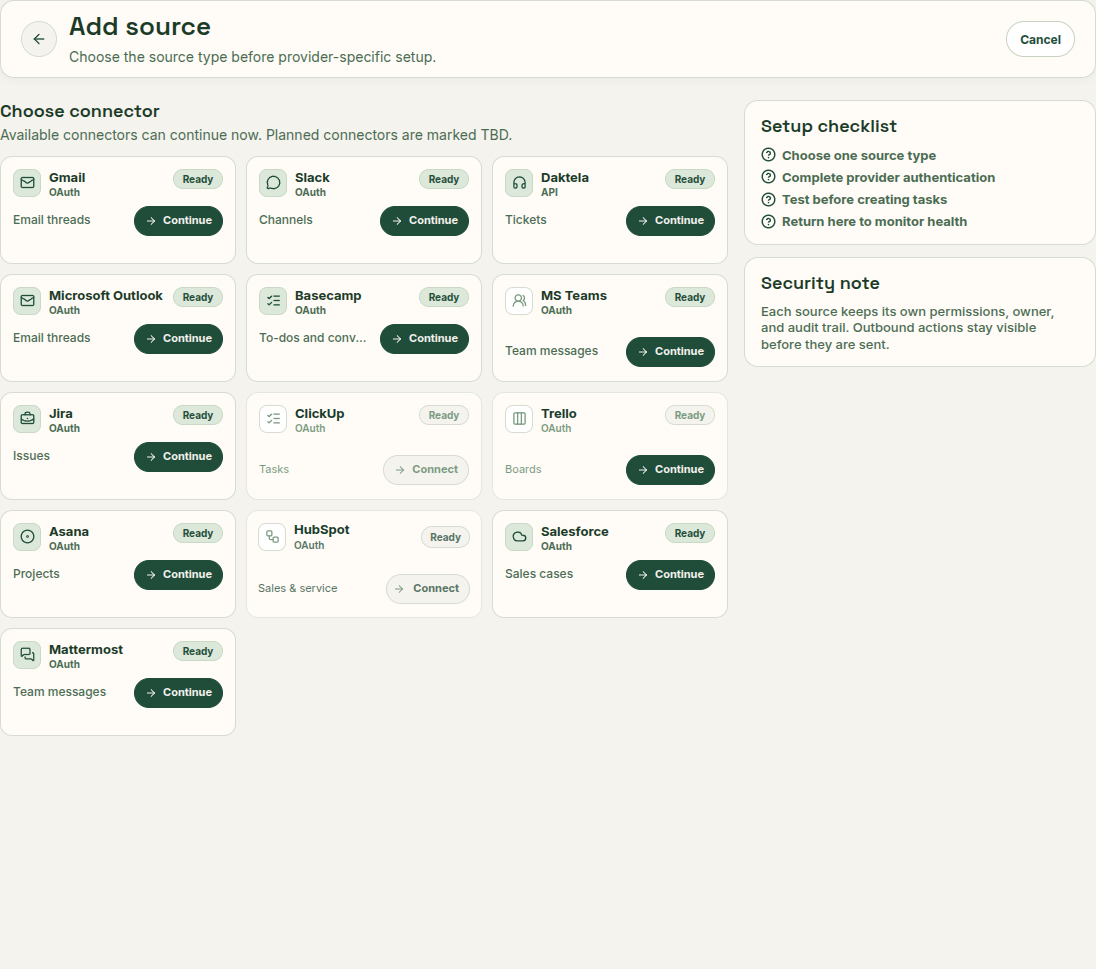
Choose the service where your work starts. Each Continue or Connect button opens that service’s setup. Open full-size image.
Decide what comes in
Some connectors import assigned work from selected projects or boards. Others capture only a message you explicitly select. Gmail and Outlook also offer optional marker-based imports. Connecting a service does not copy all of its data into tasks.
Start with a narrow selection you can verify. Change the source configuration when you want to include more work.
Manage connections
Return to Sources to inspect an account, change its configuration or reconnect it. Use the same intended provider account when reconnecting. Read any disconnect or cleanup confirmation before continuing: stopping a connection and removing retained data can have different effects.
If a task or reply is missing, start with Troubleshooting. For an end-to-end example, see Getting started.