
Connect ClickUp
Choose home Lists and map statuses for the tasks and subtasks assigned to you.
Before you start
Have your ClickUp account and identify the home List of one assigned task. A task appearing in several Lists still has a particular home List for this import.
Connect and configure ClickUp
- Open Sources → Add source → ClickUp and choose Connect ClickUp.
- Sign in to ClickUp and select the intended Workspace access.
- Return to Seflo and check the connected account.
- On Choose home Lists, expand the Workspace, Space and Folder hierarchy and select the Lists you want.
- Choose Continue to mapping.
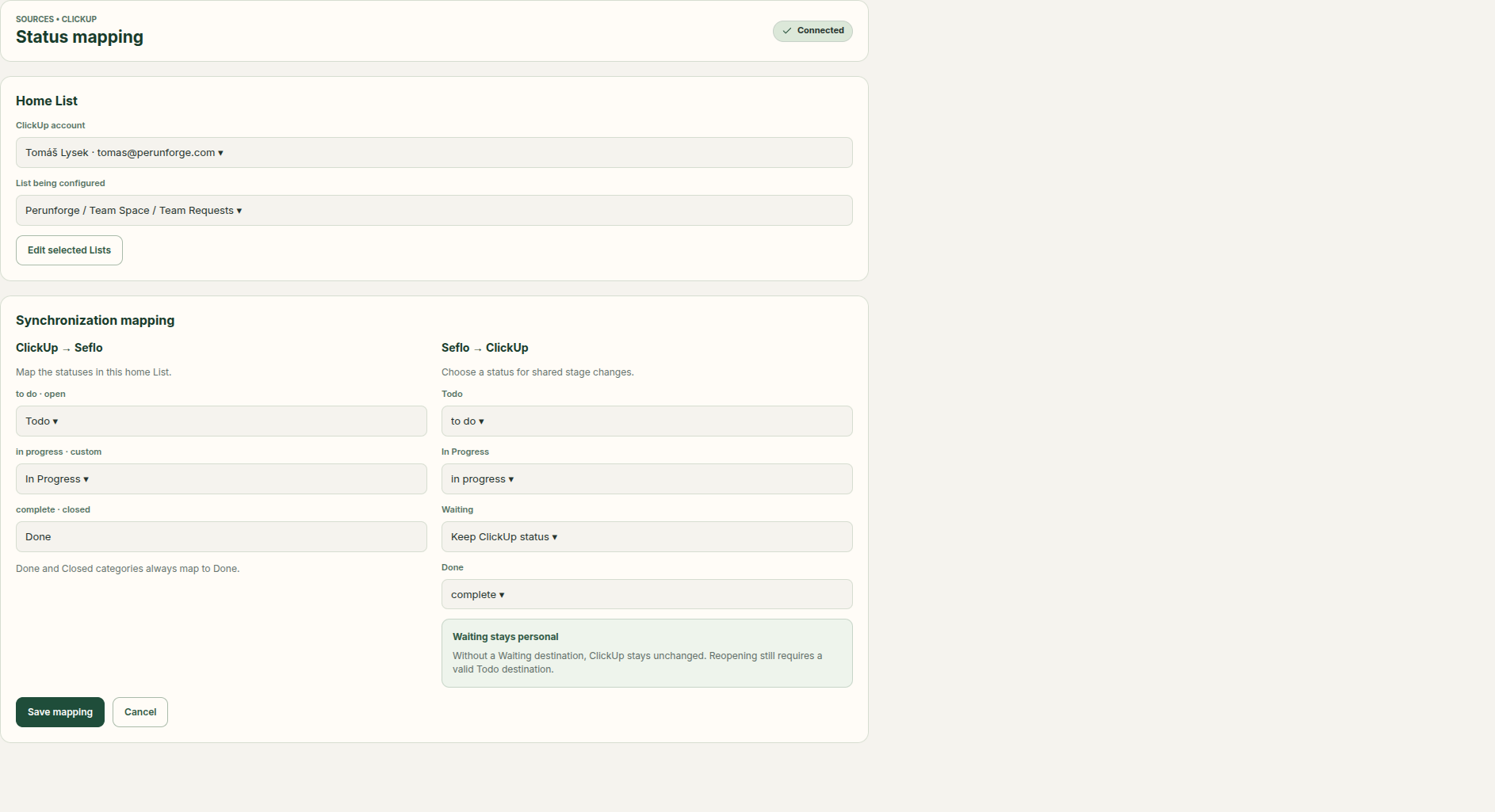
- Review the status mappings and source destinations for the selected Lists. Match the displayed ClickUp statuses to their intended Seflo stages.
- Save the configuration and return to the source overview.
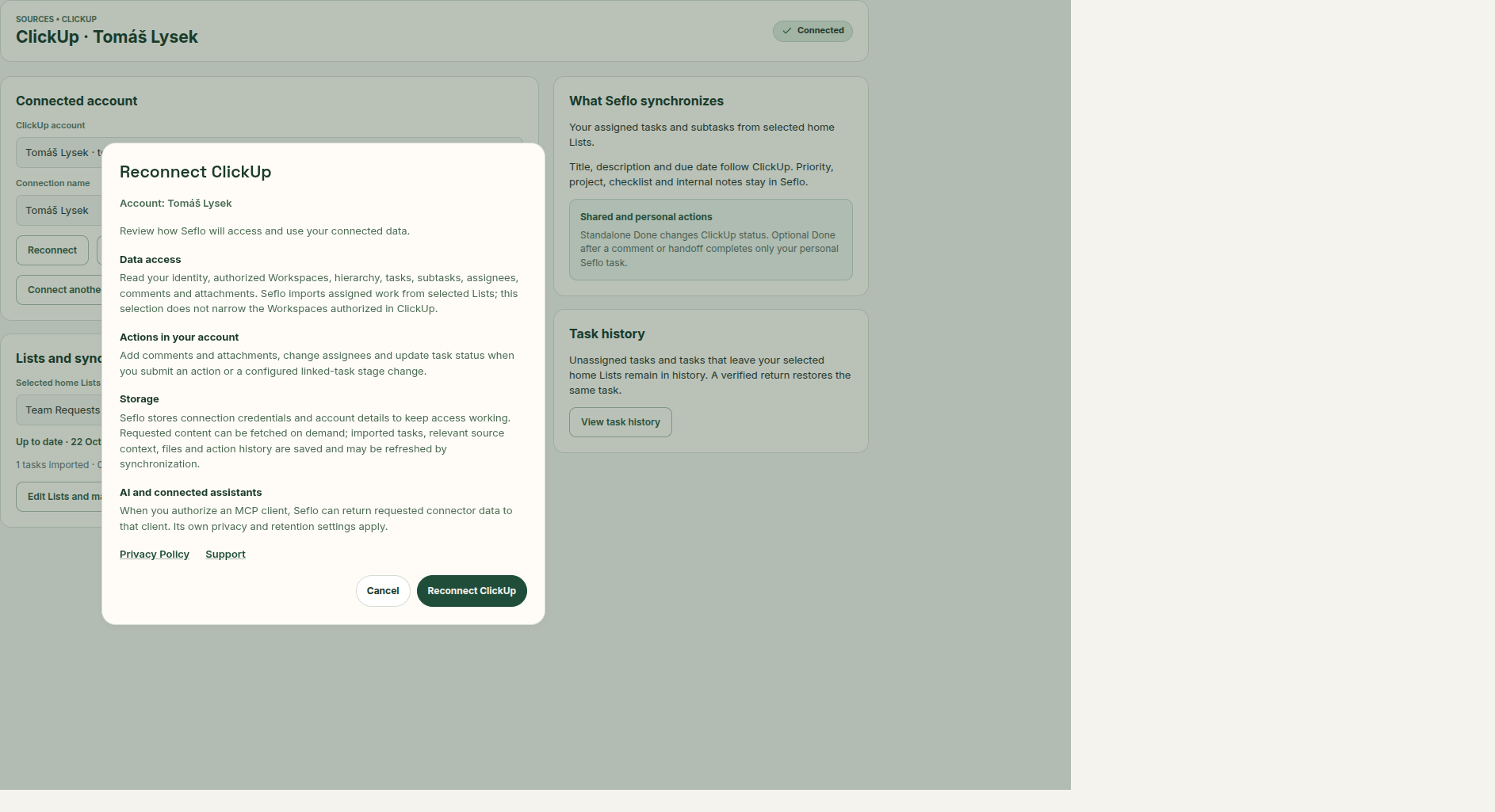
Review the requested access before continuing.
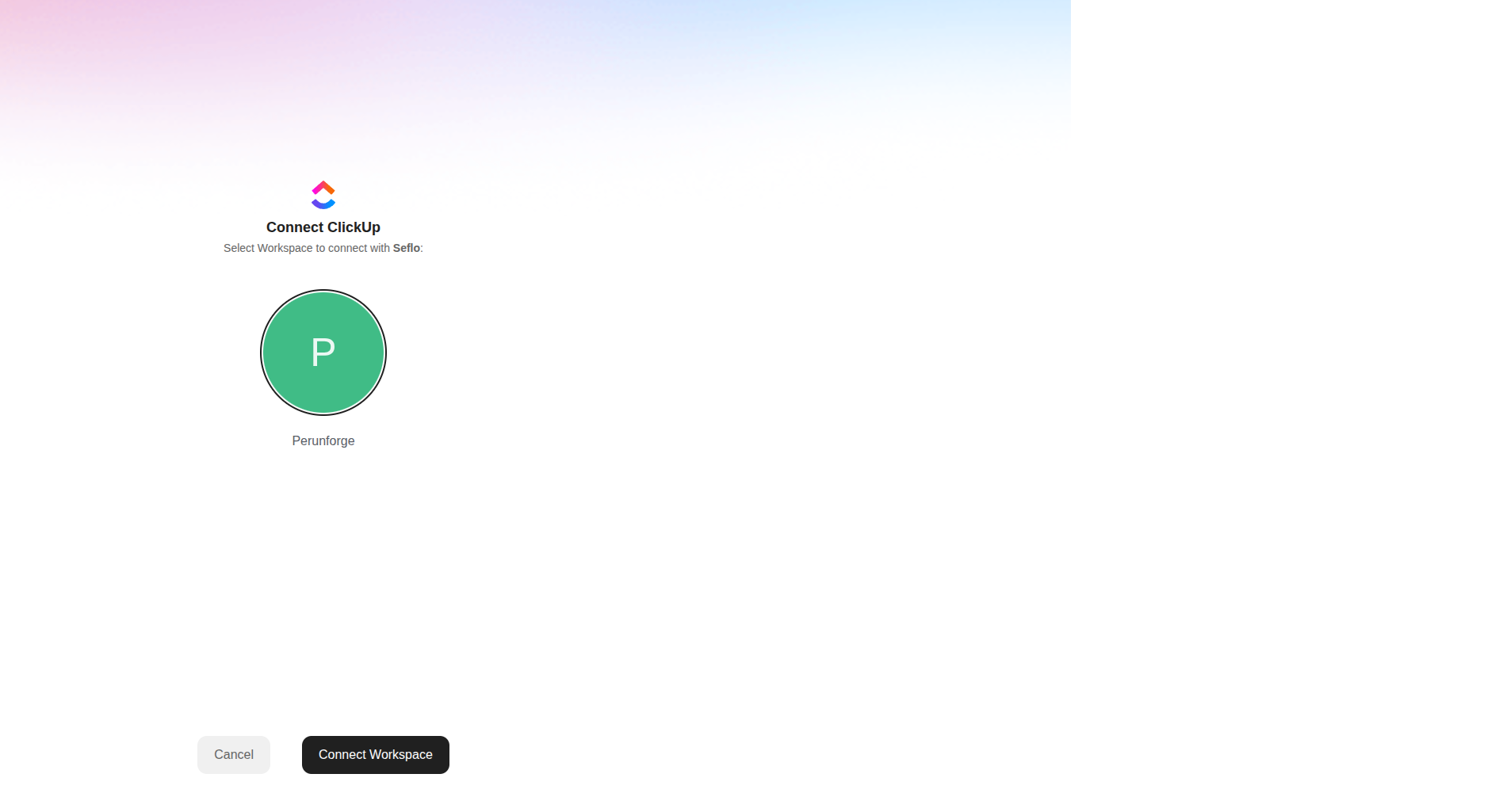
Select the intended Workspace and choose Connect Workspace. Open full-size image.
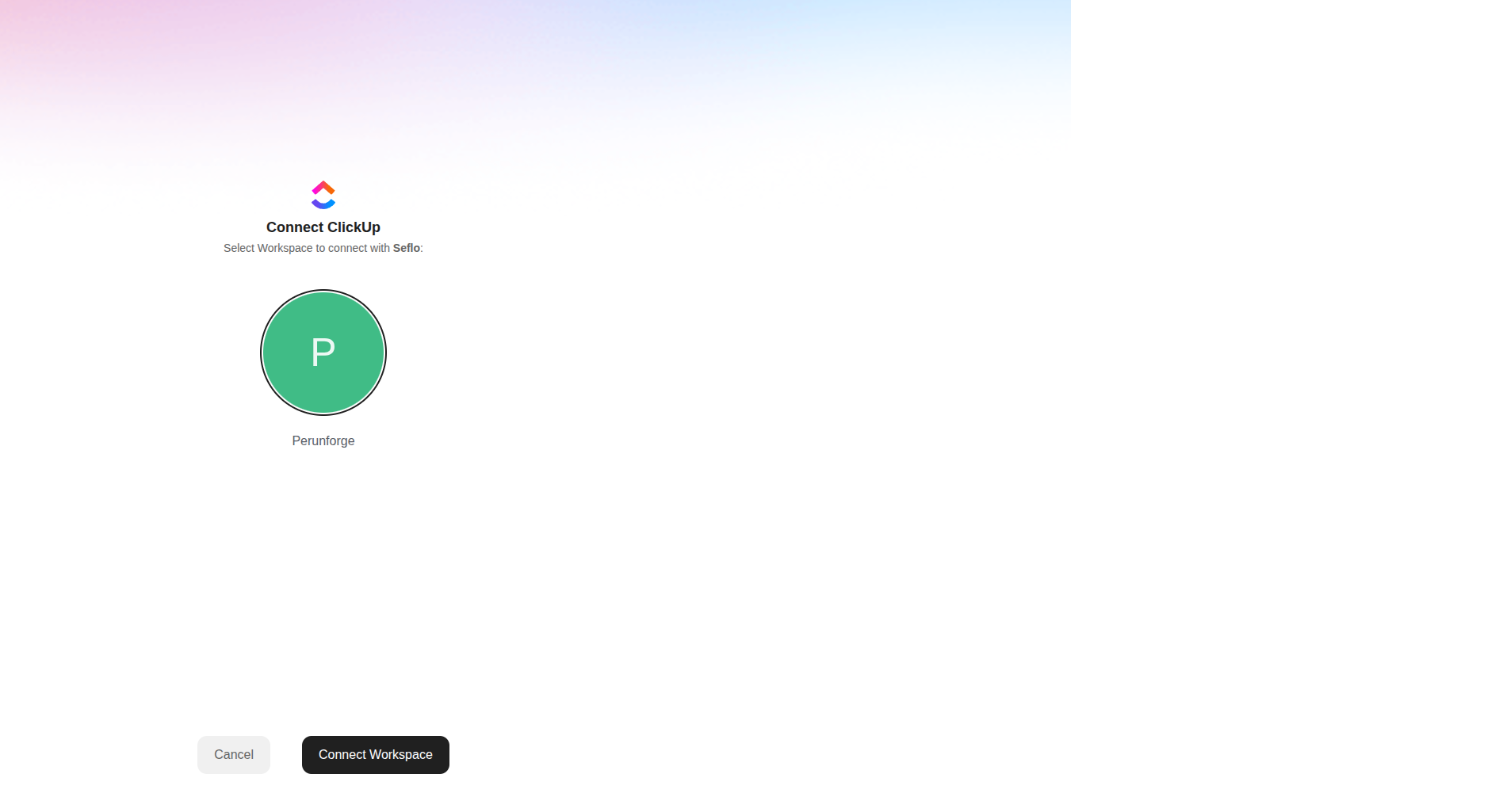
Understand your selection
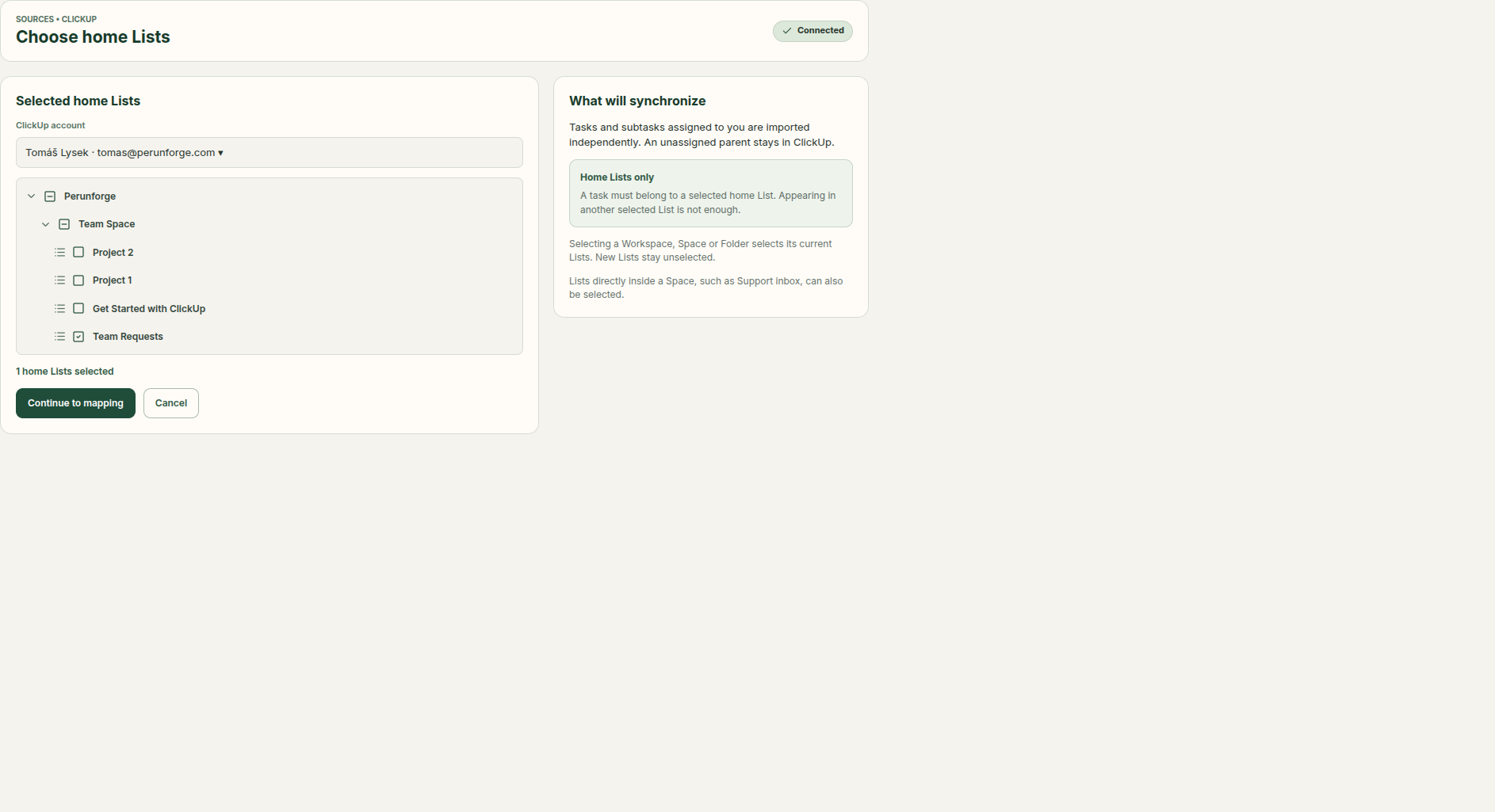
Selecting a Workspace, Space or Folder selects its current Lists; newly created Lists stay unselected. Lists directly inside a Space can also be selected.
Tasks and subtasks assigned to you import independently. An unassigned parent is not imported merely because a subtask is assigned to you. Appearing in a selected secondary List is insufficient when the task's home List is outside your selection.
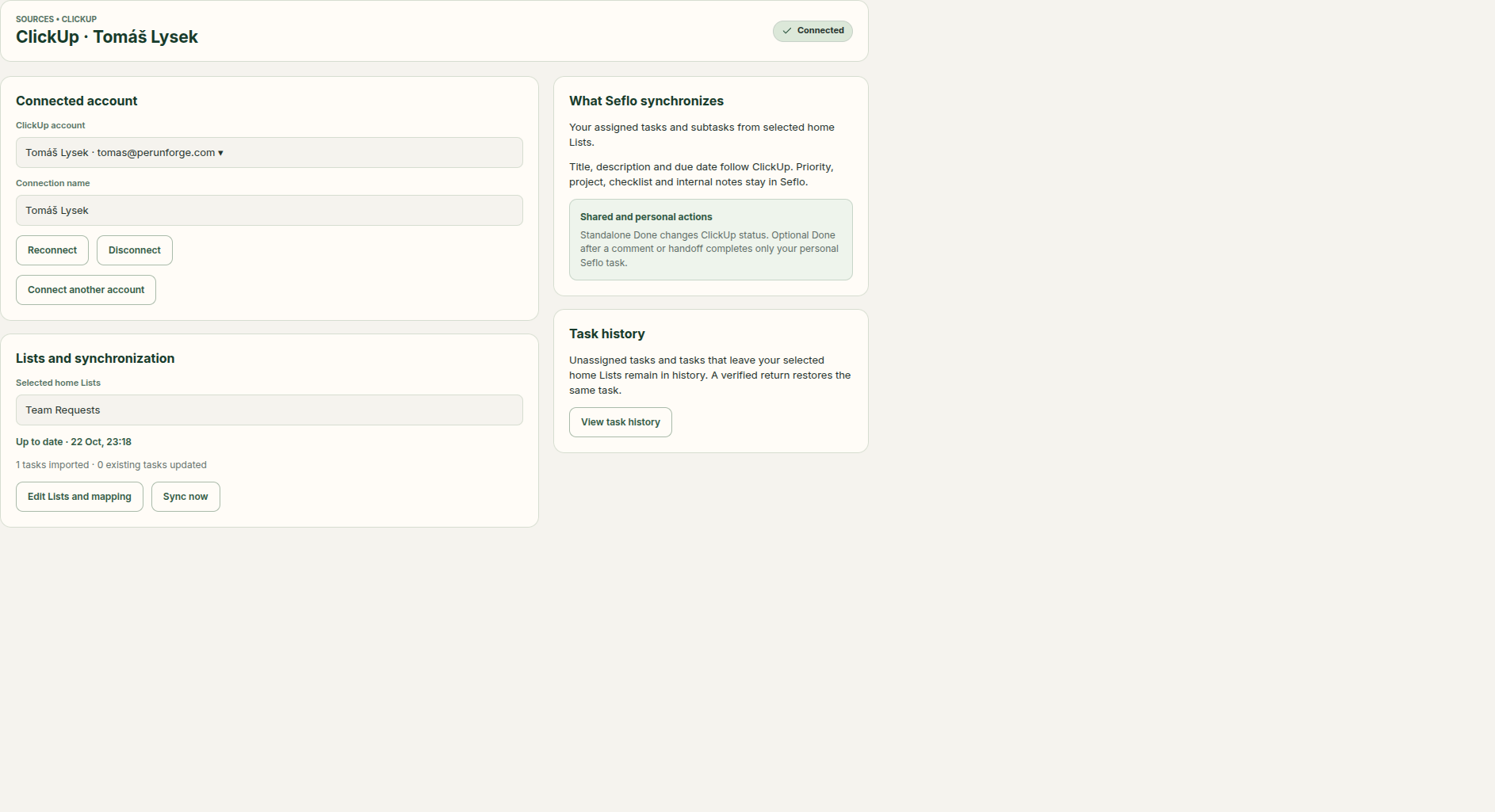
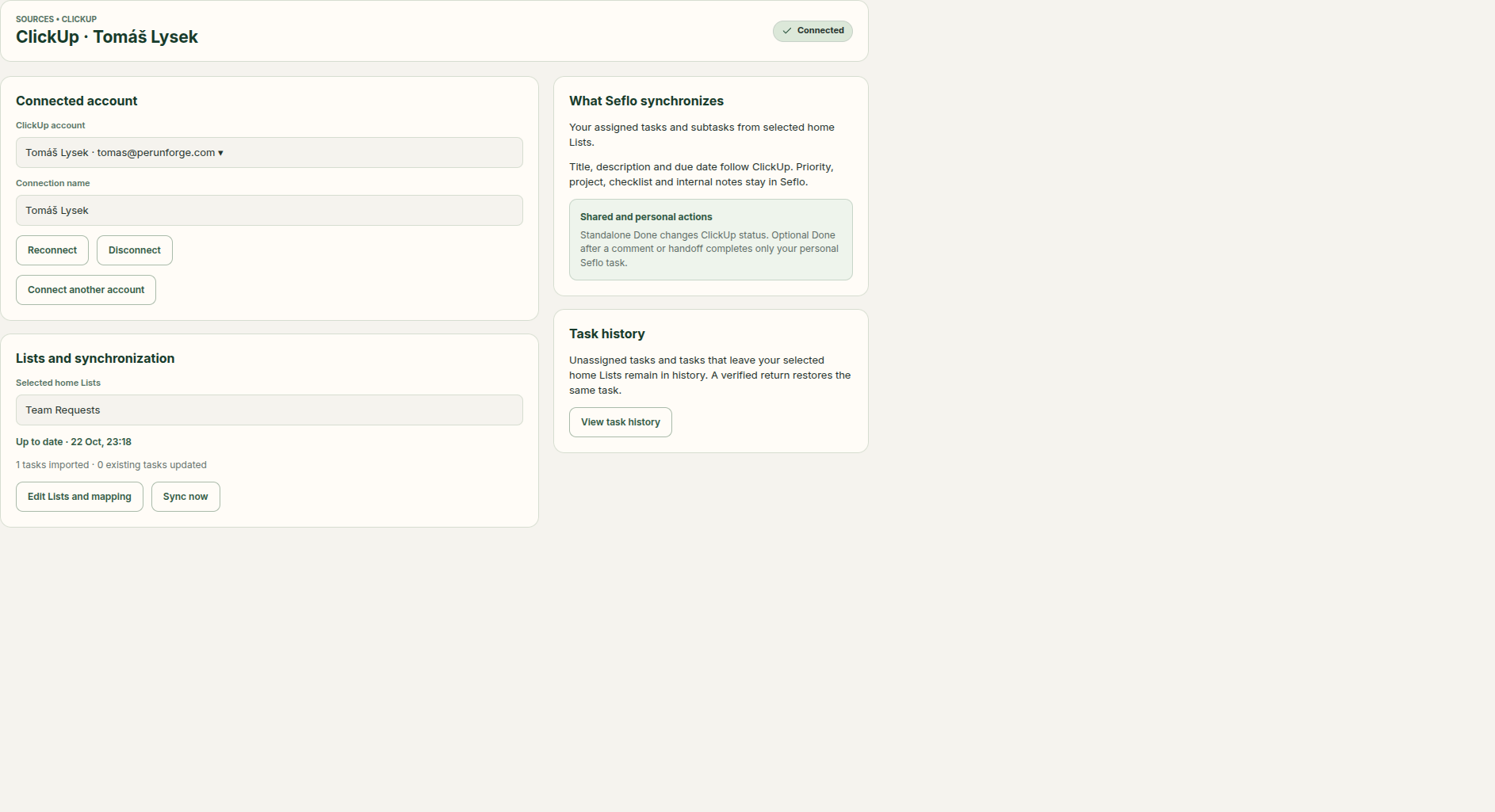
Check the account and selected home List before testing an import. Open full-size image.
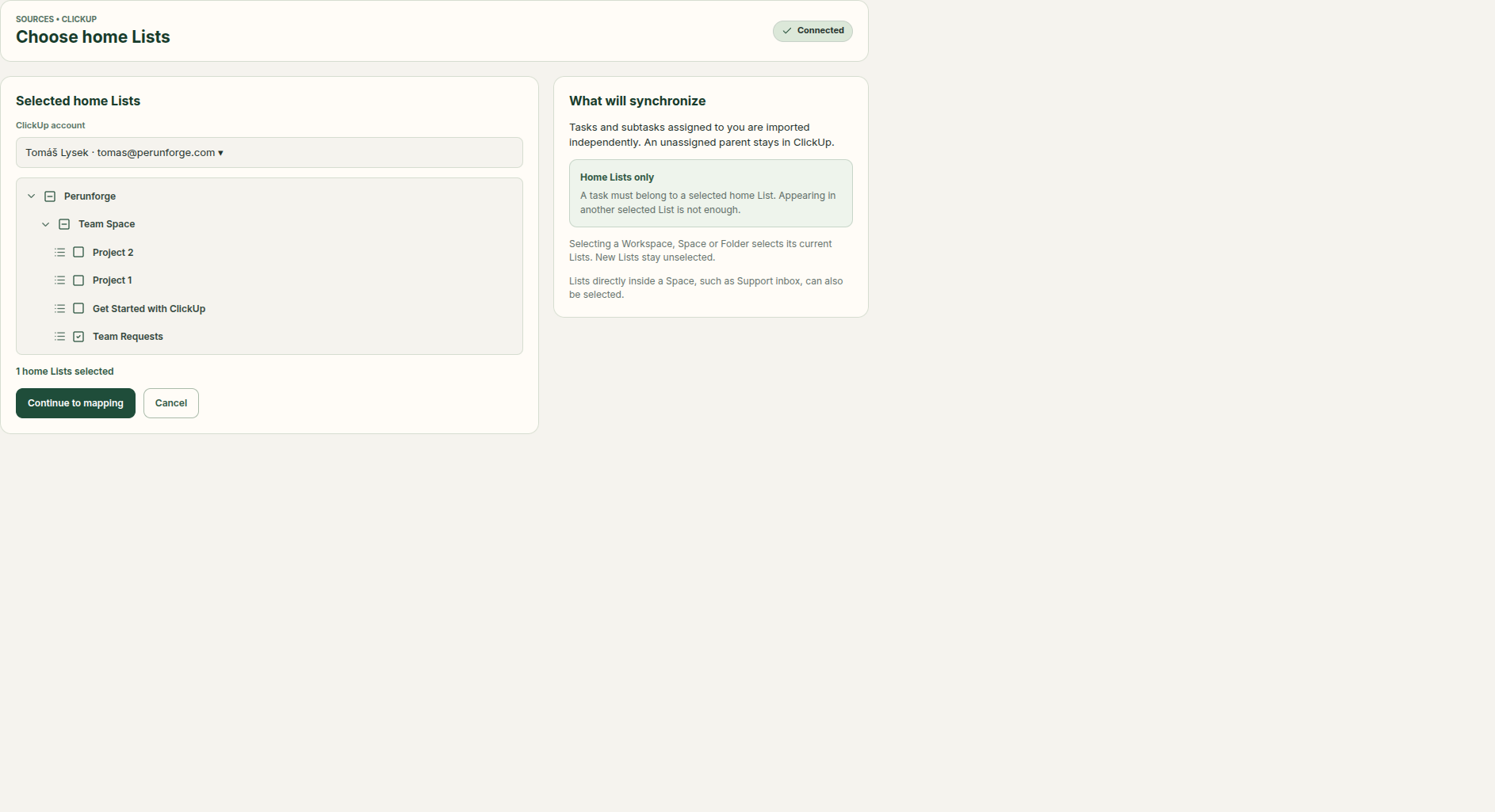
Choose the task’s home List. A secondary List does not determine import scope. Open full-size image.
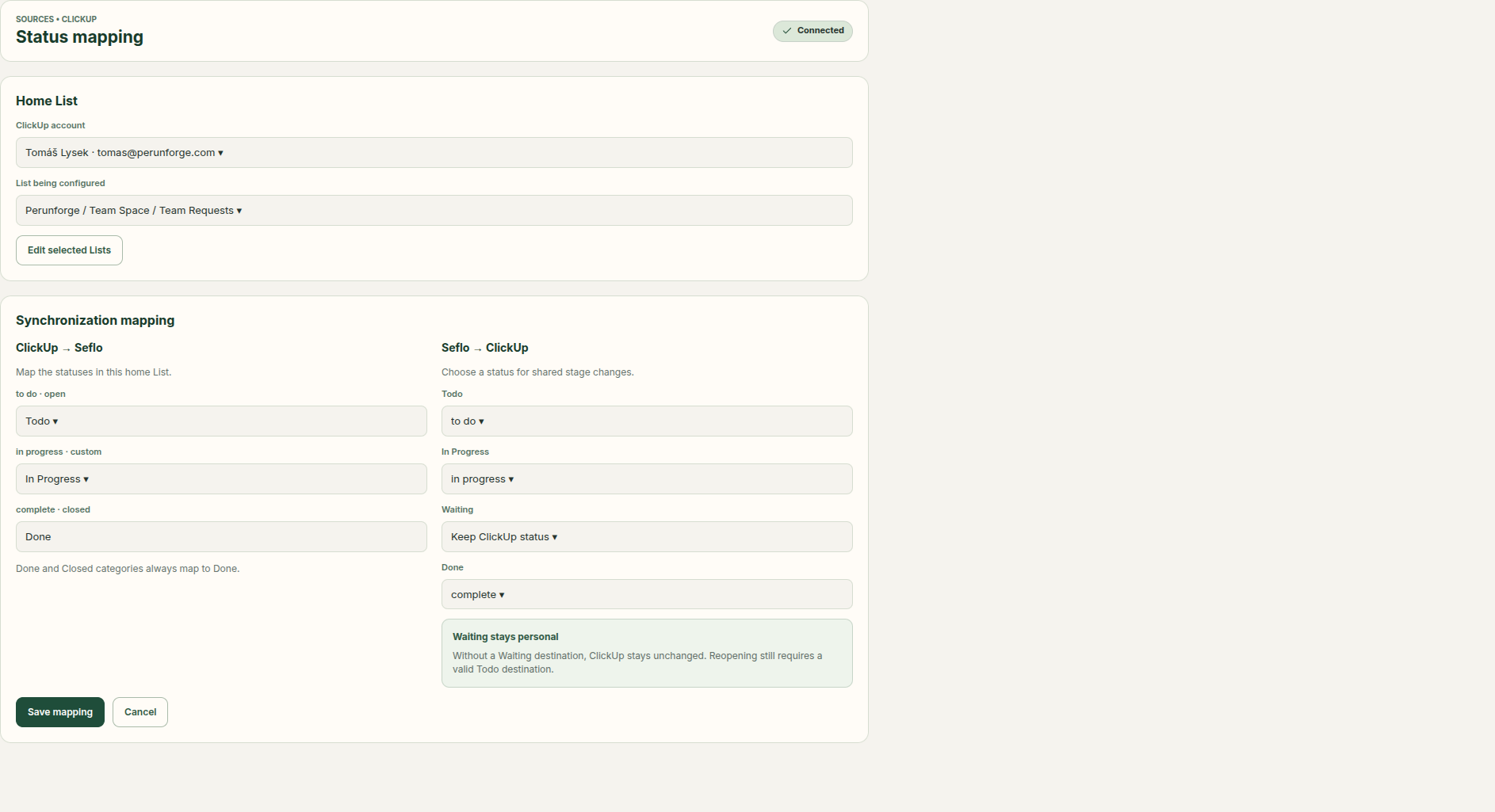
Review both directions. Done and Closed source categories always map to Done. Open full-size image.
Verify your first task
- Find an assigned task whose home List is selected.
- Open it in Seflo and compare its title, description, due date and stage.
- Ask your AI client to prepare a result or comment for that task.
- Review attachments and any shared status change before confirming the action.
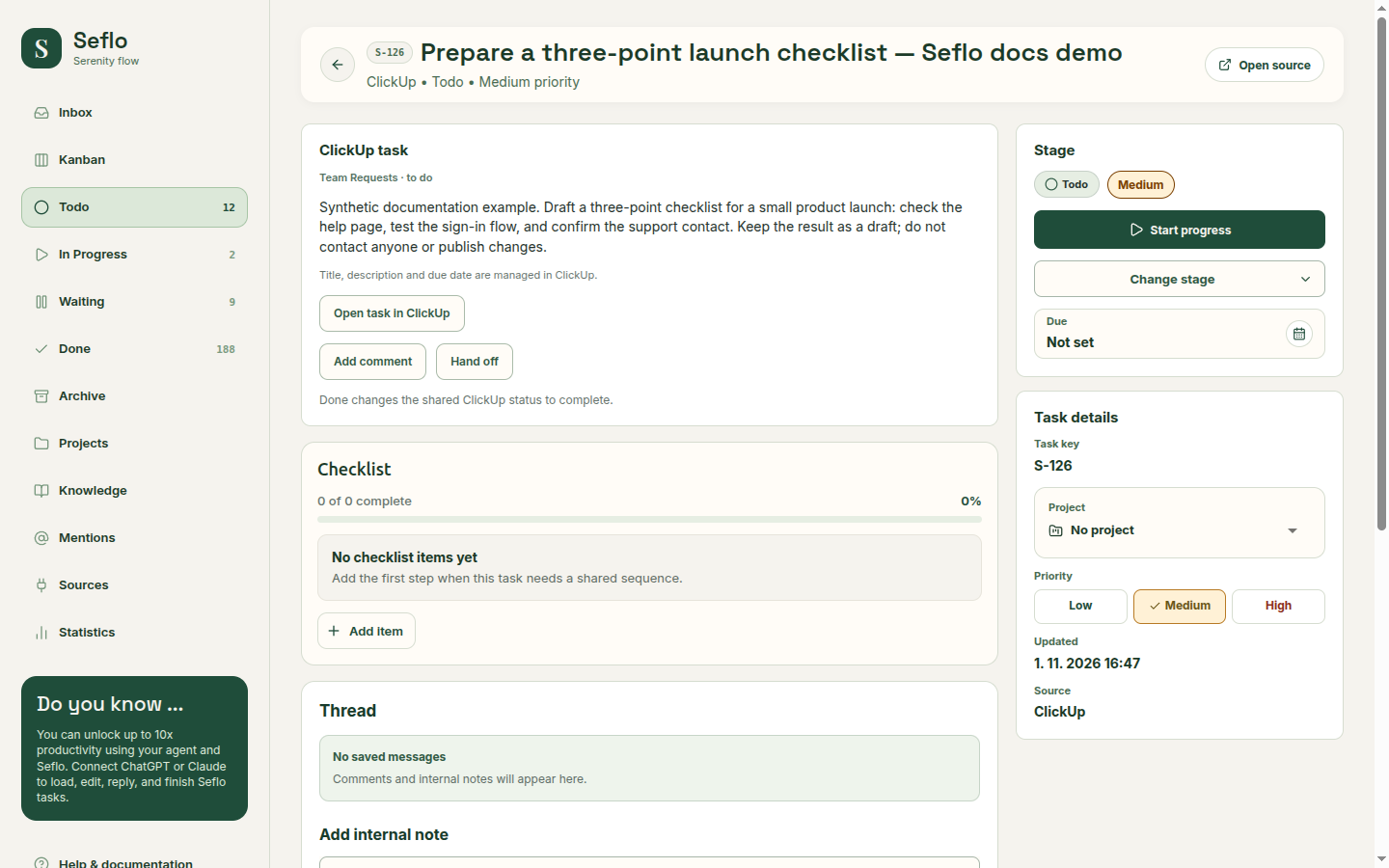
Compare the imported task with the original using Open task in ClickUp. Open full-size image.
What completion changes
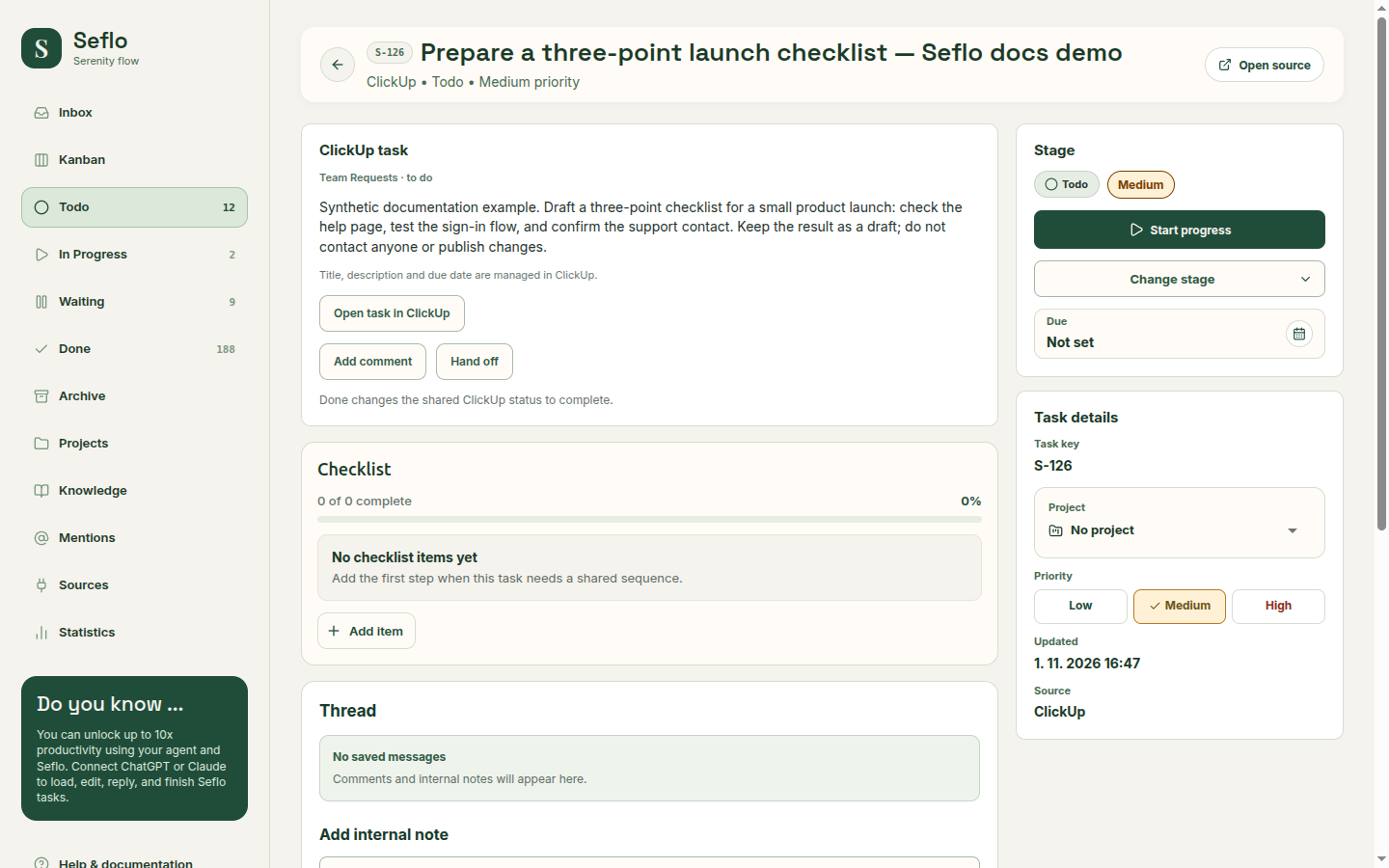
ClickUp owns the source title, description and due date. Seflo's personal organization, checklist and internal notes are separate. A selected source status change affects the shared ClickUp task, so check the exact destination status in the review.
If something does not work
For missing work, check assignment and the home List first. For a missing new List, explicitly add it to scope. If a status disappeared or the configuration changed, refresh the mapping and resolve the displayed mismatch before saving.
Continue with Connect your AI and Review and confirm actions.
Watch: Seflo for ClickUp — From an assigned task to completed work
Process an assigned task, inspect the workbook and confirm completion and the intended handoff in ClickUp. The edited example condenses the workflow; use the written steps above for setup and checks.
Watch: Connect ClickUp to Seflo
Reconnect the intended account, select its Workspace and home Lists, review both mapping directions, and verify a newly assigned demo task. This walkthrough preserves the existing configuration and leaves the imported request open.