
Connect Microsoft Teams
Capture a Teams message with context and send a reviewed result back to the conversation.
Before you start
Use your Microsoft work or school account for the Teams organization containing the message. The message workflow requires the Seflo Teams app. Public Teams Store availability has not yet been verified. After publication, the intended route is to find Seflo under Apps and install it for the intended organization. Existing captures show the app already available in the demonstration tenant. The Teams app's message action and the Seflo source connection are separate parts of the workflow.
Connect your Teams account
- In Seflo, open Sources → Add source → MS Teams.
- Start the Microsoft sign-in and choose the intended work or school account.
- Complete the account connection and return to Seflo.
- Check the connected account and tenant on the Teams source page.
- If you use several organizations, confirm that this is the one containing the request.
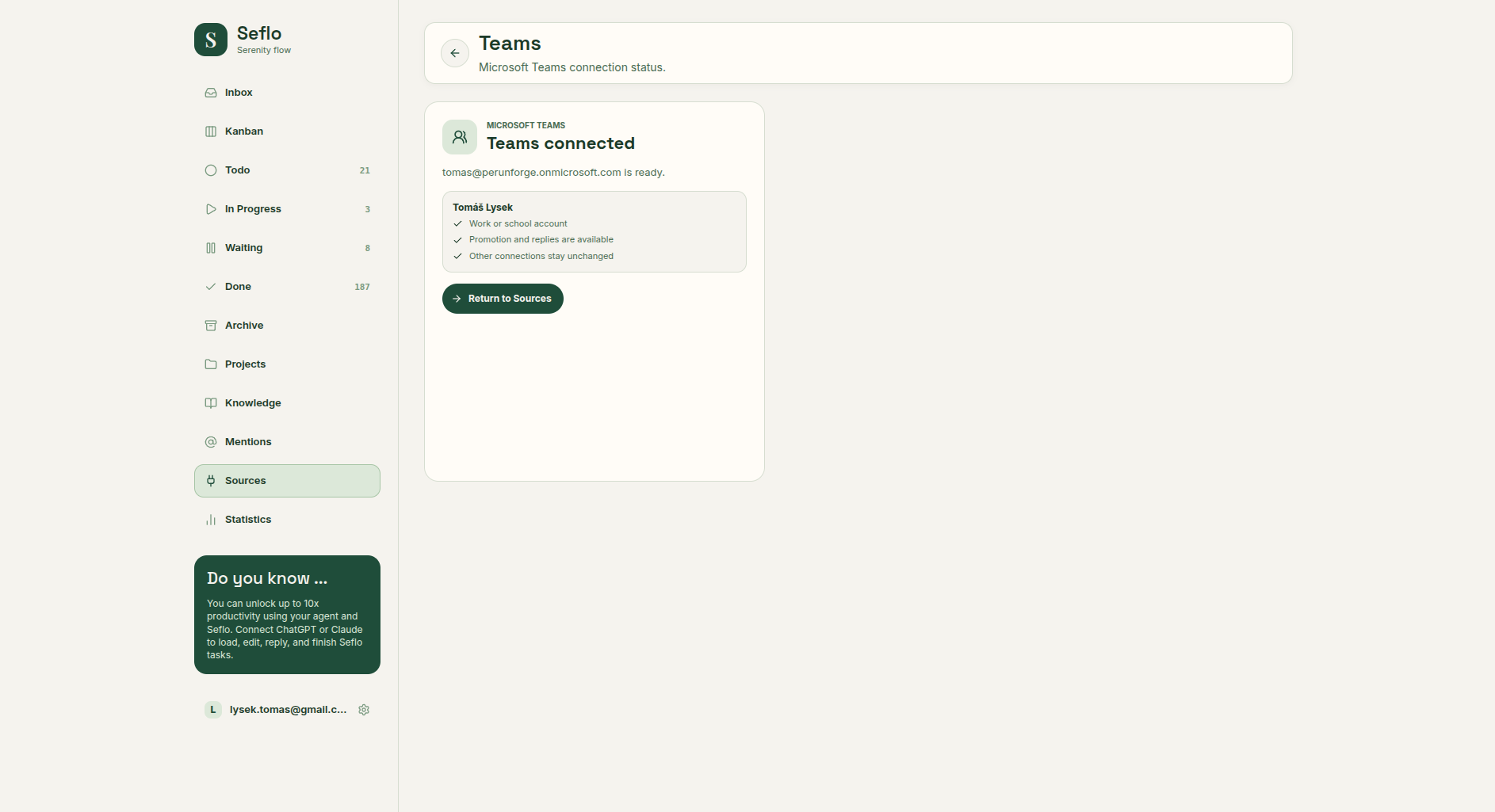
Check the connected Microsoft work or school account. Open full-size image.
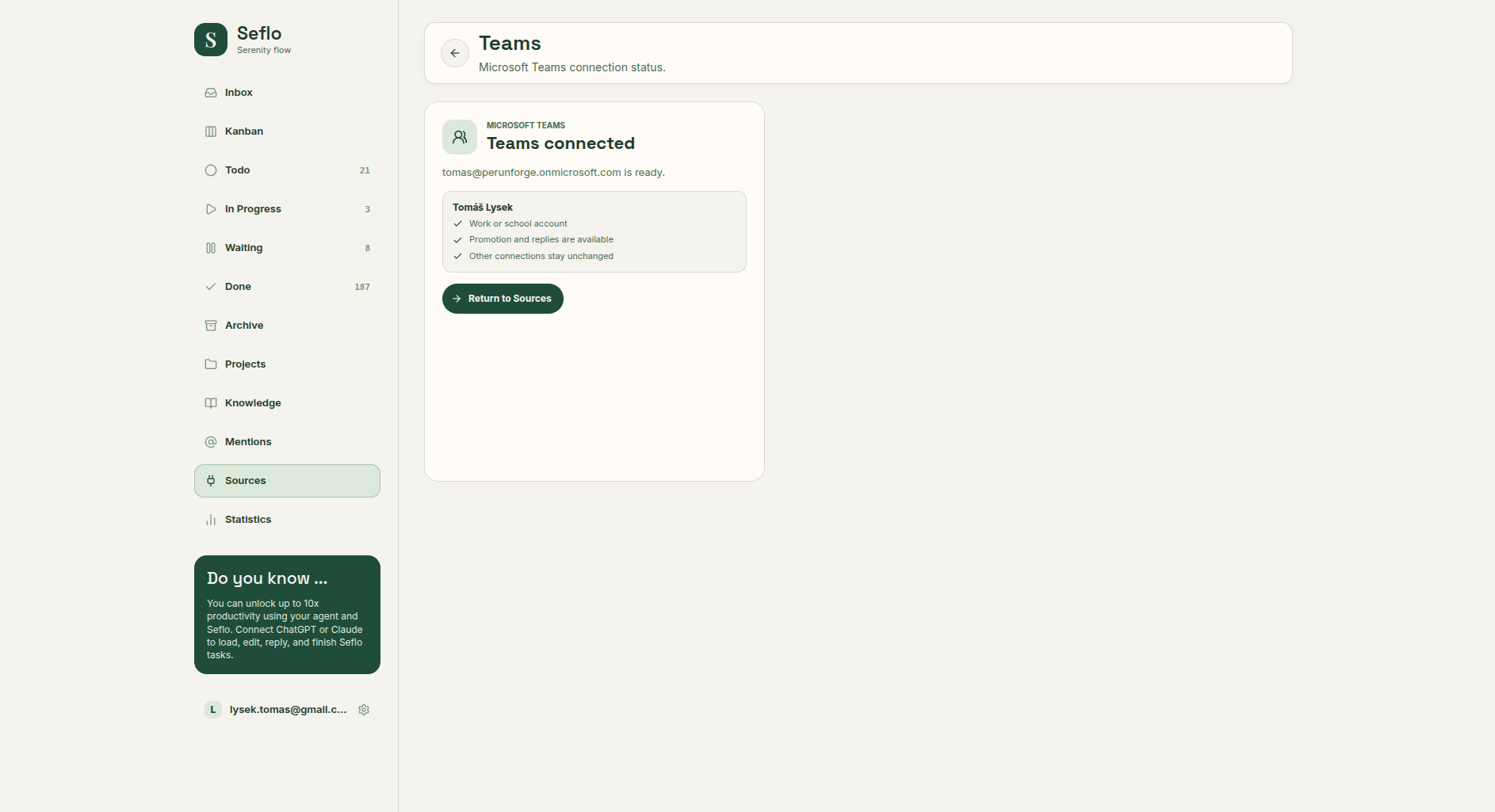
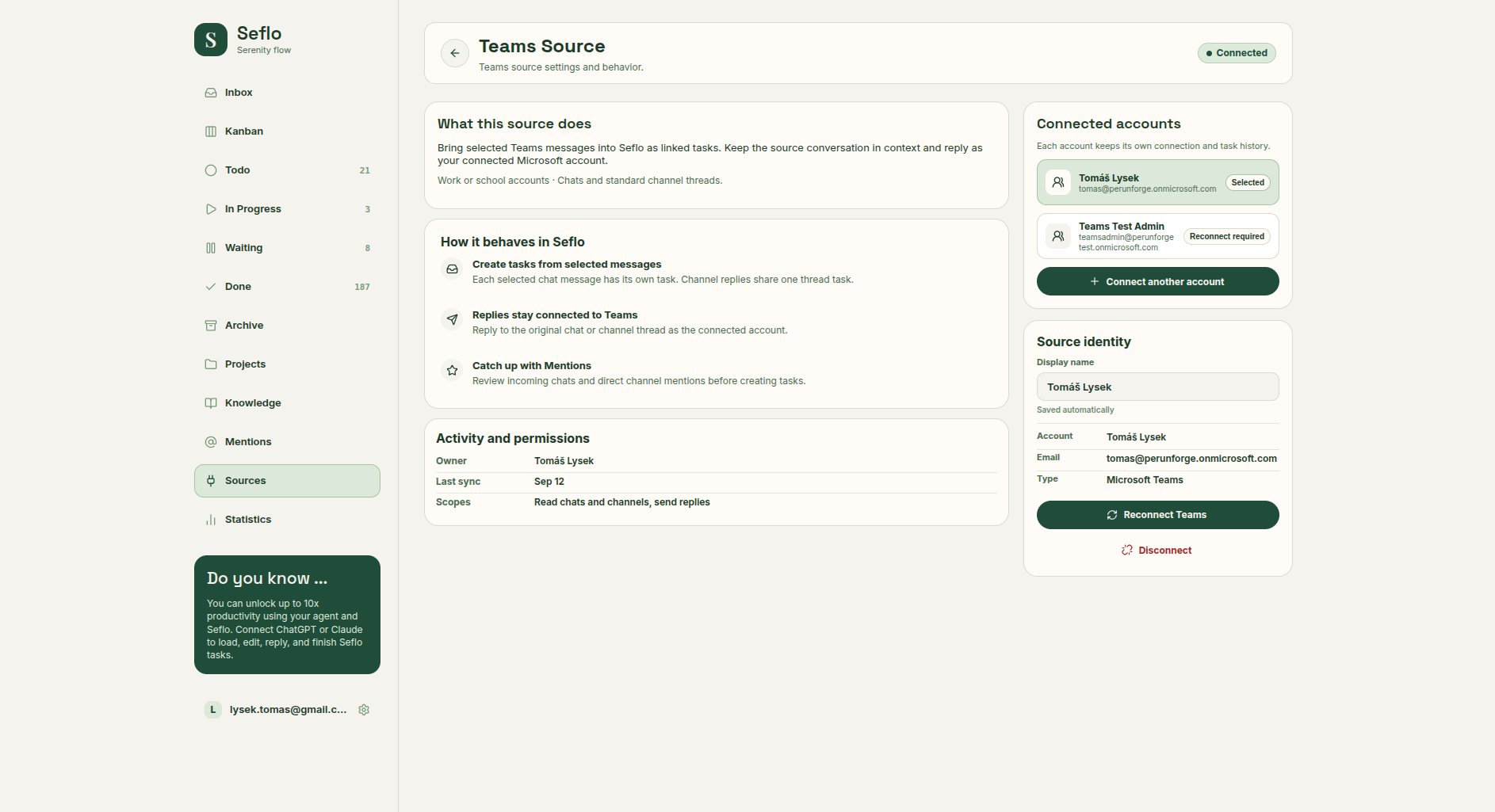
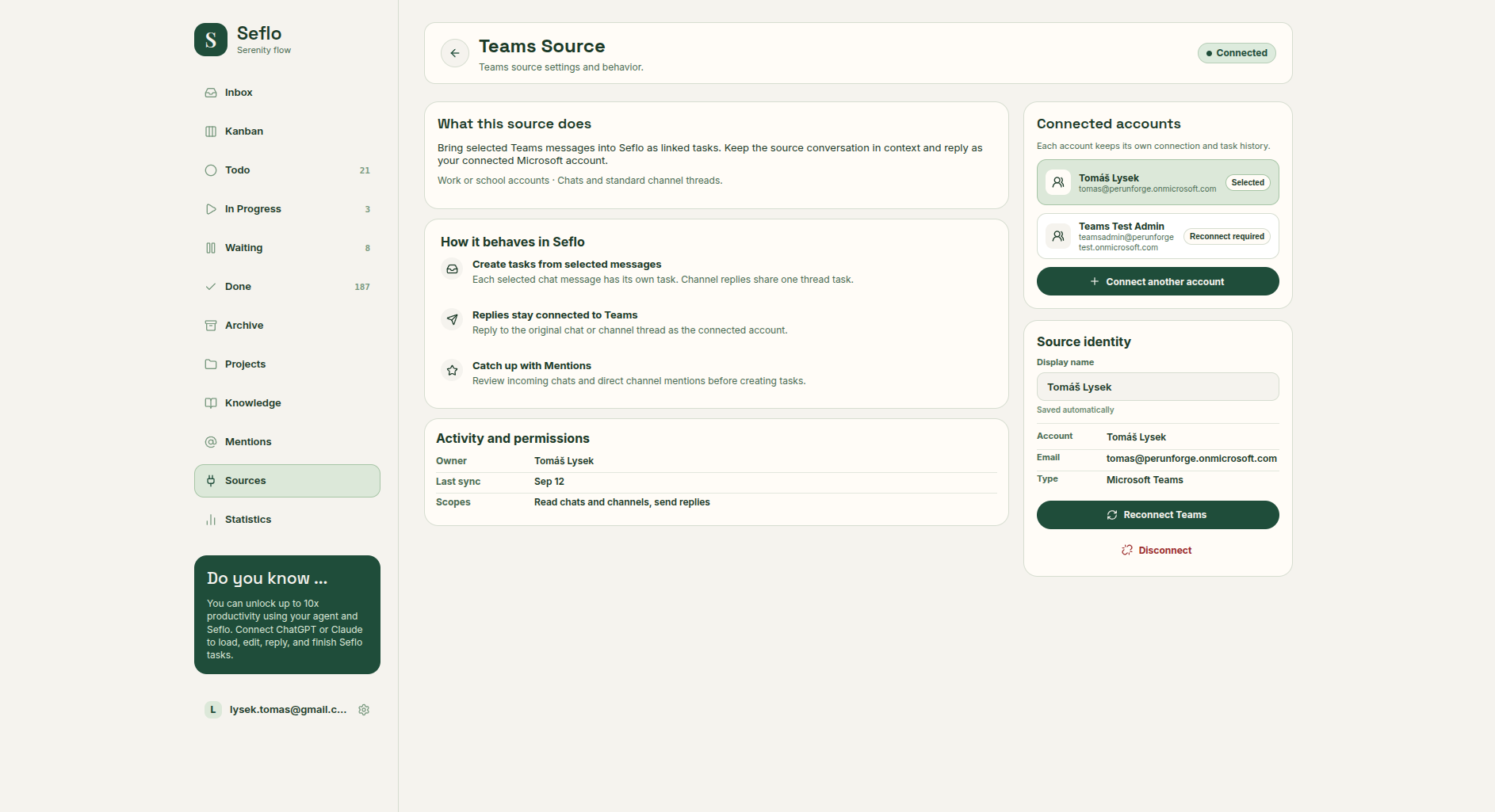
Each account keeps its own connection and task history. Check the selected email, then confirm the organization in Teams; display names alone can match across accounts. Open full-size image.
Capture a message
- Open Teams and find a message you want to work on.
- Open its message menu and choose the Seflo Send to Seflo action, under additional actions if needed.
- Review the selected message and follow the prompt to create or open the task.
- Open the task in Seflo and check the source conversation and available files.
Use a standard channel or an eligible chat in your organization. In our verification, Send to Seflo was available in the standard channel but absent from the self-chat menu; use the supported channel route if you see the same behavior.
Selected chat messages have their own tasks. Channel replies share a thread task, so selecting another reply in the same channel thread can take you to the existing task rather than create a duplicate.
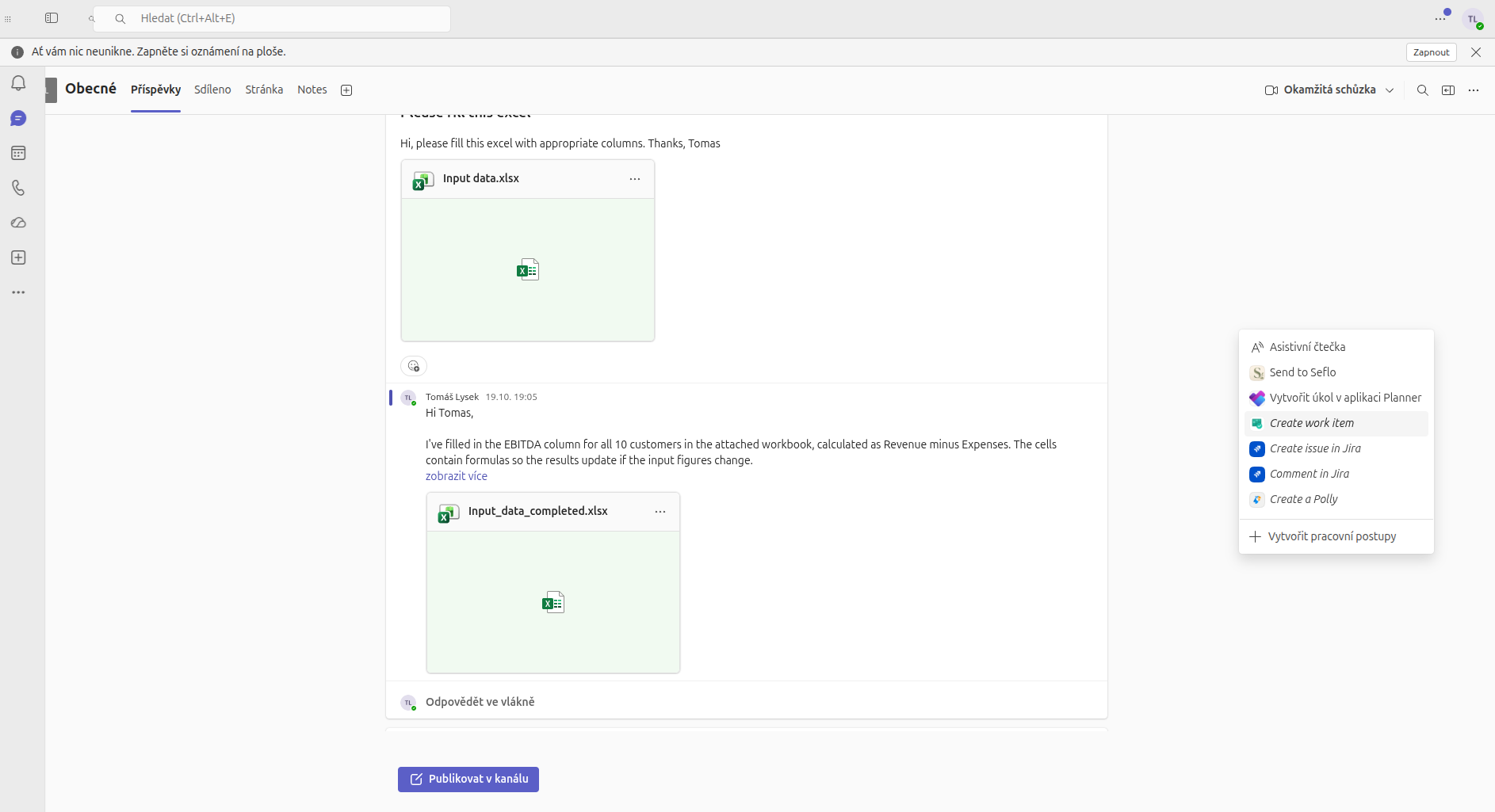
Open the action on the message that contains the request. Open full-size image.
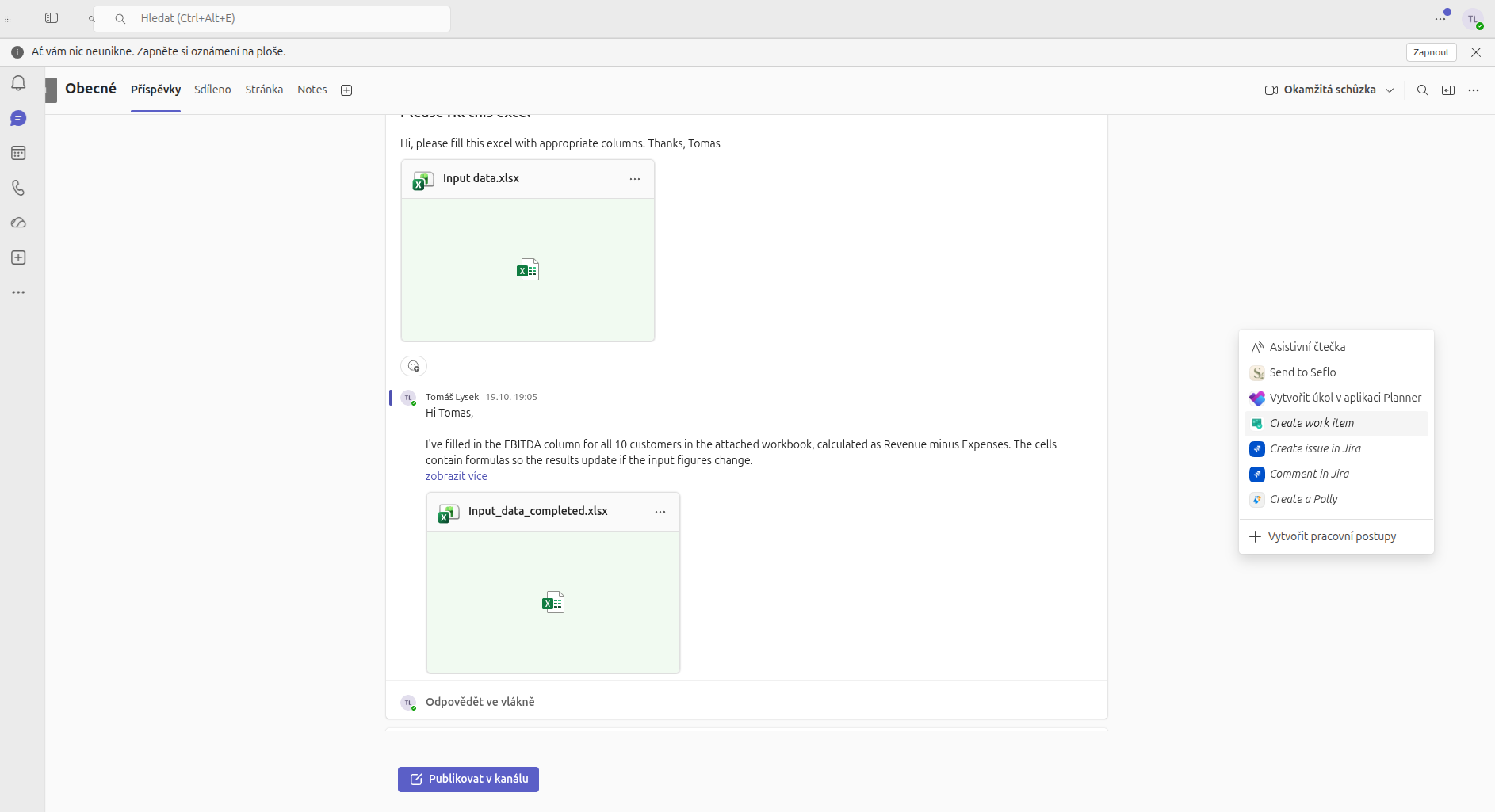
Verify the linked task
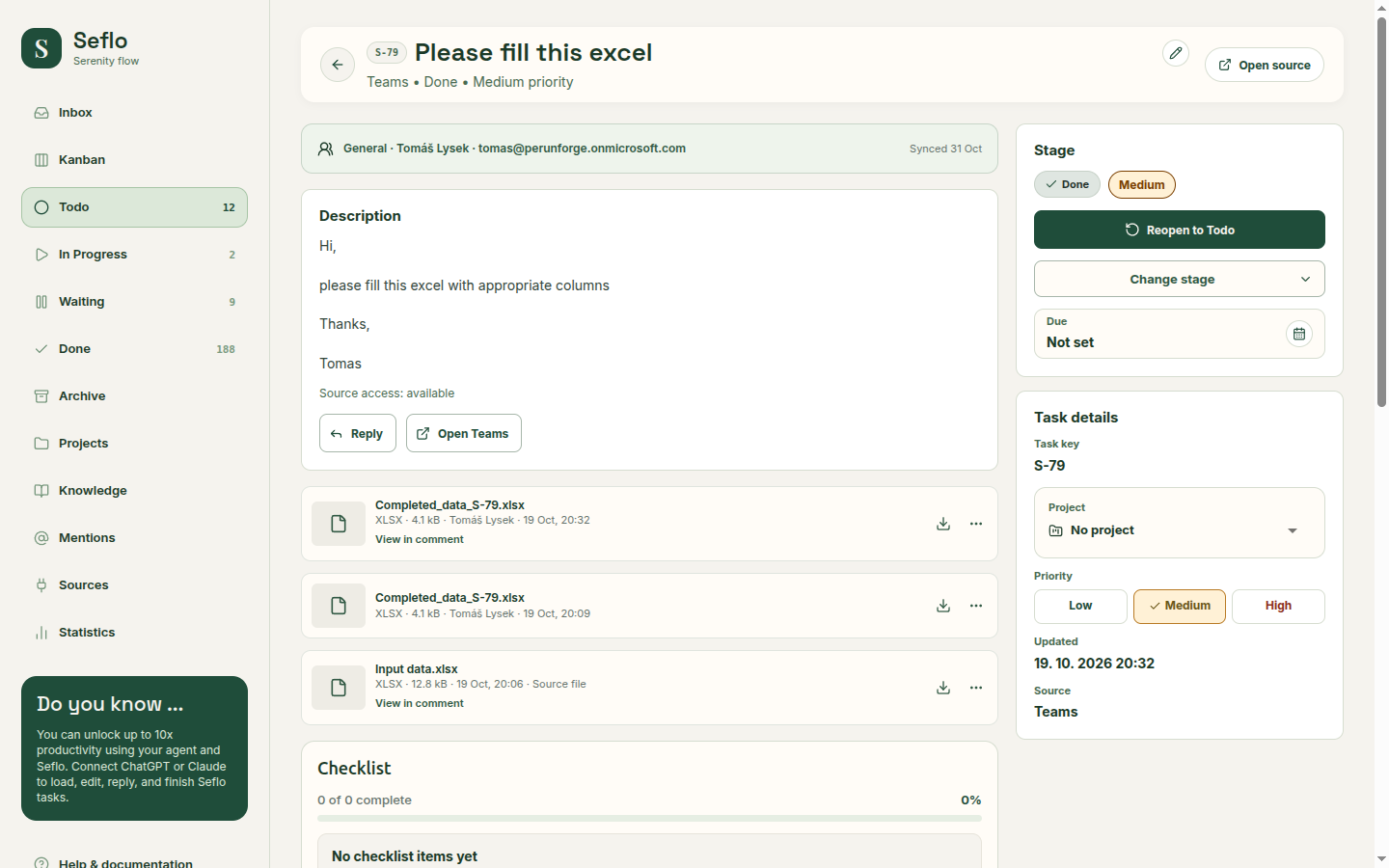
In the verified example, the selected channel thread was already linked. Seflo returned Task already exists. Open in Seflo opened S-79 — Please fill this excel, still in Done, with its original input workbook and previously completed file. No new task or channel reply was created.
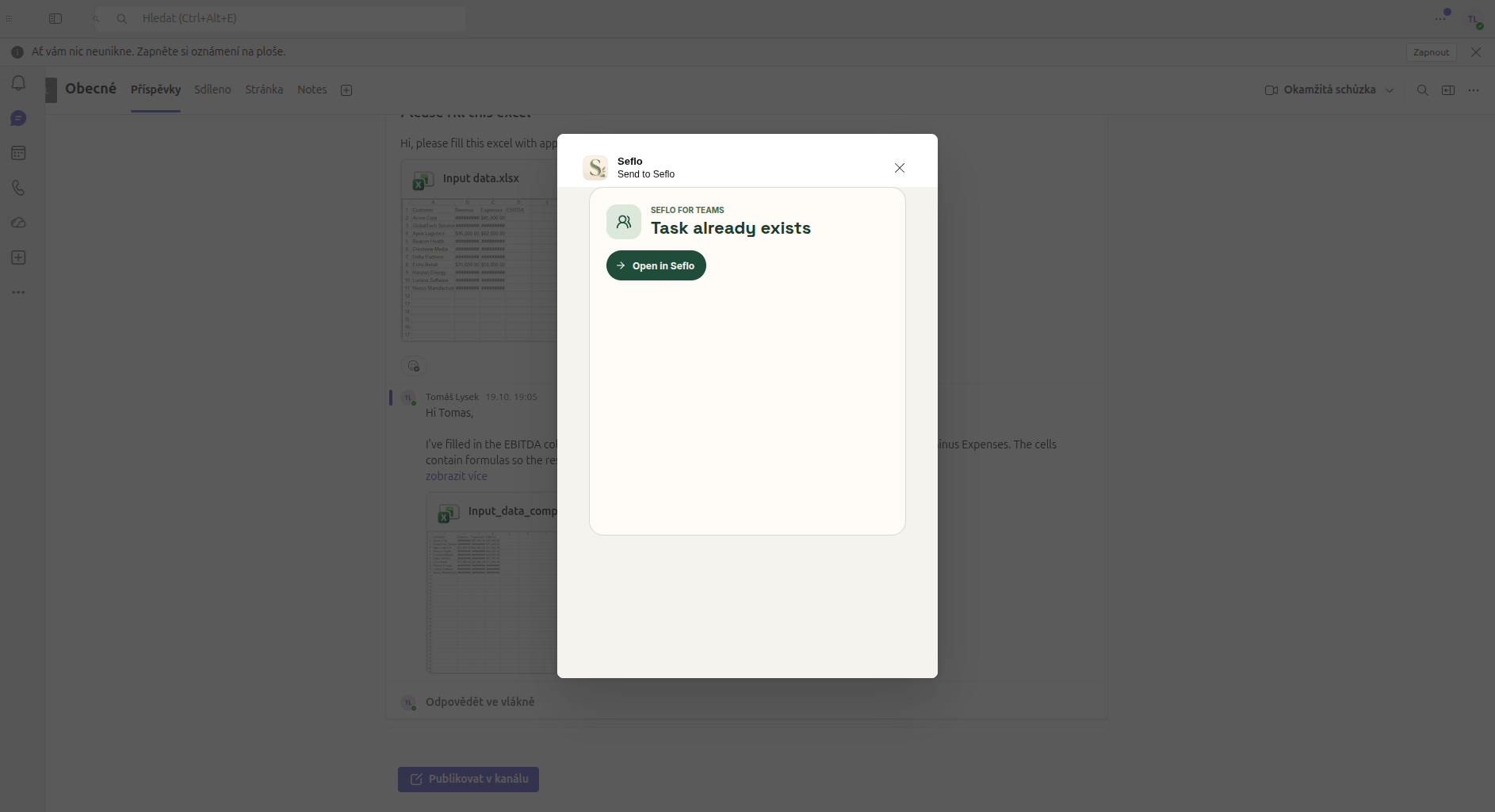
Open the existing task instead of creating the same request again. Open full-size image.
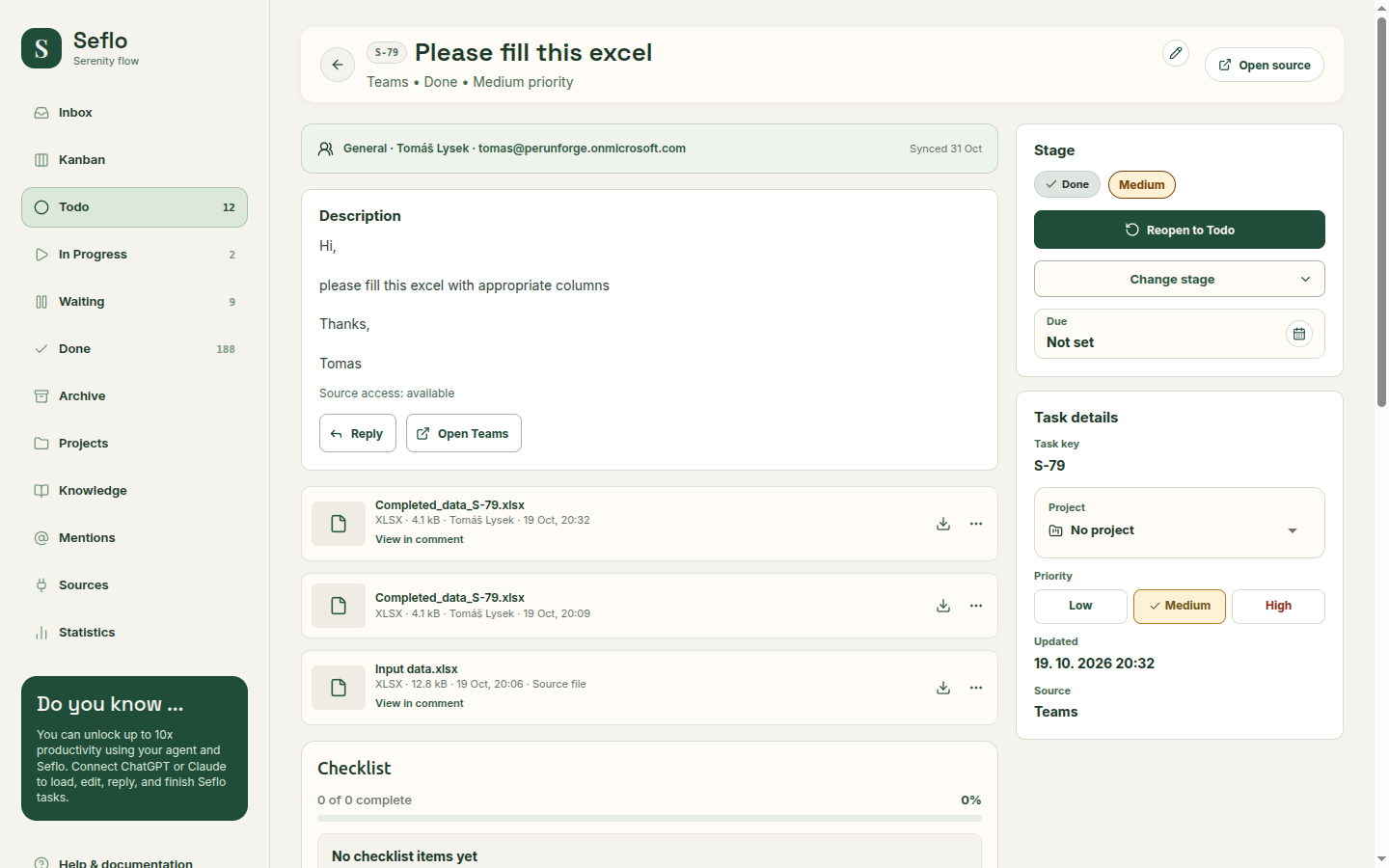
Compare the title, source and files. This task warns that some earlier source messages are not saved; open Teams if you need the missing history. Open full-size image.
Complete the request
Connect an AI client, ask it to work on the task and prepare a reply. In the review, check whether the destination is the intended chat or channel thread, verify the message and download the finished attachment before sending.
After confirmation, check the operation result and the original Teams conversation. Finishing your Seflo task does not close a Teams conversation.
Watch the Teams example to see a request with a spreadsheet become a completed reply.
Watch the walkthrough
If something does not work
- Action missing: check the Seflo Teams app and the organization you are currently using.
- Message inaccessible: verify access with the same account that Seflo shows as connected.
- File unavailable: being able to read the message does not guarantee access to every linked file. Check the file's own access and the import status.
- Connection expired: reconnect the intended account from Sources and retry from the existing task.