
Teams message to completed work
Take a Teams request through AI preparation, file review and confirmed delivery.
What you will accomplish
Use a Teams message containing a concrete request and a file, such as a spreadsheet that needs formulas completed. You will prepare the output with AI, inspect it and confirm a reply with the final file.
Capture the request
- Follow Connect Microsoft Teams to connect your work account and add the Seflo Teams app.
- Open the message menu in Teams and choose Send to Seflo.
- Review the selected request and open the resulting task.
- Check the chat or channel thread and the imported file. Note the task code.
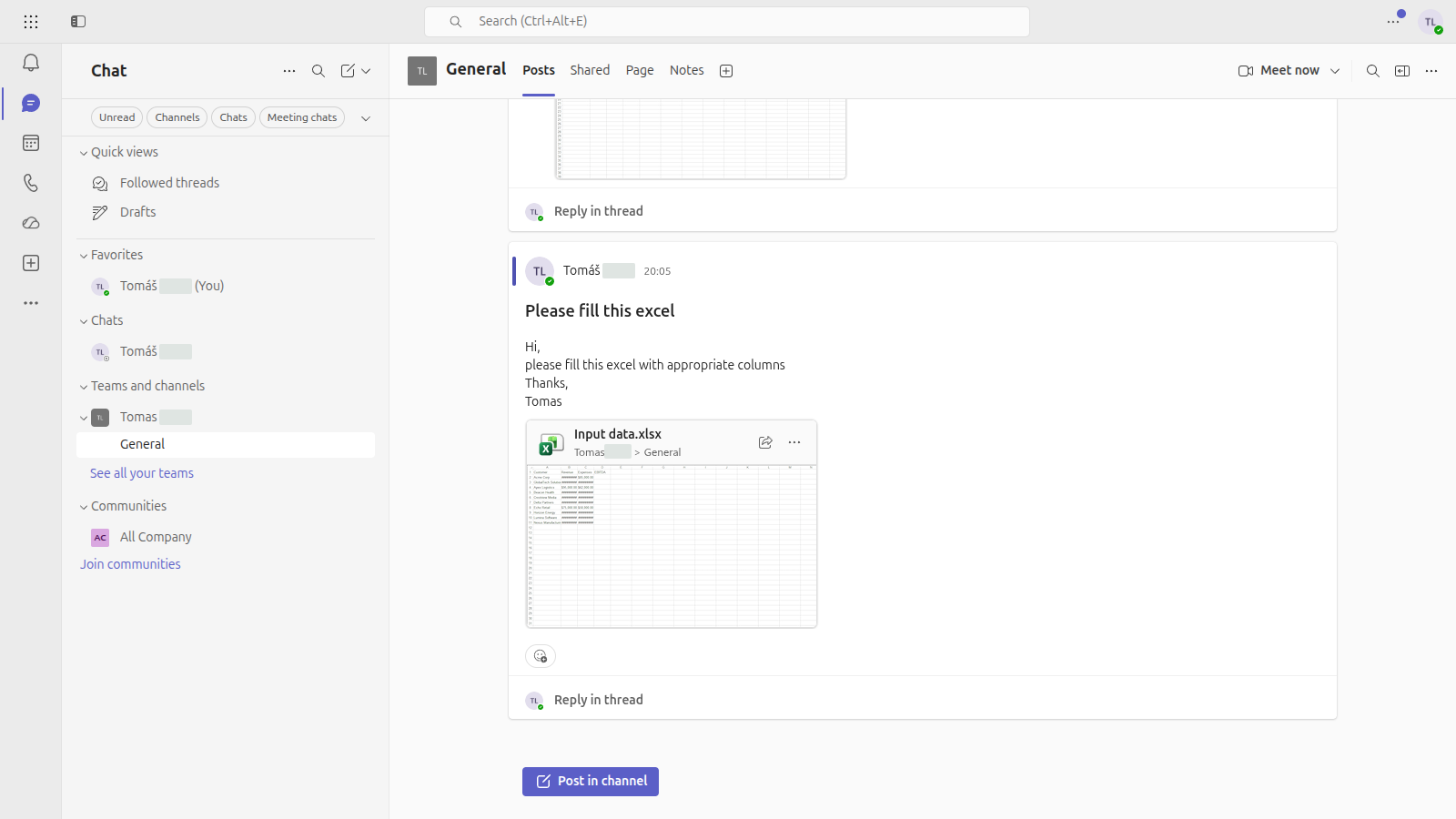
The example starts with a concrete request and the original workbook. Open full-size image.
Prepare the work with AI
In your connected assistant, replace S-123 with your task code:
Open Seflo task S-123. Read the original request and attached workbook.
Explain the requested changes, then complete the workbook while preserving
unrelated cells and sheets. Verify the result and save the finished file
with the task. Prepare a short reply for review; do not send it yet.
Give the assistant missing business facts if it asks. If it cannot access the original file, resolve that before it creates an output. Do not let it reconstruct a spreadsheet from its filename alone.
Review and send
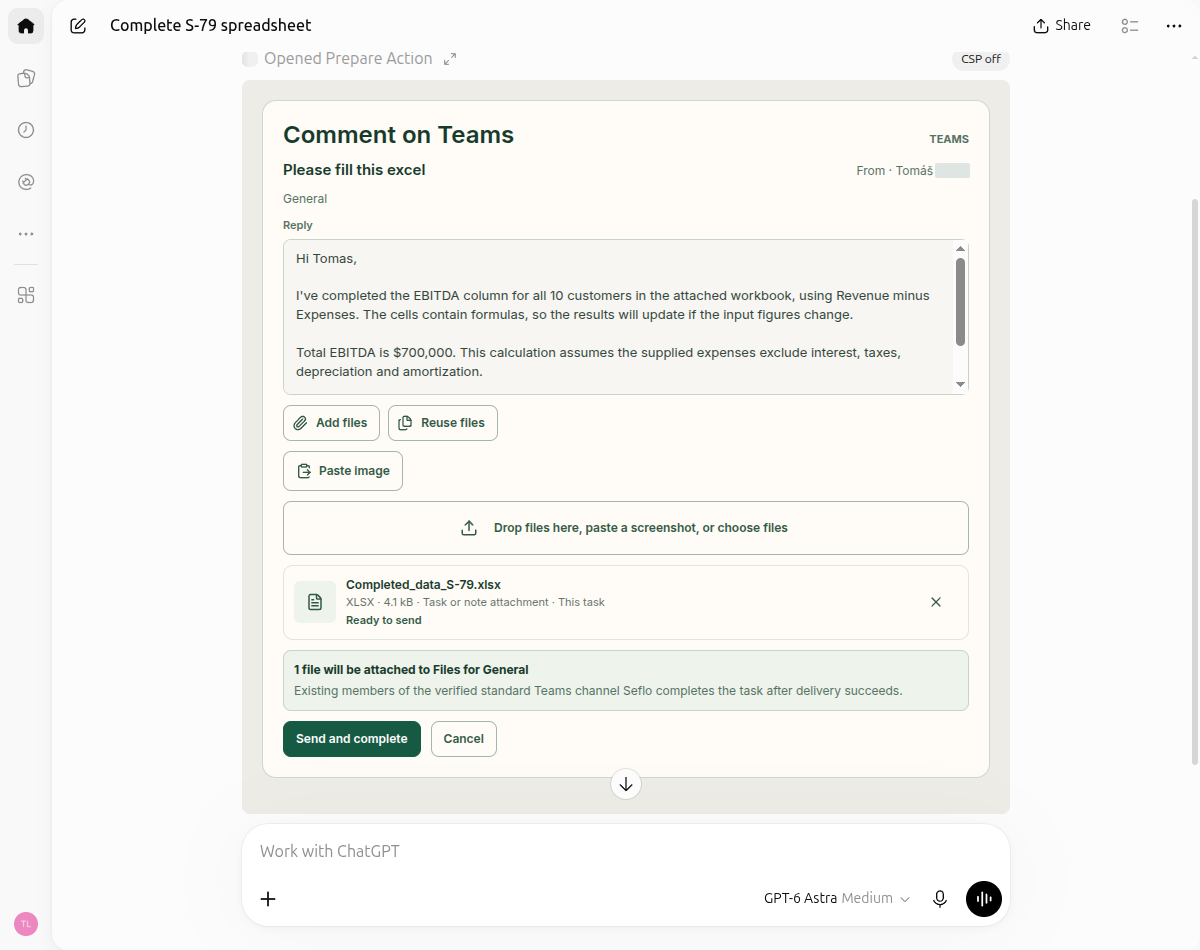
Check the destination, reply and selected output file before confirming. Open full-size image.
- Download the finished file and inspect the requested changes. For calculations, check formulas and results.
- Ask the assistant to prepare the reply action for the linked task and open its review.
- Check the source account, destination, reply and actual attachment list.
- Choose Send and complete when the review matches your intent.
- Wait for the operation result, then check the original conversation for the message and downloadable file.
If sending is still running or the result is uncertain, inspect the existing operation before retrying. The source conversation is where you verify delivery; the task's Done stage alone is not a delivery receipt.
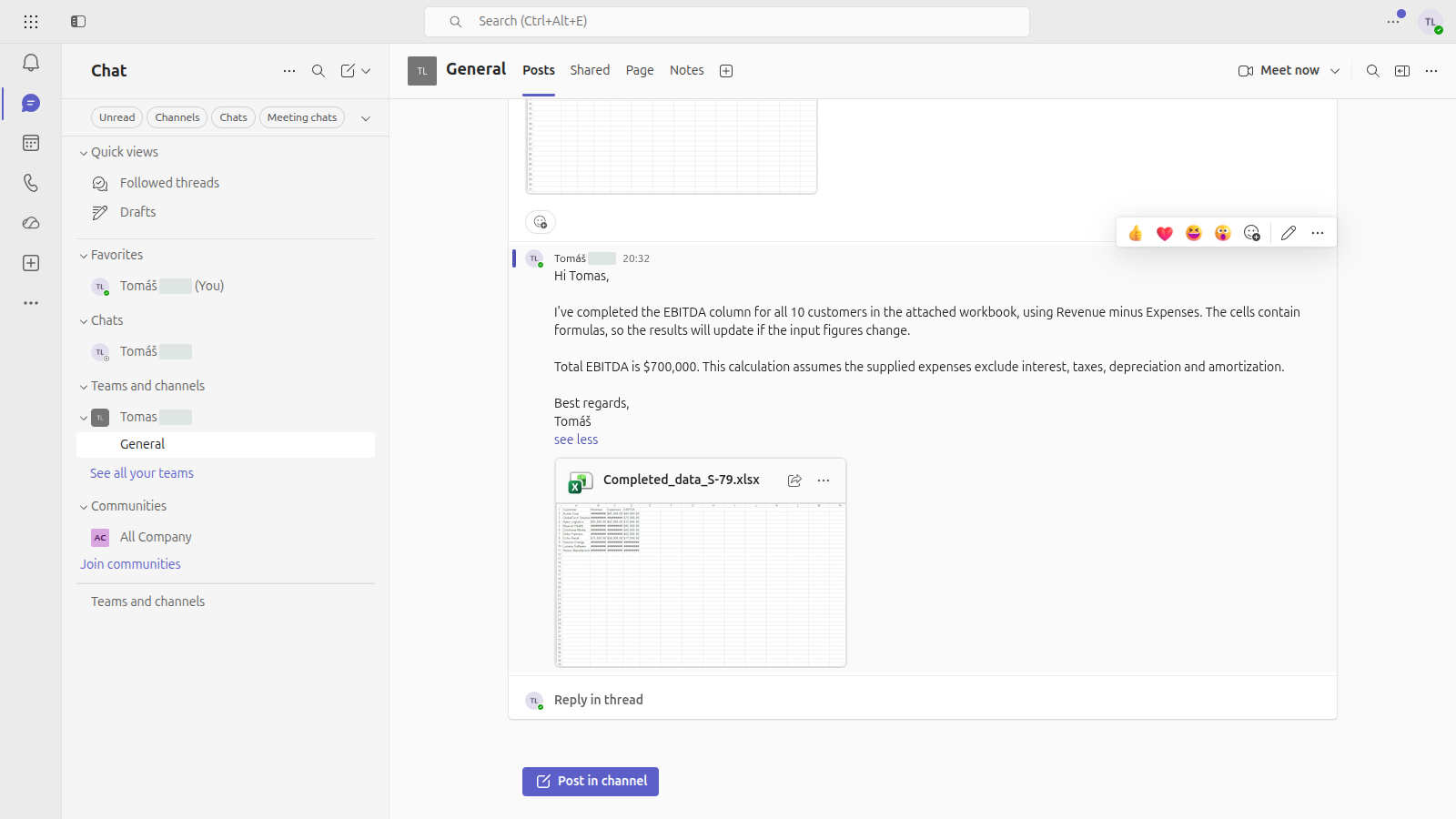
After confirmation, verify the reply and its attachment in the original conversation. Open full-size image.
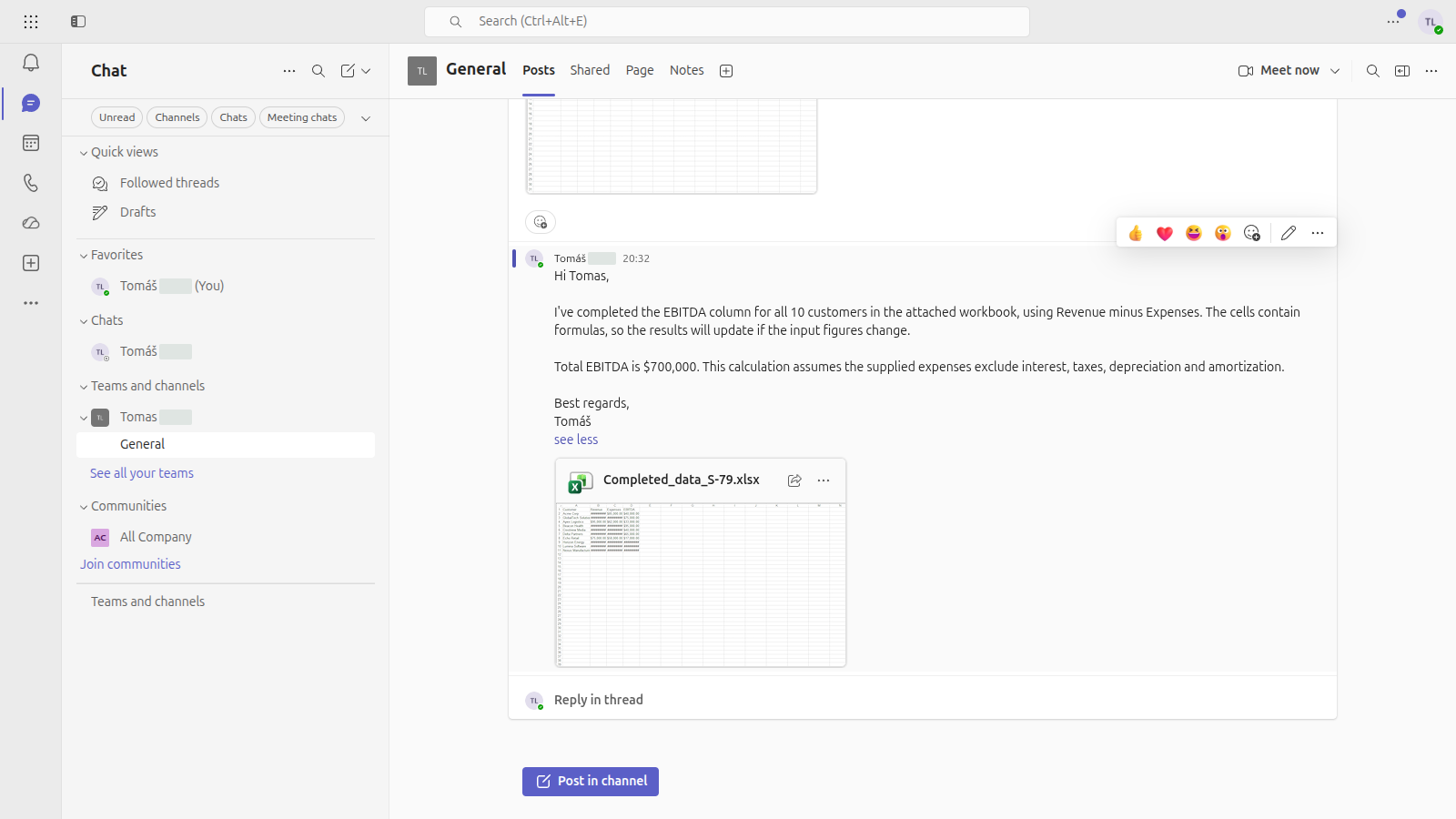
Watch the Teams example
The product demo condenses the workflow. Your assistant may ask follow-up questions or need additional time to process the file. Follow the checks above even when the video moves quickly.
What to try next
Read Work with files and Review and confirm actions for more detail. If the source or file is missing, use Troubleshooting.