
Connect Salesforce
Select assigned Tasks, Opportunities and Cases and their completion settings.
Before you start
Use your Salesforce account for the organization containing your work. Identify the record types and statuses you want to include, and the completion status appropriate for Tasks and Cases.
Connect and configure Salesforce
- Open Sources → Add source → Salesforce and connect your Salesforce account.
- Check Salesforce organization and Verified worker after returning to Seflo.
- On Choose your Salesforce work, enable the object types you need: Tasks, Opportunities and Cases.
- For each enabled object, choose its record types and statuses, or retain the displayed all-types/all-statuses selection where appropriate.
- Review the Done status for the applicable object and record type. Use a real completion status from your organization.
- Save the configuration and return to the source overview.
- Choose Synchronize now. If the result says Synchronization partially complete, wait for the current request to finish, then choose Continue synchronization when offered.
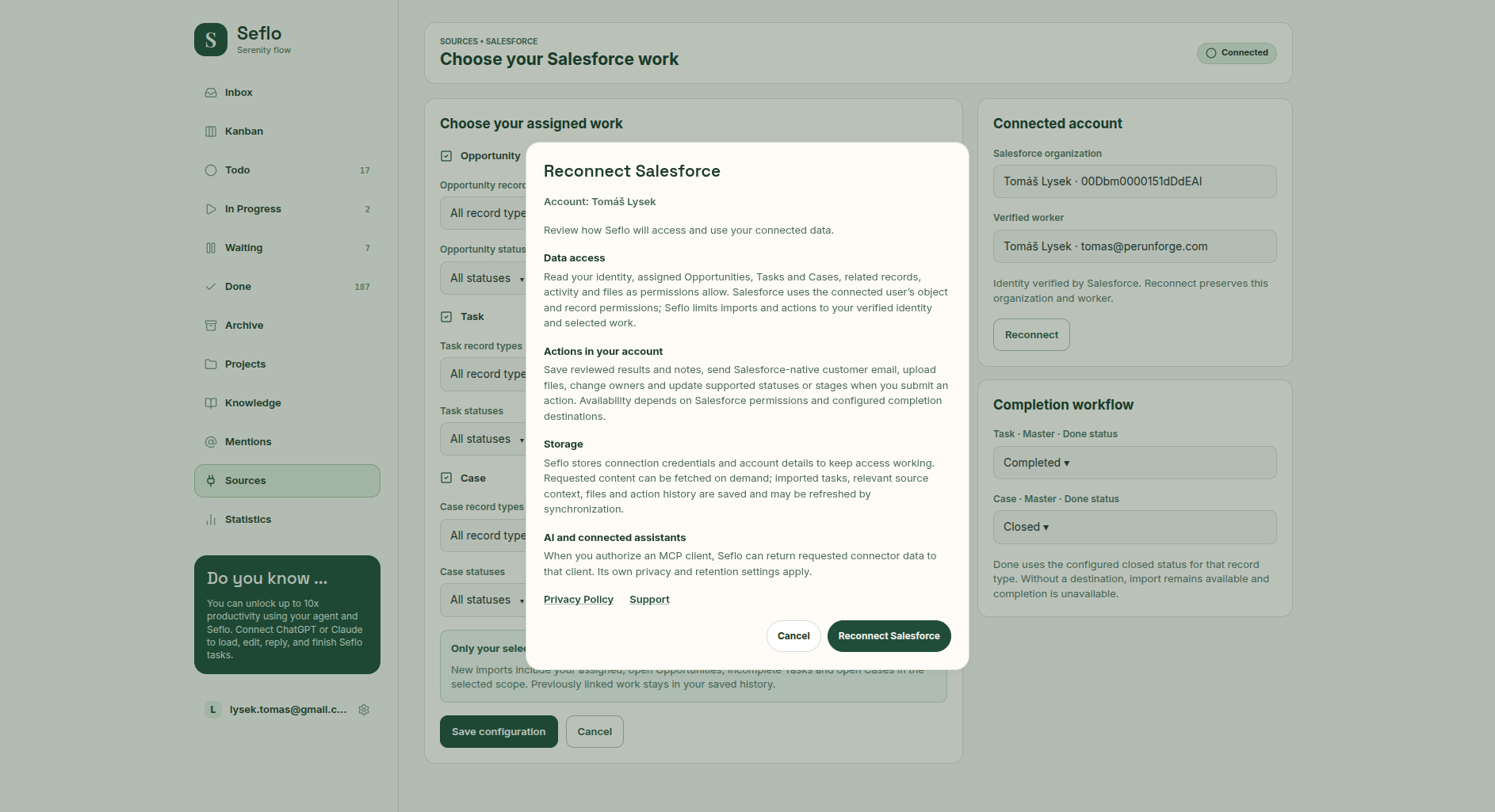
Read the disclosure before continuing to Salesforce authorization. Open full-size image.
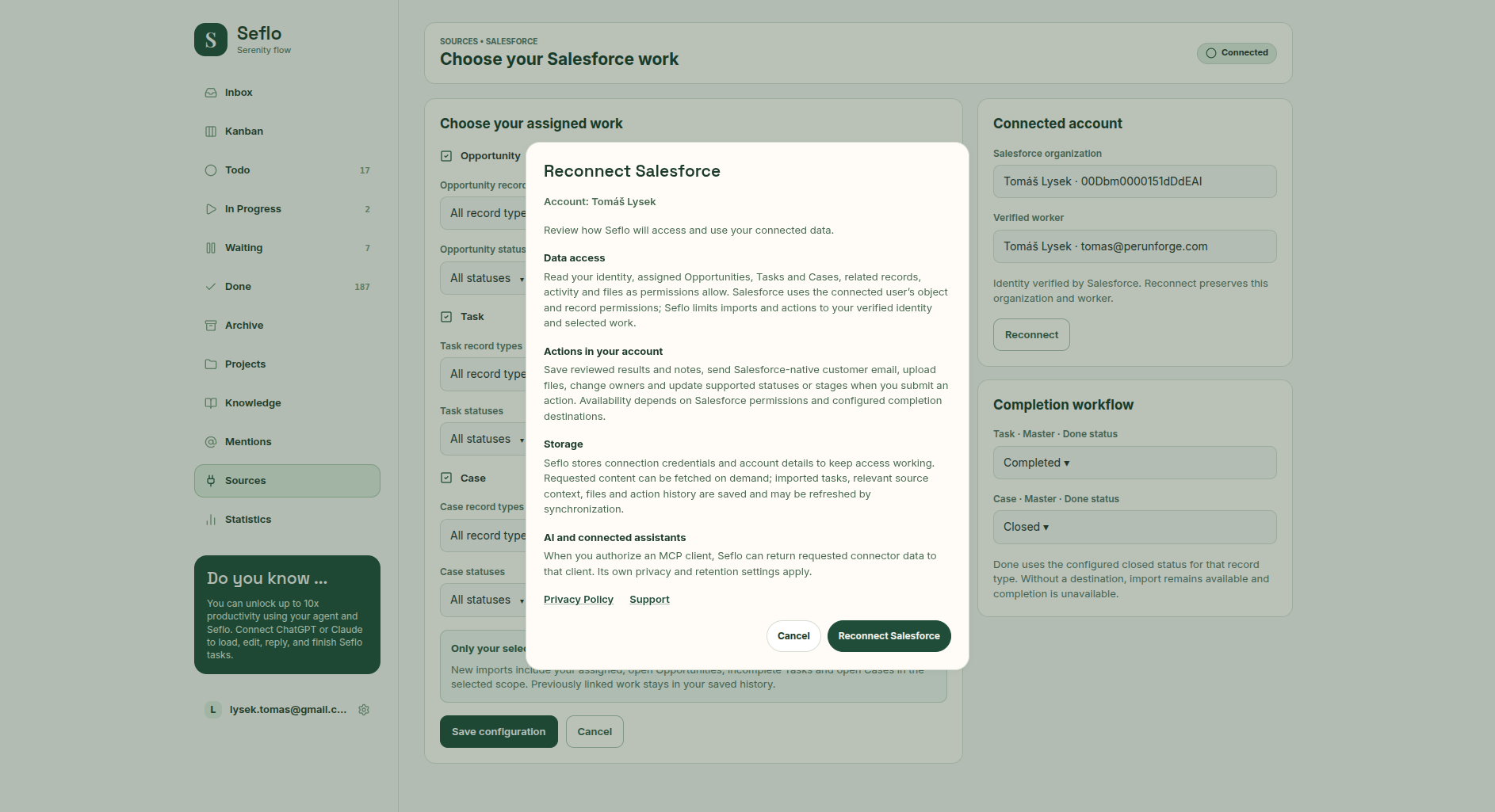
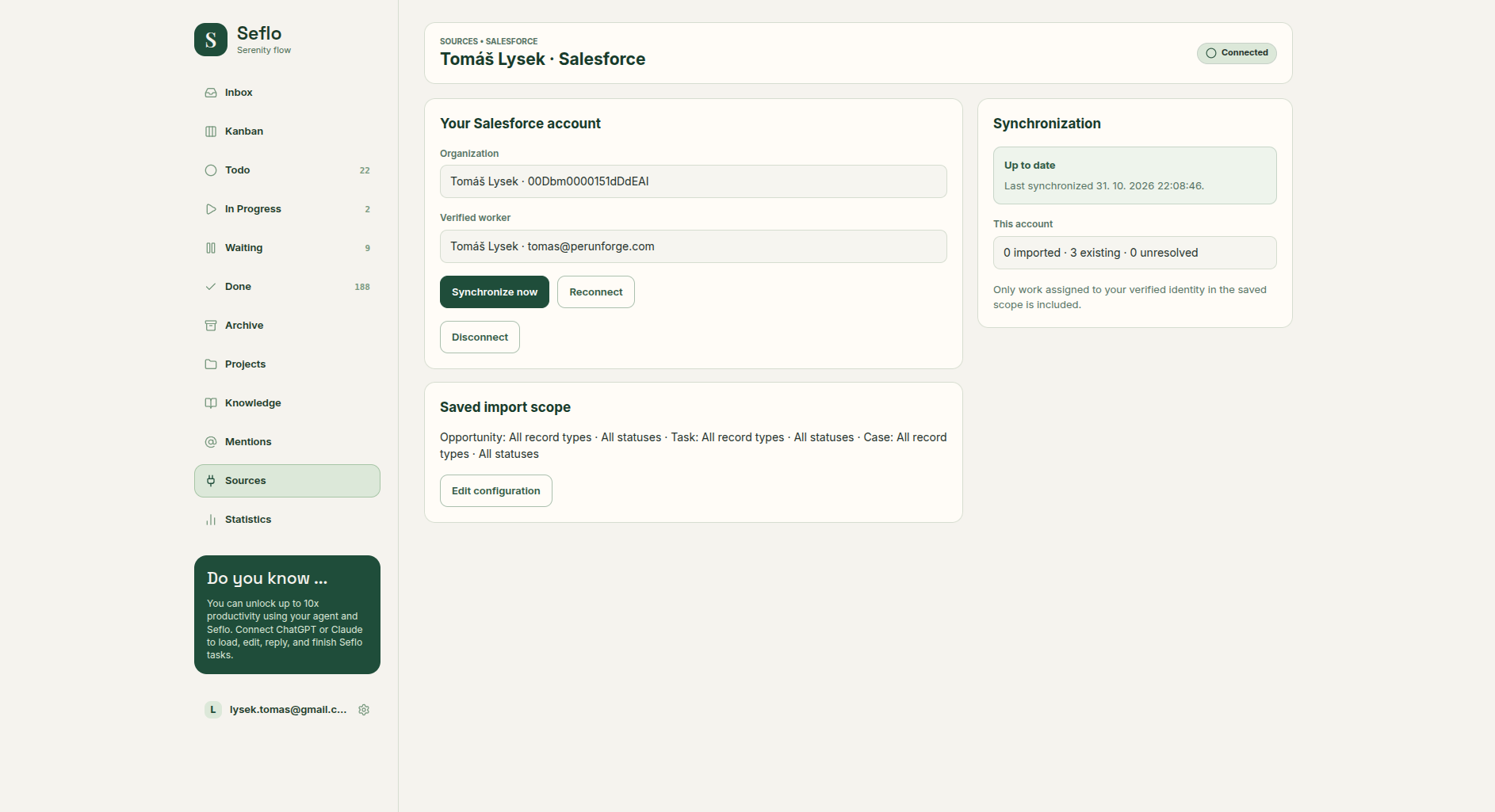
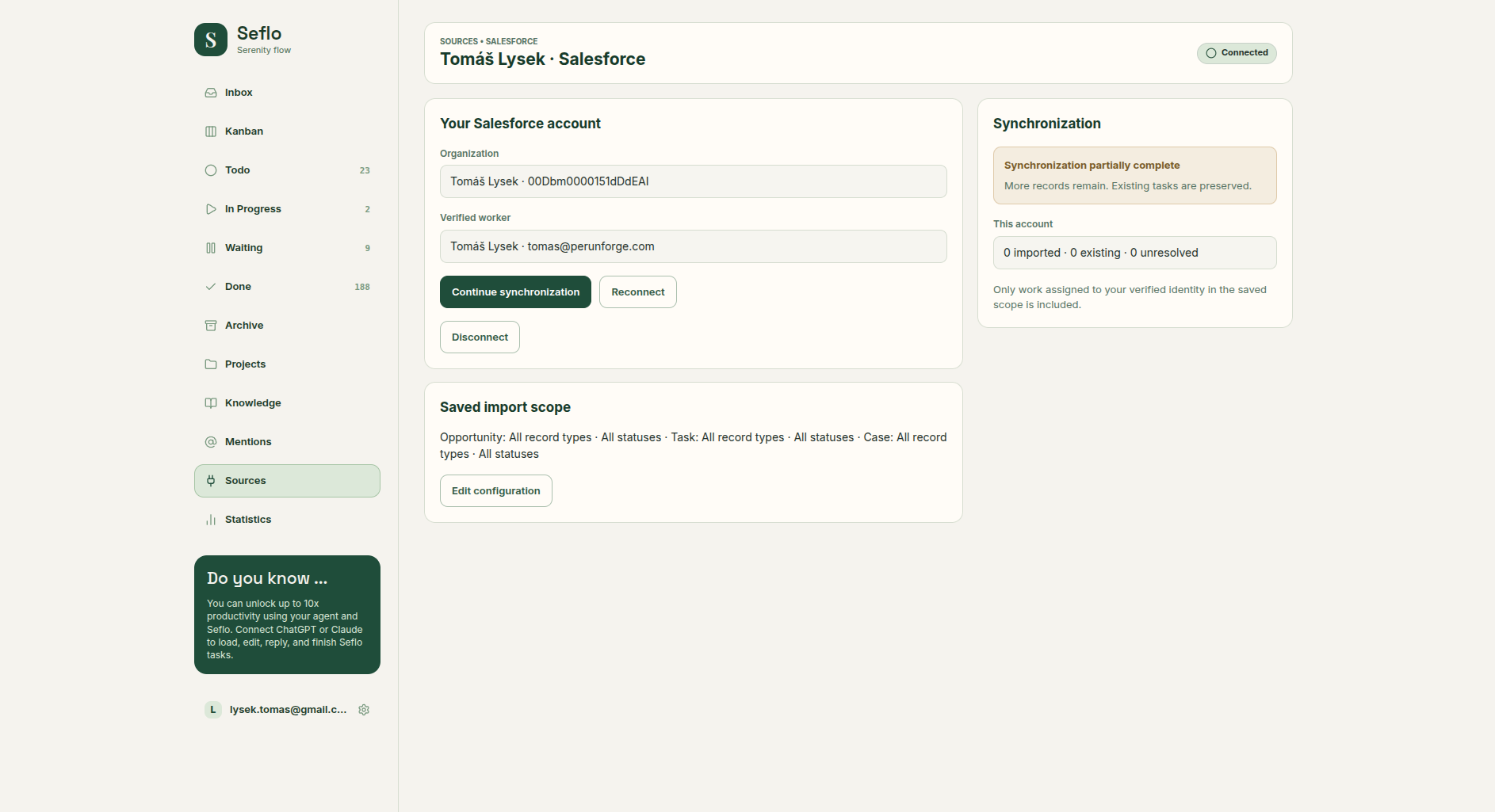
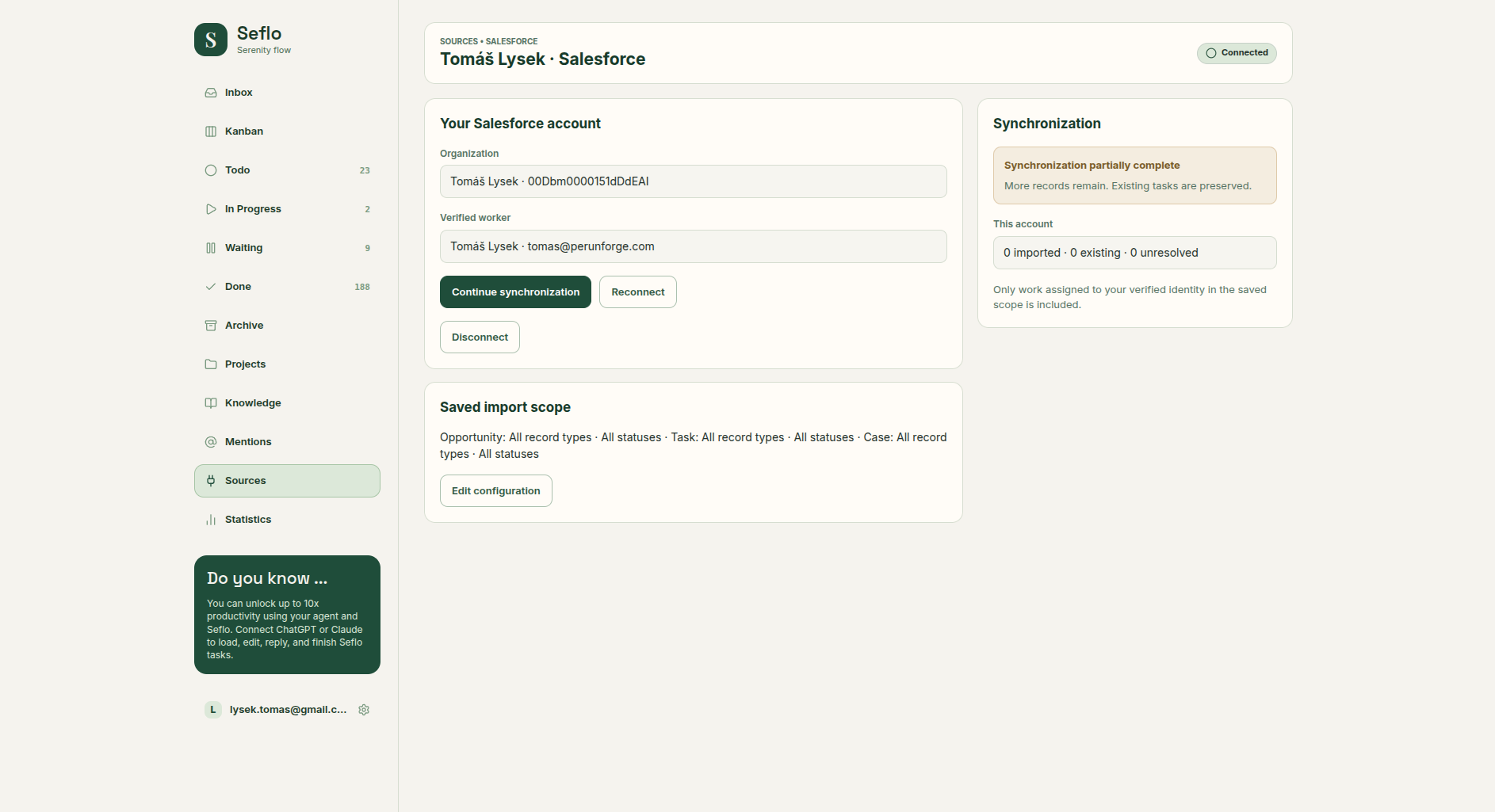
Check the organization and worker after returning from Salesforce. This capture precedes the new example task below. Open full-size image.
Understand your selection
New imports include your assigned open Opportunities, incomplete Tasks and open Cases within the selected scope. Previously linked work remains in saved history when you narrow the selection.
The same status name can mean different things for different objects or record types. Configure completion for the actual kind of work you selected.
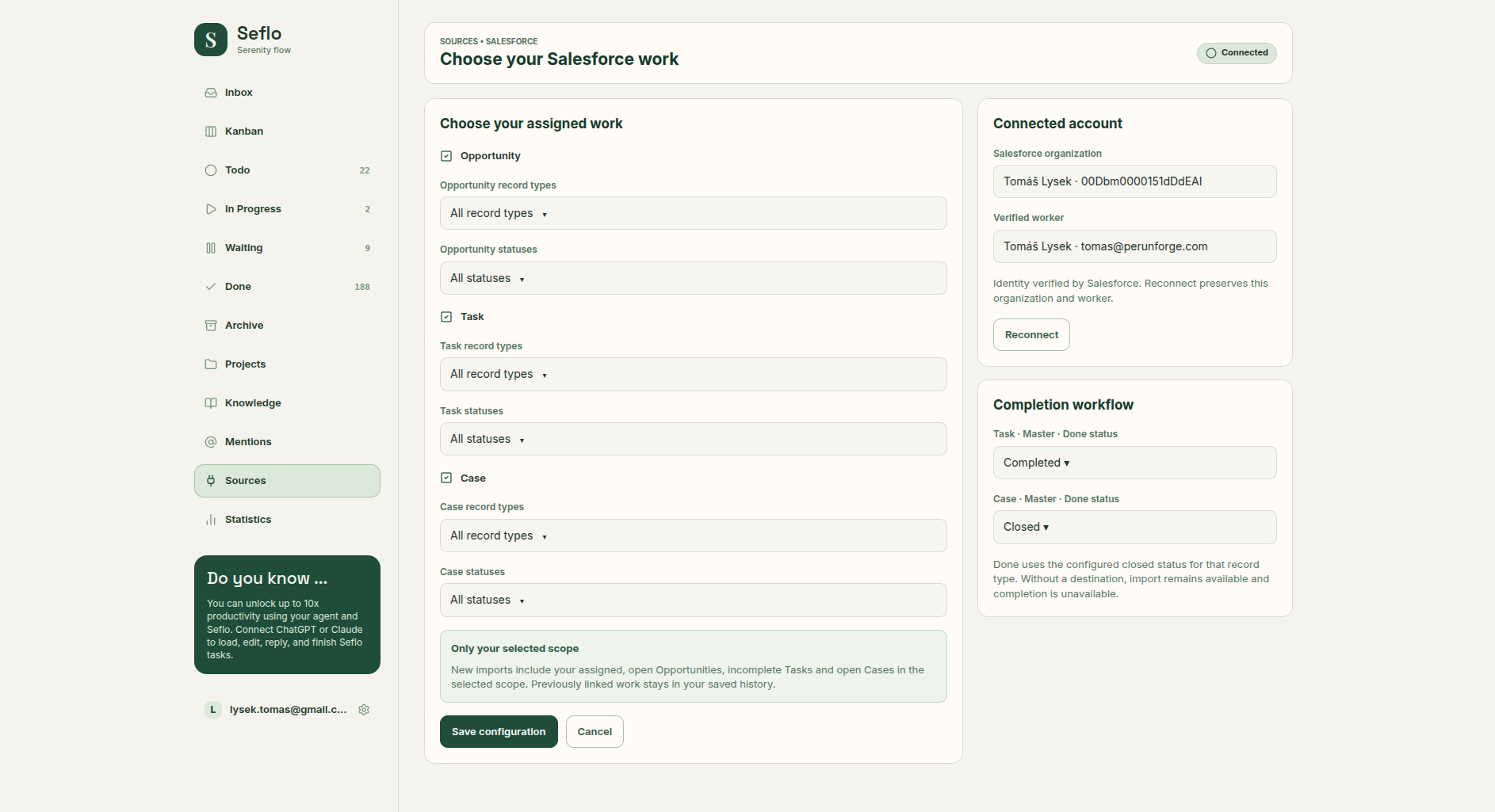
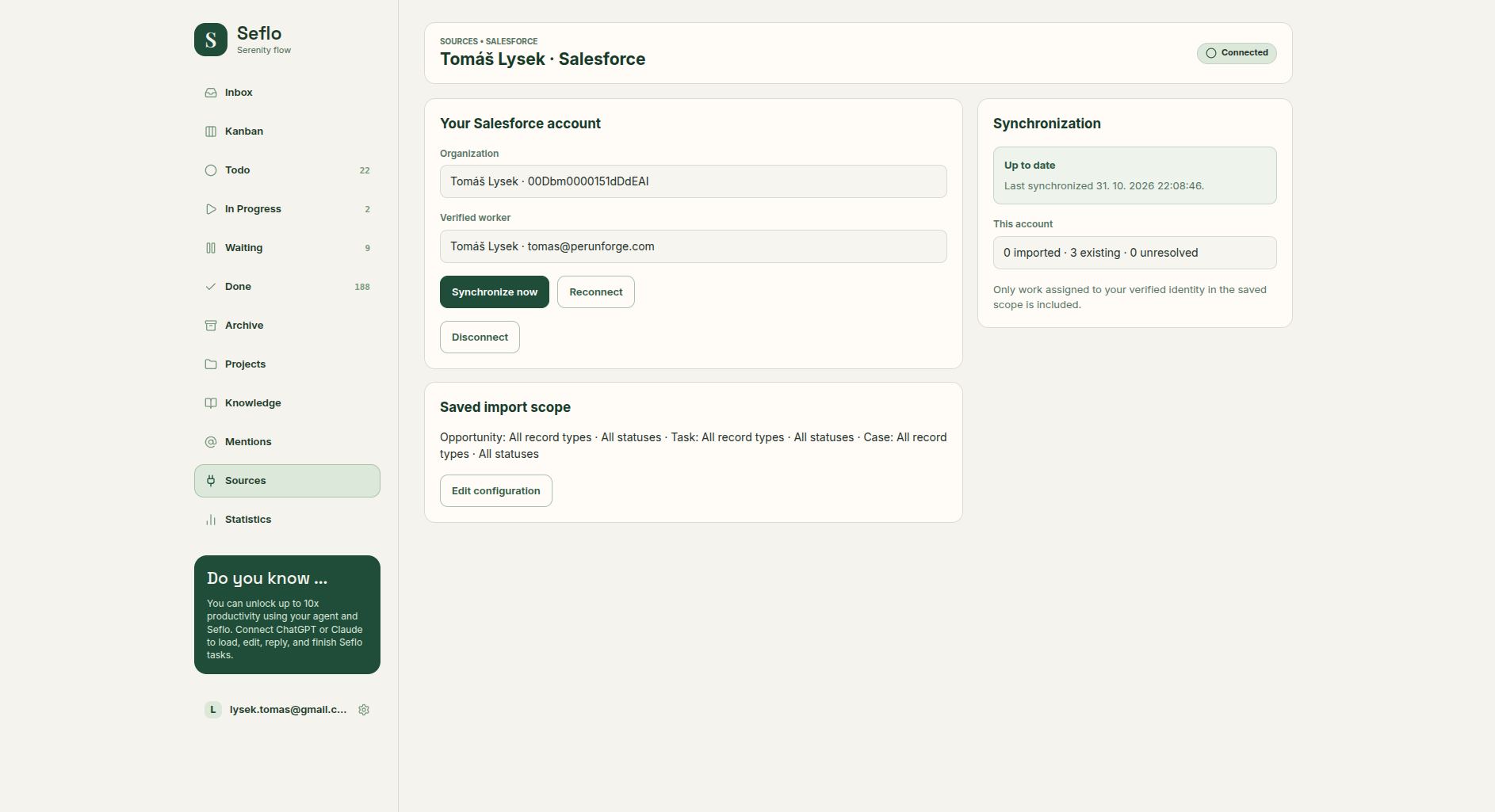
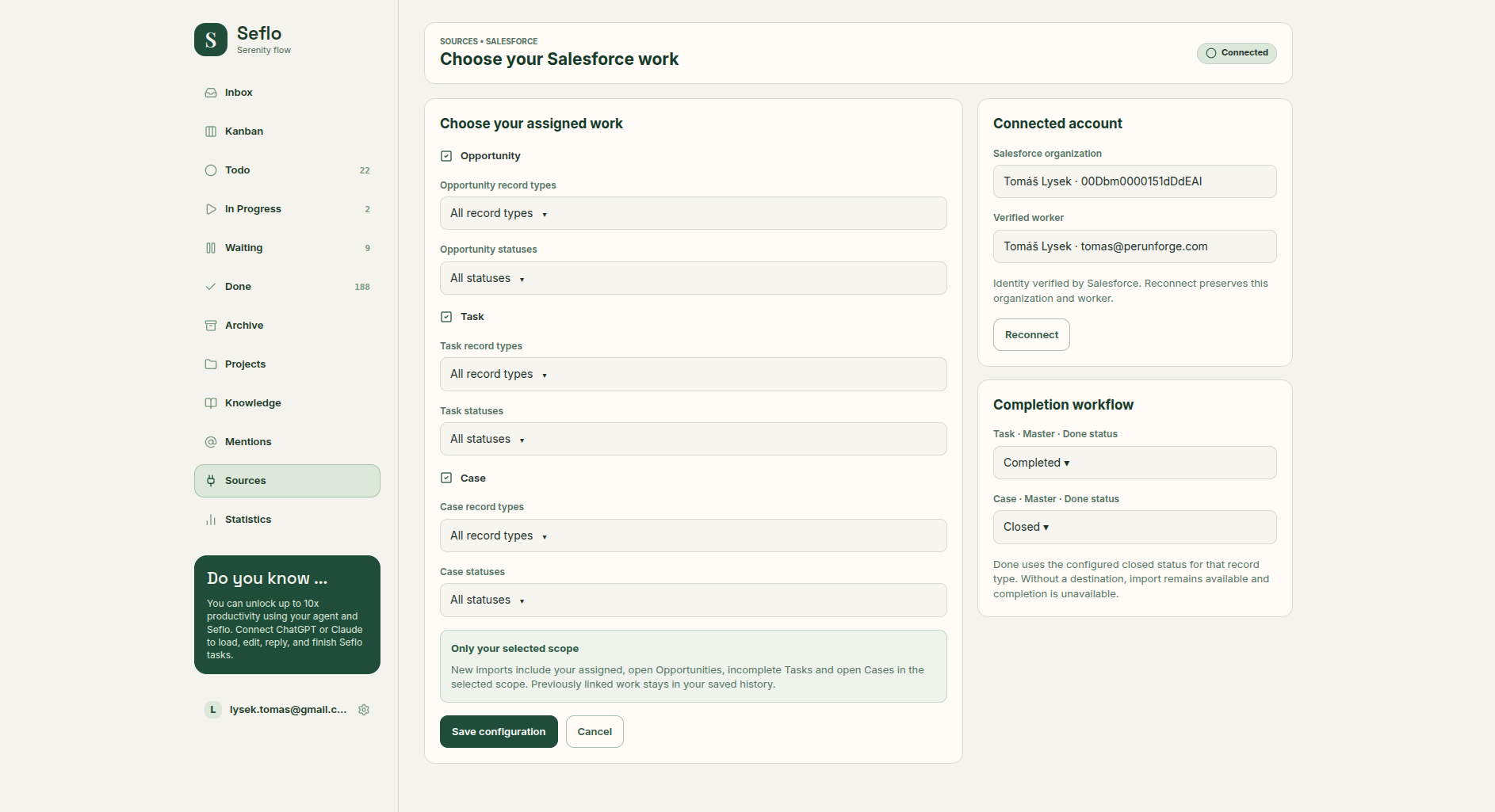
This existing connection includes all three objects. Task and Case use different completion destinations: Completed and Closed. Match the organization, worker and record type before saving. Open full-size image.
Verify your first task
- Find one eligible record assigned to your verified worker.
- Open its Seflo task and compare its object type, owner, status and source context.
- Ask your AI client to prepare the work and identify the available action.
- Review the message or note, destination, attachments and proposed ownership or status changes before confirming.
Verified example: one assigned Task
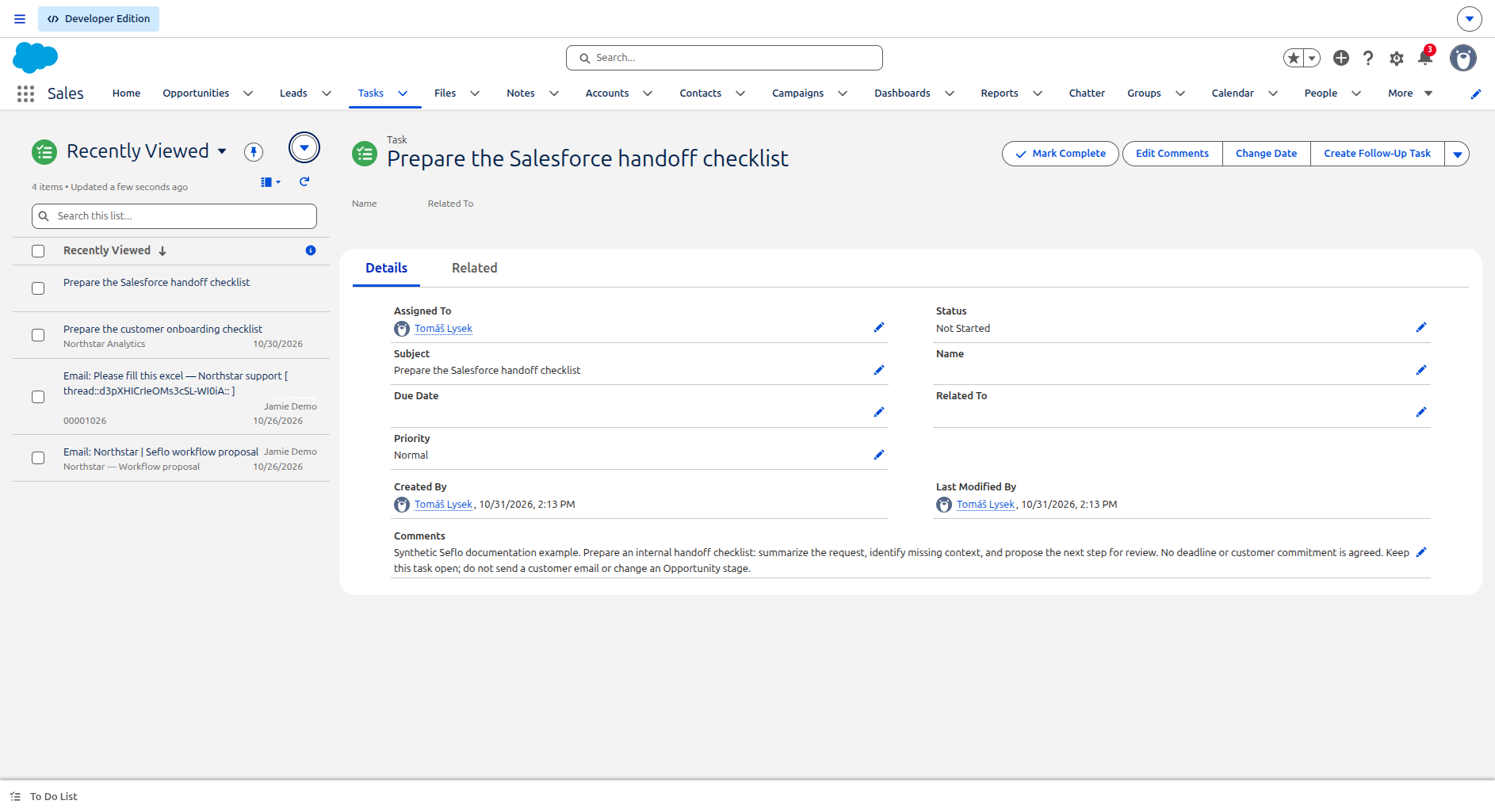
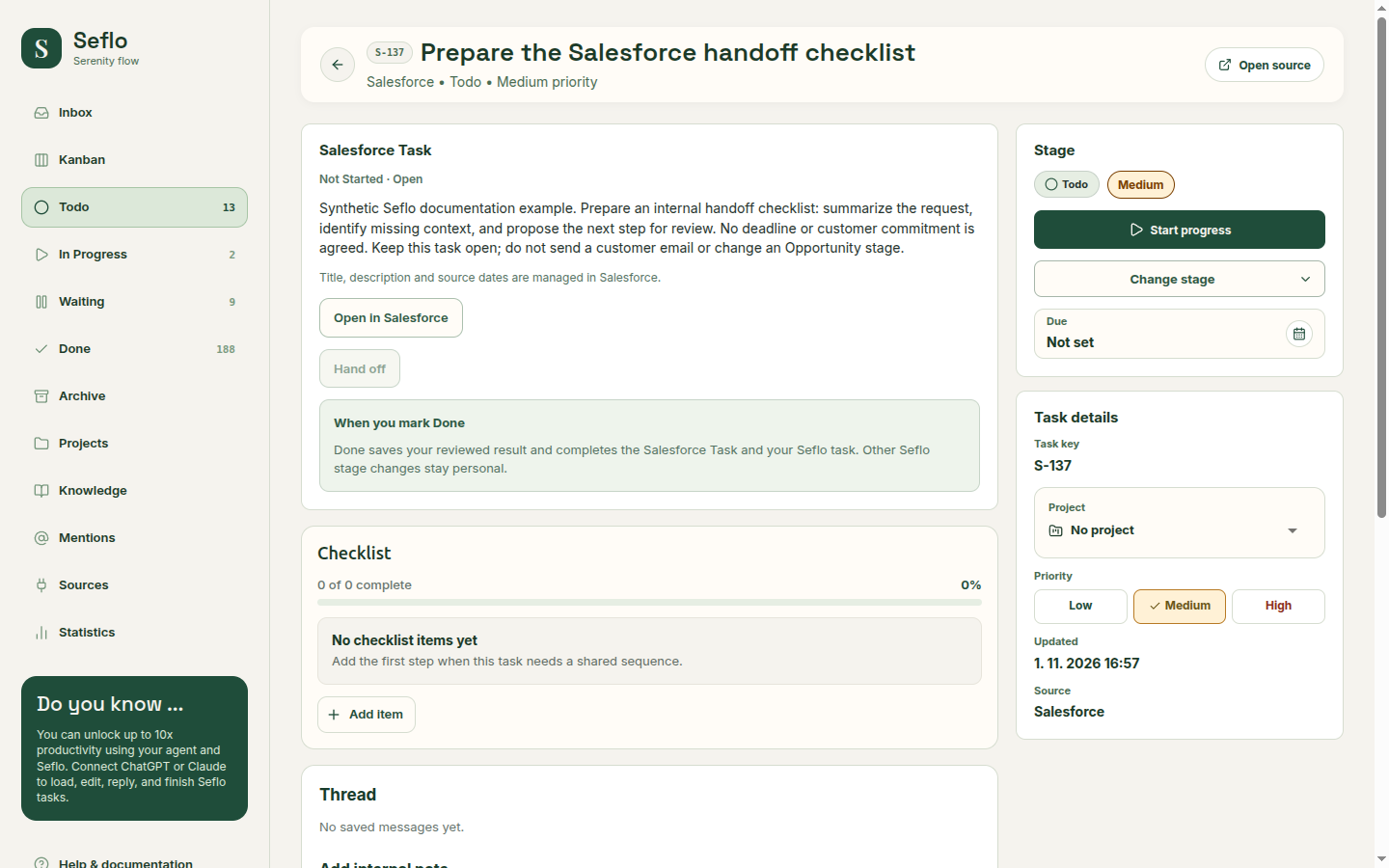
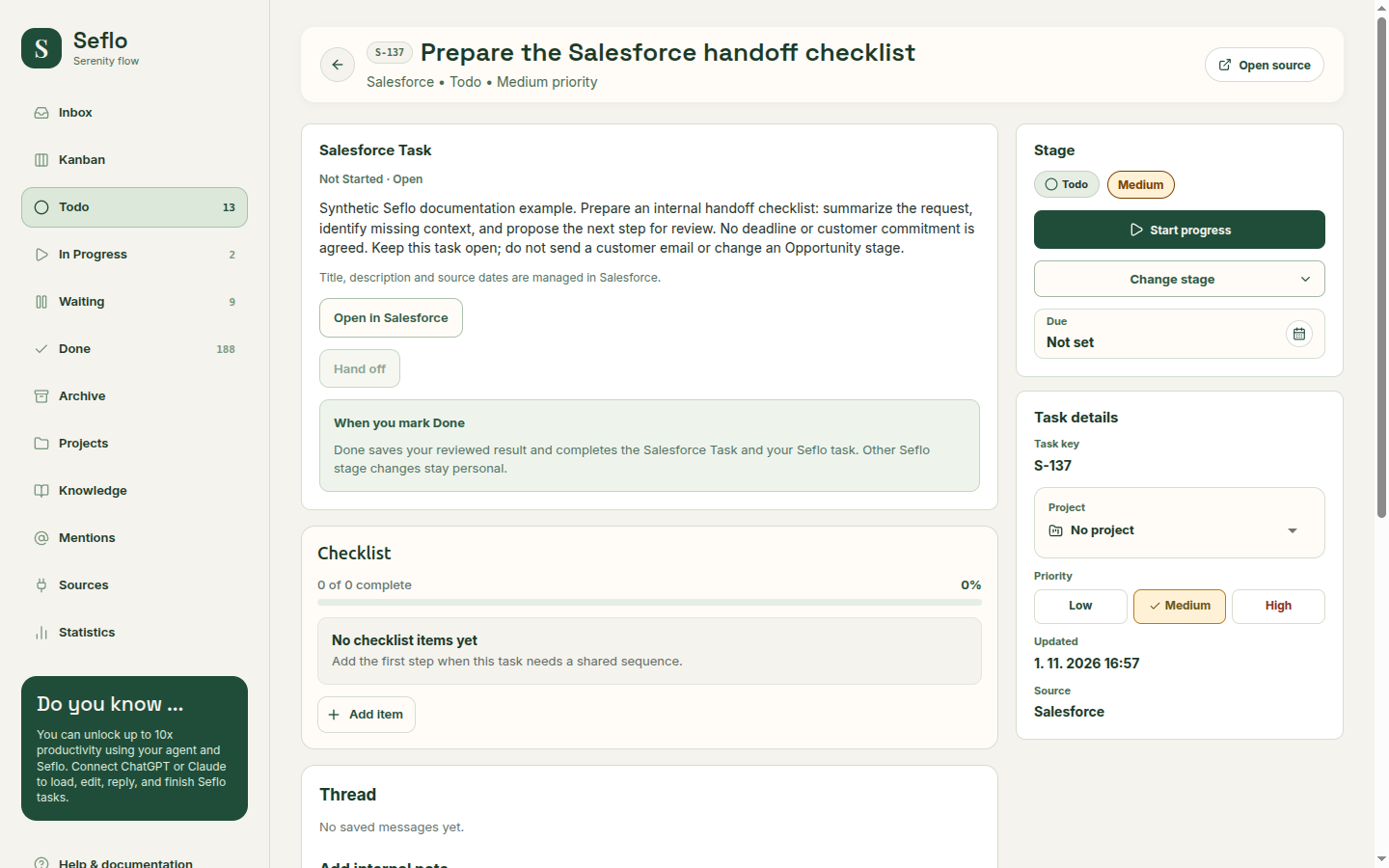
In Salesforce, we created Prepare the Salesforce handoff checklist, assigned to the connected user, with Not Started status, Normal priority and no due date. Its comments request an internal draft; they do not authorize a customer email or a change to an Opportunity stage.
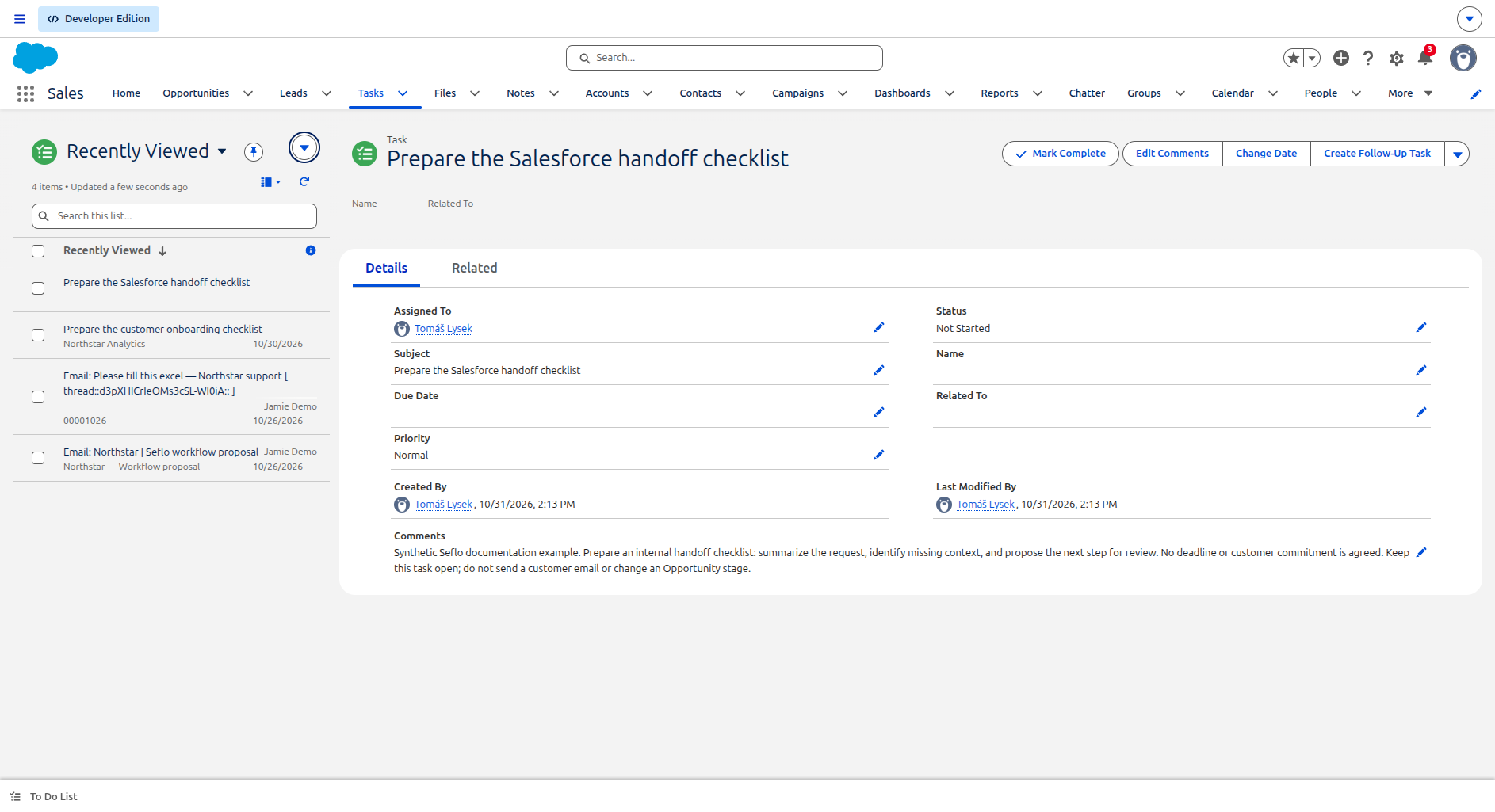
Synchronization runs in batches. A partial result is not proof that a particular record is missing or that the whole scope is complete. Use Continue synchronization when it becomes available.
The task imported as S-137 — Prepare the Salesforce handoff checklist, with Todo stage, Medium priority and no due date. The original Not Started status and full instructions matched Salesforce, and Open in Salesforce pointed to the same Task. No completion, handoff or customer message was performed.
To try the same read-only check, substitute a task code from your own workspace:
Read S-137 — Prepare the Salesforce handoff checklist.
Summarize the original request and propose an internal draft.
Do not complete it, change Salesforce records or send a message.
What completion changes
Finishing a Salesforce Task can record the result and set its completion status. An Opportunity handoff changes the owner without automatically advancing its stage; a customer email is also separate from a stage change. For Cases, customer reply and closure must match the effects you selected. Inspect these effects instead of treating every CRM task as the same operation.
If something does not work
If a record is missing, check assignment, open/incomplete state, enabled object, record type and status filters. If synchronization remains partial after continuing, report that state and the record you expected to import; do not disconnect or recreate the source simply to clear the indicator. If a completion status is unavailable, refresh configuration and review that record type. Reconnect only with the intended Salesforce identity when account access needs recovery.
Continue with Connect your AI and Review and confirm actions.
Watch: Connect Salesforce and verify your first task
Watch: Salesforce CRM — Process a File and Hand Off an Opportunity
Hand off an Opportunity with a finished workbook and note, without changing its sales stage. The edited example condenses the workflow; use the written steps above for setup and checks.
Watch: Salesforce CRM — Send a Customer Reply and PDF from an Opportunity
Send a reviewed customer email and PDF from an Opportunity using the selected mailbox. The edited example condenses the workflow; use the written steps above for setup and checks.
Watch: Salesforce CRM — Complete a Task and Save the Result
Save the completed result to a Salesforce Task and mark the task complete. The edited example condenses the workflow; use the written steps above for setup and checks.
Watch: Salesforce Service — Reply with a Completed File and Close the Case
Reply to a Case with a completed file and review the explicit case-closure effect. The edited example condenses the workflow; use the written steps above for setup and checks.