
Connect HubSpot
Choose assigned activities, deals and tickets and configure their pipelines.
Before you start
Use your HubSpot account for the portal containing your assigned work. Decide whether you need task activities, deals, tickets or a combination.
Connect and configure HubSpot
- Open Sources → Add source → HubSpot and choose Connect.
- Sign in to HubSpot, select the intended account and complete the connection.
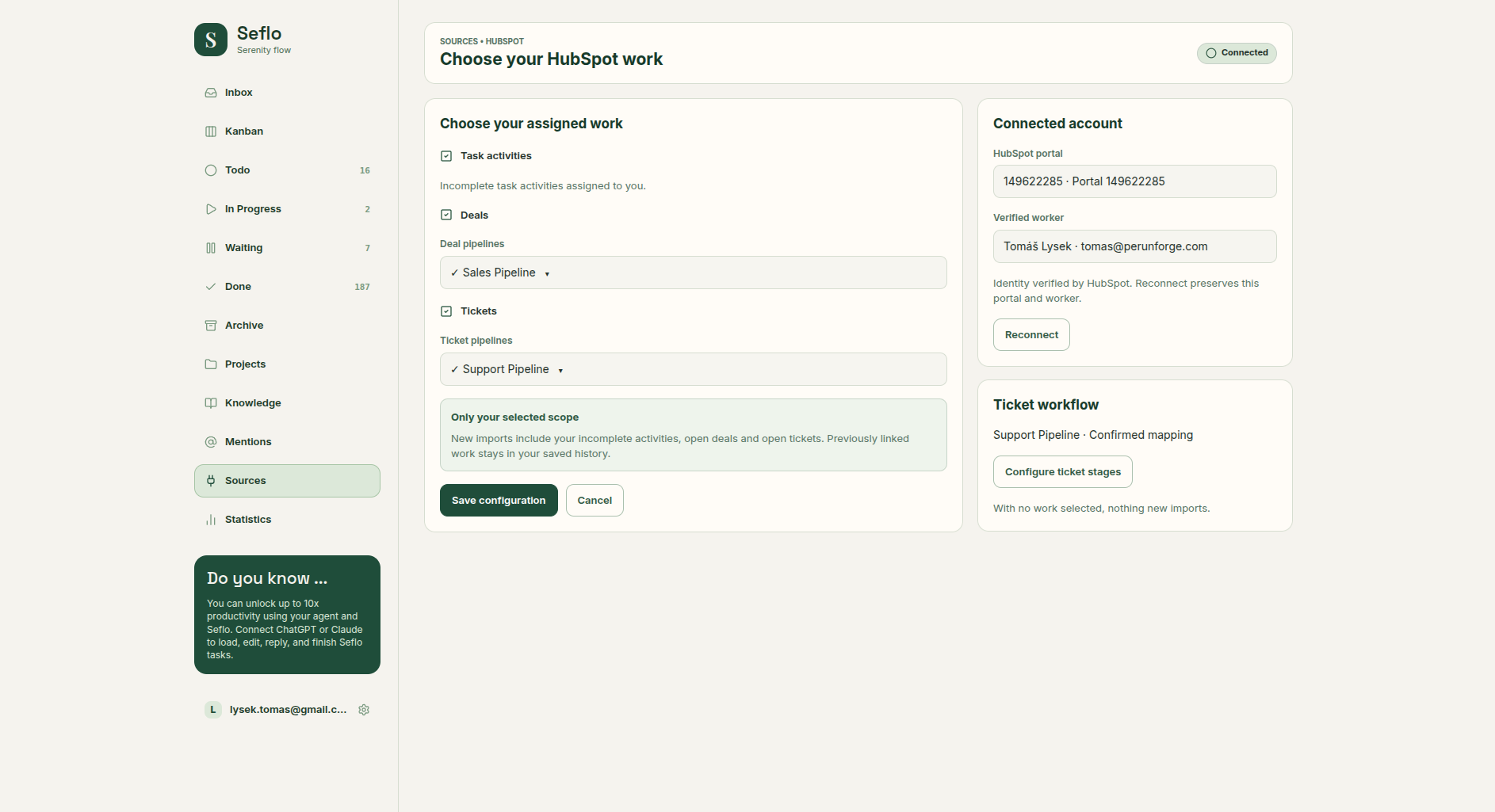
- Check HubSpot portal and Verified worker on the source configuration.
- On Choose your HubSpot work, enable Task activities for your incomplete assigned activities.
- Enable Deals and select Deal pipelines if you want deal work.
- Enable Tickets, select Ticket pipelines and review the stage mapping for each pipeline.
- Save the configuration and return to the source overview.
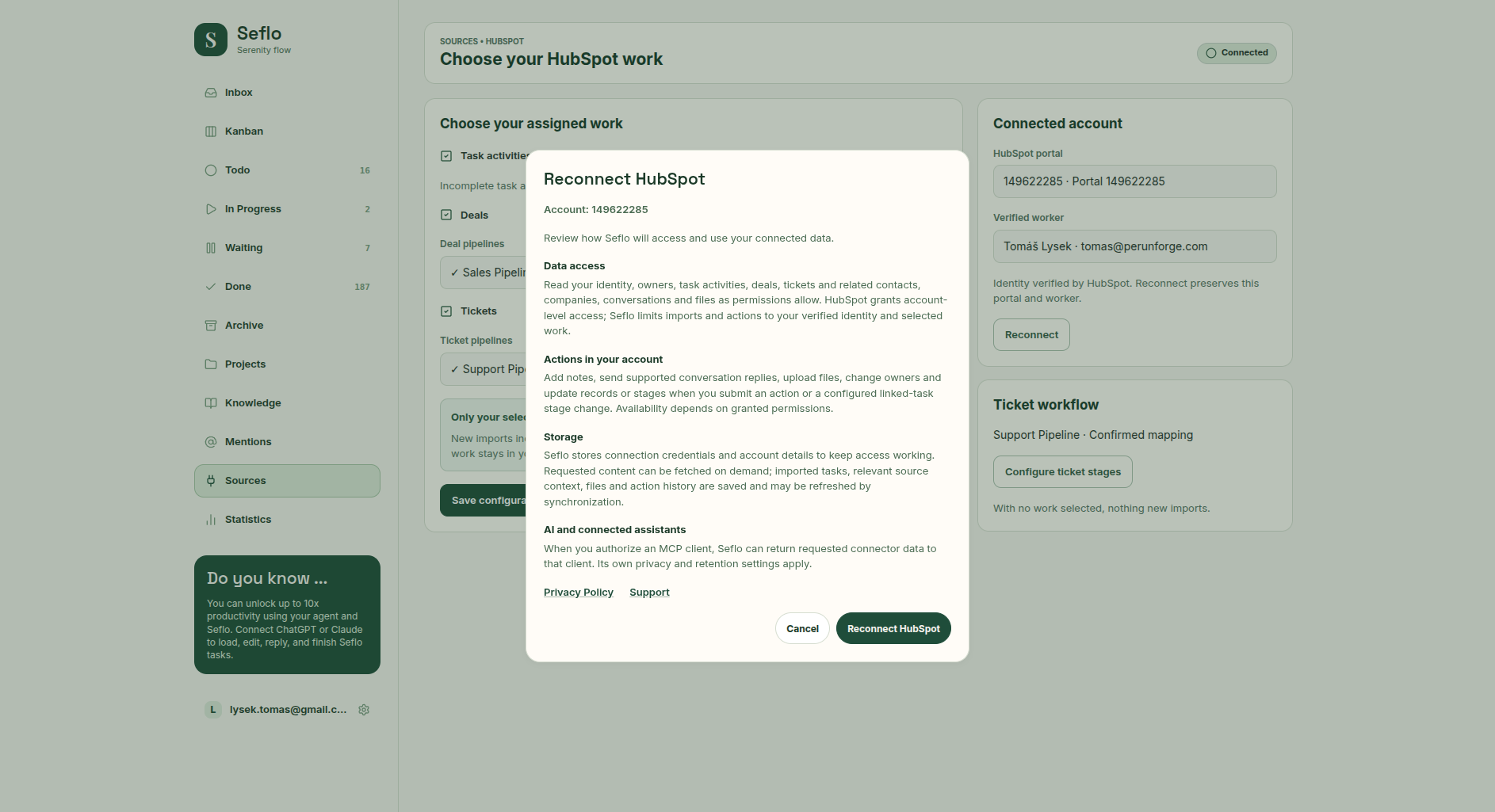
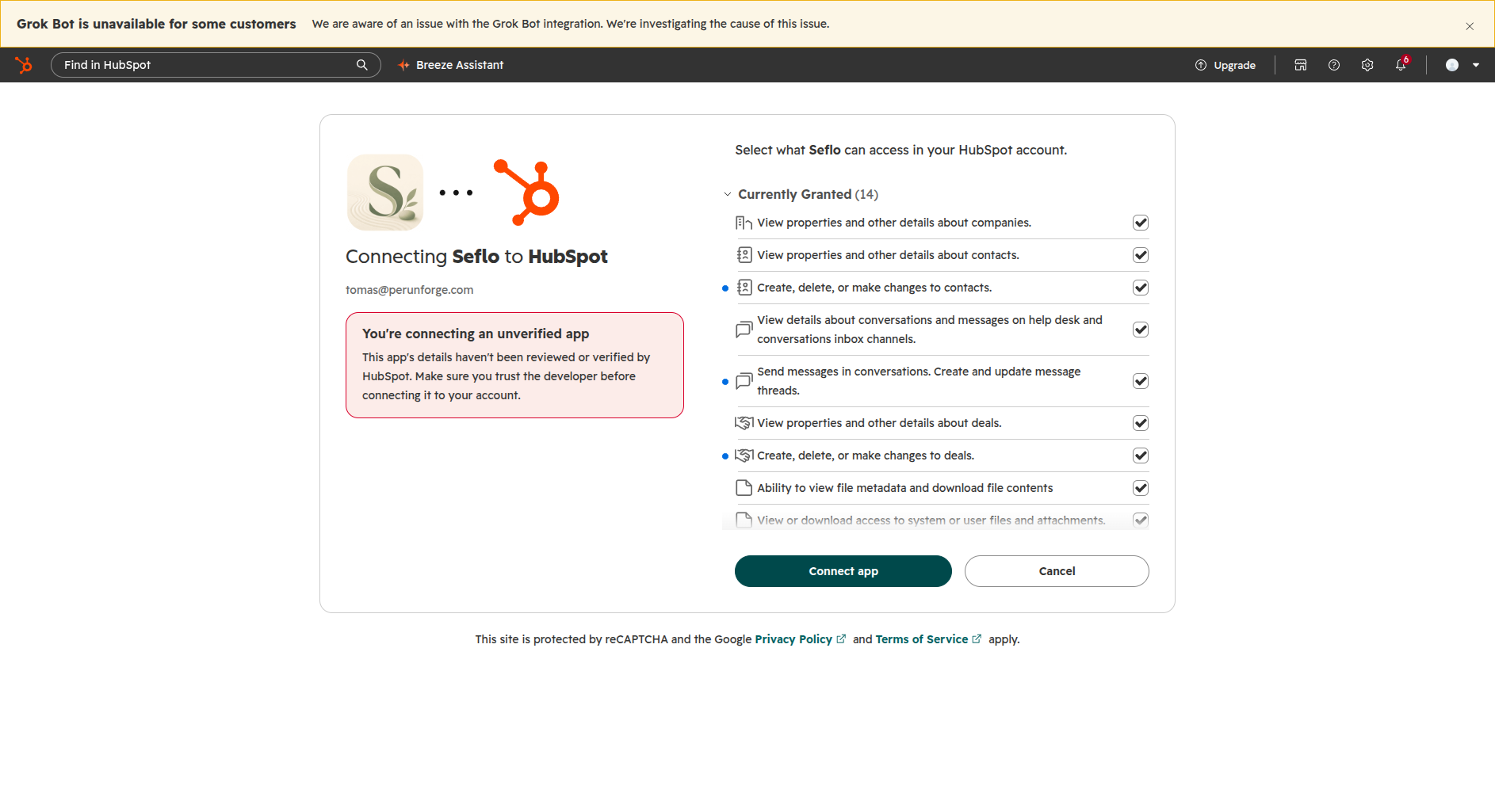
Review access before continuing. Open full-size image.
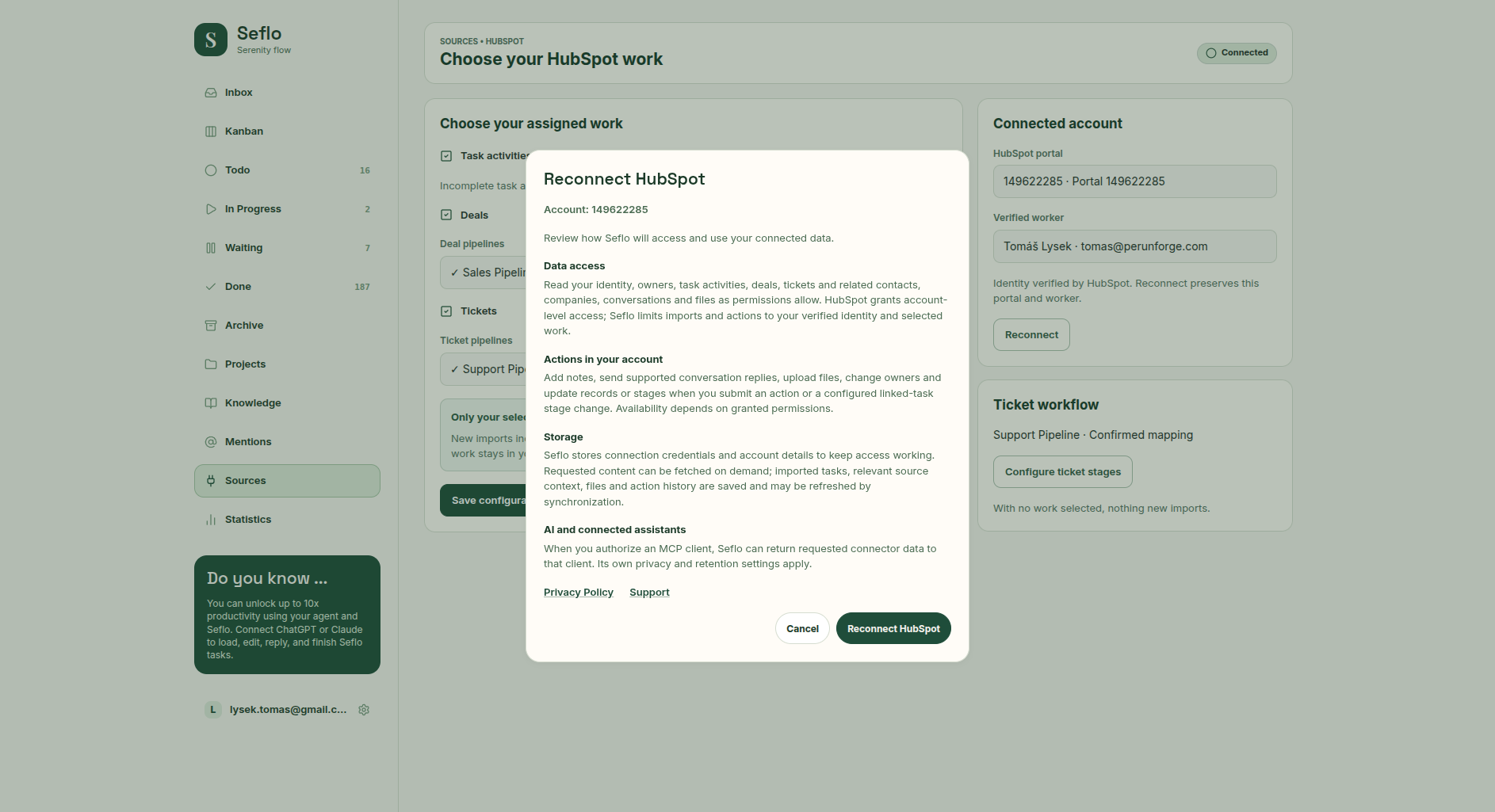
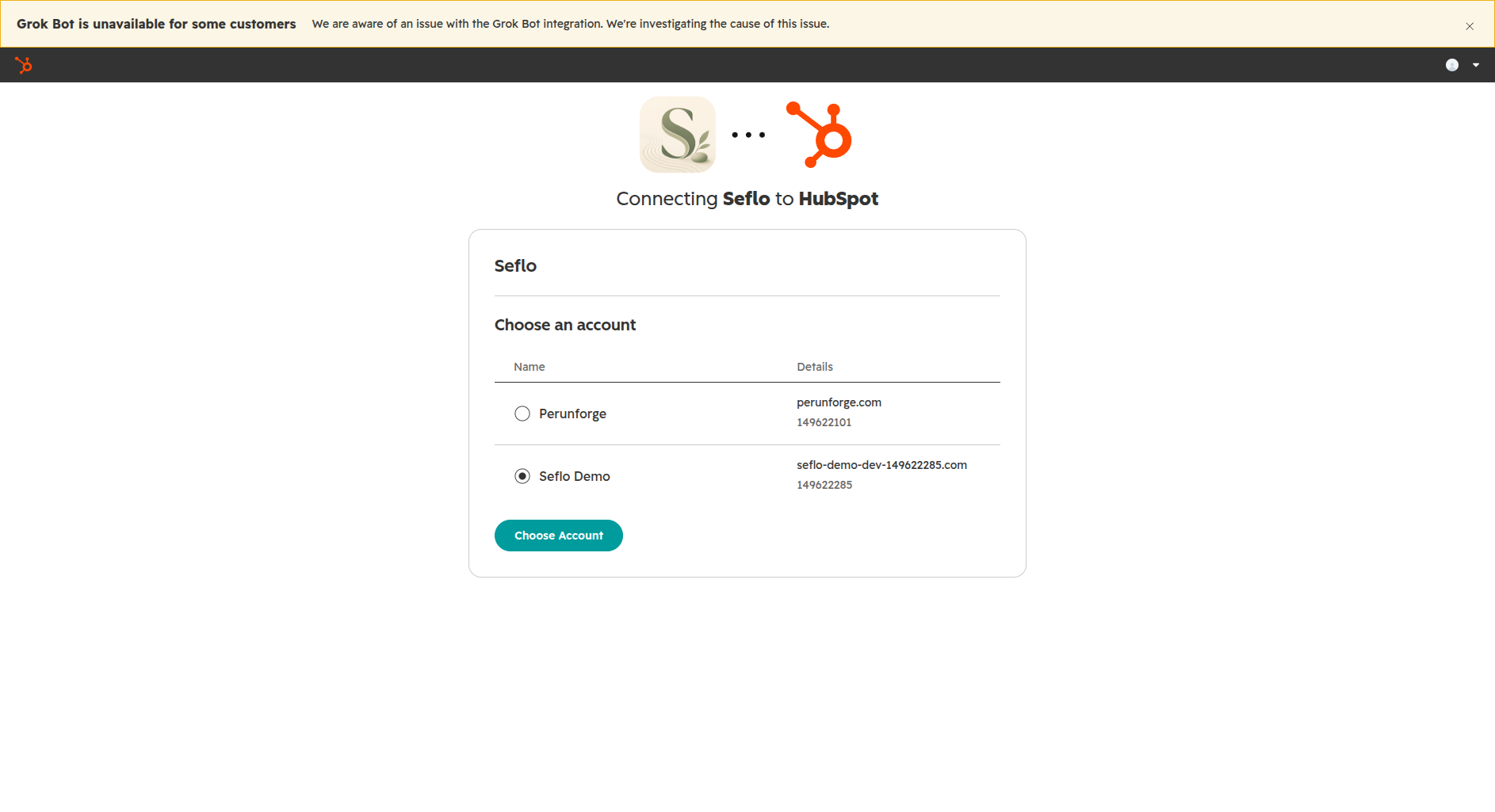
Compare the portal identifier when your user belongs to more than one account. Open full-size image.
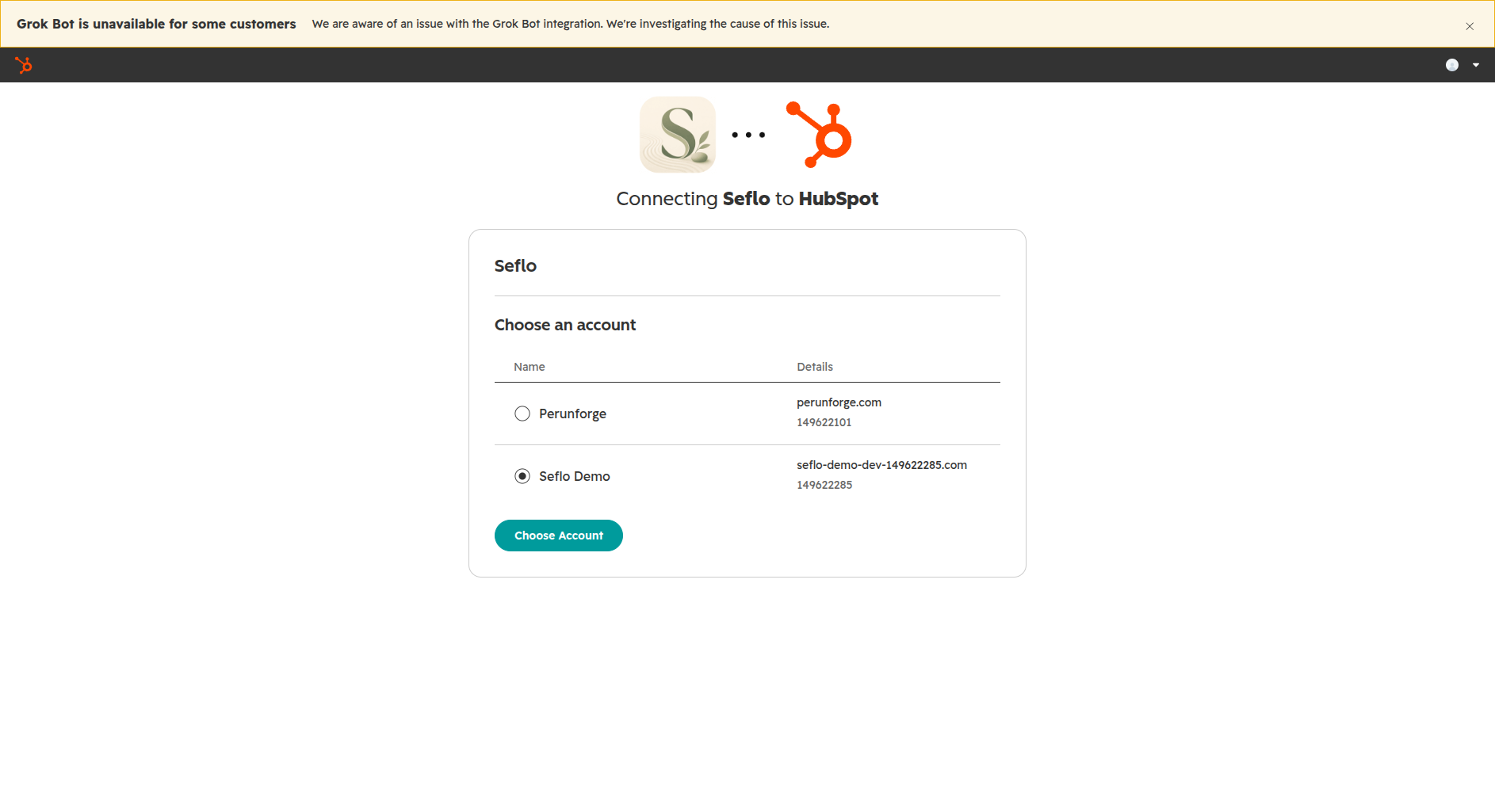
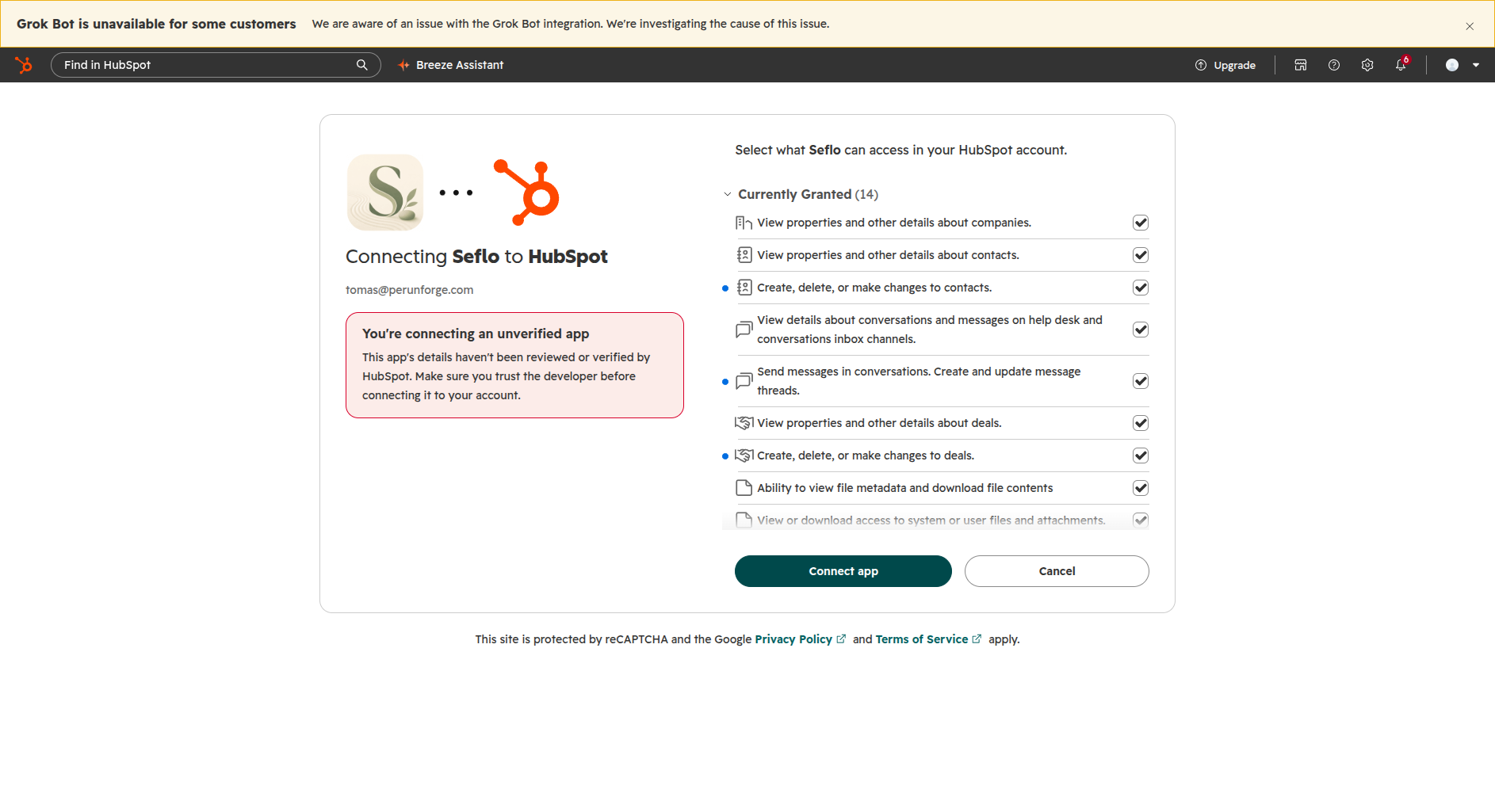
This direct connection displays an unverified-app notice and an additional acknowledgement. Check the app and redirect domain before continuing. The screenshot does not show a public Marketplace installation. Open full-size image.
Understand your selection
Choose only the kinds of work you need. Turning on Deals or Tickets also requires the relevant pipeline selection. A record must match the selected scope and connected worker; the connection does not import the whole CRM.
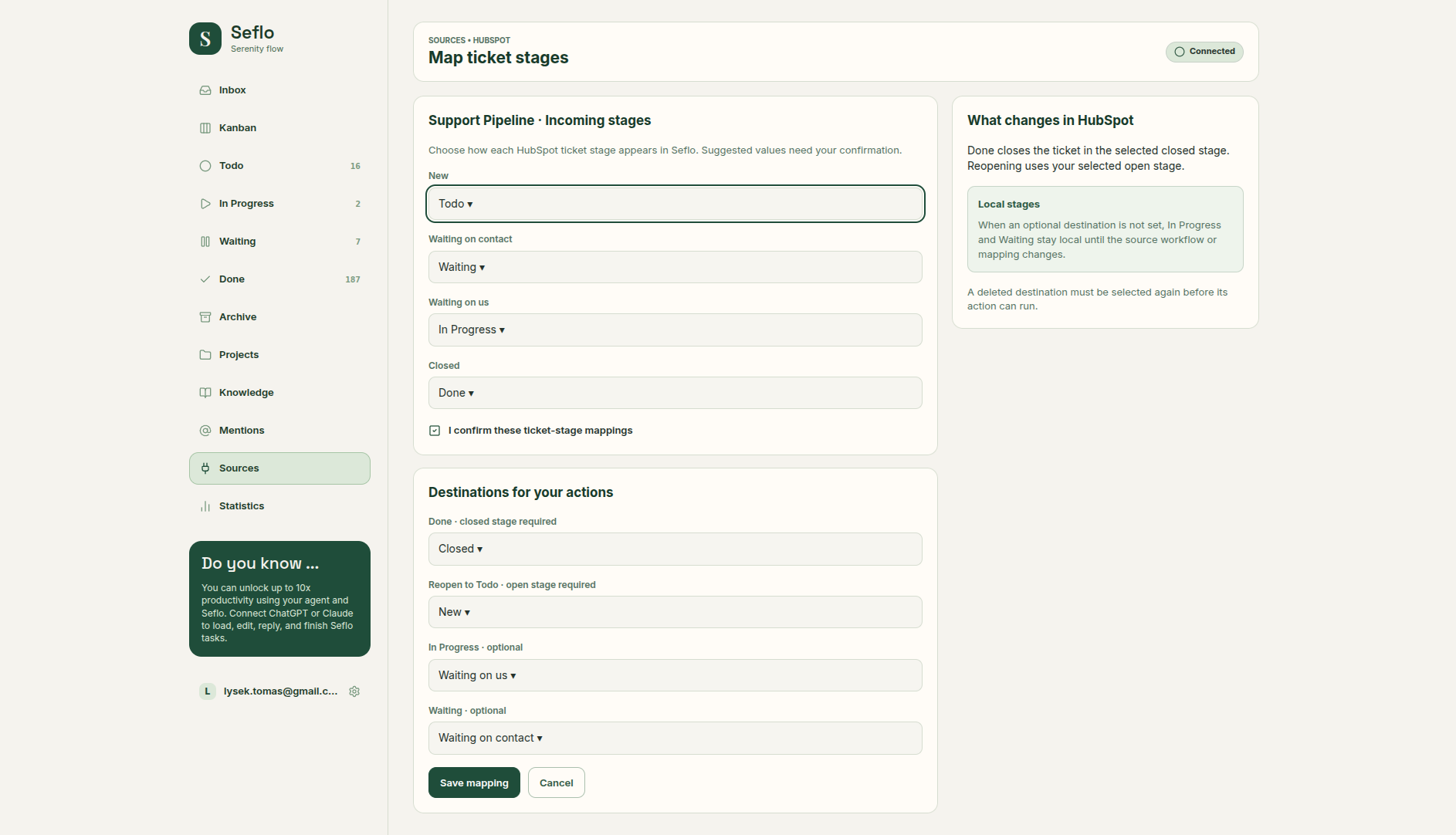
Check pipeline mappings before using a ticket completion action.
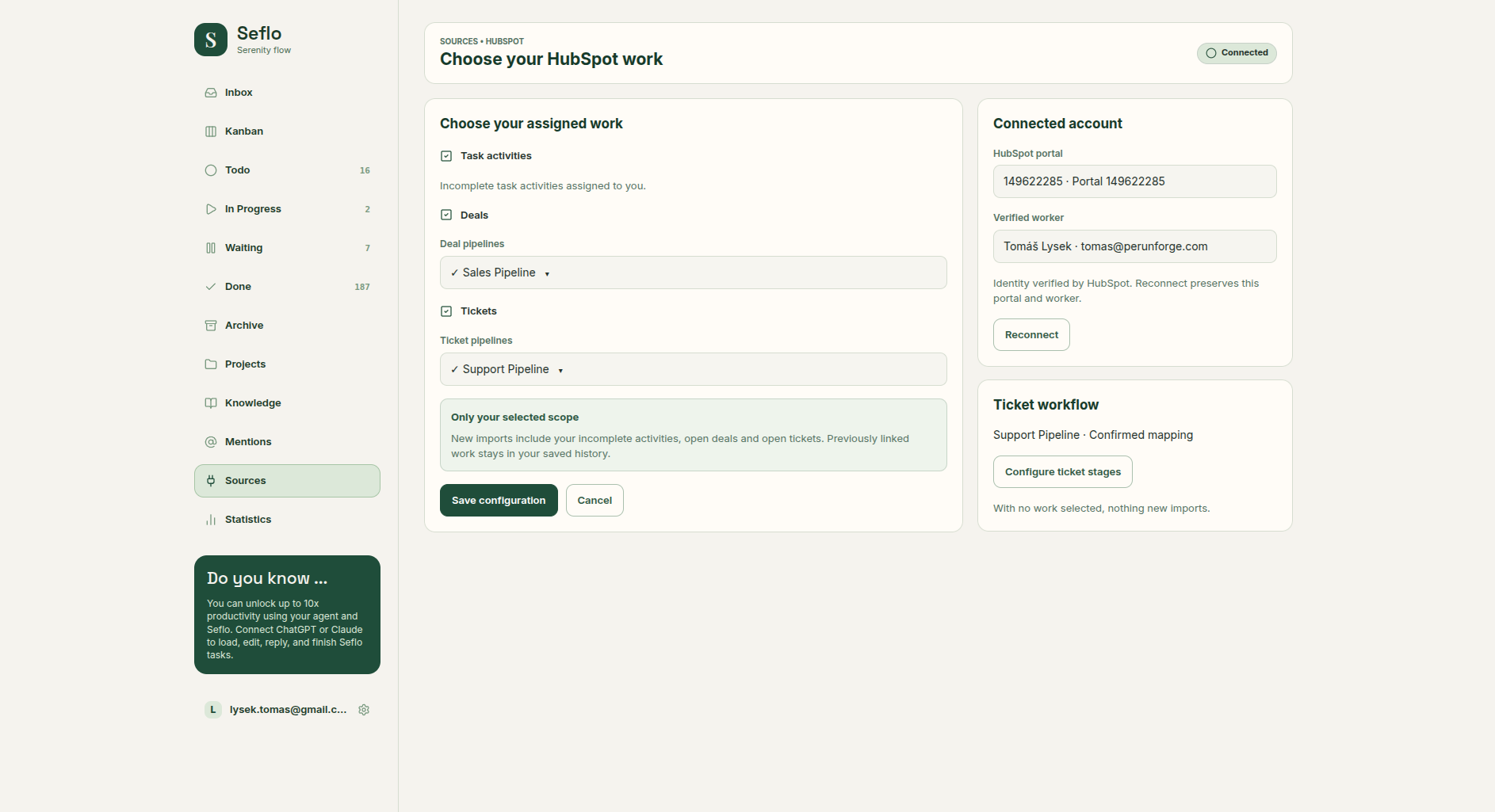
This existing connection keeps Task activities, Sales Pipeline and Support Pipeline. Select the work relevant to your account. Open full-size image.
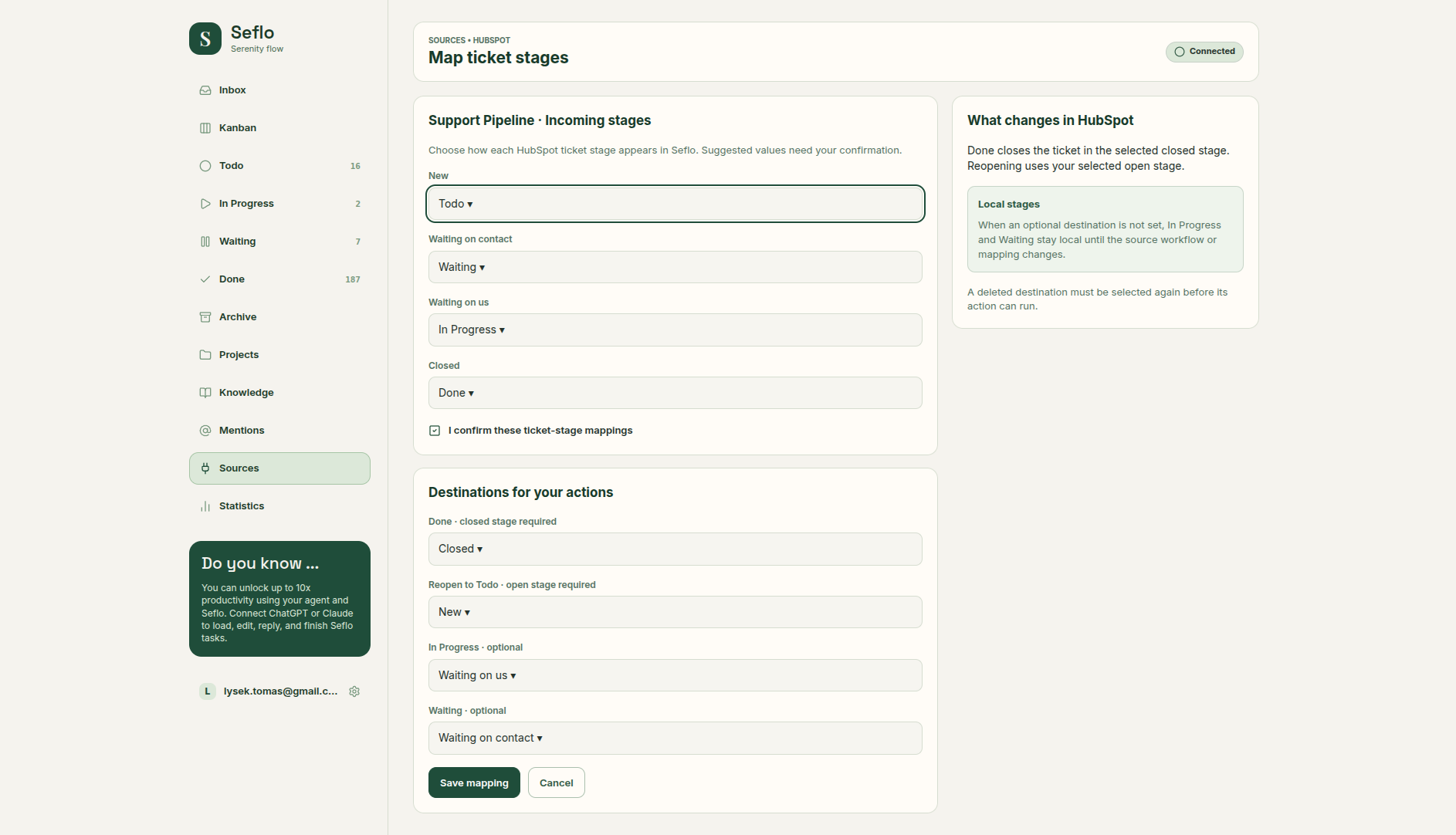
Review both directions: the example maps New to Todo and Closed to Done; its completion destination is Closed and its reopen destination is New. In Progress and Waiting remain local when their optional destinations are unset. Open full-size image.
Verify your first task
- Pick an assigned activity, deal or ticket in your selected scope.
- Open its Seflo task and compare the original CRM record and associations.
- Ask your AI client to prepare the next step and show the actions available for that record type.
- Check whether the result is an internal CRM note, a customer reply or completion of assigned work.
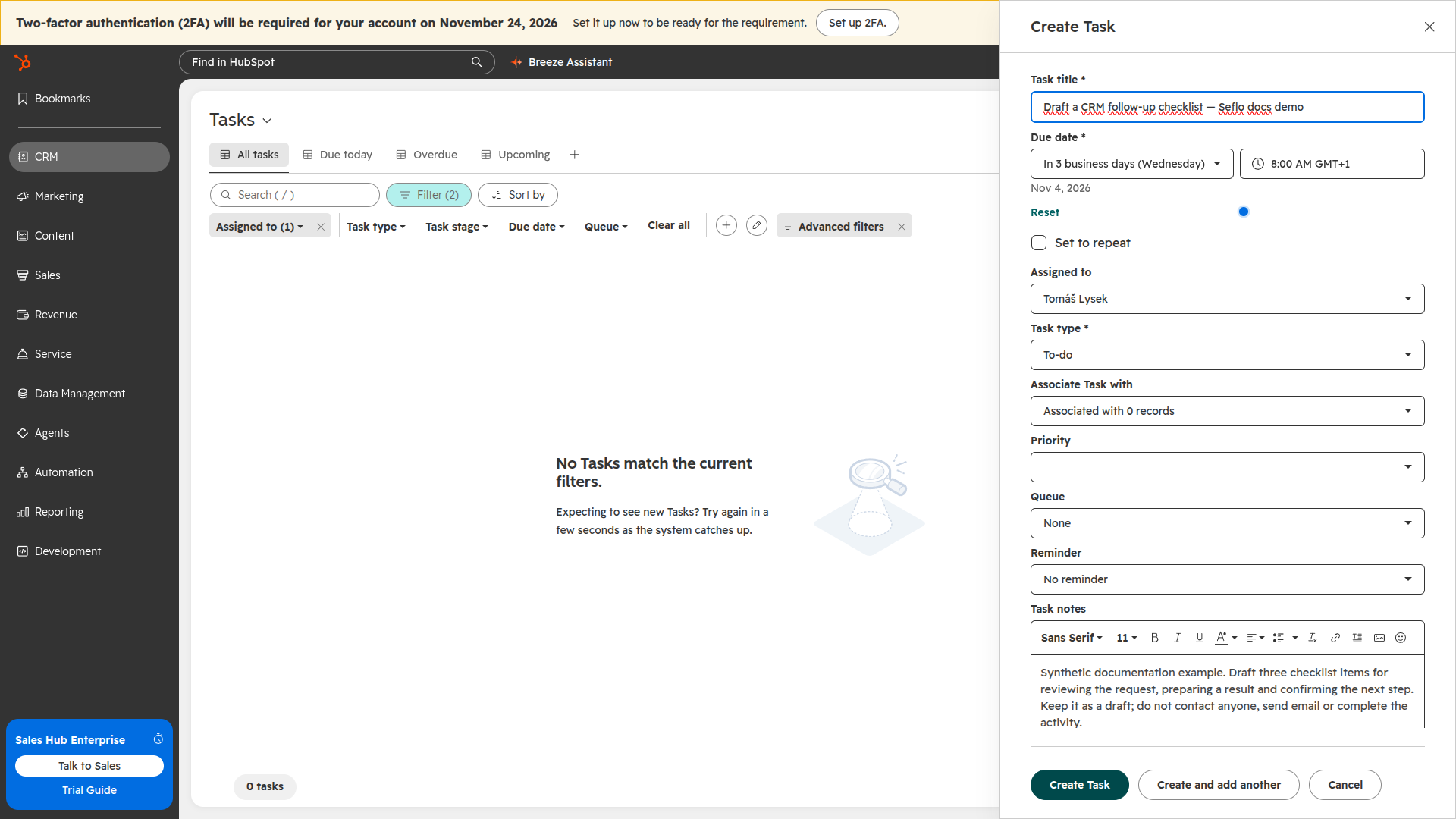
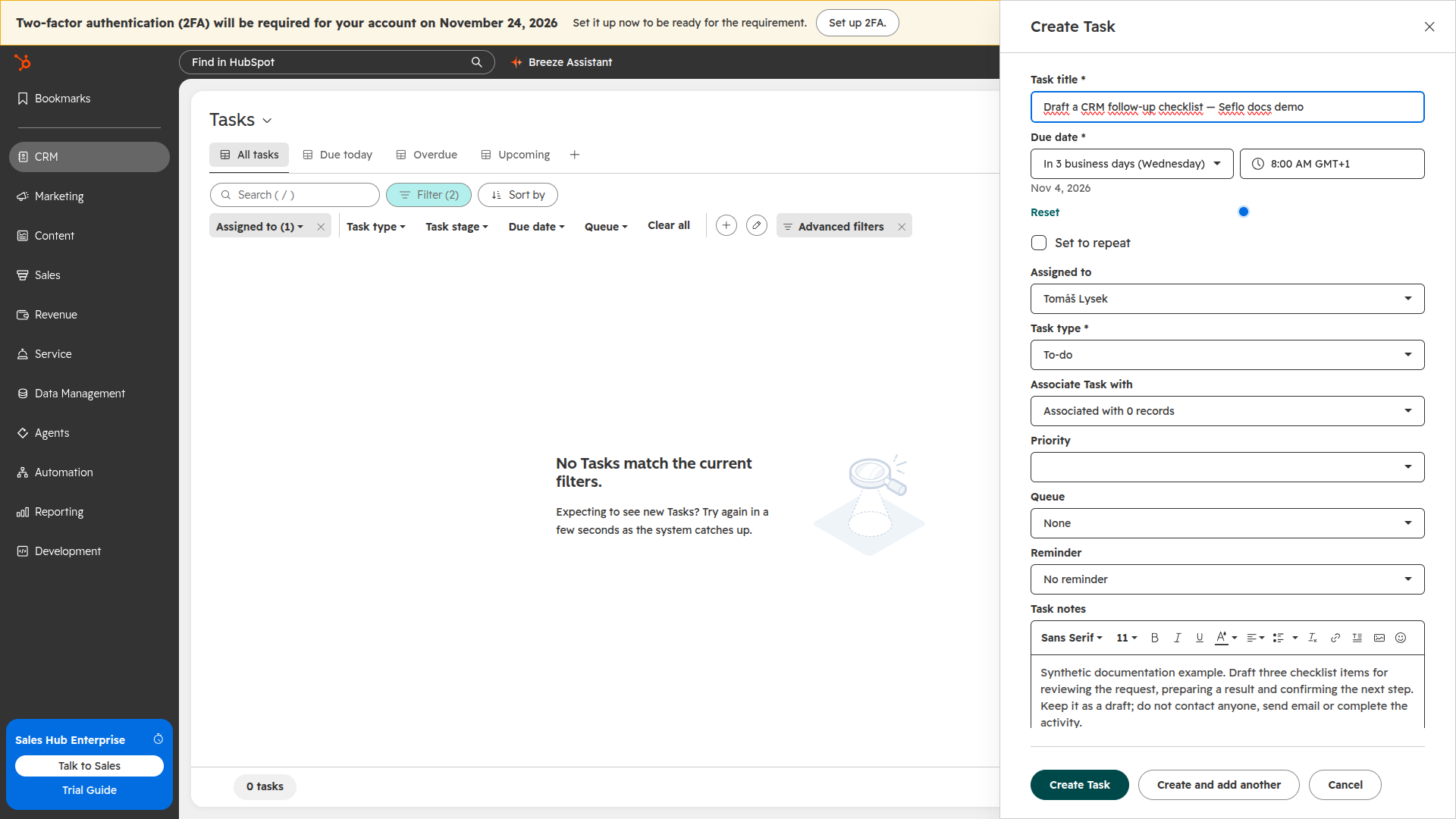
Use one assigned, incomplete activity for your first check. This draft-only example has no associated customer and no reminder. Open full-size image.
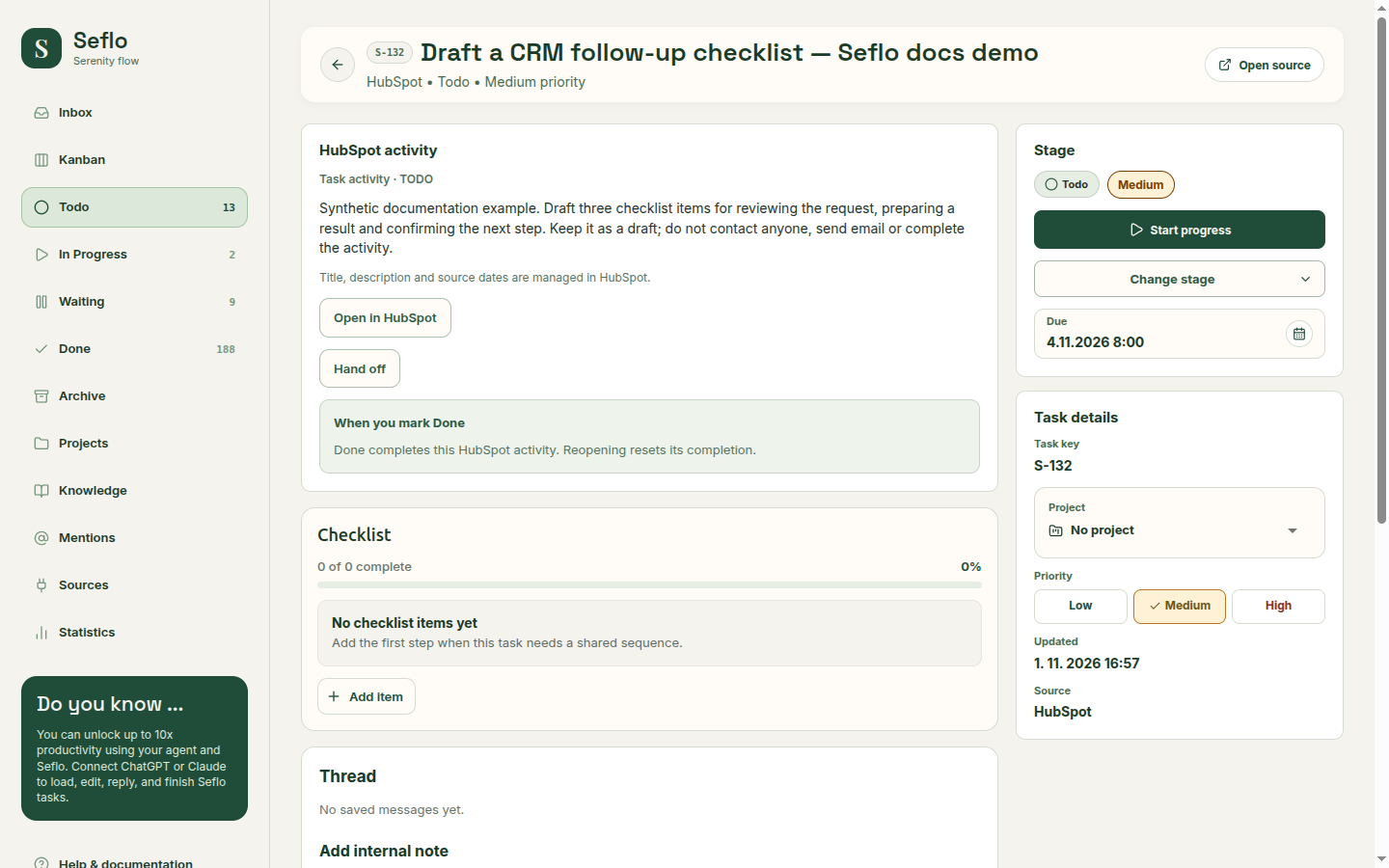
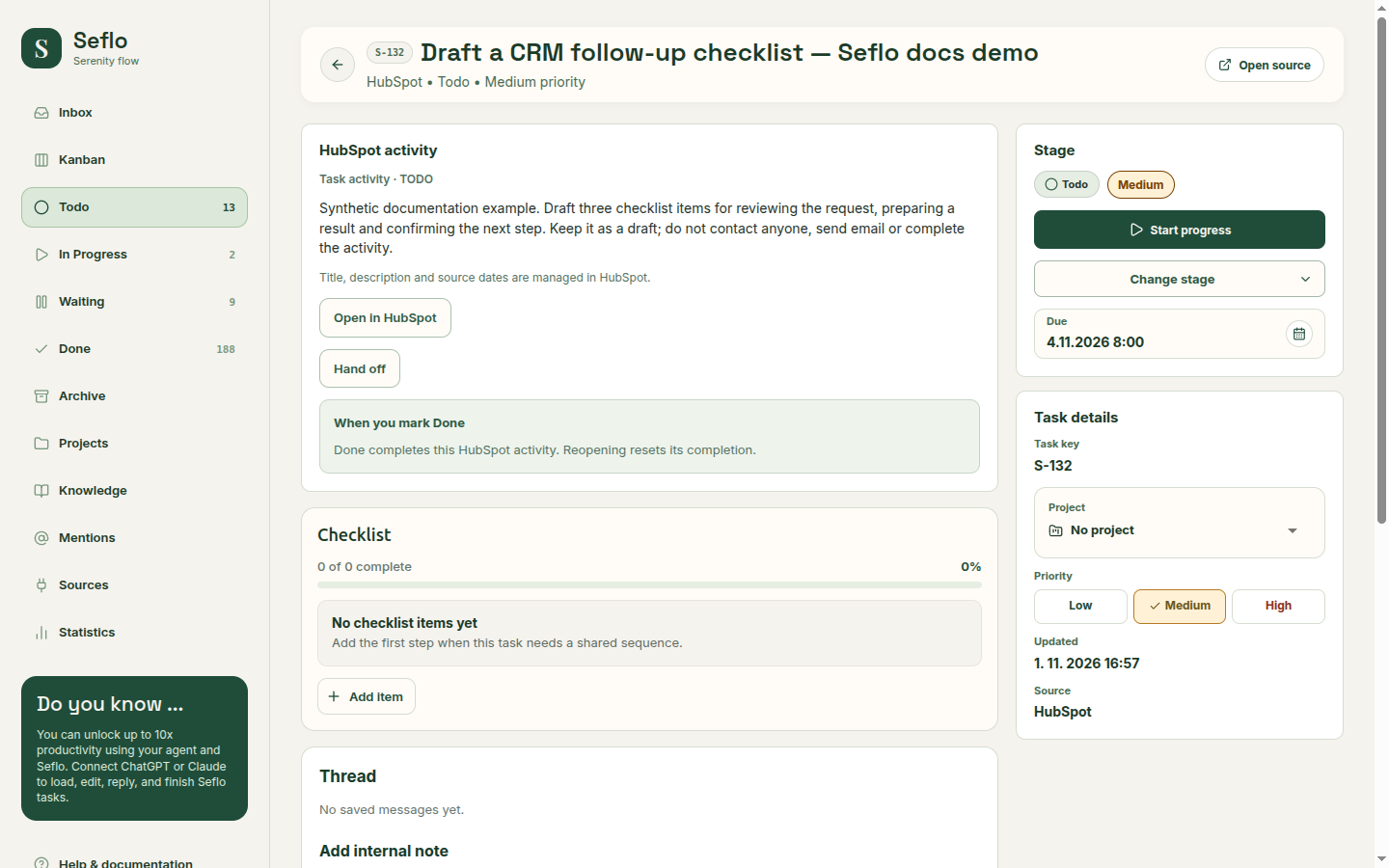
Compare the original record and imported task. The example remains Todo; no customer message, handoff or completion was performed. Open full-size image.
What completion changes
A private CRM note is different from an email to a customer. Deal customer email can use a connected mailbox and should be checked for the intended sender and contact; it does not inherently change the deal stage. A task activity can be completed with its result recorded. Ticket replies and closure have their own explicit effects.
If something does not work
If work is missing, check the verified worker, enabled work type and selected pipeline. If a customer-email action is unavailable, inspect the required contact and mailbox connection. Do not substitute an internal note when a customer reply was intended.
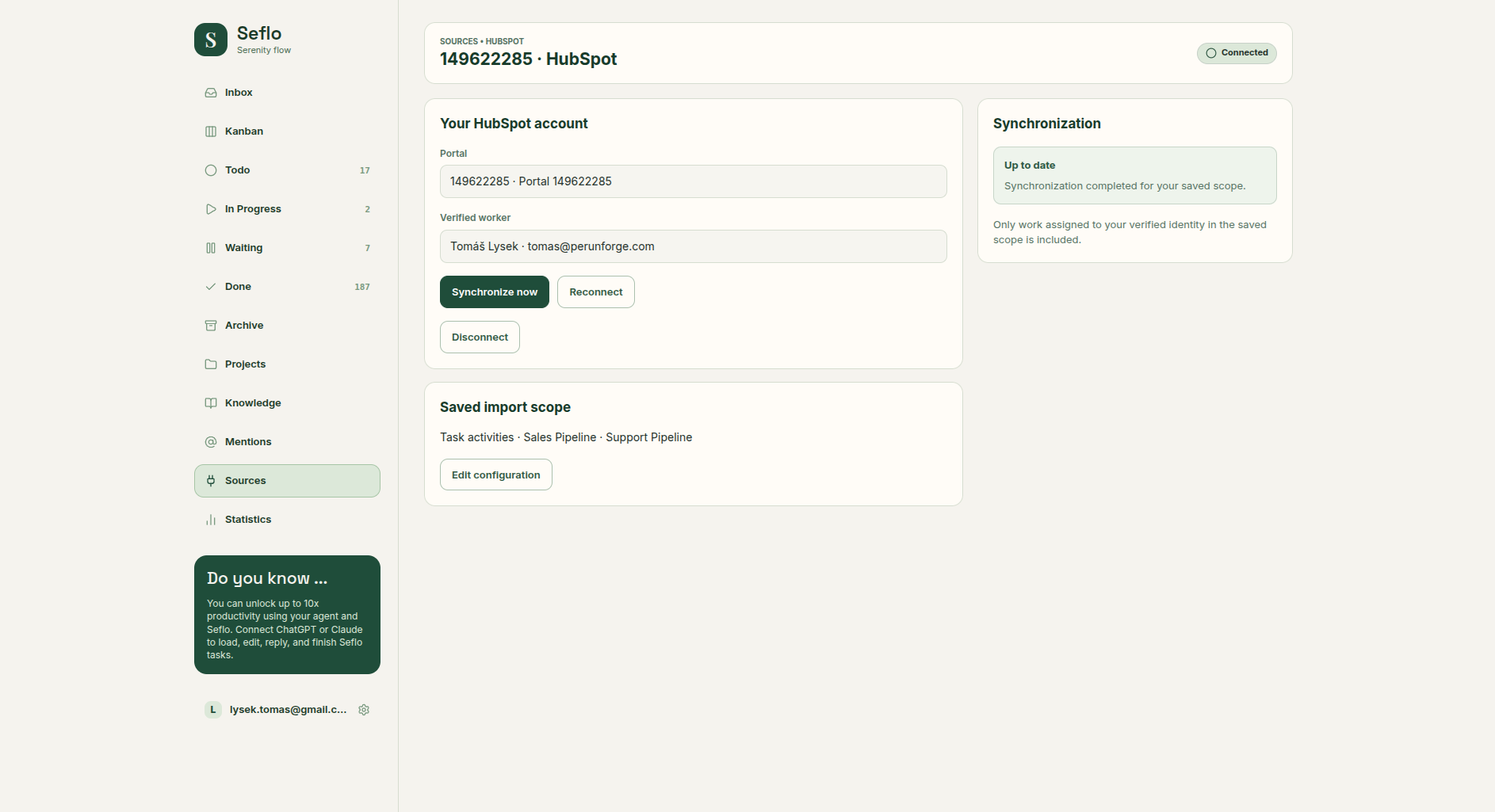
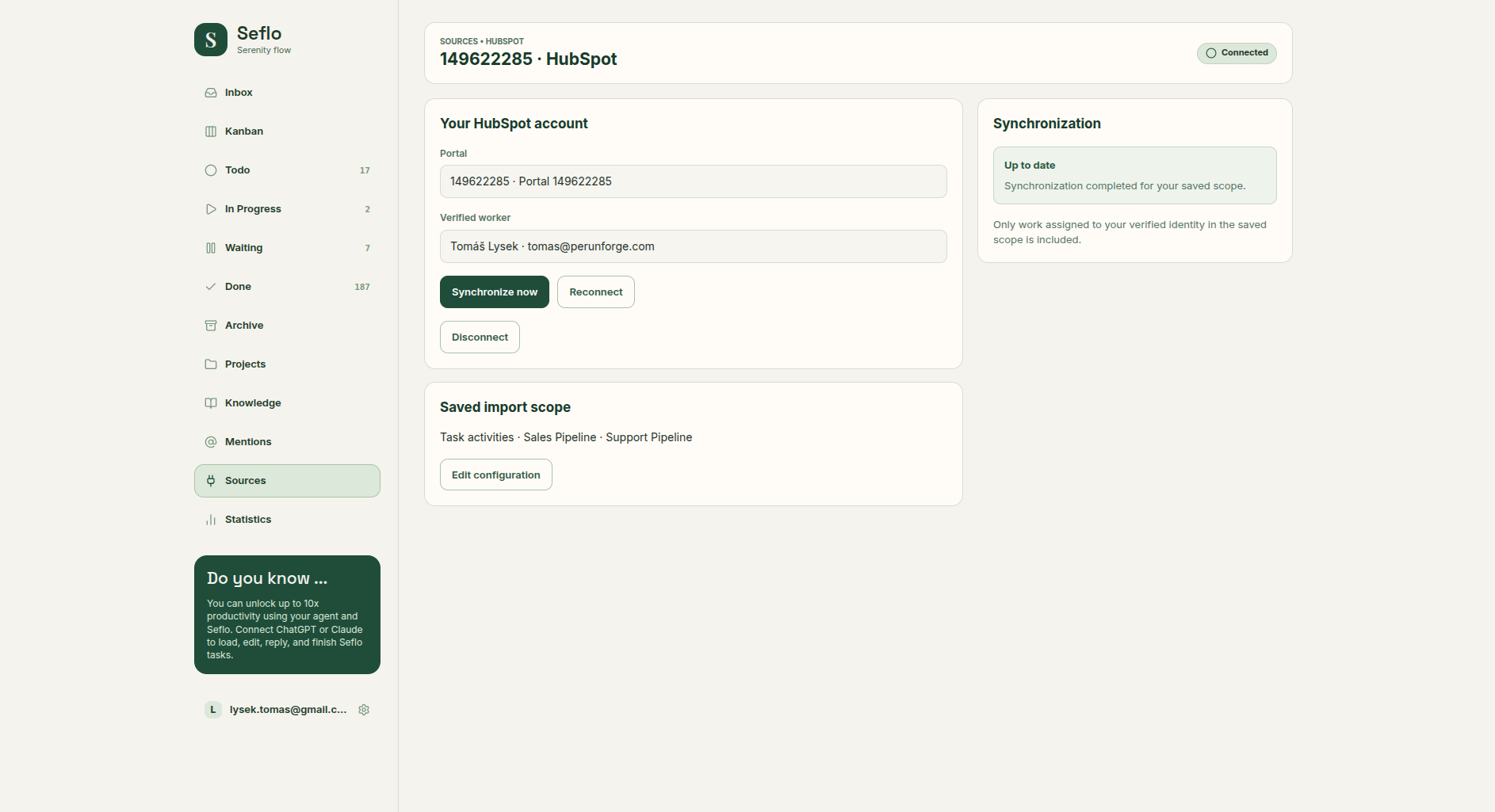
Synchronization partially complete means more records remain. Use Continue synchronization when offered, then check the selected record. A Connected badge and one successful import do not mean that the entire saved scope has finished synchronizing.
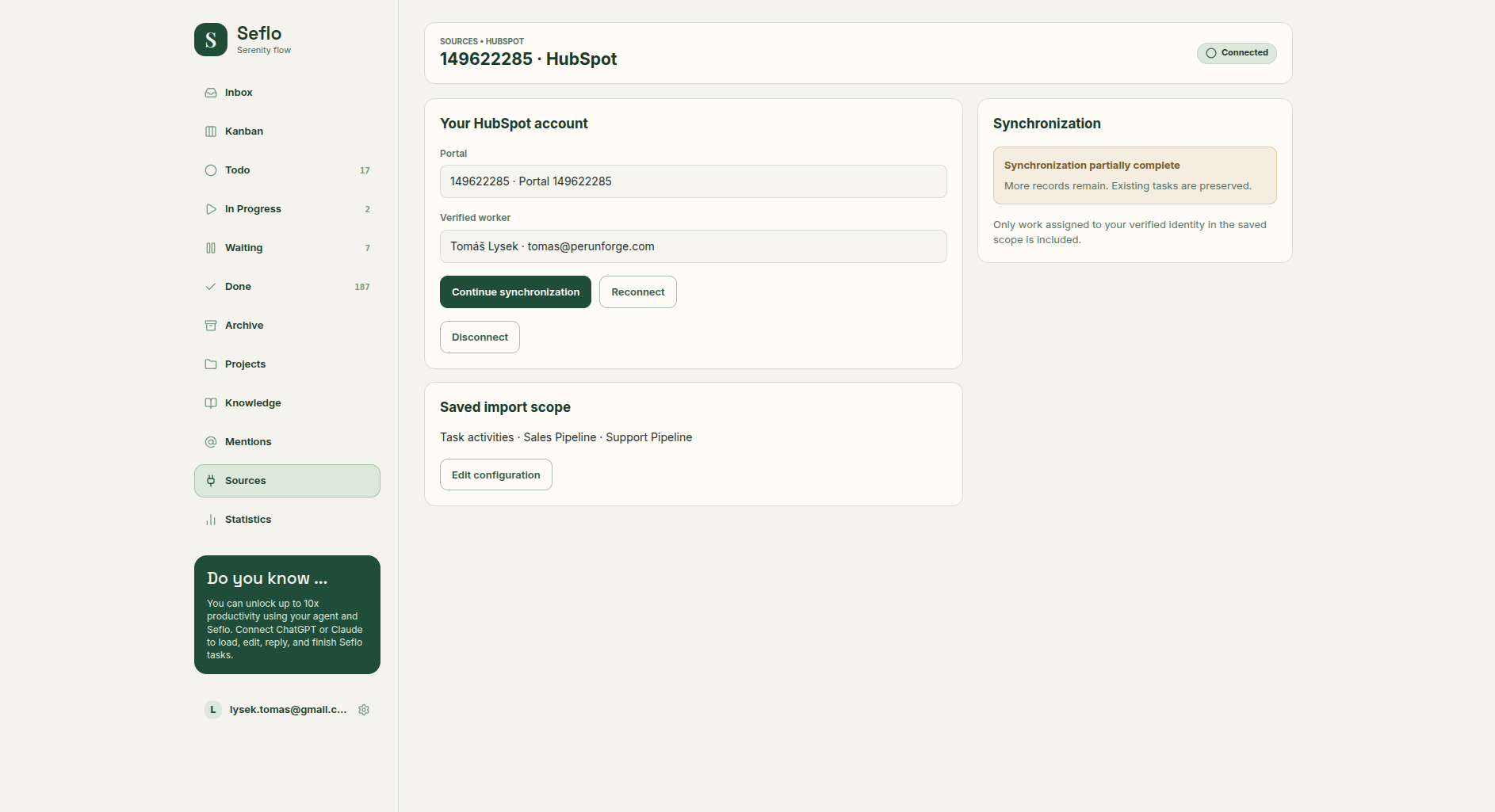
The activity above was independently verified while this source still reported remaining records. Open full-size image.
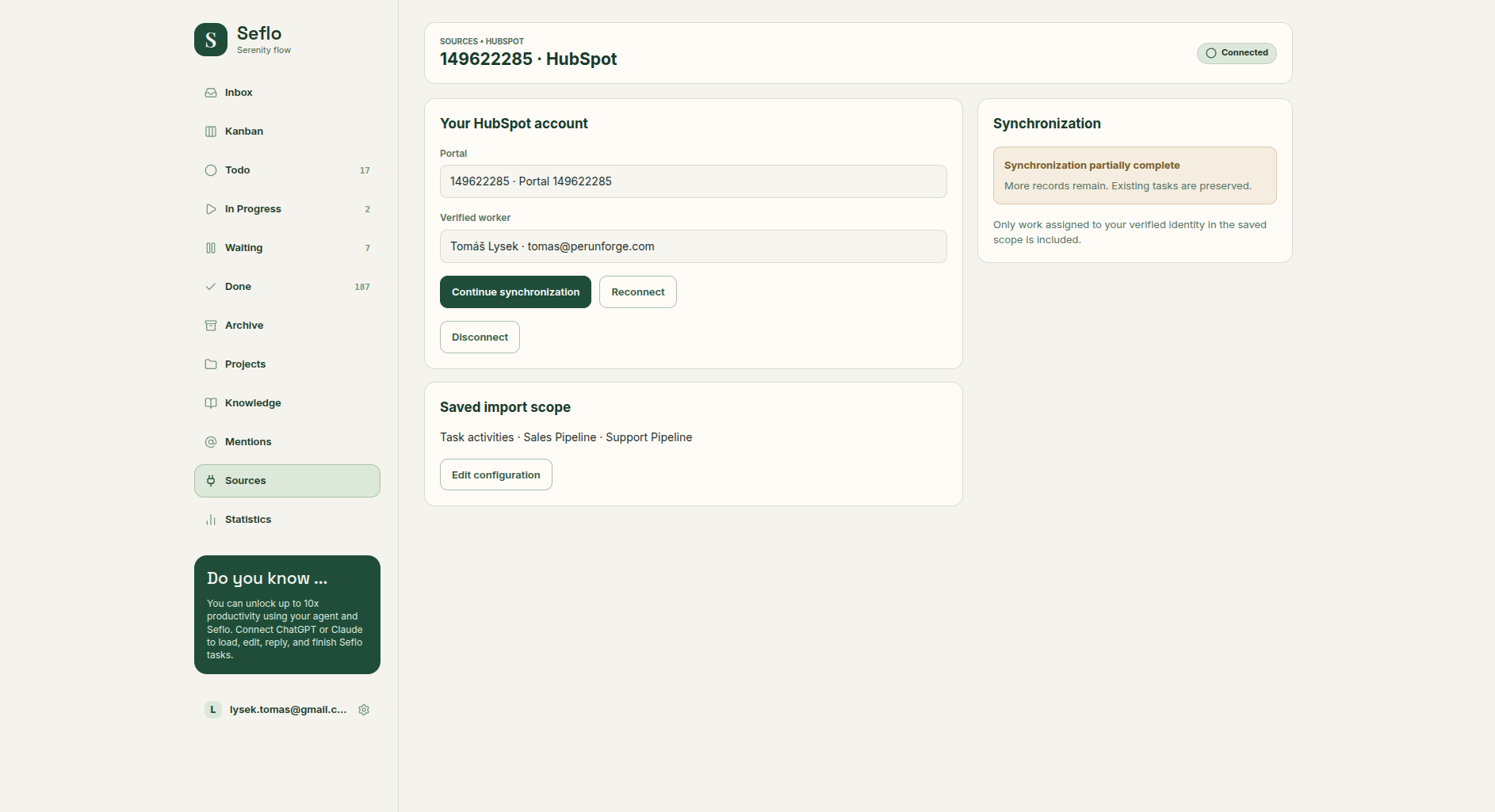
Continuing the remaining batch reached Up to date. Then compare your individual task with its original record. Open full-size image.
Continue with Connect your AI and Review and confirm actions.
Watch: HubSpot CRM — Process a File and Hand Off a Deal
Prepare a workbook and hand off the deal with its result while keeping the deal stage unchanged. The edited example condenses the workflow; use the written steps above for setup and checks.
Watch: HubSpot CRM — Send a Customer Response with Seflo and ChatGPT
Send a reviewed customer email and PDF through the connected mailbox and keep the result associated with the deal. The edited example condenses the workflow; use the written steps above for setup and checks.
Watch: HubSpot CRM — Complete an Assigned Task with ChatGPT
Complete an assigned CRM task and save the result alongside its original instructions. The edited example condenses the workflow; use the written steps above for setup and checks.
Watch: HubSpot Support — Resolve a Ticket with ChatGPT
Prepare a completed spreadsheet and review the customer-facing ticket response and its completion effect. The edited example condenses the workflow; use the written steps above for setup and checks.
Watch: connect HubSpot and verify your first activity
Authorize the intended portal, choose work types and pipelines, inspect ticket mapping and compare an assigned activity with its imported task. The walkthrough also shows how an incomplete synchronization reaches Up to date.