
Connect Mattermost
Connect your Mattermost account and turn selected messages into work with their original files.
Before you start
Have your Mattermost server URL, your ordinary user account and a message you can access. Use the server address, such as https://chat.example.com, rather than a channel or individual message URL. The current Seflo integration requires a system administrator to configure each Mattermost server once. An ordinary user cannot bypass that setup. After registration, each user connects their own account; they do not need the administrator's credentials.
Setting up a server? Start with Administrator setup. Already configured? Skip to Connect your account.
Administrator setup — once per server
You need Mattermost System Admin access, an active Seflo account and a server reachable from Seflo over public HTTPS with a valid certificate. Use the base server URL, for example https://chat.example.com. Servers reachable only through a private network or company VPN are not supported by this connection.
Seflo currently uses an OAuth application registered separately on each server and an administrator-installed message-action plugin. There is no ordinary-user-only installation path for this integration. Listing a plugin in a marketplace does not replace the server administrator's configuration and approval.
The screenshots below show our already configured demo server, running Mattermost 11.7.14 ESR. They document its real settings, not a fresh installation. Other server versions and company policies can change which controls are available.
1. Enable OAuth applications
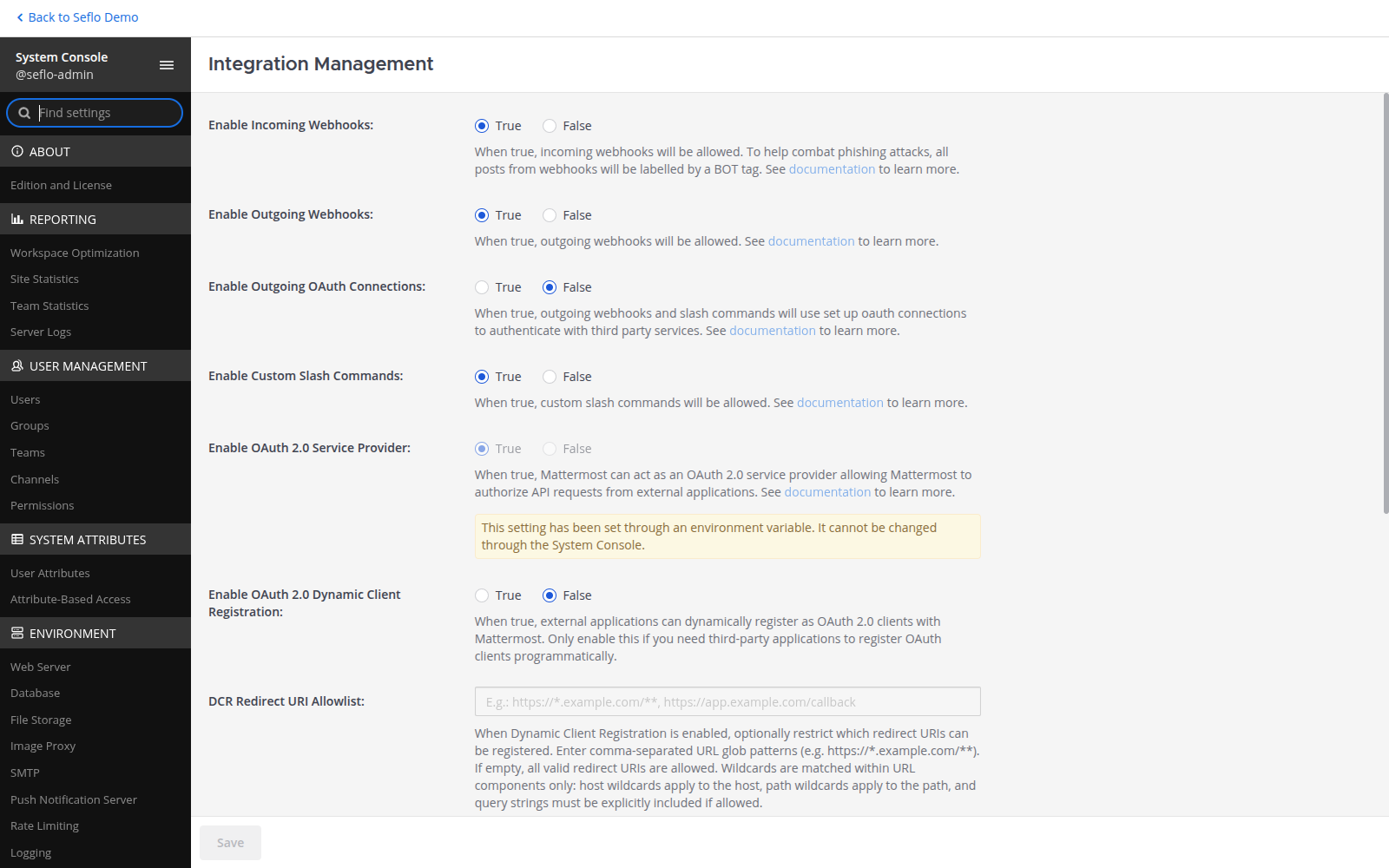
Open System Console → Integrations → Integration Management and enable OAuth 2.0 Service Provider, then save. If the control is locked by an environment variable, the server operator must enable ServiceSettings.EnableOAuthServiceProvider in the managed deployment configuration. Our demo uses that managed setting. Seflo does not use Dynamic Client Registration; leave it disabled for this setup. You can keep Restrict managing integrations to Admins enabled. Ordinary users authorize their own access after setup; they do not need permission to create OAuth applications.
2. Register the Seflo OAuth application
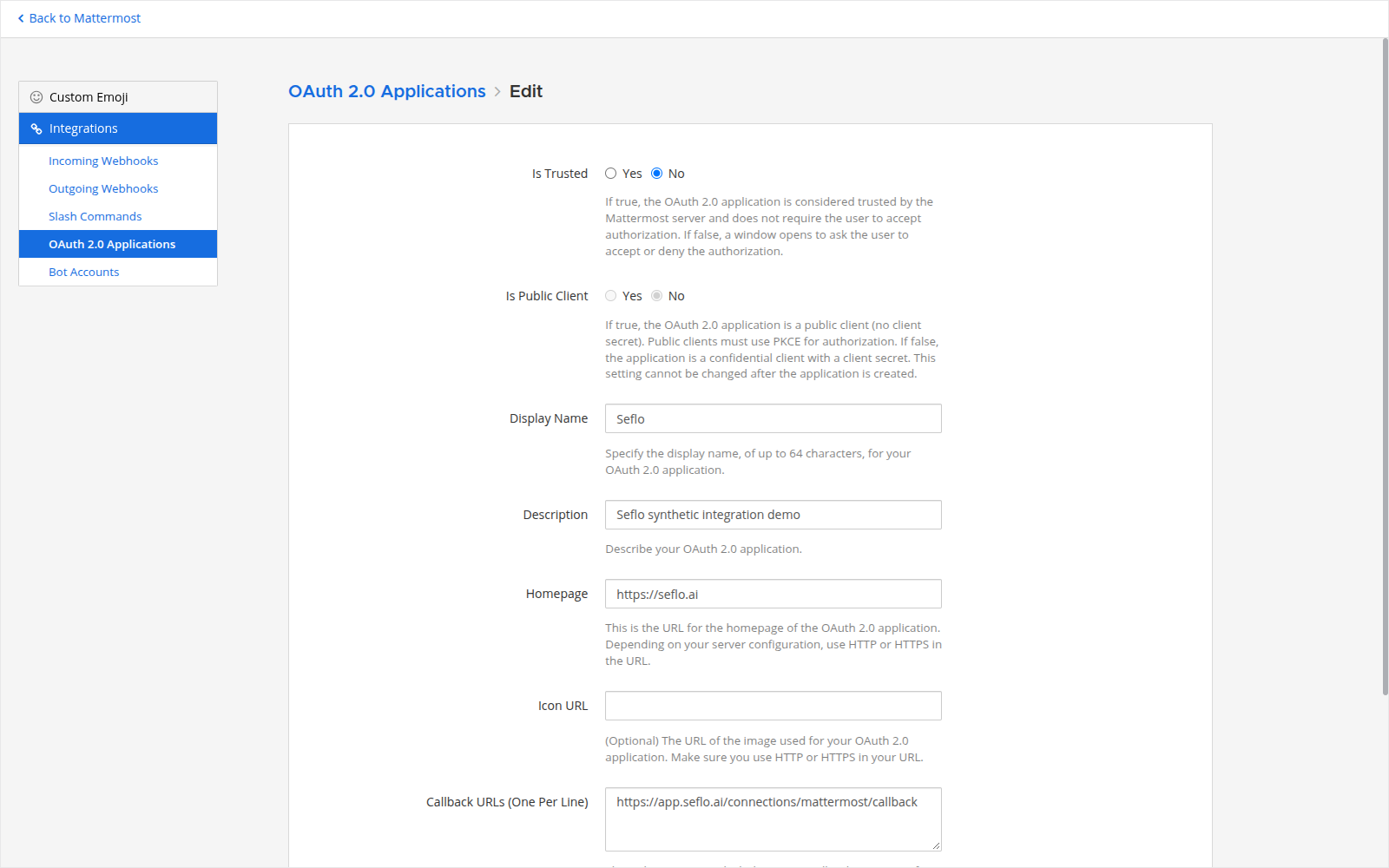
In the Mattermost product menu, open Integrations → OAuth 2.0 Applications → Add OAuth 2.0 Application. Enter:
| Field | Value |
|---|---|
| Name | Seflo |
| Description | Connect selected Mattermost messages and reviewed replies with Seflo. |
| Homepage | https://seflo.ai |
| Callback URL | https://app.seflo.ai/connections/mattermost/callback |
| Is Trusted | No — users review and authorize access. |
If your version offers Is Public Client, leave it set to No: this integration uses a confidential client with a client secret. Save the application. Keep its Client ID and Client Secret available privately for the next step. Never share the secret in messages, screenshots or support tickets.
3. Register the server in Seflo
- Sign in to Seflo and open Sources → Add source → Mattermost.
- Choose Administrator setup.
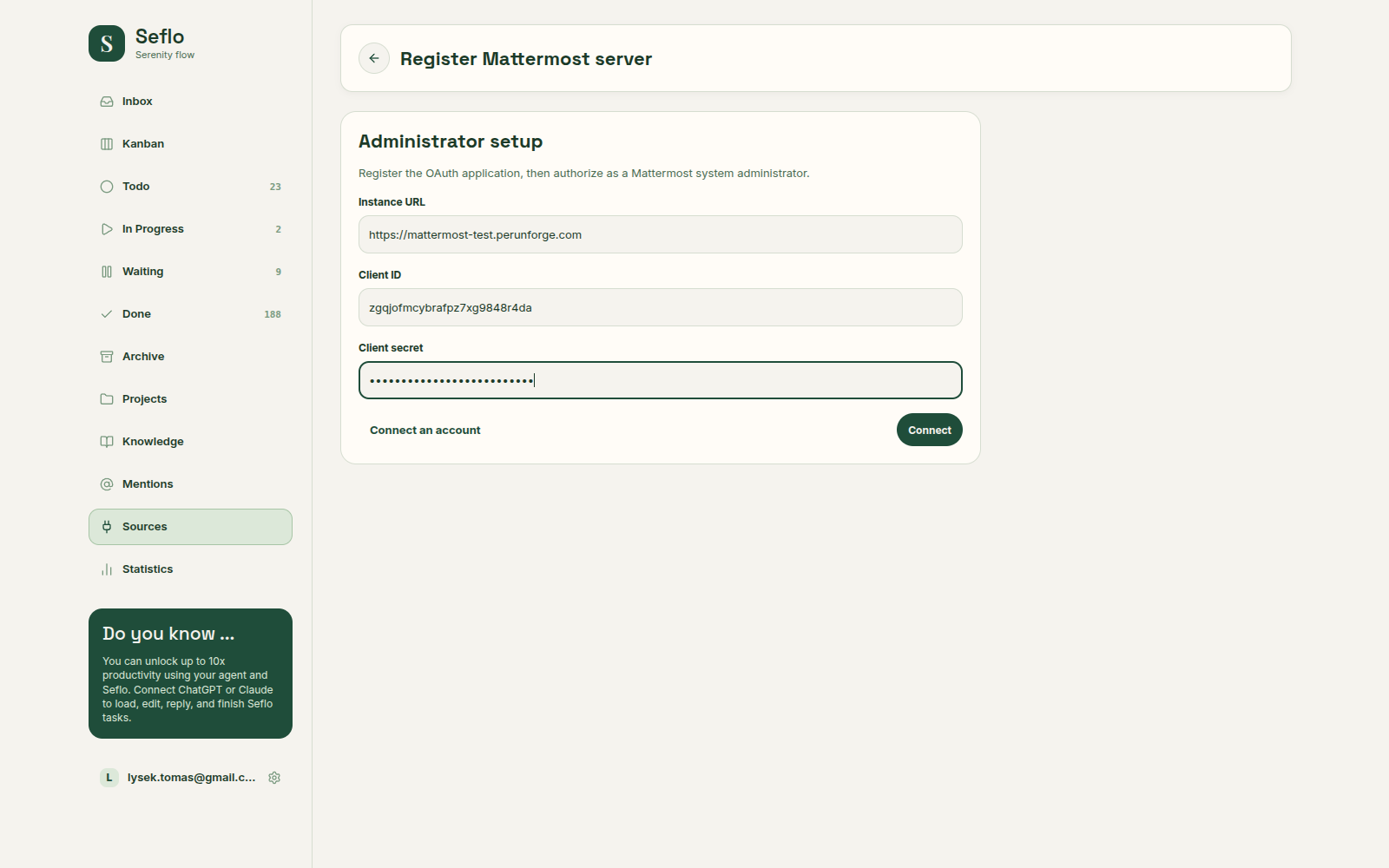
- Enter the base server address in Instance URL, then the application's Client ID and Client secret.
- Choose Connect and authorize as a Mattermost system administrator on that server.
- Return to Seflo and verify the server and connected identity.
Seflo checks the administrator role before accepting the server registration. It stores the application secret encrypted. Each ordinary user's later connection uses that user's own authorization and permissions. Do not distribute the client secret to users, and do not use the administrator's connection for everyday replies.
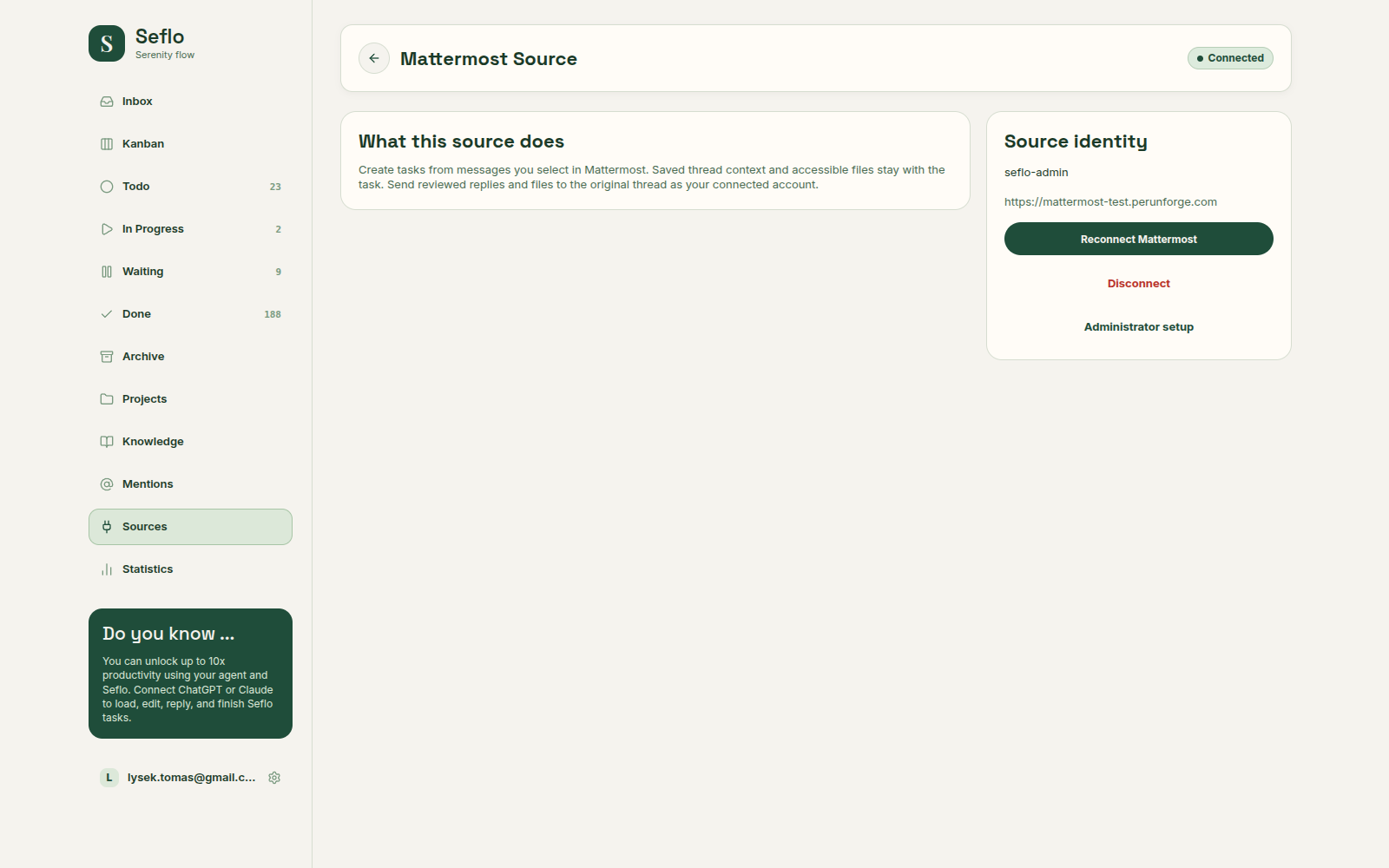
Existing server registration was reauthorized using the same OAuth application; its secret was not rotated.
4. Install and enable Send to Seflo
Download Seflo Mattermost plugin 0.1.0 and its SHA-256 checksum. This is the same CI-built package verified on our demo server. It adds the Send to Seflo message action; it does not include OAuth credentials.
sha256sum -c seflo-mattermost-0.1.0.tar.gz.sha256Run this in the folder containing both downloaded files. The expected SHA-256 is ff7b5939e472f61c74e1d953e649749f408ec429bddd7cdeec28926d7ea8e81c.
- Check your server's plugin policy. For manual upload, plugins and plugin uploads must be enabled. On self-managed installations, the server operator configures
PluginSettings.EnableandPluginSettings.EnableUploadsin the deployment's managed configuration; uploads may not be configurable from the web console. - Open System Console → Plugins → Plugin Management.
- Upload the downloaded
.tar.gzarchive without unpacking it. - Find Seflo, choose Enable if it is disabled, and verify that version 0.1.0 is active.
- Reload the Mattermost web client and inspect a message's Actions menu for Send to Seflo.
This package is a manual installation, not a Mattermost Marketplace-signed release. If your server requires signed plugins or your hosting provider prohibits custom uploads, ask the server operator to arrange an approved installation. Do not disable your organization's signature requirements just to follow this tutorial. See Mattermost's plugin installation documentation.
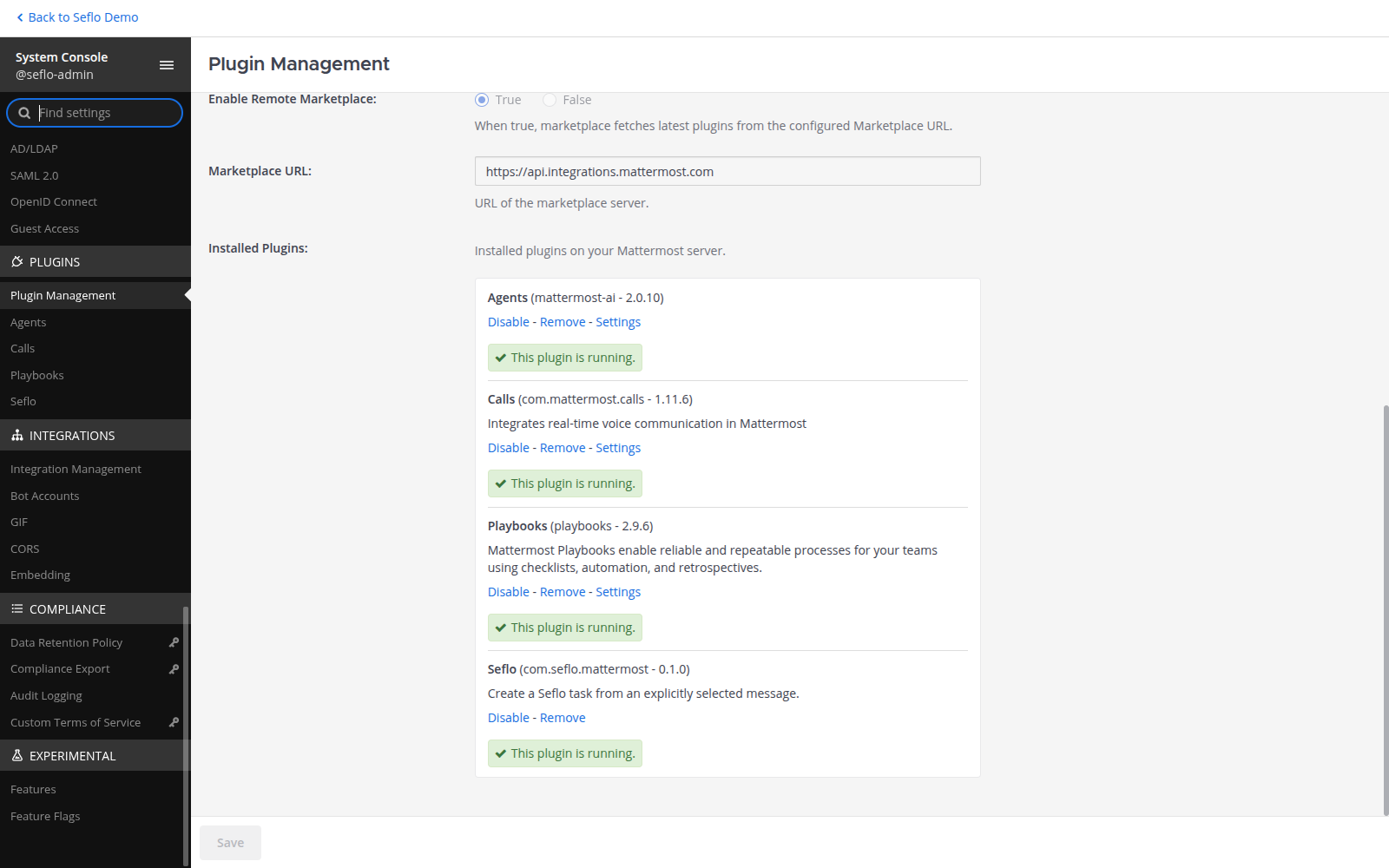
The plugin is already installed in this demonstration. Its existing configuration and connections are preserved.
5. Hand over to ordinary users
Ask each user to follow Connect your account below with the same server URL and their own Mattermost identity. They need an active Seflo account and access to the source conversation. Verify the first selected message and its original attachment before starting real work.
Our browser walkthrough is verified on the demo version above. It does not establish compatibility with every server version, a native mobile workflow or a server hidden behind a VPN.
Watch: administrator setup
Follow the administrator walkthrough on our already configured demo server. It shows the required OAuth settings, server registration, plugin installation requirements and the handoff to an ordinary user. Use the steps above for the exact callback URL and verified plugin download.
Connect your account
- Open Sources → Add source → Mattermost in Seflo.
- Enter the server address in Instance URL.
- Choose Connect.
- Sign in to Mattermost as the user who will work on the request and send replies.
- Complete the account authorization and return to Seflo.
- Check that the Mattermost source belongs to the intended server and user.
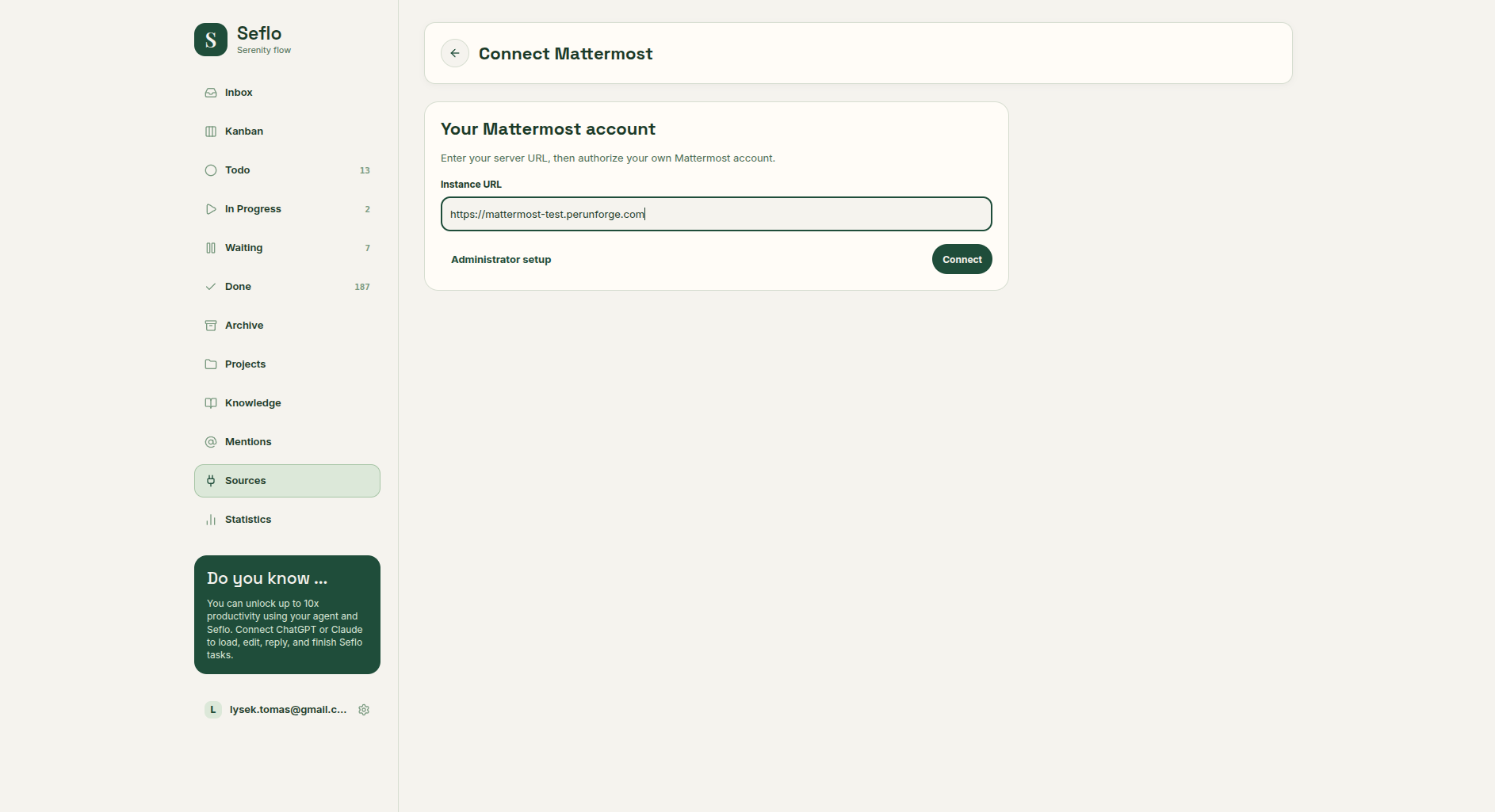
Enter the base server address. Open full-size image.
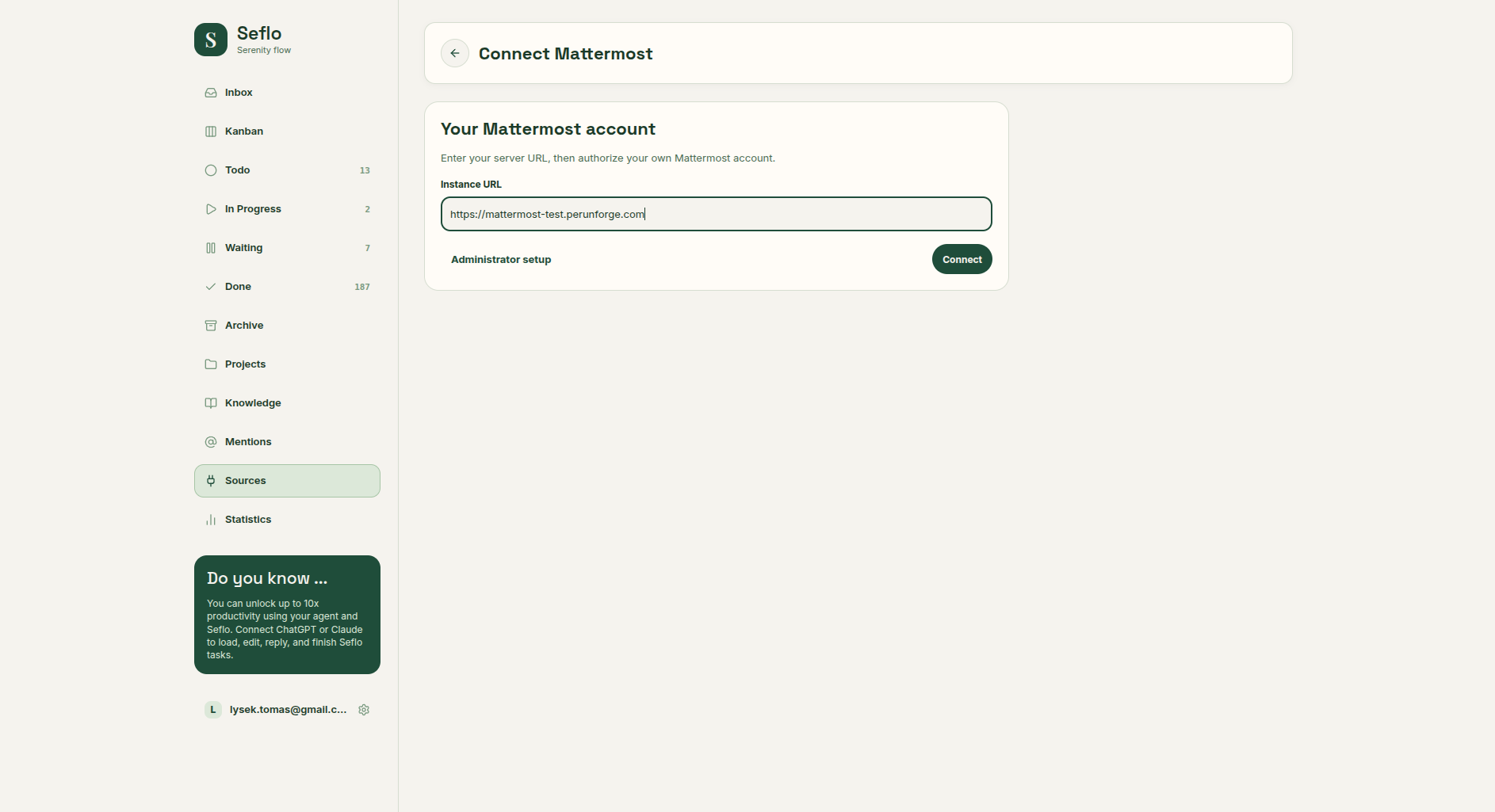
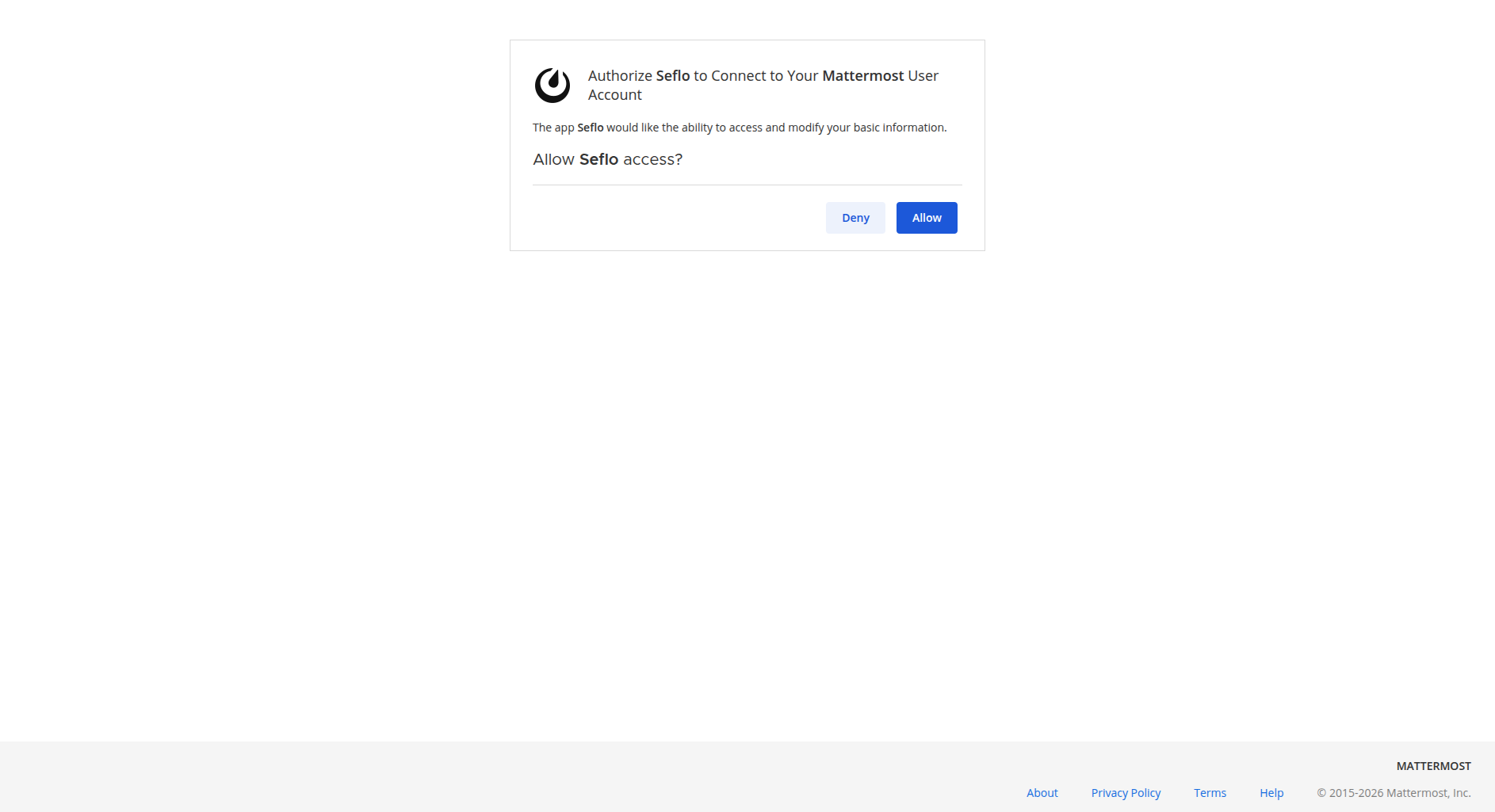
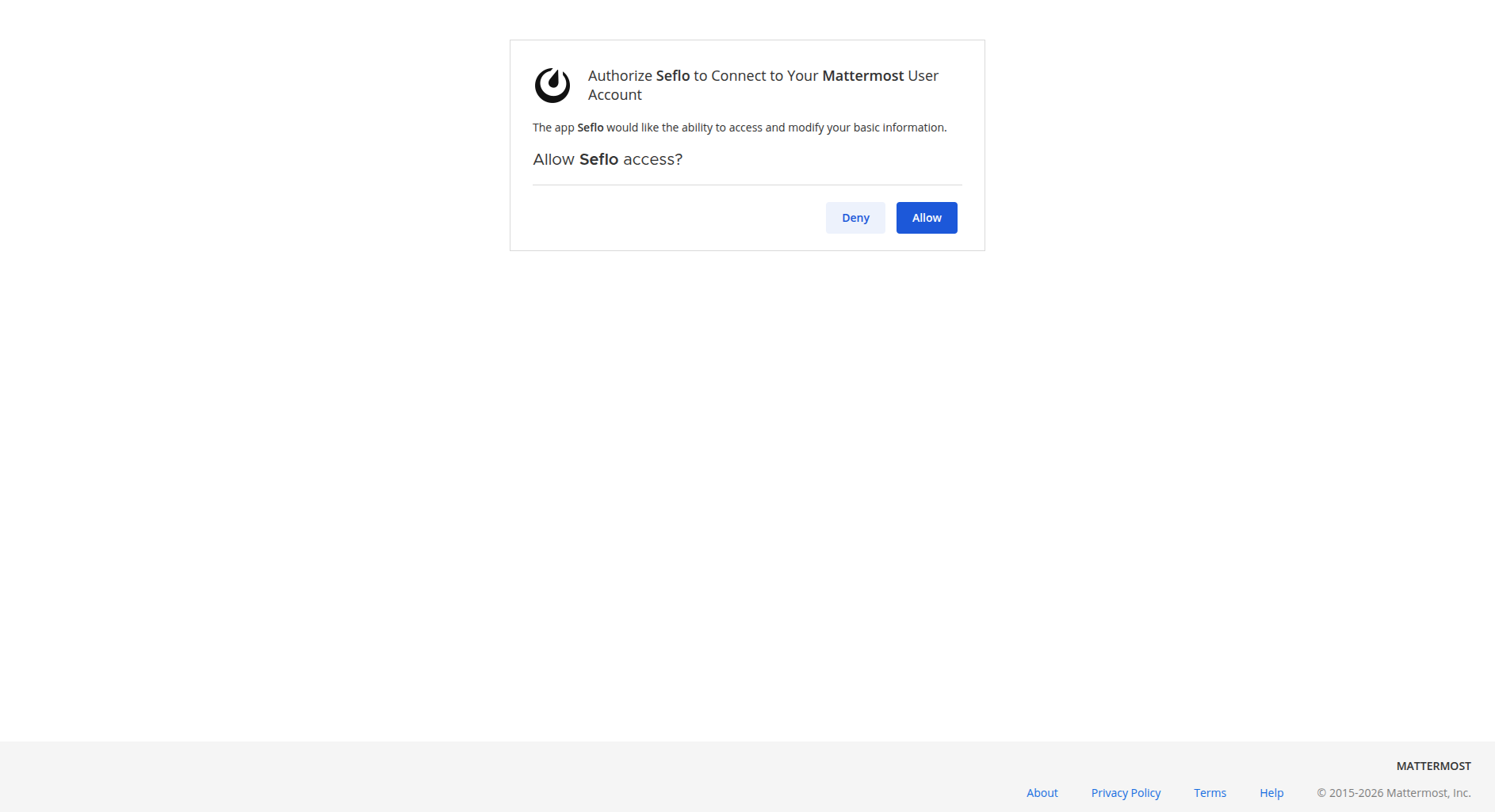
Verify the signed-in Mattermost account before allowing access. Open full-size image.
Use the ordinary account connection form for everyday work. A server administrator's identity is not the identity you should use for your own replies.
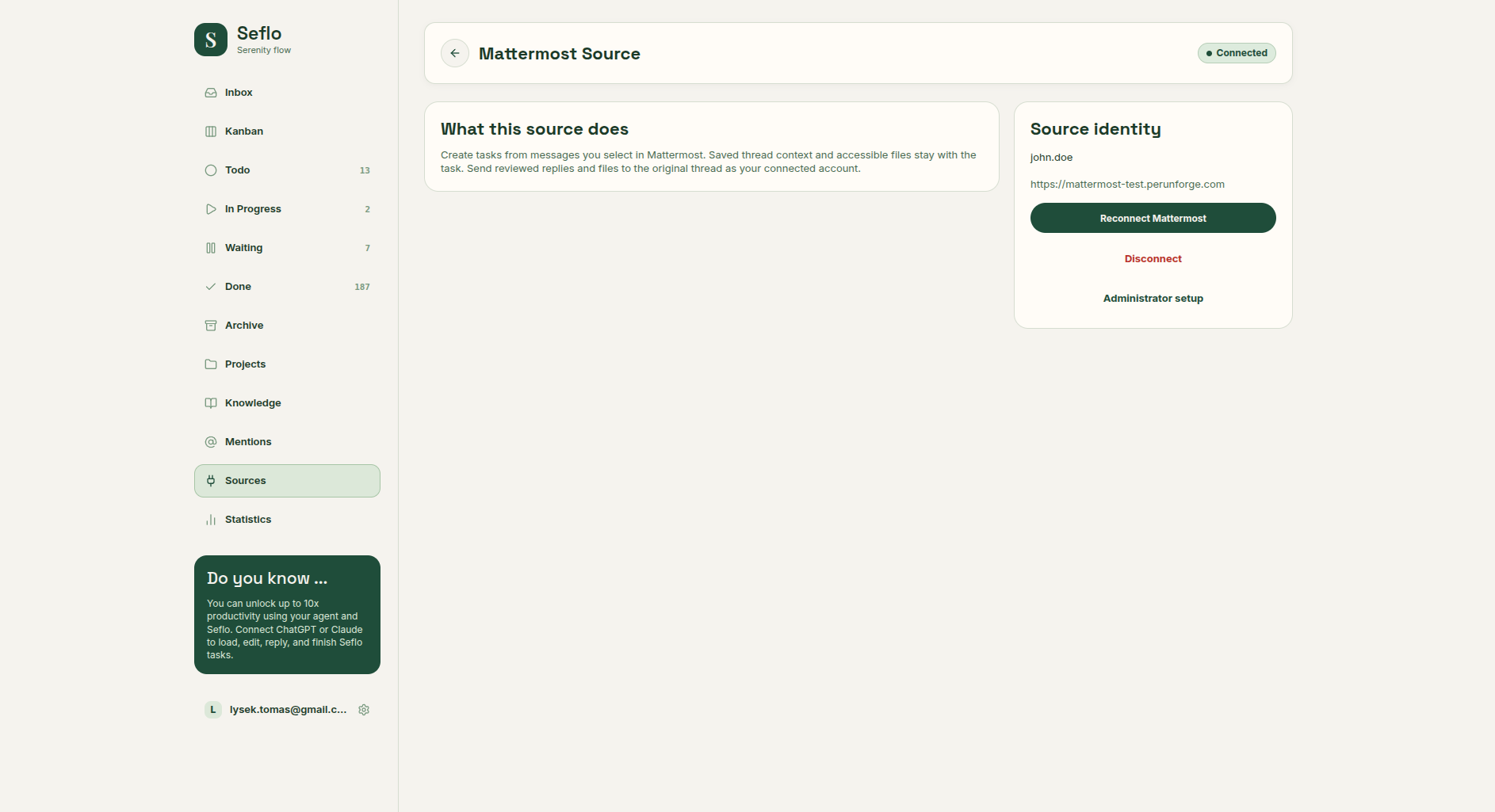
Check the connected identity before capturing a request. This example uses the ordinary john.doe account. Open full-size image.
Create a task from a message
- Open the message in Mattermost.
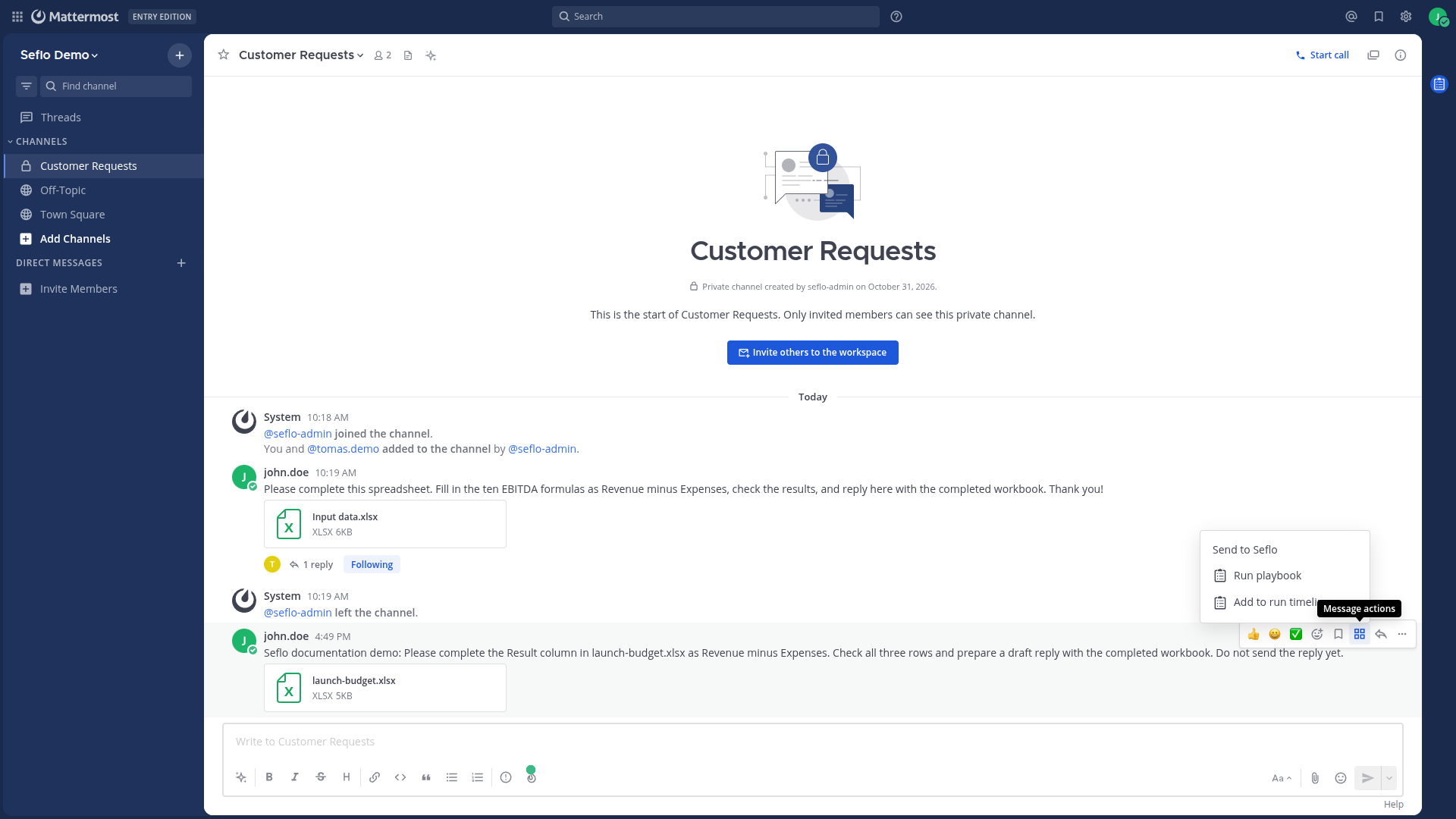
- Open Actions, then choose Send to Seflo.
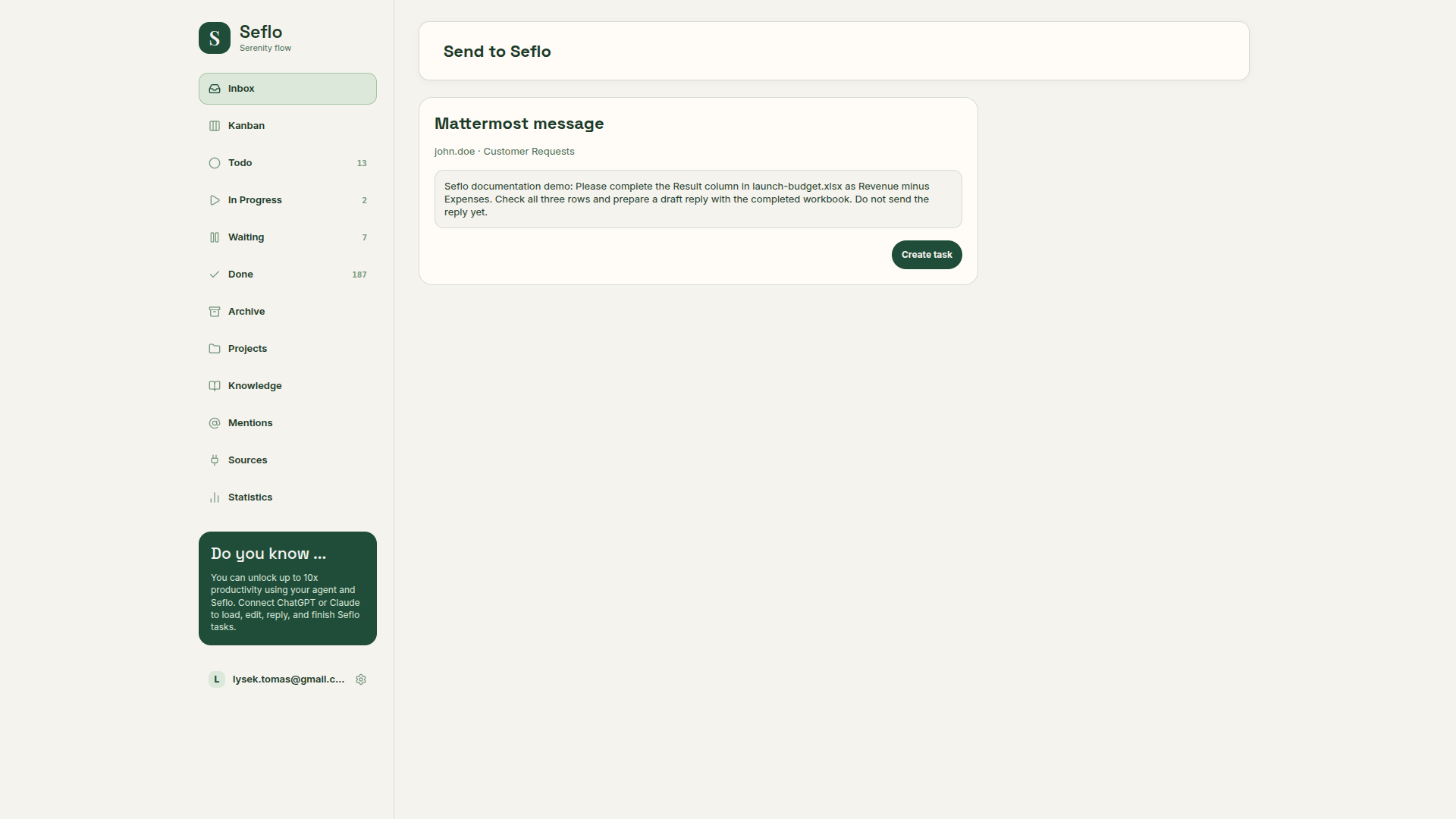
- In the preview, check that the request is the one you intended to capture.
- Confirm task creation and open the resulting task.
- Check the saved thread context and the import status of the original files.
Mattermost work is captured from selected messages, not imported by assignment polling. Repeating capture for the same source can return the existing task; check it before creating another one manually.
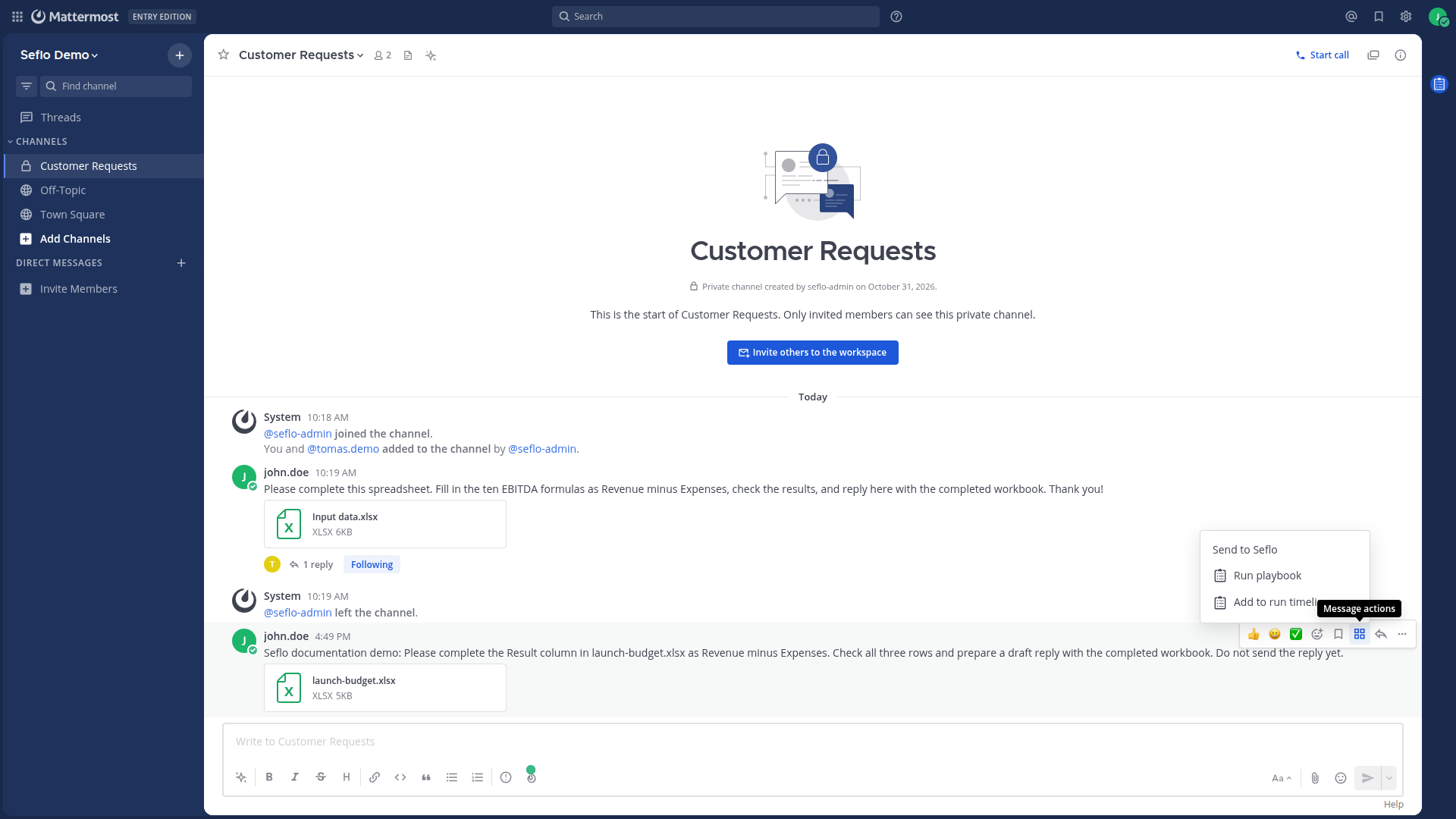
Open the action on the message that contains the request. Open full-size image.
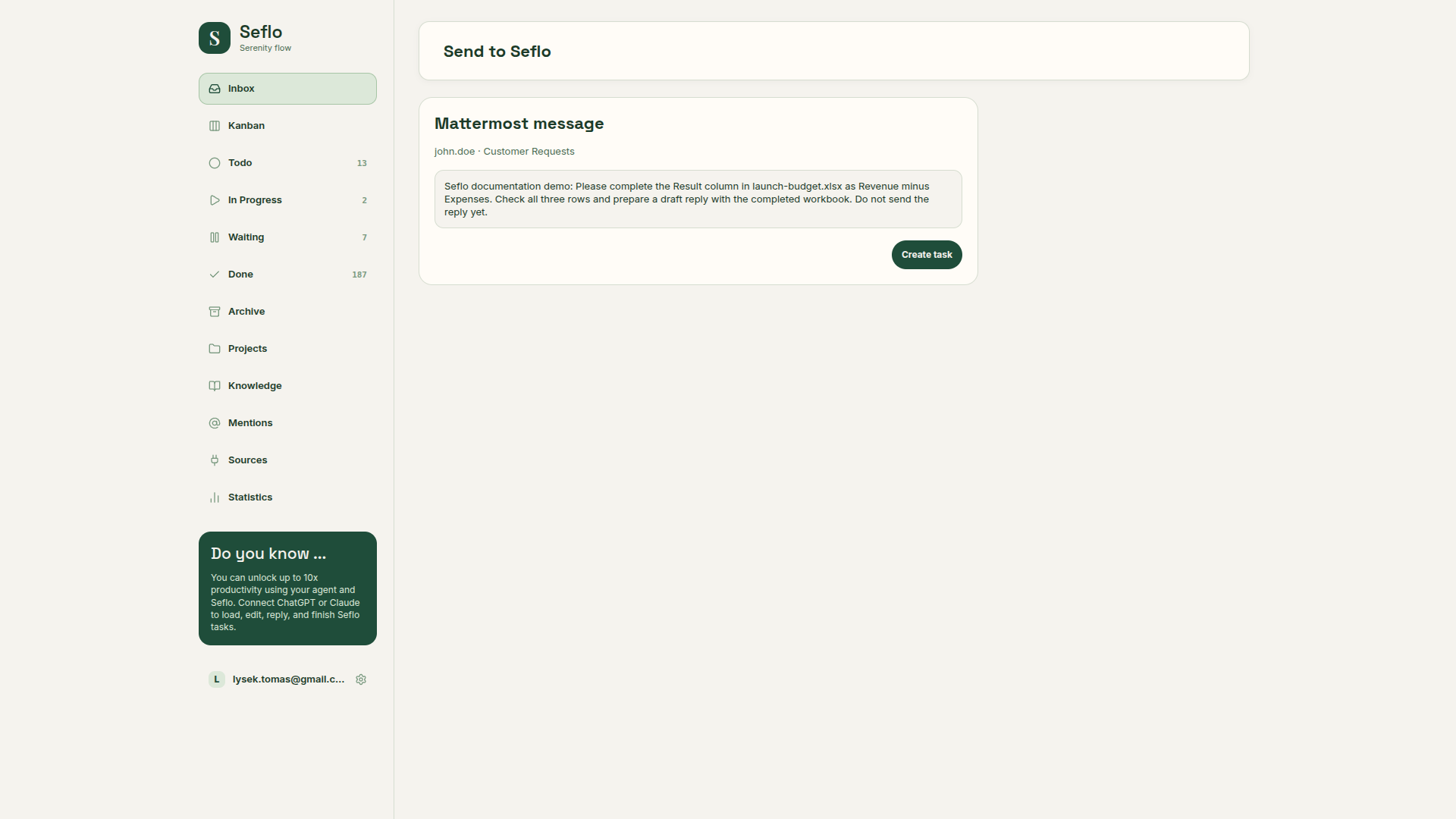
Compare the original request before choosing Create task. Open full-size image.
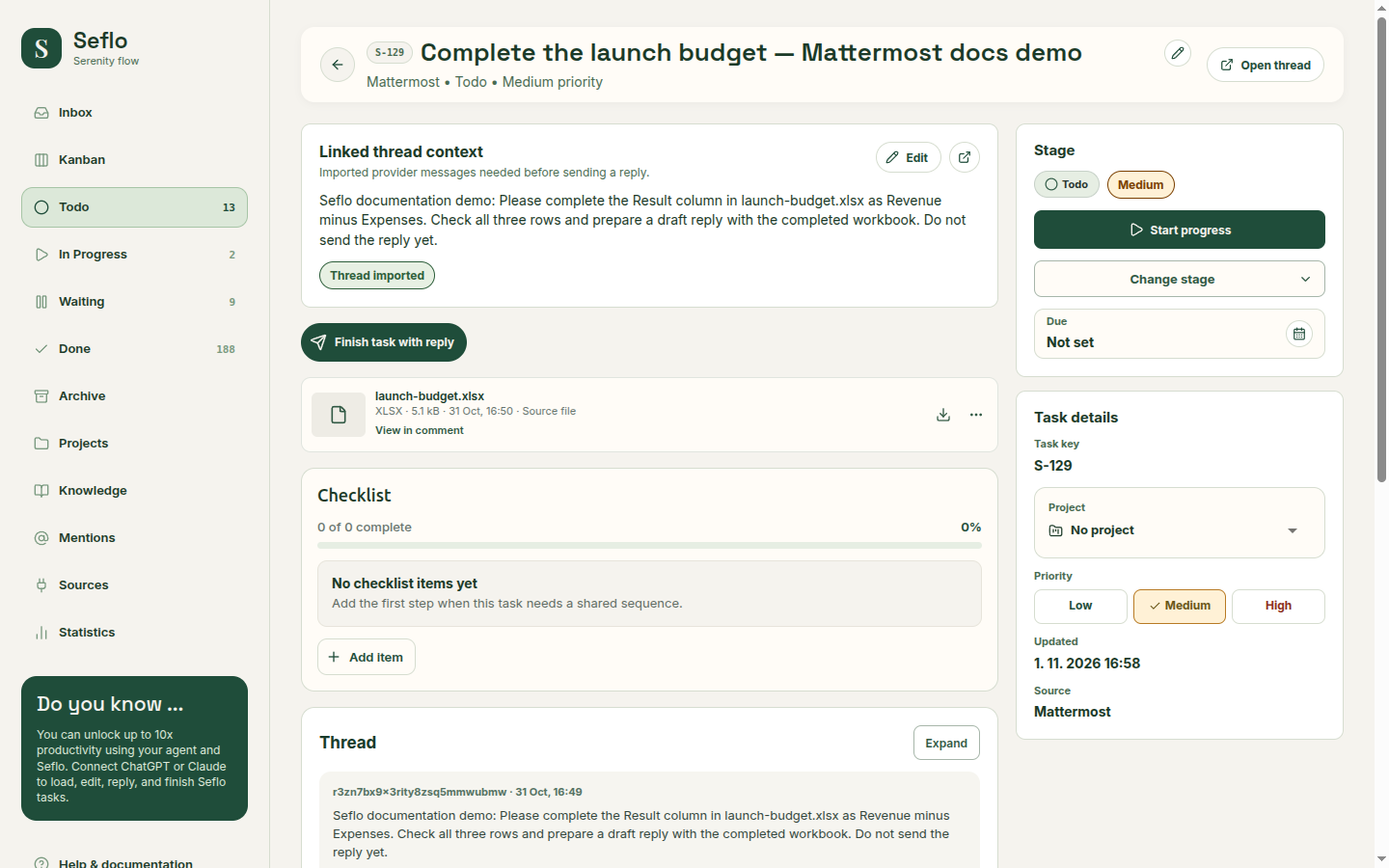
The task title was shortened in Seflo; the original request remains in linked context. Wait until the attachment becomes available, then open or download it. This example's downloaded workbook matched the original file. Open full-size image.
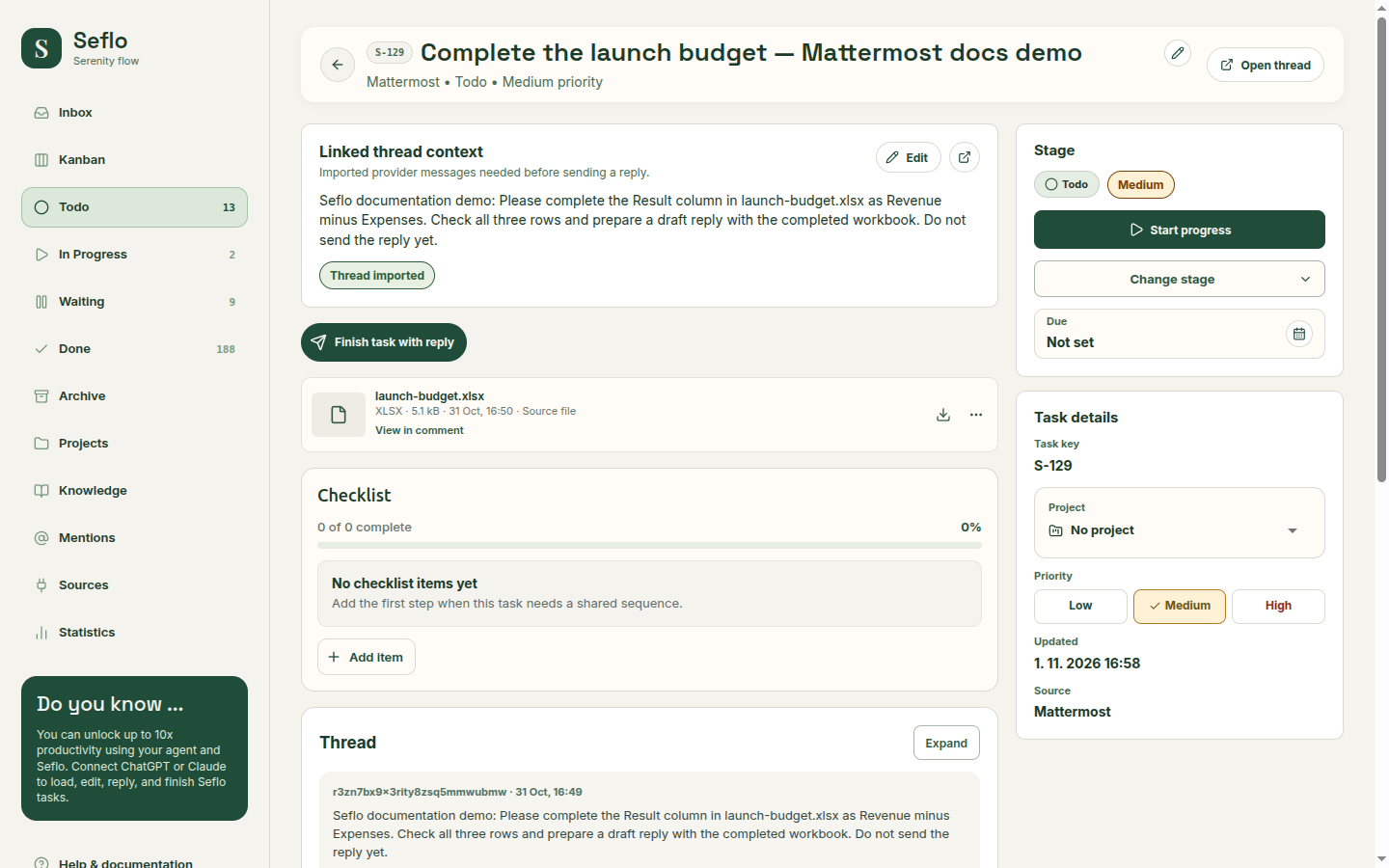
Try the same setup with the launch-budget workbook in a demo conversation. Ask for the Result column to equal Revenue minus Expenses and keep the reply as a draft until reviewed.
Return a finished result
Ask your AI client to read the task and original attachment, prepare the result and open a reply review. Check the thread, sender, message and finished file before confirming.
The reply is sent to the original thread as your connected Mattermost user. Completing the task marks your work Done in Seflo; it does not set a shared task status in Mattermost.
Watch the verified Mattermost workflow for a spreadsheet example.
If something does not work
- Server registration required: a system administrator must complete steps 1–3 above before ordinary users connect.
- Administrator authorization rejected: check the Mattermost identity; a team administrator is not necessarily a system administrator.
- OAuth callback rejected: compare the application callback with the exact HTTPS URL above, including its path.
- Plugin upload unavailable or rejected: check the managed upload setting, signature policy and hosting restrictions with the server operator.
- Send to Seflo missing: check that Seflo is enabled in Plugin Management, reload the client and open the message Actions menu, not the separate More menu.
- Cannot connect: check the exact server URL and intended account. If the page reports a server registration problem, pass that message and the server URL to the person managing your server.
- Message or file inaccessible: confirm your connected user still belongs to the conversation and can open the original item.
- Reply missing: inspect the existing action result and original thread before starting another send.
- Expired access: use Reconnect Mattermost on the source page and authorize the same user.
Watch: connect Mattermost and capture your first request
Follow the ordinary user connection, selected-message preview and original file checks. This example assumes the server integration is configured; it leaves the new task open without sending a reply.