
Connect Microsoft Outlook
Connect a mailbox, capture a conversation and configure follow-up flags.
Before you start
Use the Microsoft account that owns the mailbox you want to connect. The capture workflow below requires the Seflo Outlook add-in to be installed. Public catalog availability has not yet been verified. After publication, the intended route is to find Seflo in Outlook’s add-in catalog and install it. The existing product demo begins with the add-in available in its demonstration account. The add-in captures a selected email; the mailbox connection gives Seflo access to its context and supported reply actions.
Connect the mailbox
- In Seflo, open Sources → Add source → Microsoft Outlook.
- Start the connection and sign in with the intended Microsoft account.
- Complete the account access confirmation and return to Seflo.
- Check the mailbox identity on the Outlook source page.
- If several accounts are connected, open the account you intend to configure. Check the default account selection separately; do not assume the last account you added is the one used by an existing task.
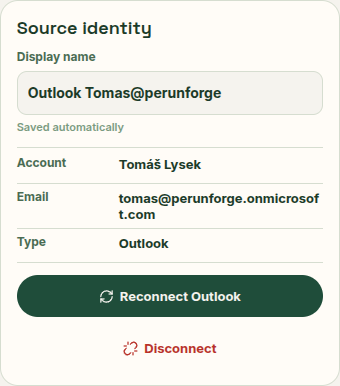
Check the mailbox address before capturing a request. Open full-size image.
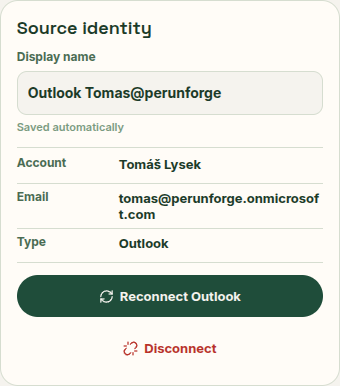
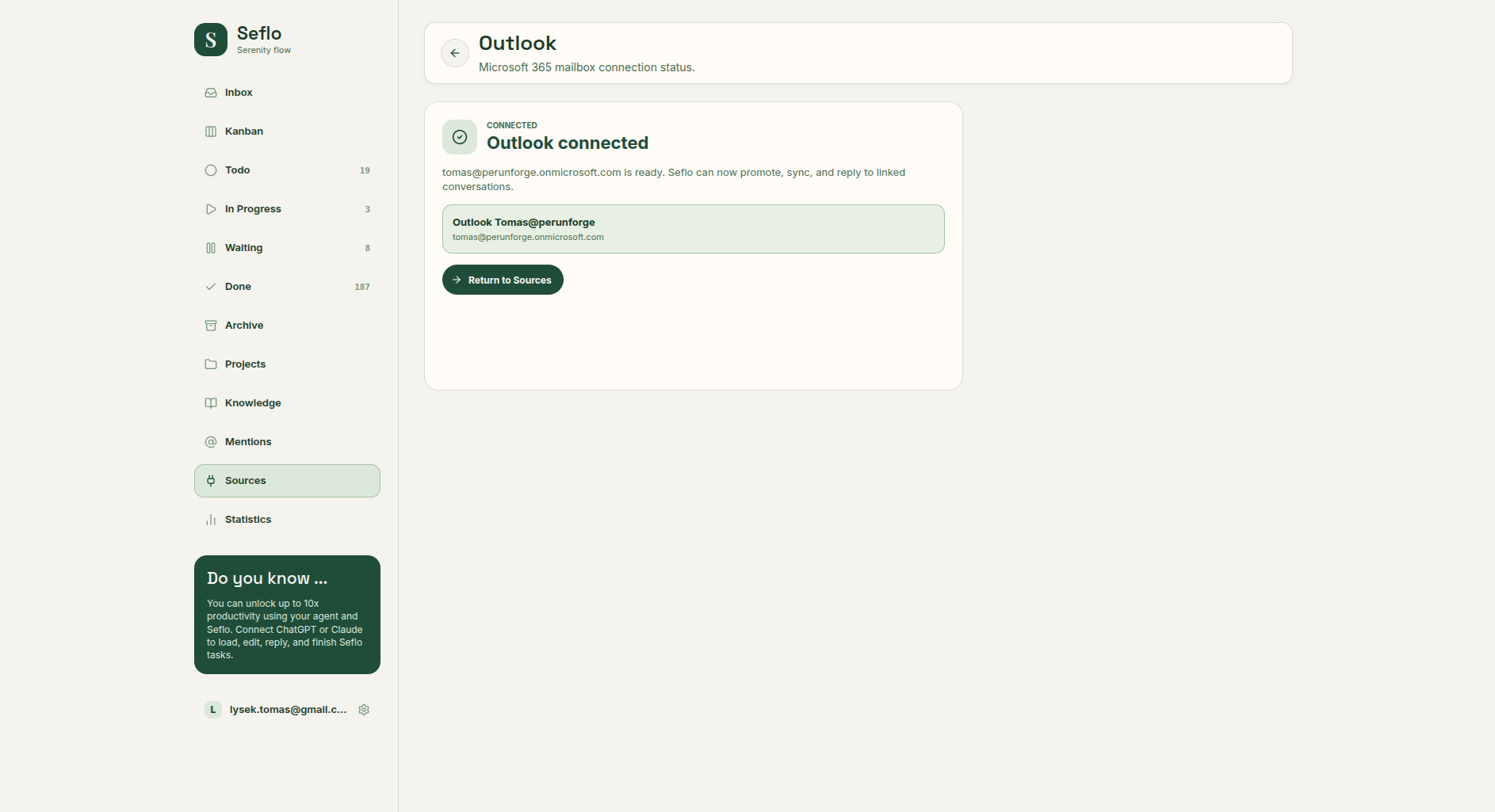
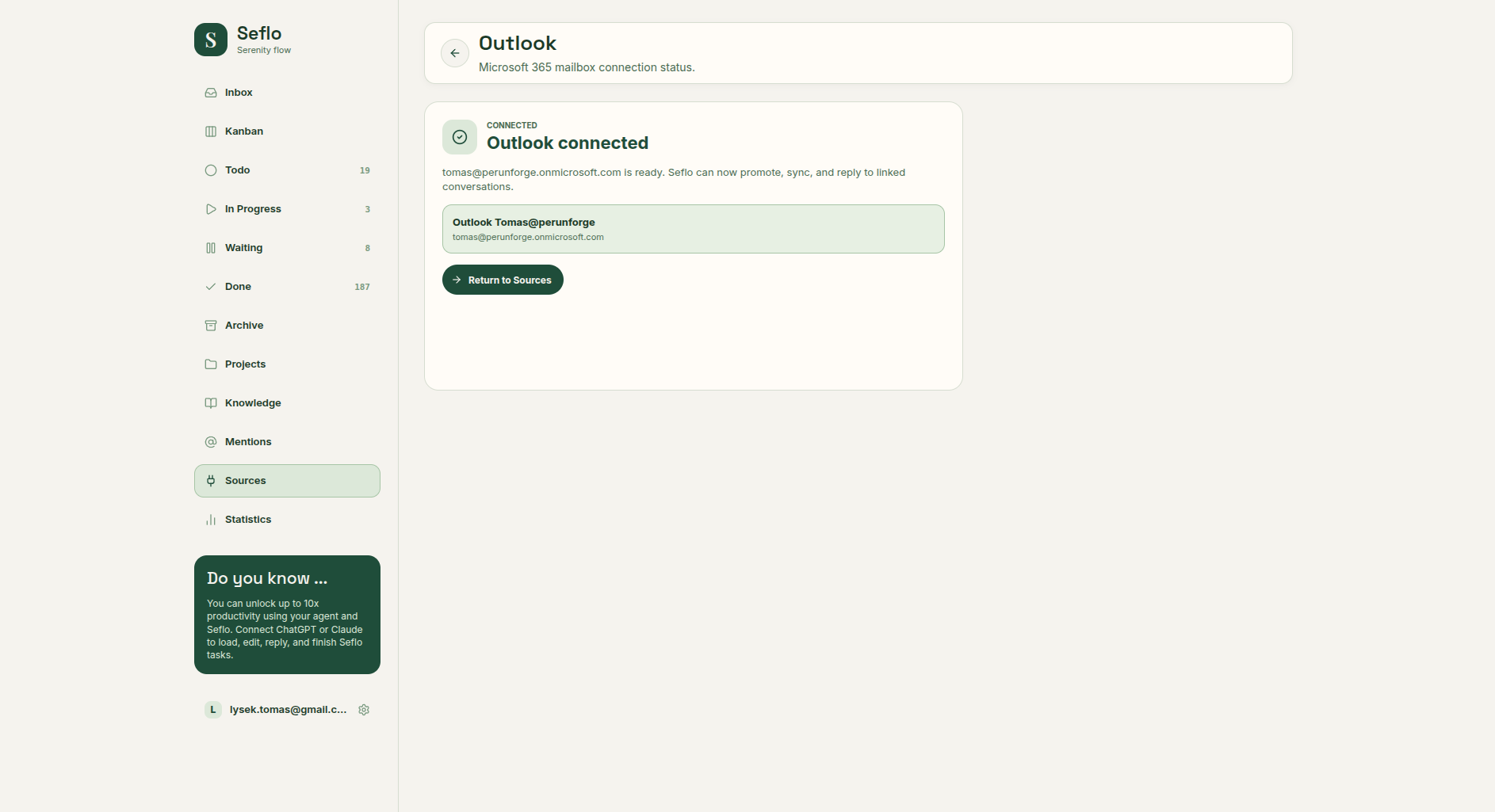
This is the actual confirmation after reconnecting the existing Microsoft account. Open full-size image.
Configure follow-up flags
In the source's Follow-up flags panel:
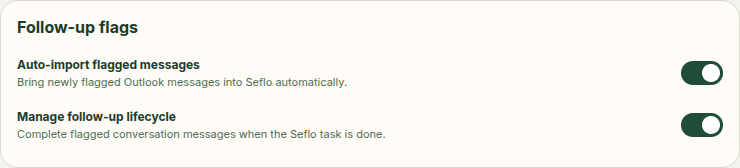
- Enable Auto-import flagged messages if flagging a message should bring it into Seflo.
- Enable Manage follow-up lifecycle if finishing the Seflo task should complete the linked flagged conversation messages.
Leave auto-import off for explicit selection through the add-in. Flag lifecycle changes affect the mailbox as well as your task list.
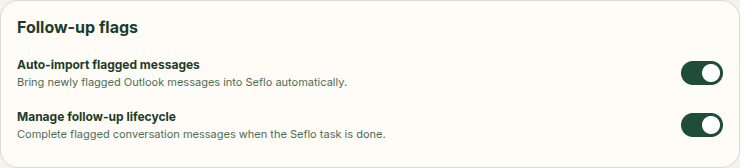
This connected account has both options enabled. Set each option deliberately for your workflow. Open full-size image.
Capture and verify one conversation
- Open an email in Outlook and use its Send to Seflo action. The add-in must already be available to your account.
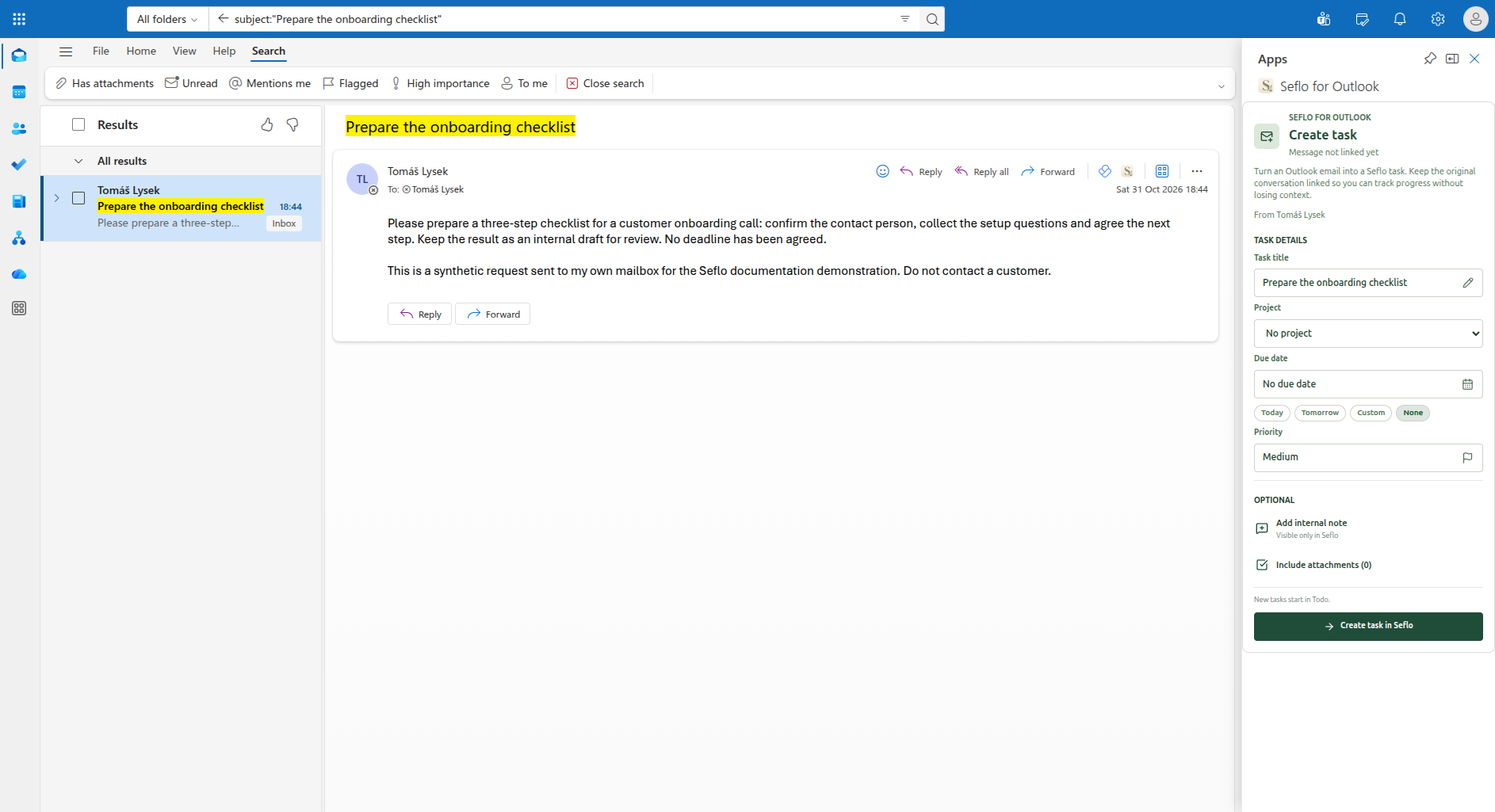
- In Create task, check the task title, optional project, due date and priority. Review Include attachments if the email has files. New tasks start in Todo.
- Choose Create task in Seflo once. Check the saved task code and imported attachment count.
- Choose Open in Seflo. Compare the task with the original email: title, Thread, source link, stage and deadline.
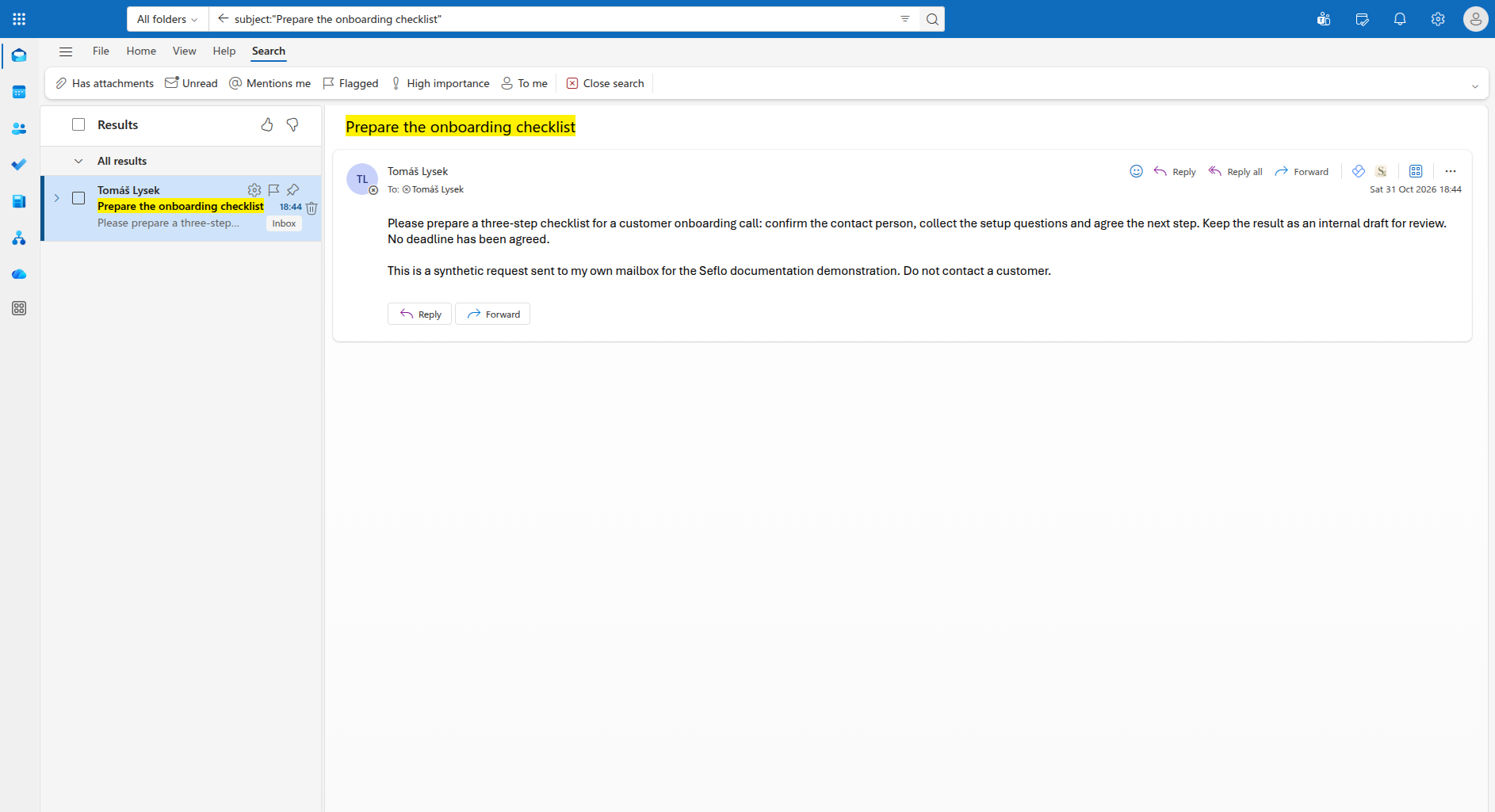
This self-addressed demonstration asks for an internal checklist draft and gives no deadline. Open full-size image.
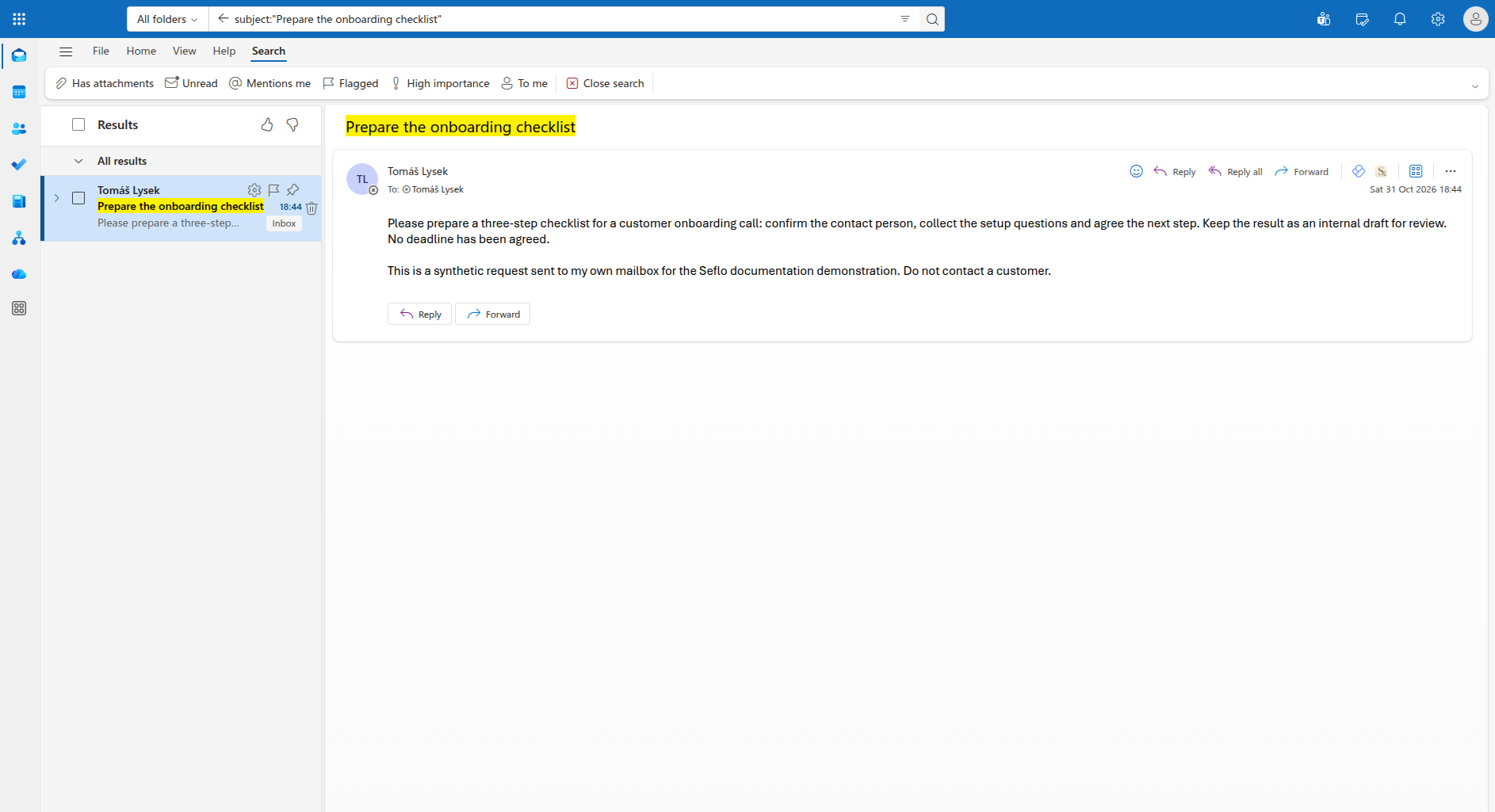
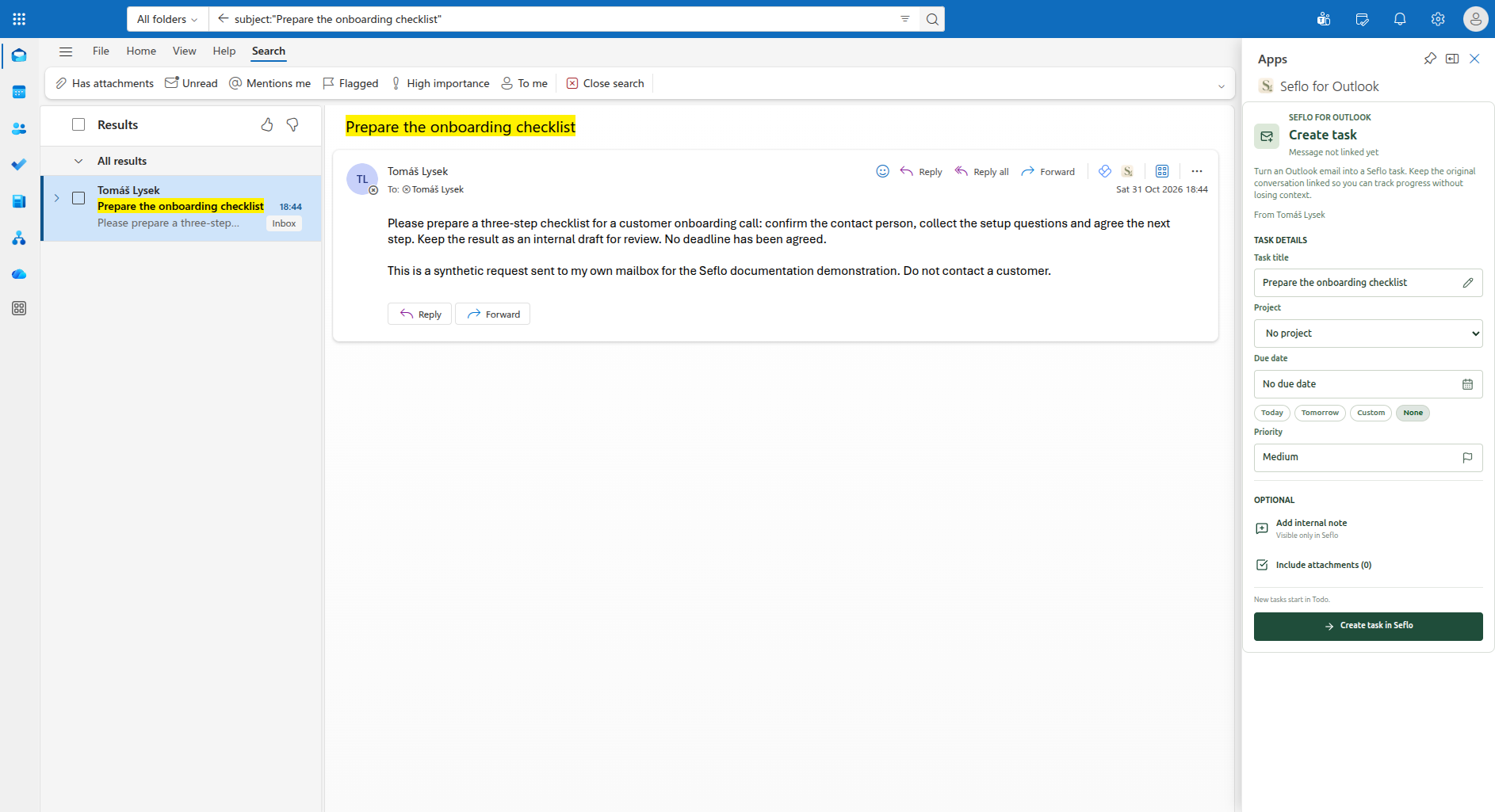
Keep the deadline empty when the request does not provide one. This message has no attachments. Open full-size image.
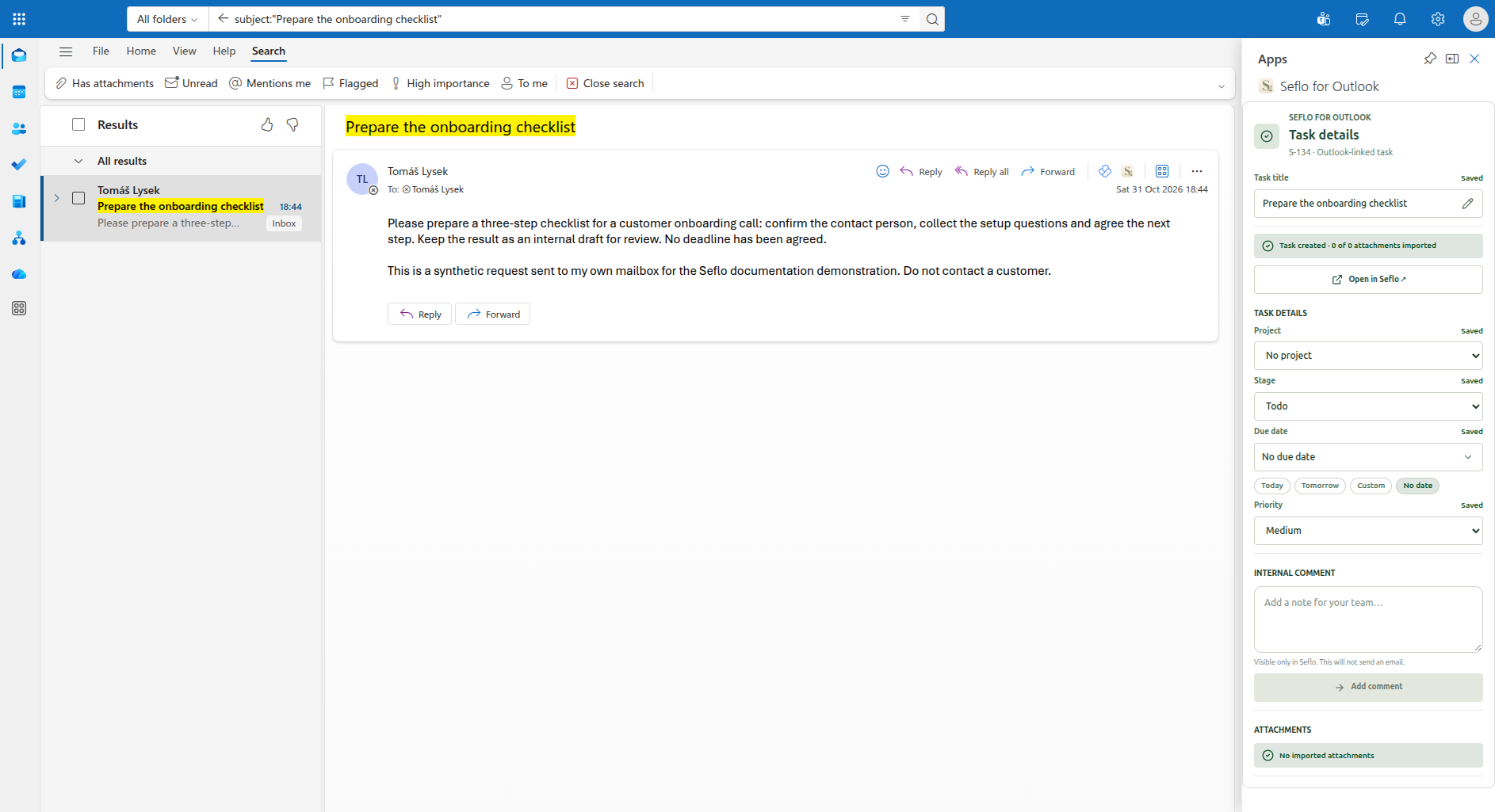
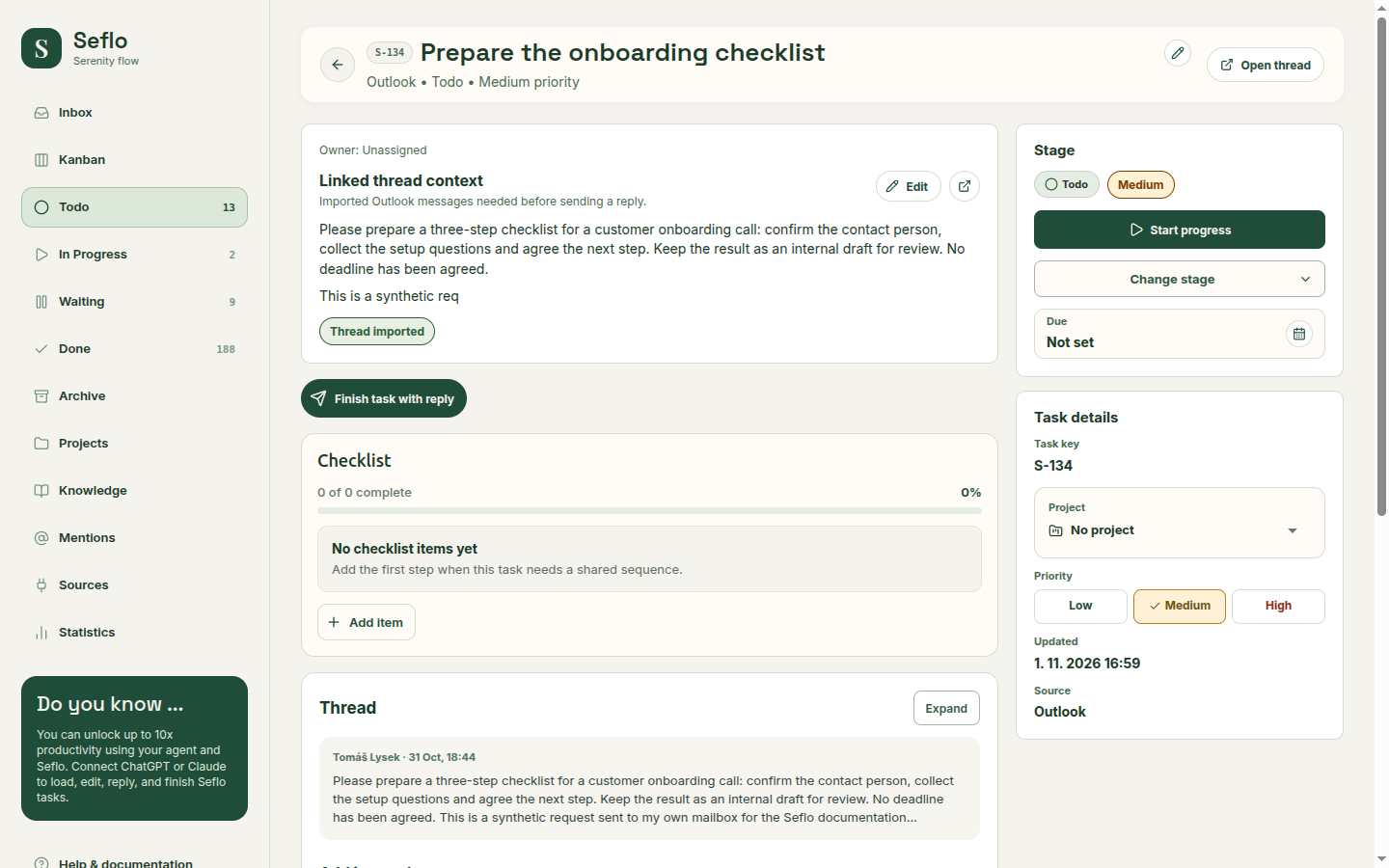
The saved task is S-134 — Prepare the onboarding checklist. Internal comments do not send email. Open full-size image.
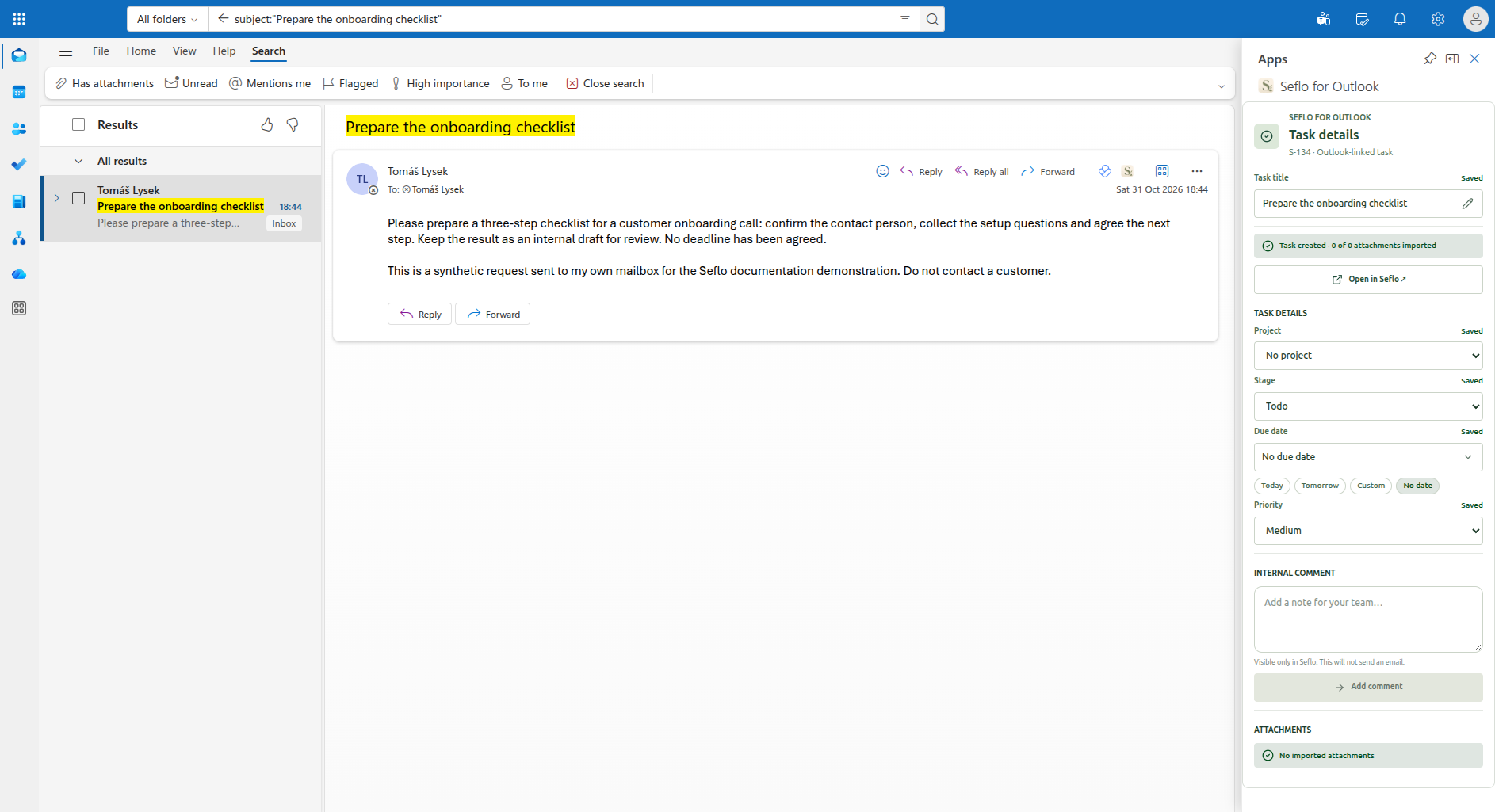
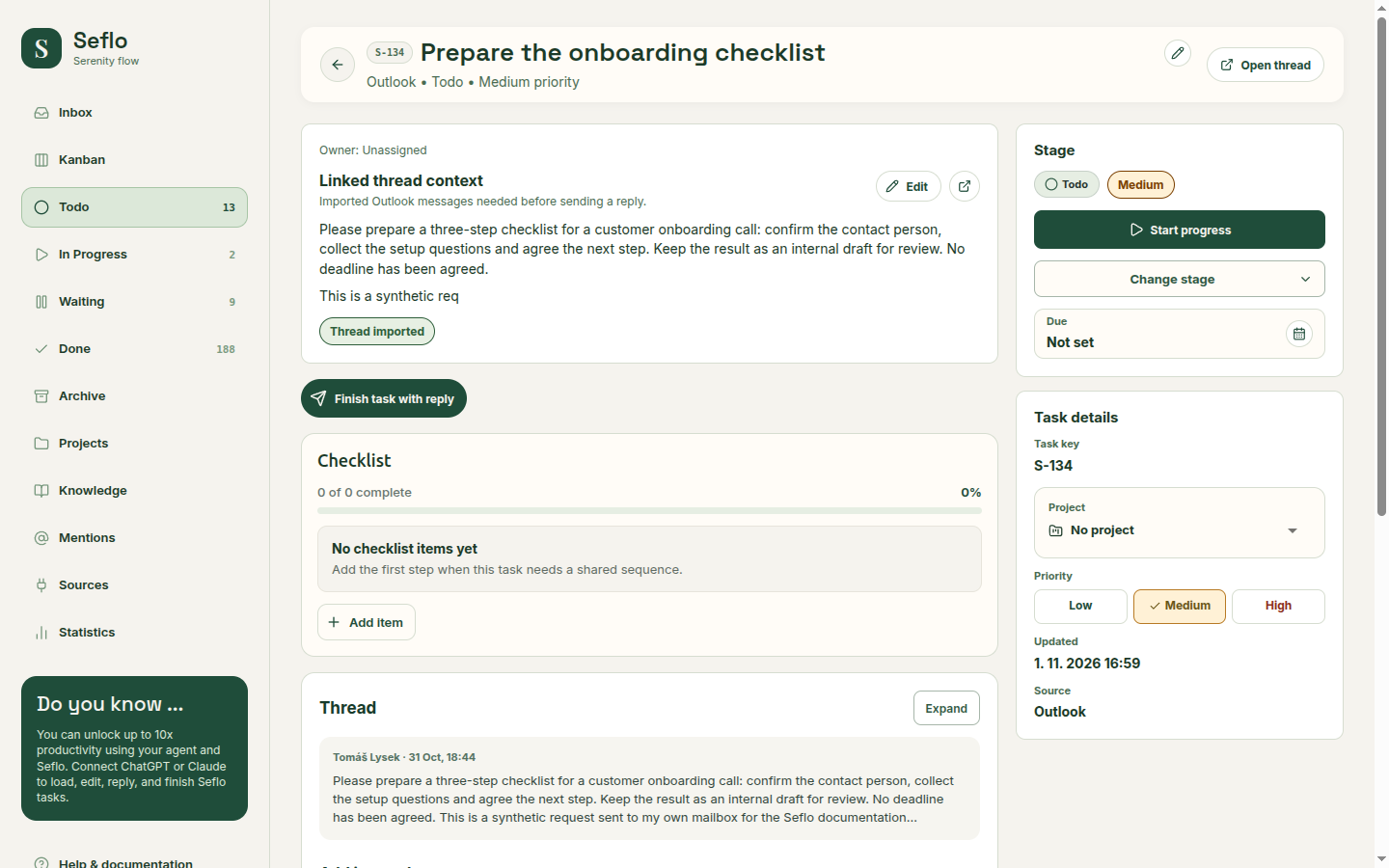
The original request is available in Thread, and Open thread returns to Outlook. Open full-size image.
Prepare the result
Ask your connected assistant to read the task using its code and title. For example:
Read S-134 — Prepare the onboarding checklist in Seflo.
Use its original Outlook request to draft the three checklist steps.
Show the draft here for review. Do not send an email or finish the task.
Replace the example code with your task. For an external reply, open the action review and check To, Cc, reply versus reply-all, message and files wherever those options are shown. Confirm only the action you intend, then check the original conversation.
Watch the Outlook product demo for the complete attachment workflow.
If something does not work
- Missing add-in: check the Outlook account and whether the add-in is available to it. A missing public listing is not a mailbox connection error.
- No task after flagging: verify Auto-import flagged messages for that specific mailbox, or use Send to Seflo to test explicit capture.
- Wrong sender: inspect the task's linked source account before preparing the action.
- Expired access: reconnect the same Microsoft account from Sources, then reopen the task.
See Troubleshooting if the task exists but the assistant cannot find it.