
Connect Jira
Select Jira projects and map their workflows before importing assigned issues.
Before you start
Have your Atlassian account, the Jira site and projects containing your work. Know which statuses mean Todo, In Progress, Waiting and Done for each relevant issue type.
Connect and configure Jira
- Open Sources → Add source → Jira, then choose Connect Jira.
- Sign in to Atlassian and connect the intended account and accessible site.
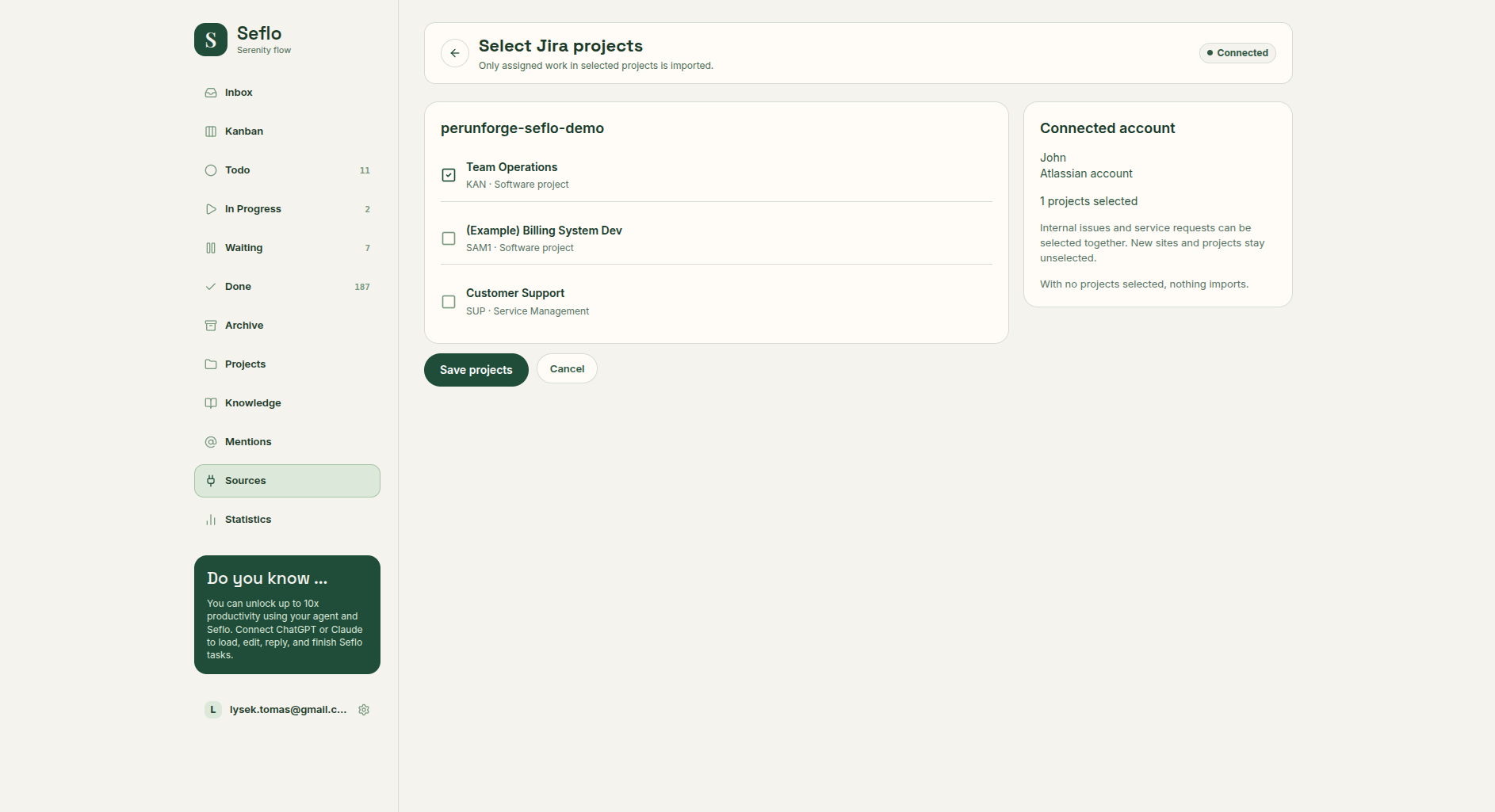
- On Select Jira projects, choose the sites and projects to include. Only assigned work in selected projects is imported.
- Choose Save projects to continue to Map Jira workflow.
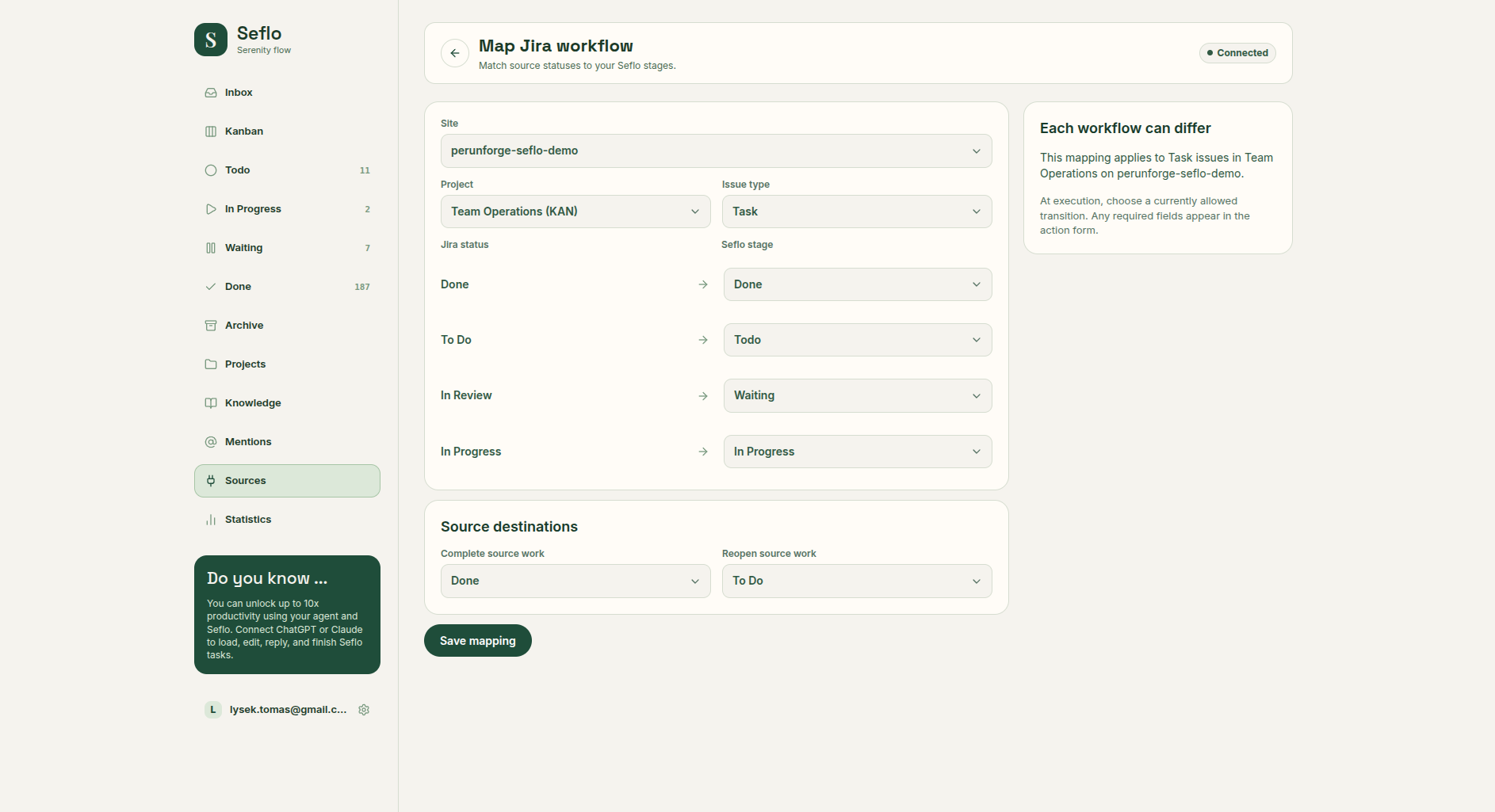
- Select Site, Project and Issue type. Map each source status to a Seflo stage.
- Under Source destinations, choose the intended statuses for source changes. Check each relevant issue type; workflows can differ within a project.
- Choose Save mapping.
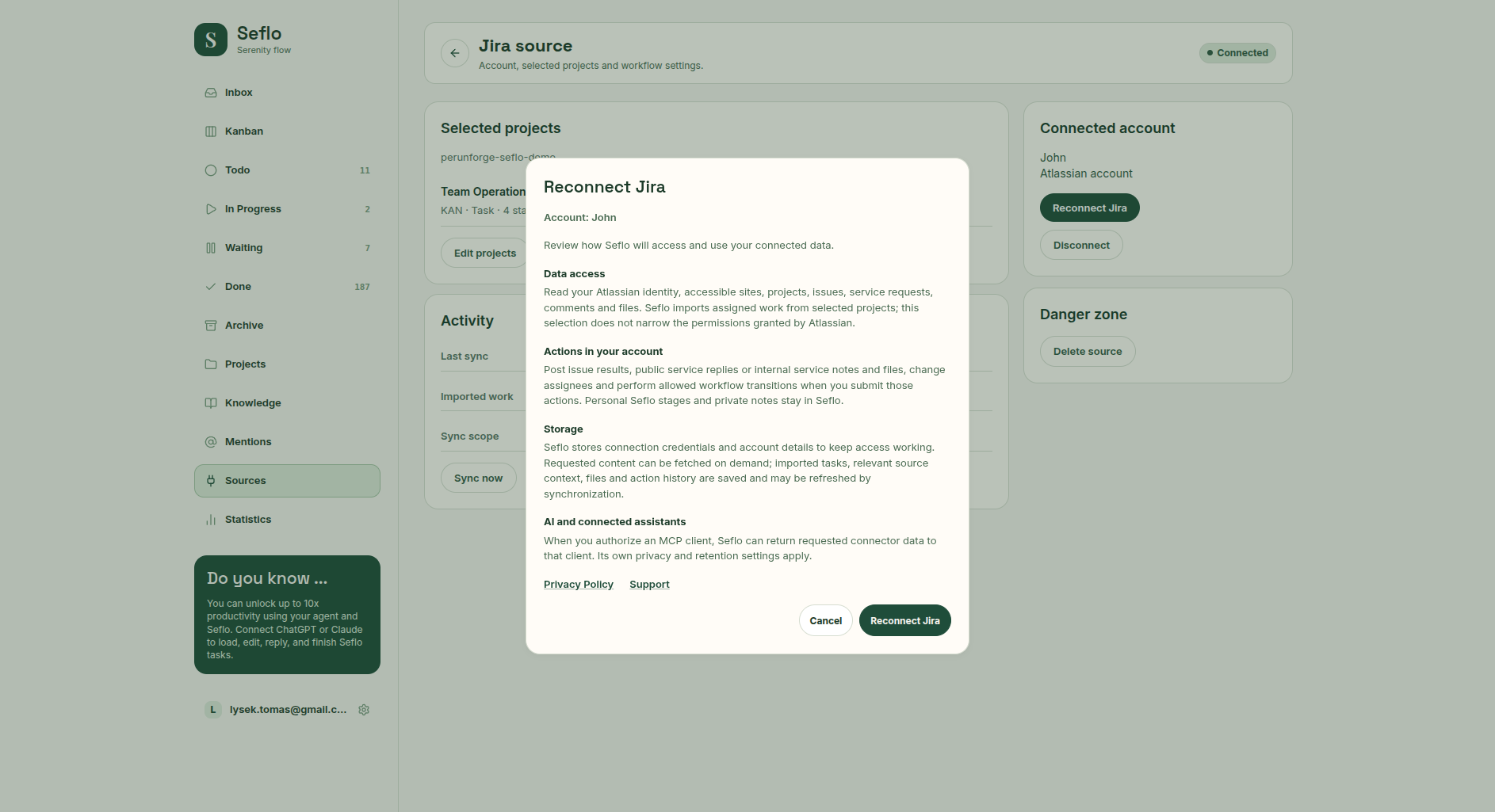
Review access and verify the Atlassian account before accepting. Cancel if the provider is signed in to a different account.
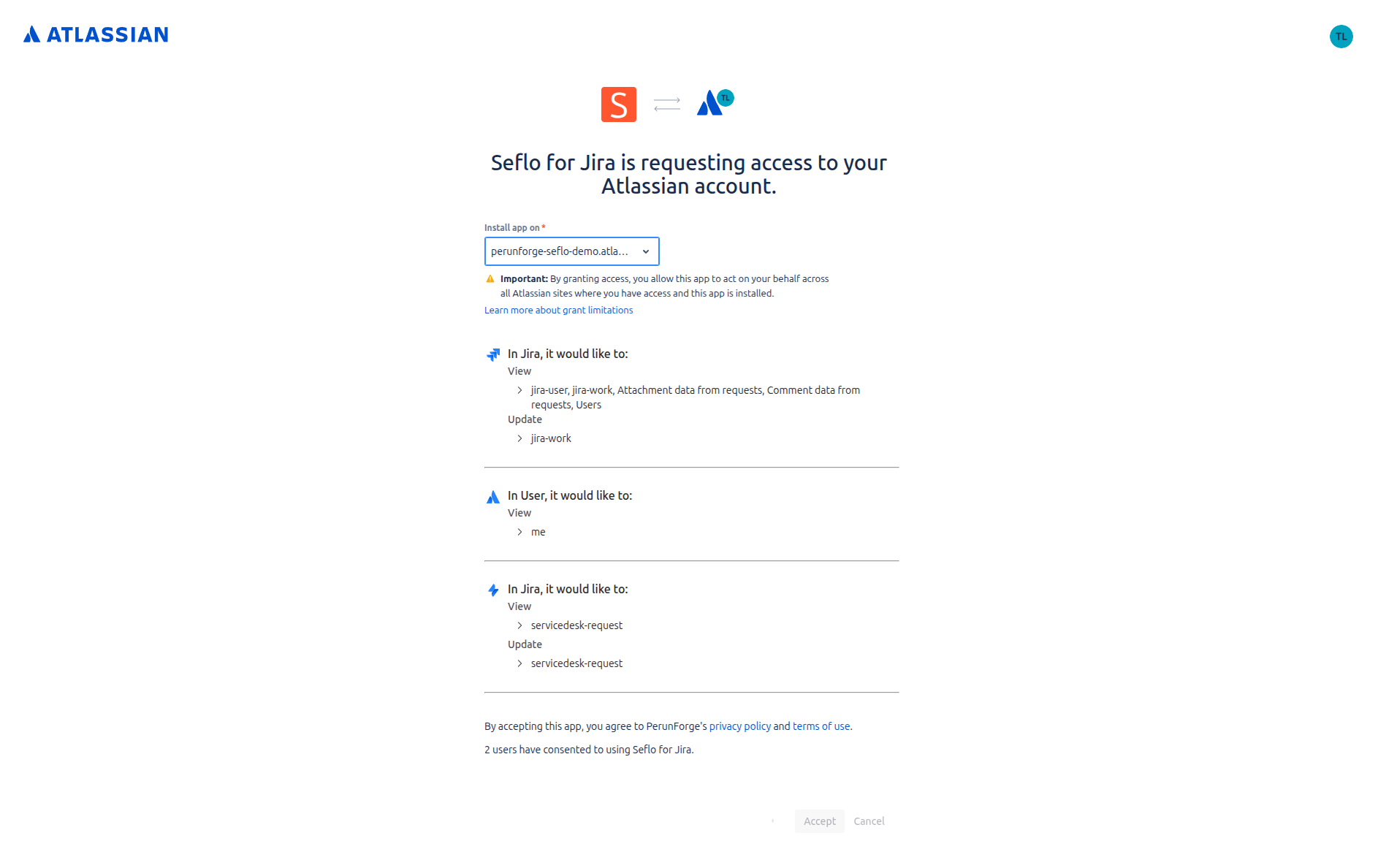
Choose the intended site and review Atlassian's permissions. Project selection in Seflo limits imports; it does not narrow the provider authorization. Open full-size image.
Understand your selection
A source status describes the shared Jira issue. Mapping it to a Seflo stage does not make every transition valid. When you act on a task, Seflo uses the transitions available for that specific issue and account.
Start with one project and verify the mapping before adding more. A new or changed workflow may need its mapping reviewed.
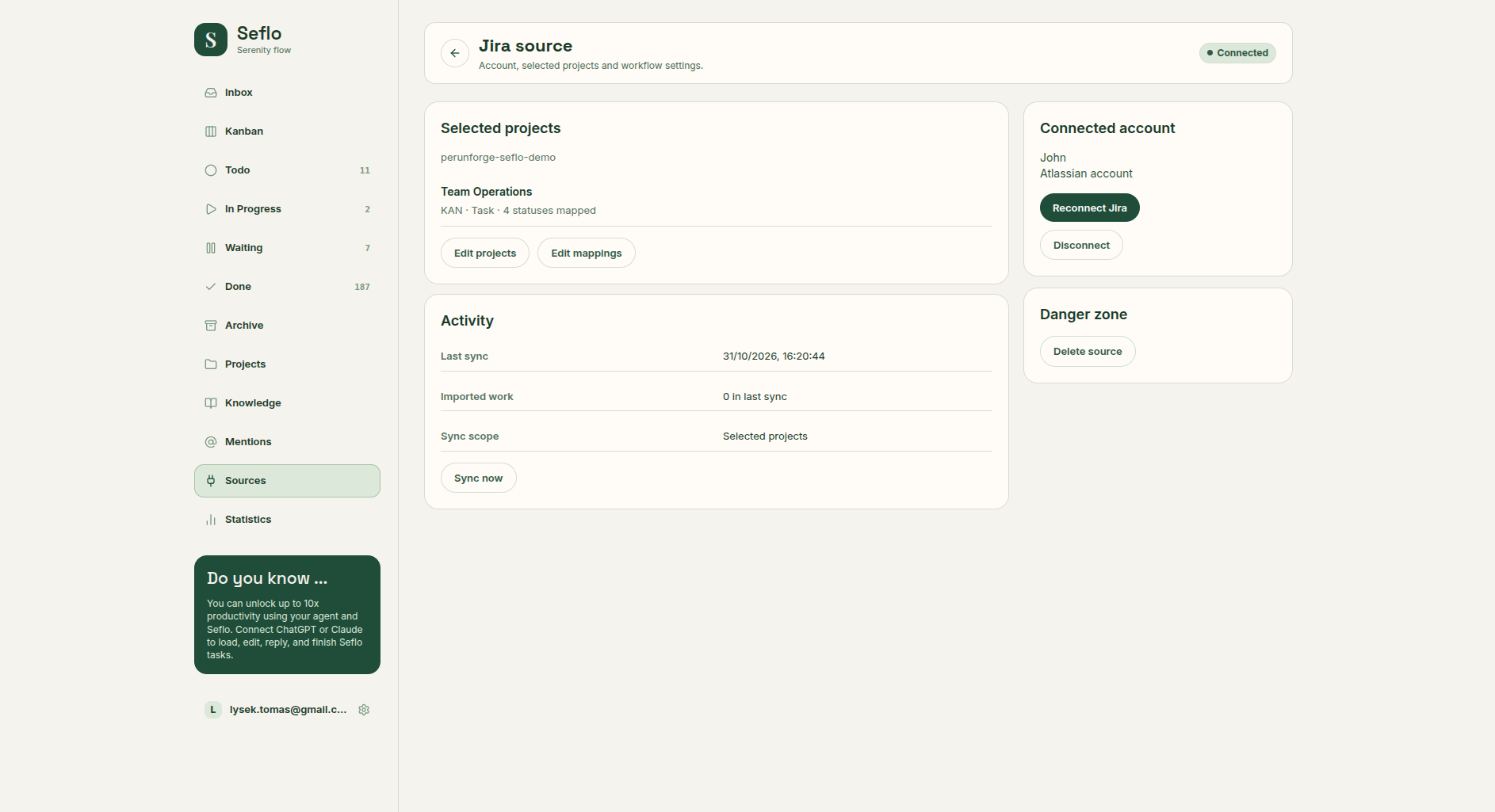
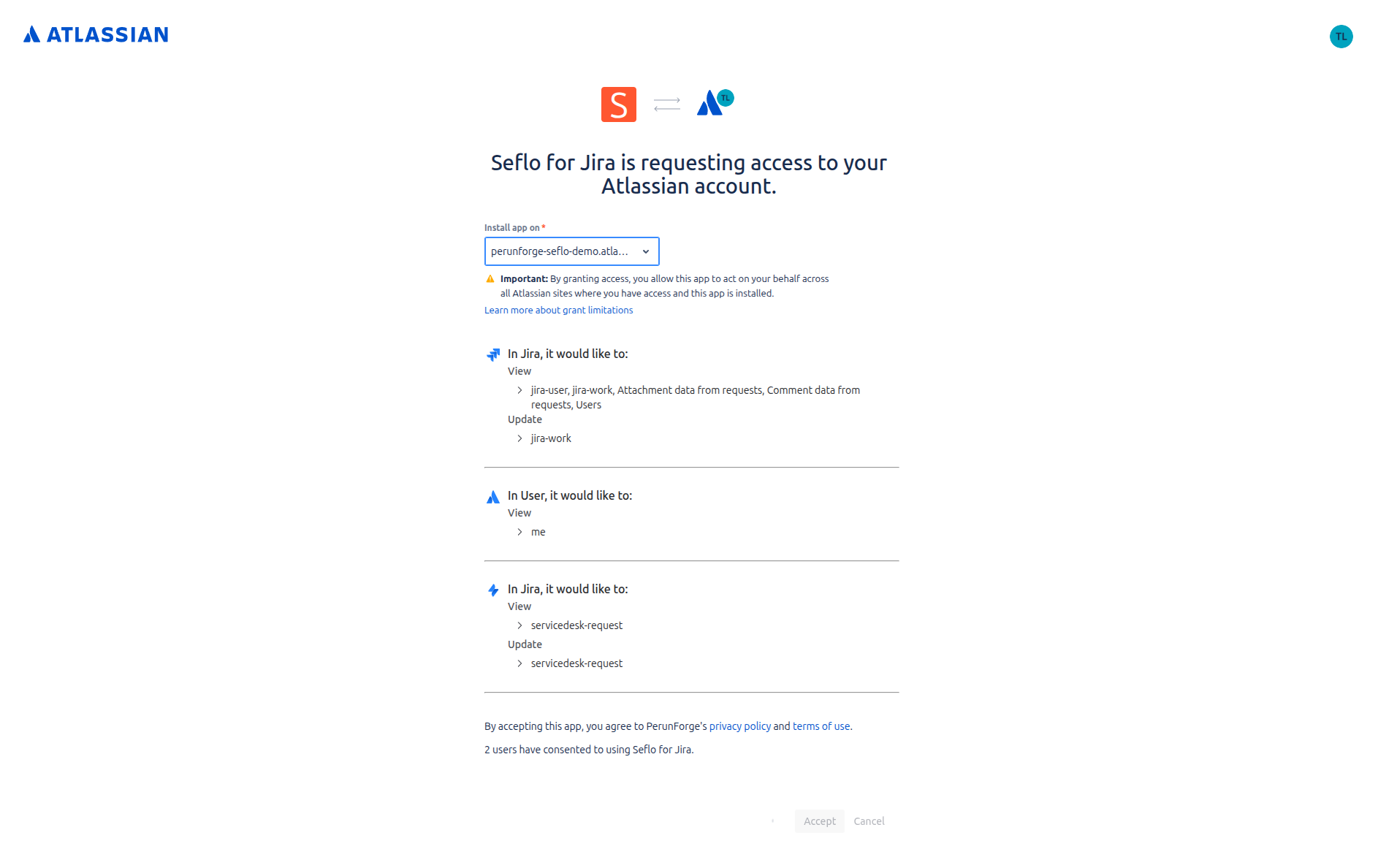
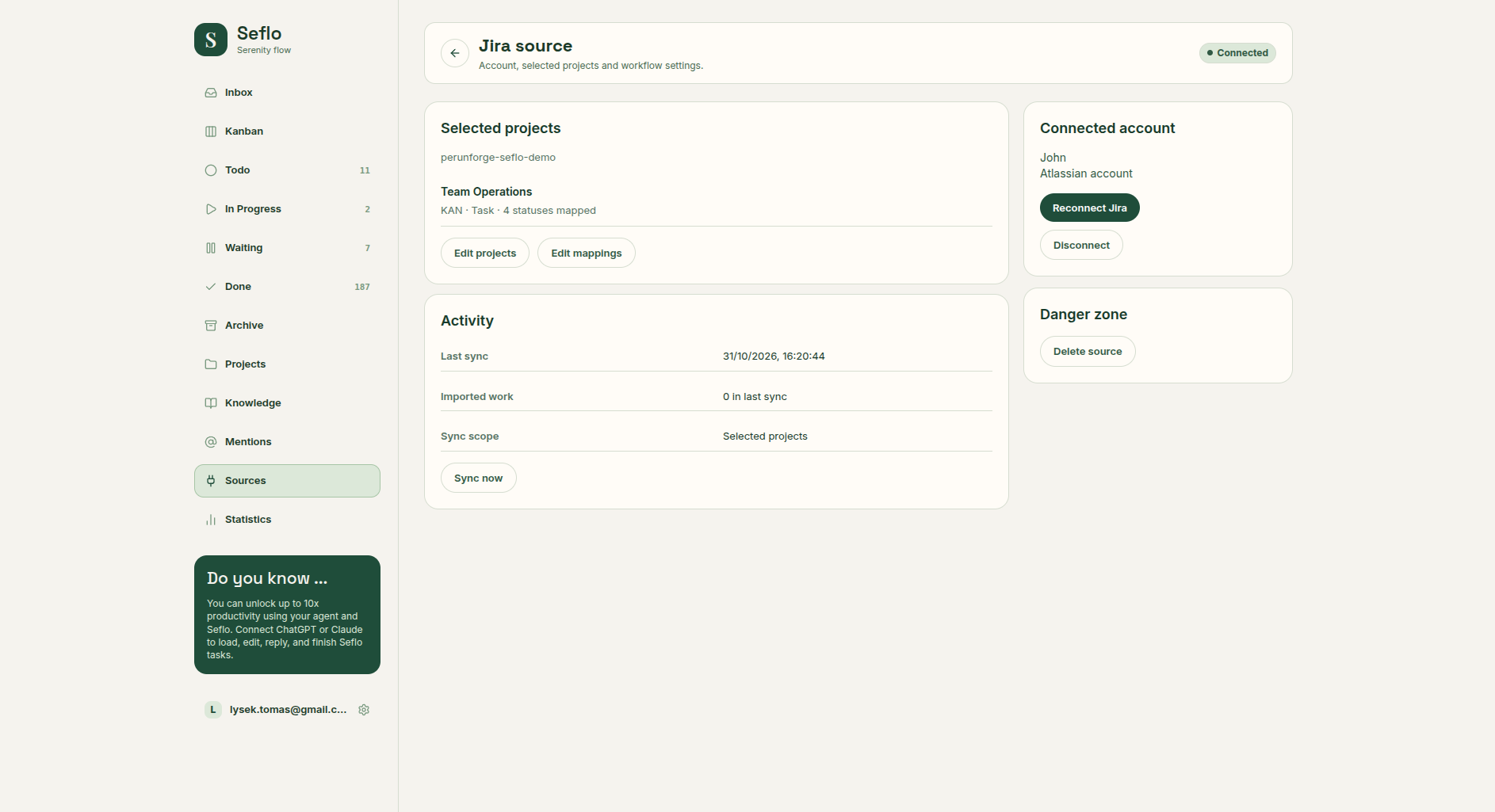
Check the connected account, site, project and issue type. Open full-size image.
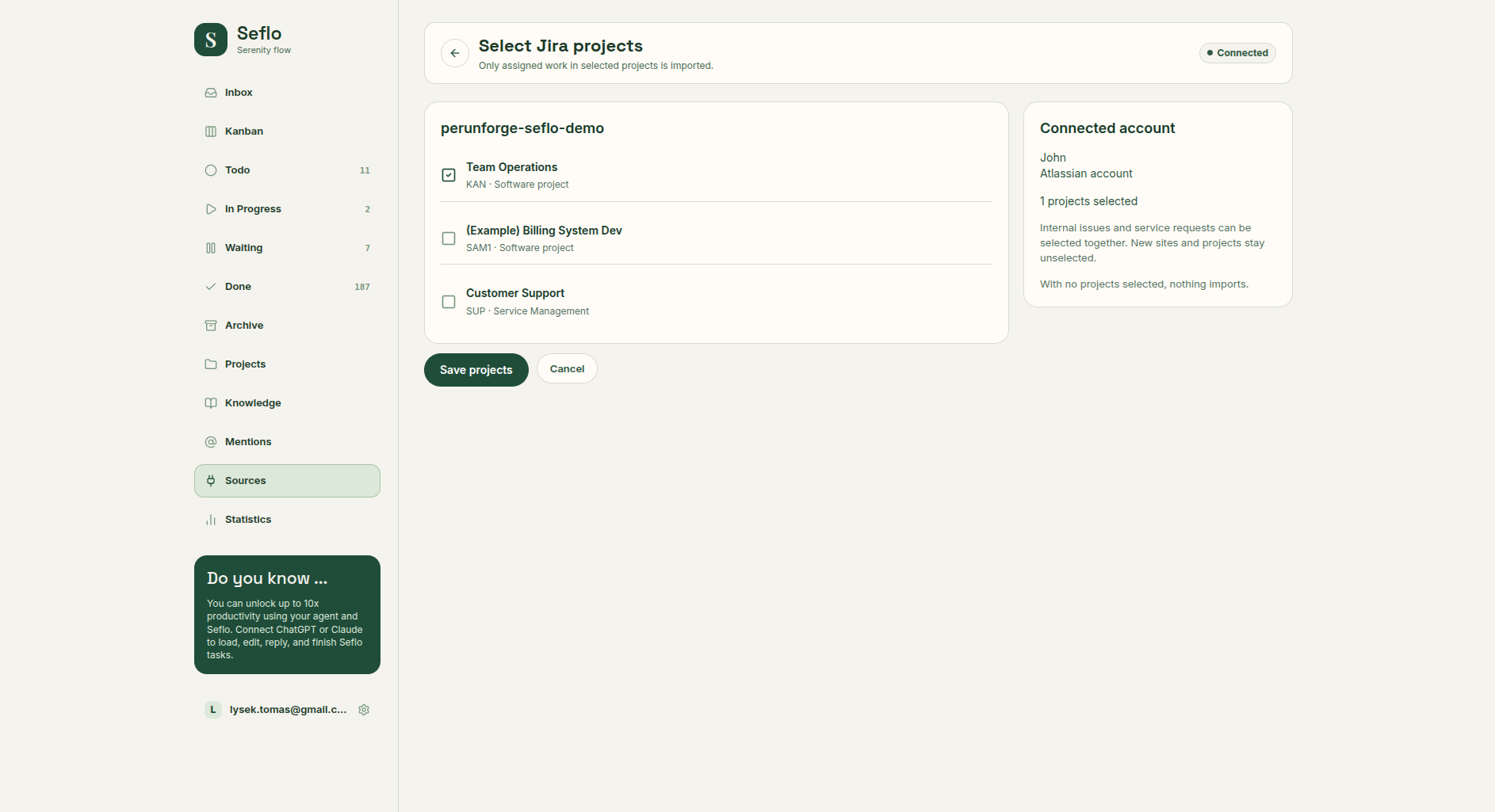
Start with a project that contains work assigned to this account. Open full-size image.
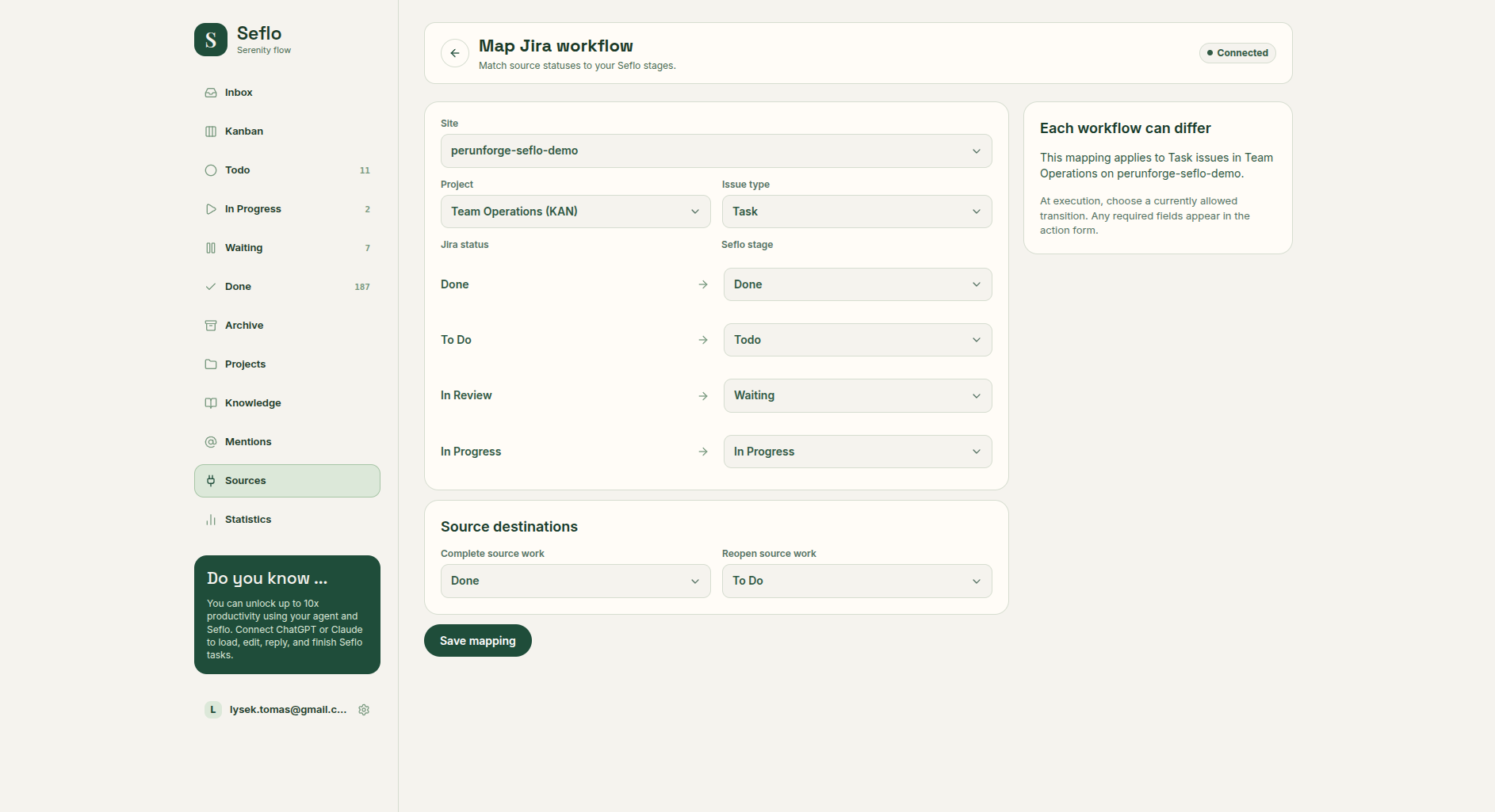
This example applies to Task issues only. Review other issue types separately. Open full-size image.
Verify your first task
- Choose an open issue assigned to you in a selected project.
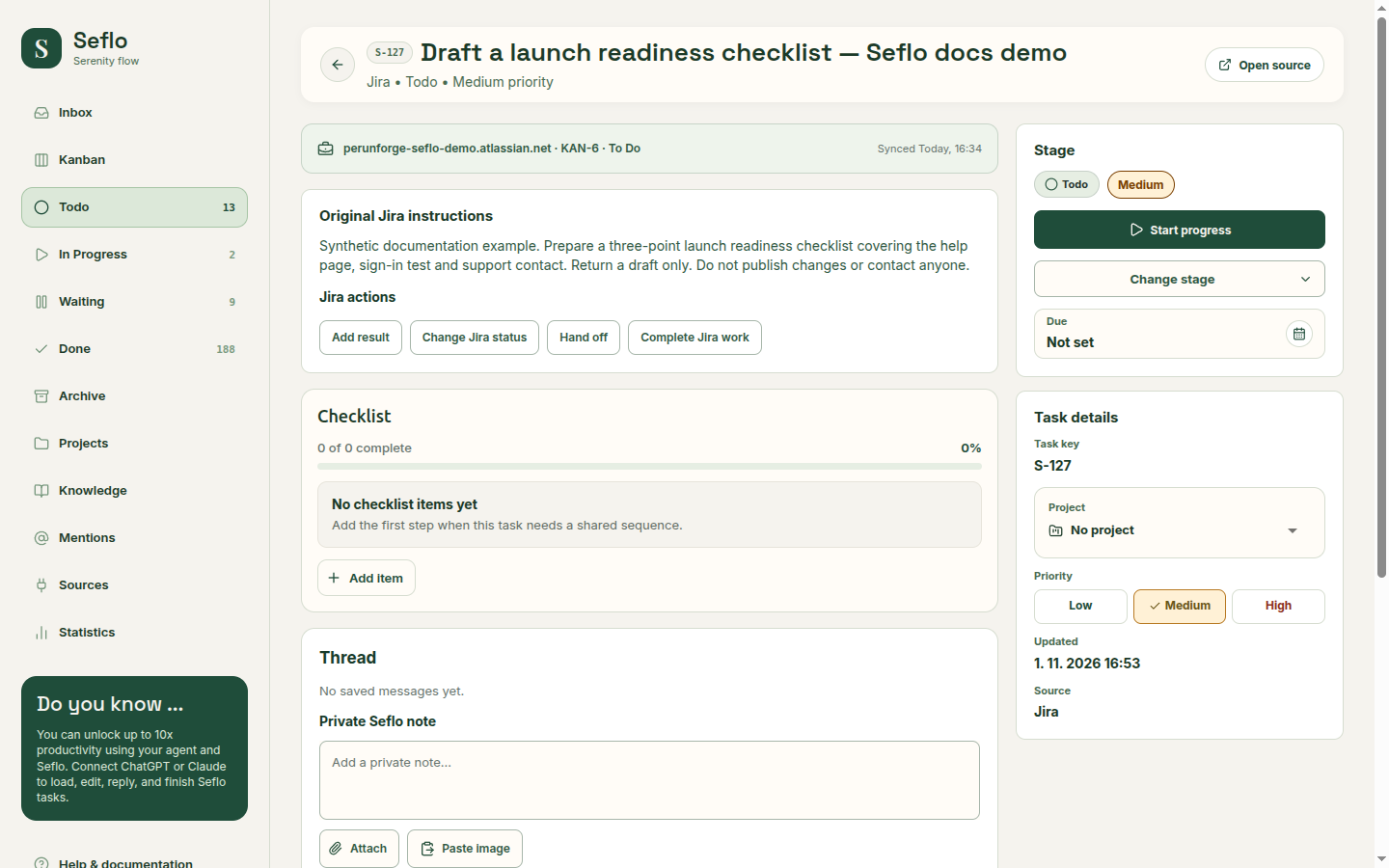
- Open the imported task and compare its issue key, source status and request.
- Ask your AI client to prepare the work and discover the available completion, reply or handoff actions.
- Inspect the proposed transition, assignee and comment audience before confirming.
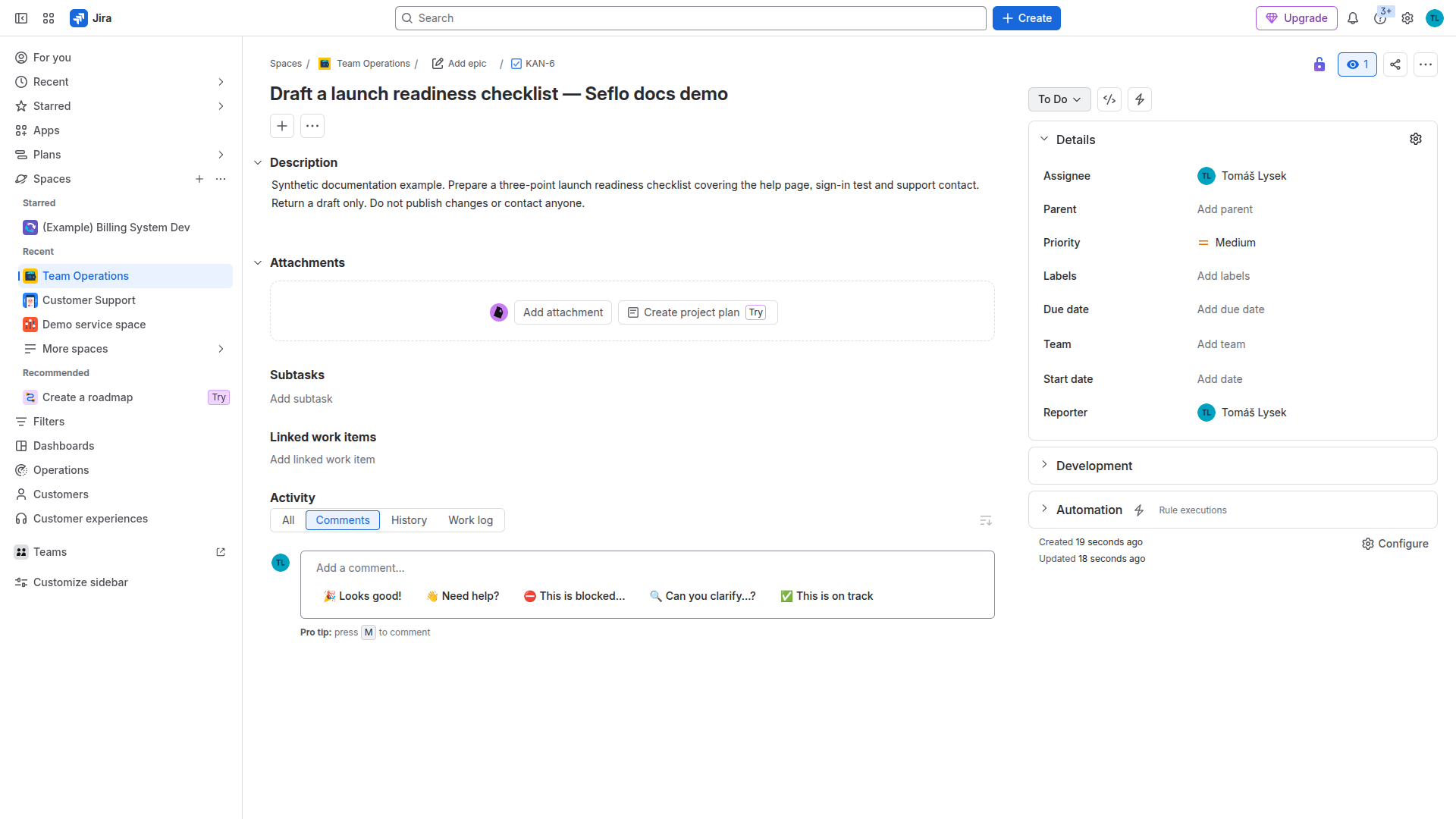
Example input: KAN-6 is a Task in Team Operations, assigned to the connected account. Its description asks for a draft only. Compare the imported Seflo task with these details before proceeding. Open full-size image.
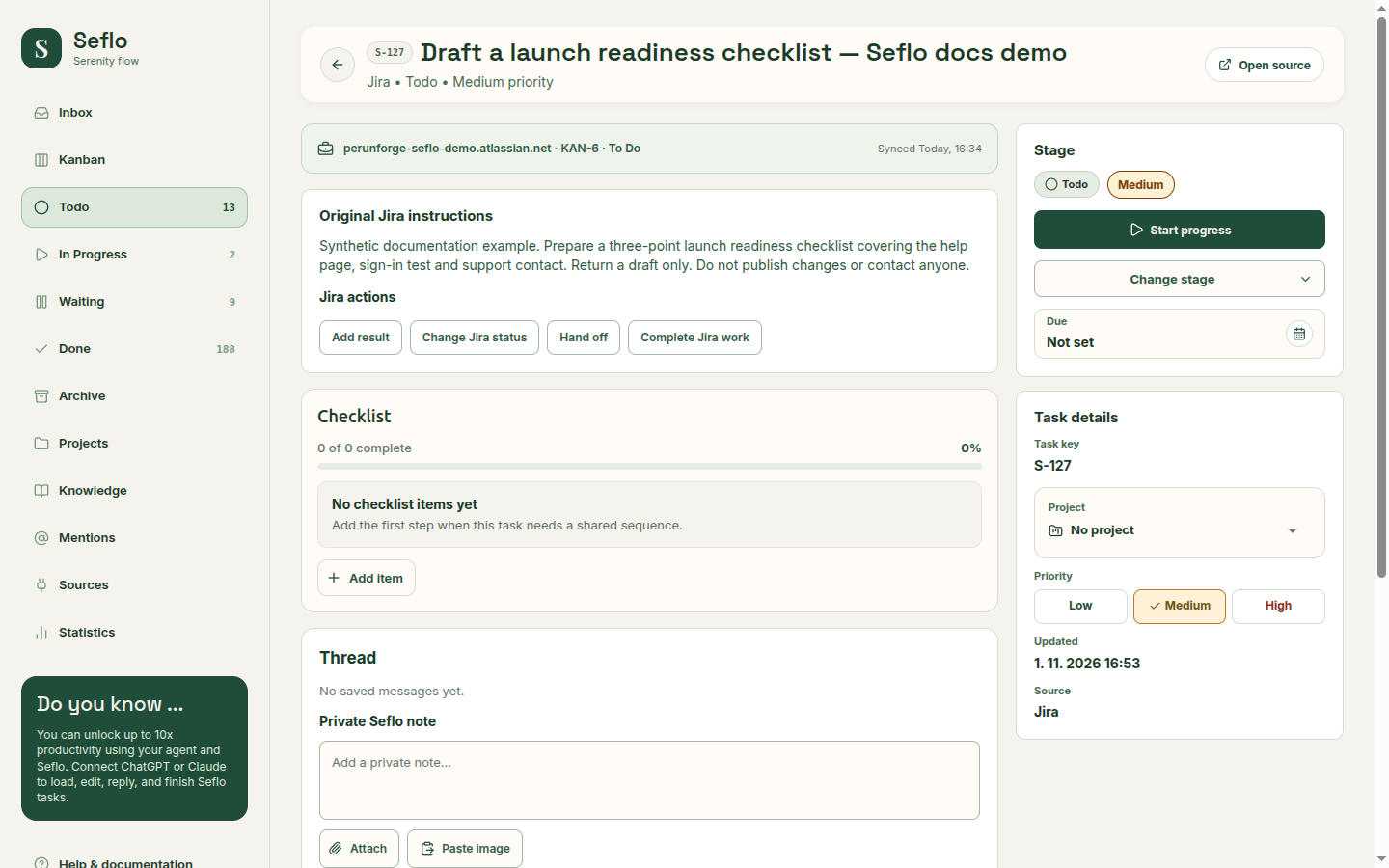
The imported task matches the Jira site, KAN-6 issue key, title and request. The personal Seflo stage is separate from Jira status; use the source actions when you intend to change Jira. Open full-size image.
What completion changes
For Jira Service Management, an internal note and a public customer reply have different audiences. A handoff can leave the request open. Complete an issue only through the intended available transition; do not infer closure from a personal Seflo stage.
If something does not work
If an issue is missing, check site, project, assignee and mapping. If a transition is unavailable, inspect the current issue status and available actions in Jira. If project discovery or a mapping is stale, refresh and review it rather than choosing a similarly named status by guesswork.
Continue with Connect your AI and Review and confirm actions.
Watch: connect Jira and verify your first issue
Follow a real account reconnection, inspect project selection and workflow mapping, then compare the new KAN-6 request with its imported Seflo task. This setup demonstration leaves the issue open.
Watch: Jira — Complete an Assigned Task with ChatGPT
Complete an assigned issue through the chosen Jira transition and keep the finished file with the result. The edited example condenses the workflow; use the written steps above for setup and checks.
Watch: Jira — Complete and Hand Off Work
Choose the next assignee, inspect the completed work and confirm the handoff. The edited example condenses the workflow; use the written steps above for setup and checks.
Watch: Jira Service Management — Keep Internal Work Private
Keep a Service Management working note internal to agents while leaving the customer request open. The edited example condenses the workflow; use the written steps above for setup and checks.
Watch: Jira Service Management — Reply with a File and Resolve a Request
Review a public customer reply, its attachment and the transition that resolves the service request. The edited example condenses the workflow; use the written steps above for setup and checks.