
Connect Basecamp
Select projects and work types, then handle assigned to-dos and selected conversations.
Before you start
Have the Basecamp account containing your projects and a to-do assigned to you. For conversation work, choose a Campfire message or Message Board post you can access.
Connect and configure Basecamp
- Open Sources → Add source → Basecamp in Seflo.
- Choose Connect Basecamp, sign in to the intended Basecamp account and complete the access confirmation.
- If Choose Basecamp account appears, select the intended account and choose Continue. Check the connected account, then open Projects and work types.
- Select the projects you want to include.
- Select the work types you need: to-dos and the supported conversation types shown in the form.
- Choose Save configuration and return to the source overview.
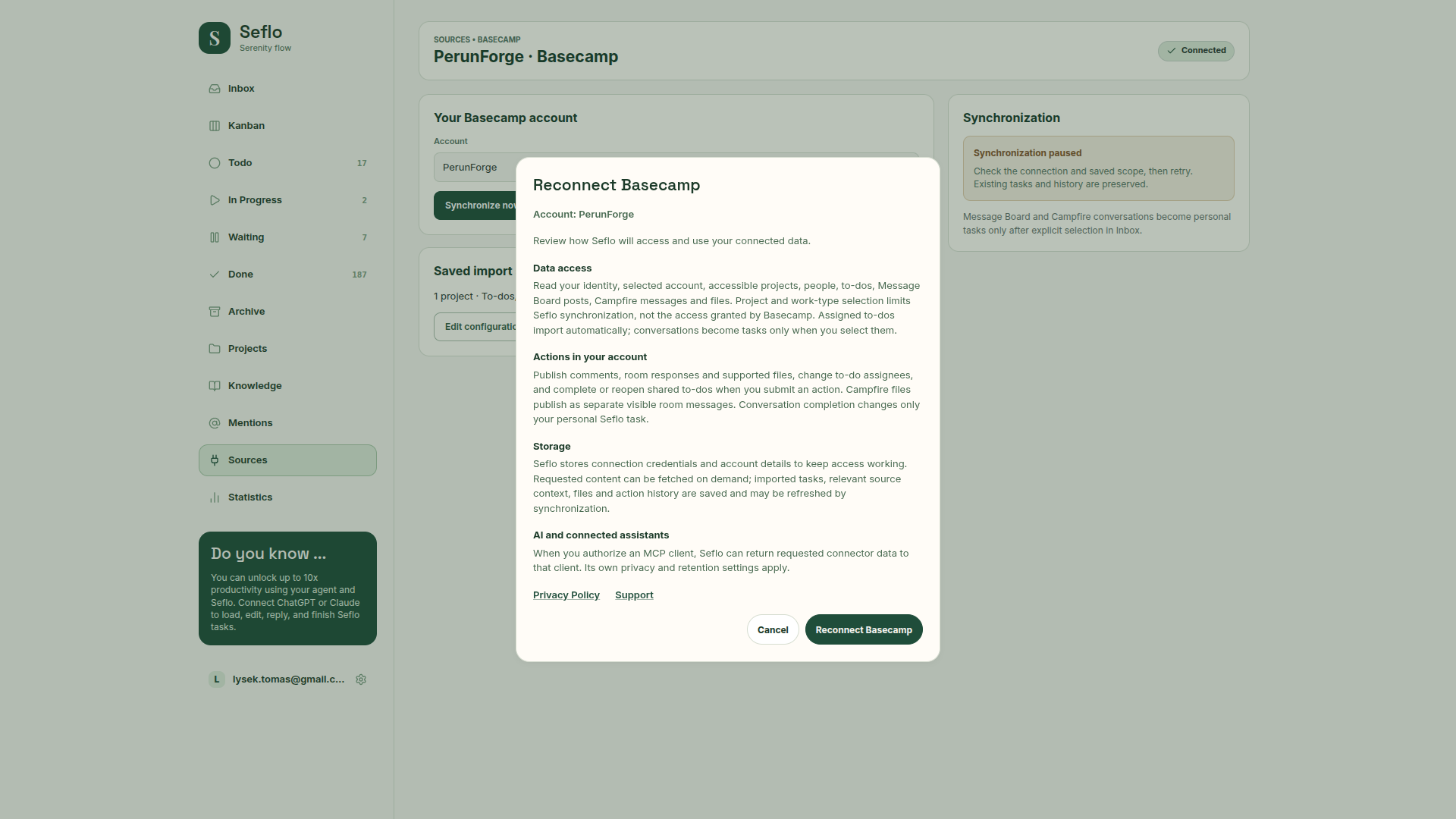
Review access before continuing. Open full-size image.
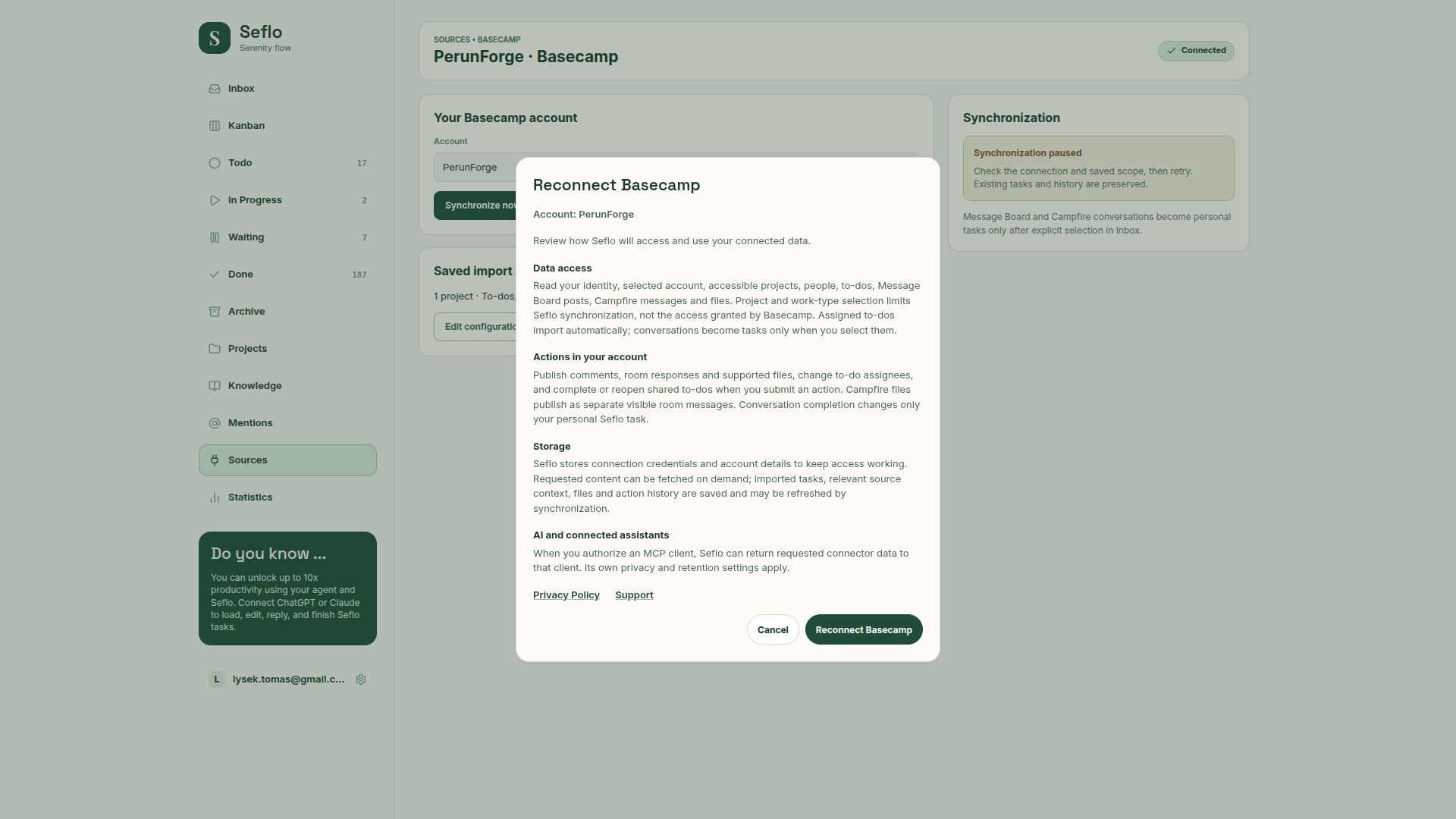
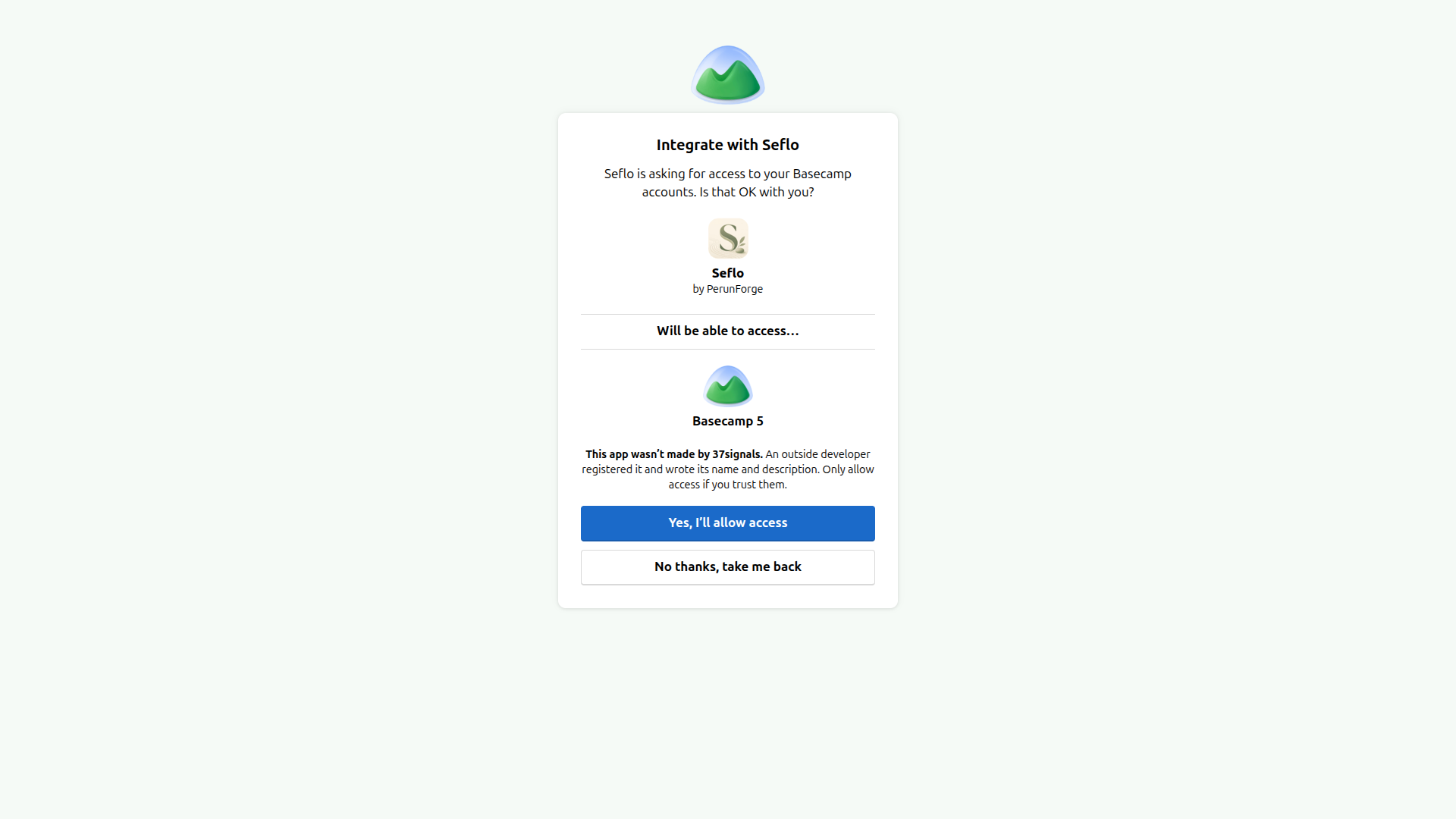
Confirm the app and developer before allowing access. Open full-size image.

Choose the account that owns the projects you intend to synchronize. Open full-size image.

Understand your selection
Assigned to-dos in the selected scope are imported automatically. Campfire and Message Board work is explicitly selected; connecting a project does not turn every post into a task.
Start with one project and one work type. If project discovery is incomplete, refresh it before removing selections that appear unavailable.
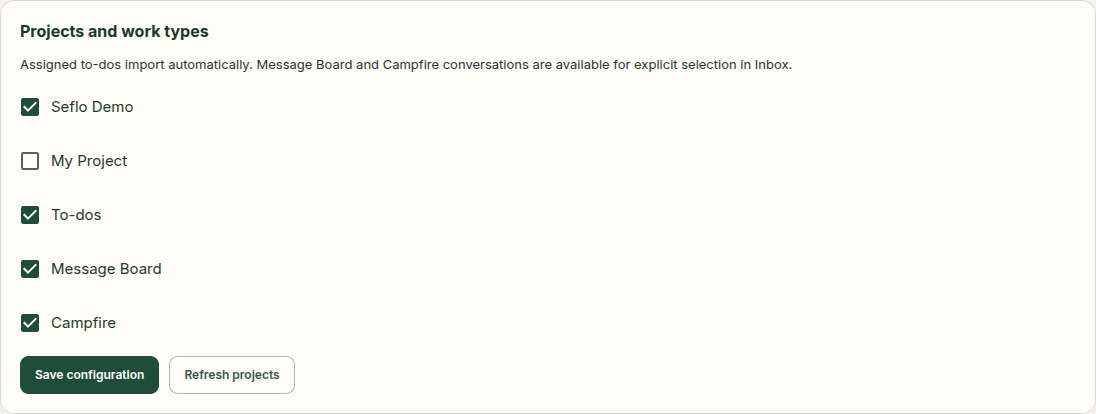
Choose projects and work types independently. Refresh projects if a saved selection initially appears unavailable. Open full-size image.
Verify your first task
- Check a to-do assigned to you in a selected project.
- Open its imported Seflo task and compare the title, due date and source context.
- Ask your AI client to prepare the work, then inspect the source action available for that task.
- For a Campfire or Message Board conversation, open Inbox in Seflo, select the relevant message or post, add the instructions for the work and create its task. Check the original post or message before replying.
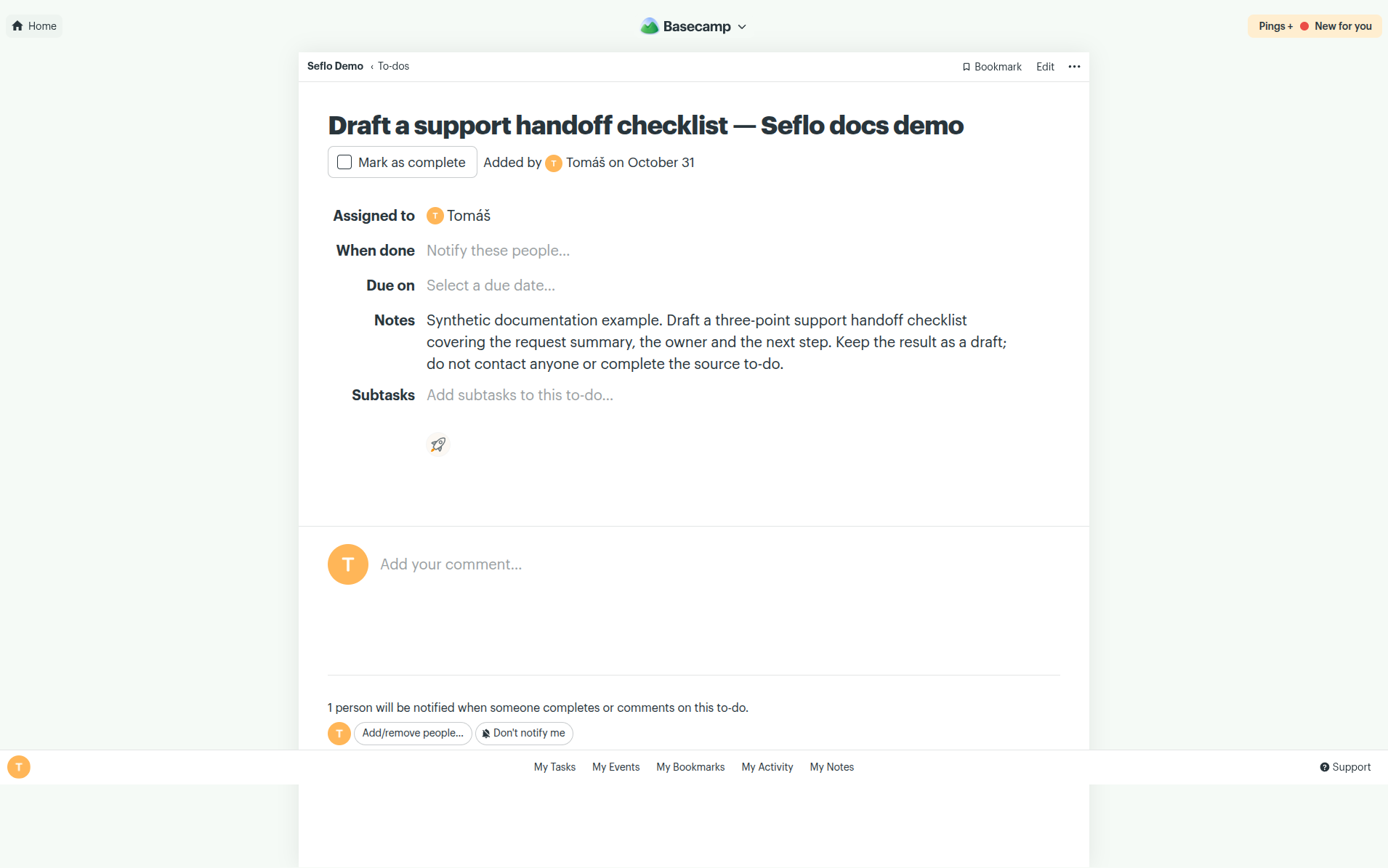
Start with a small request assigned to the connected user. This example asks for a draft only. Open full-size image.
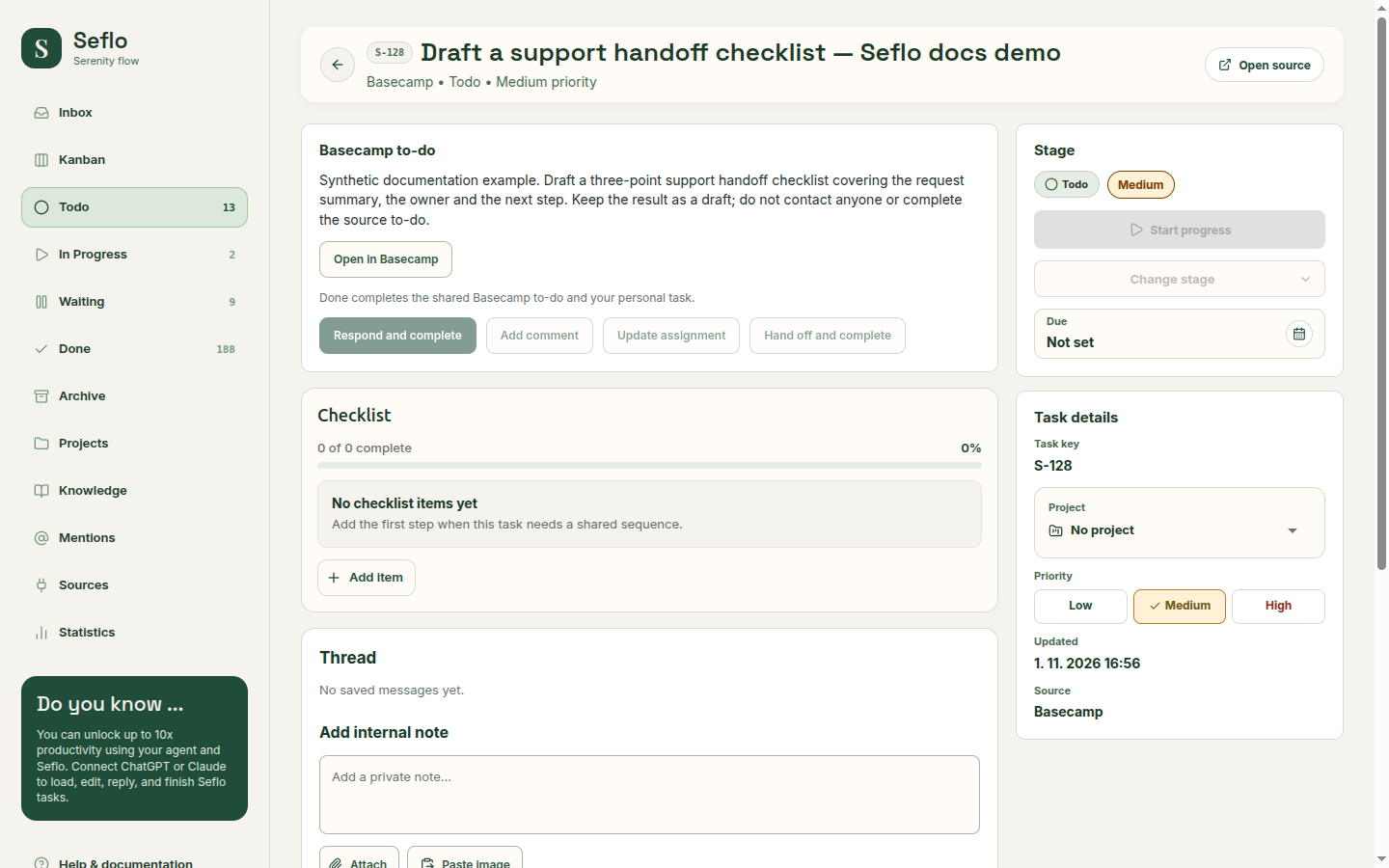
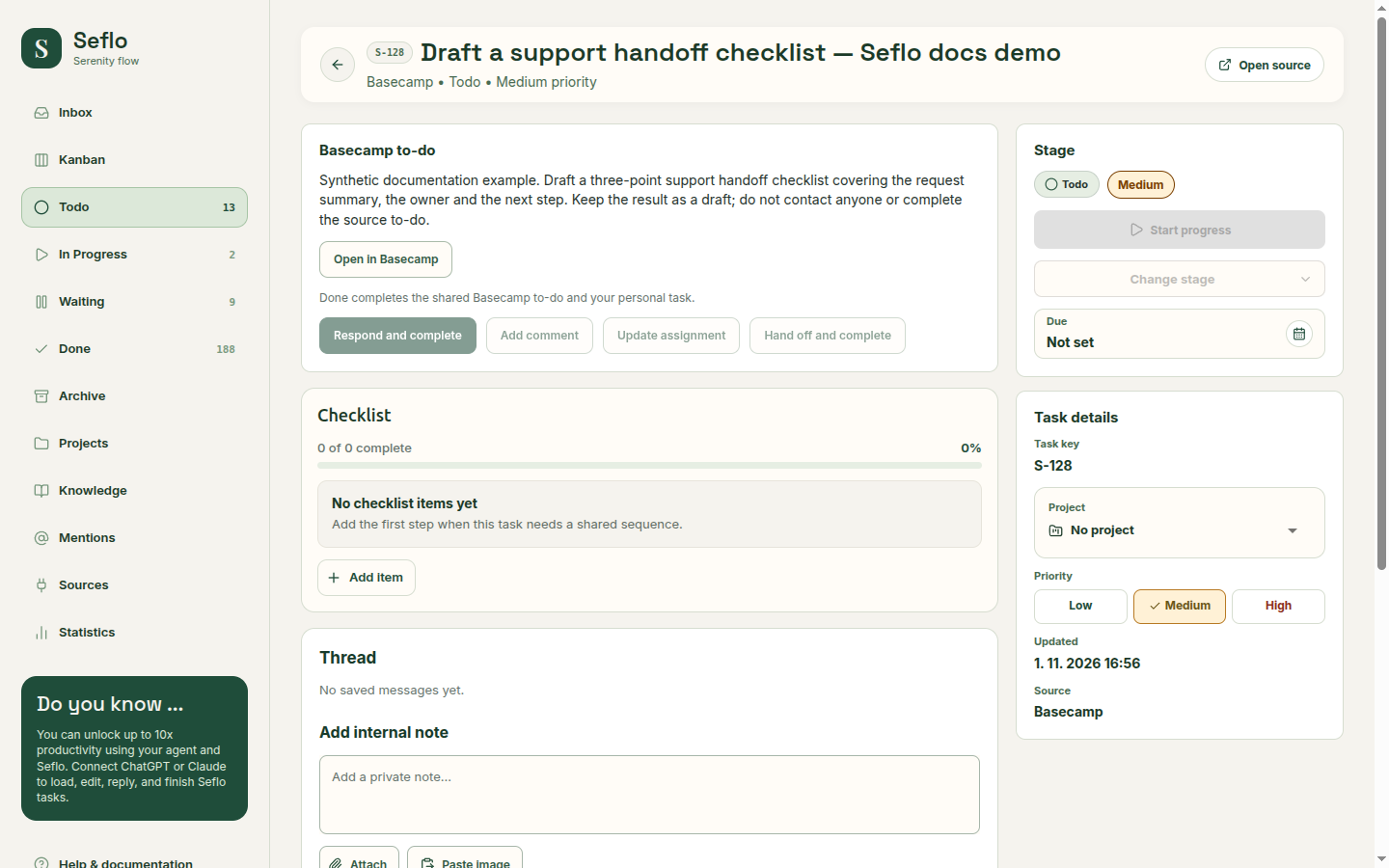
Compare the title, instructions and Open in Basecamp destination. One imported task does not prove that all selected work has synchronized. Open full-size image.
What completion changes
A to-do has a source completion state. A Campfire message or Message Board post does not become a closed shared task just because you finish your personal Seflo task. Review the destination, files and completion effect before confirming a reply.
If something does not work
If the source reports Synchronization paused, check the connection and saved scope, then retry. Verify individual imported tasks before relying on the rest of the scope. If the message persists, contact support with the source and time of the attempt.
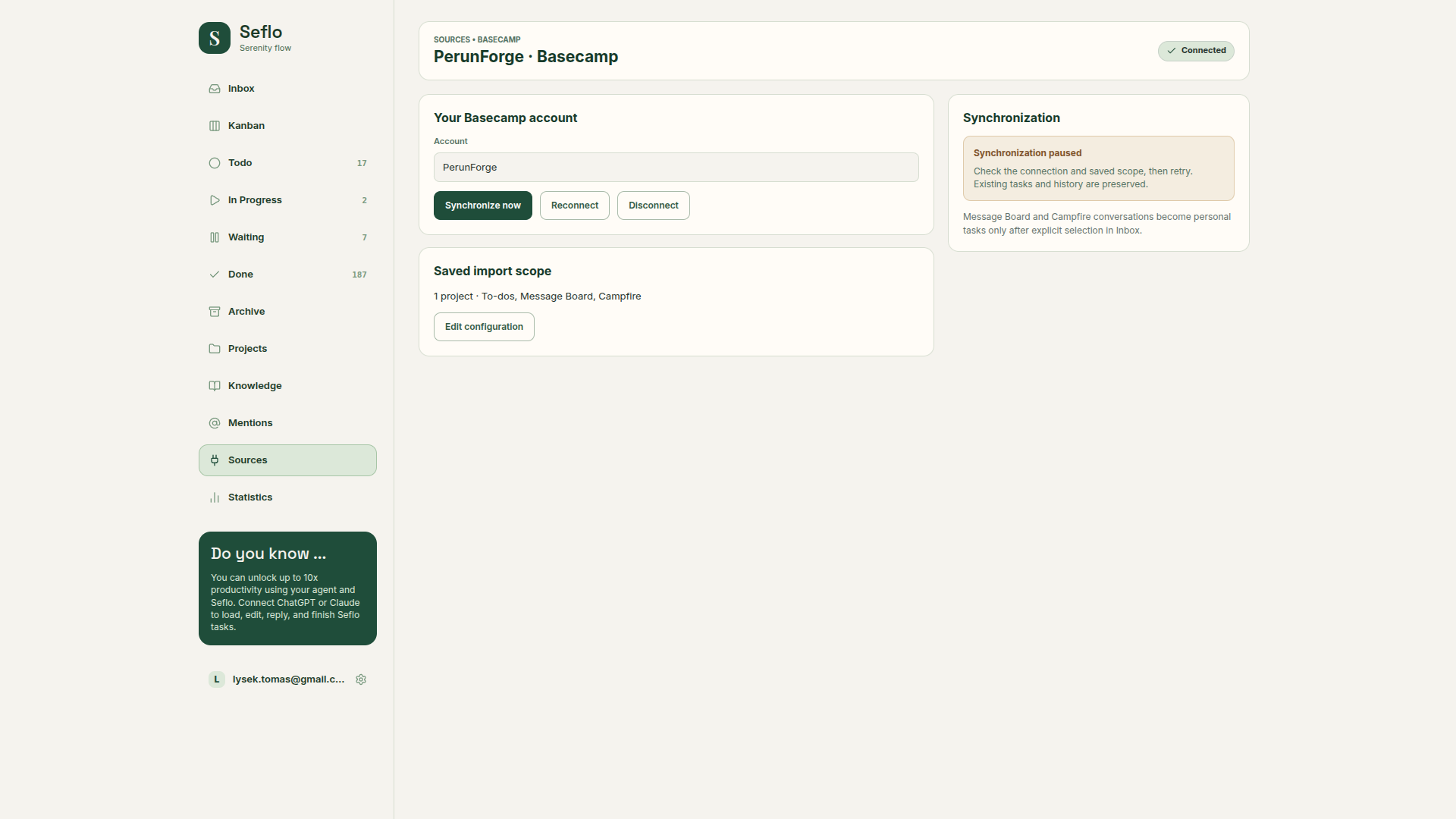
This state persisted after reconnection and retry. The example to-do above was verified separately; the entire selected scope is not confirmed complete. Open full-size image.
If a to-do is missing, check its assignee, selected project and enabled work type. If a conversation is missing, check that you explicitly selected it. For access errors, reopen the original item using the connected account and reconnect the same account if requested.
Continue with Connect your AI and Review and confirm actions.
Watch: Seflo for Basecamp — From a Campfire request to completed work
Select a Campfire request and return the finished workbook to the original room. The conversation stays open. The edited example condenses the workflow; use the written steps above for setup and checks.
Watch: Seflo for Basecamp — Turn a discussion into a finished deliverable
Turn a Message Board discussion into a finished PDF attached to the original post. The edited example condenses the workflow; use the written steps above for setup and checks.
Watch: Seflo for Basecamp — Complete and hand off work
Complete an assigned to-do, attach the finished work and hand it to the selected teammate. The edited example condenses the workflow; use the written steps above for setup and checks.
Watch: connect Basecamp and verify your first to-do
Authorize the intended account, select projects and work types, then compare an assigned to-do with its imported task. This example also shows a paused synchronization and explains why one verified import does not establish that all selected work synchronized.