
Connect GitLab
Sync your assigned GitLab.com issues, merge request reviews and failed pipelines to Seflo. Use Codex to investigate a change and prepare a comment for GitLab.
Connect GitLab.com
- In Seflo, open Sources → Add source → GitLab and select Connect GitLab.com.
- Check the GitLab account shown on the authorization screen. Choose the account that teammates assign work to.
- Review the requested
apipermission and authorize Seflo. Seflo uses it to read your assigned work and post comments you confirm under your GitLab identity. - When you return to Seflo, open the connection and check the account name. The first sync starts automatically. If it needs a retry, choose Sync now.
You can connect an account from your own GitLab.com organization, subject to its access policies. Start in Seflo without registering an OAuth application for your group. GitLab Self-Managed instances, including installations on a company domain, are currently unsupported.
Find your work
The sync runs about every five minutes. New tasks appear in Todo alongside work you add yourself. Open a synced task and select Open source to see the original item in GitLab.
| On GitLab.com | On your Seflo board |
|---|---|
| An open issue assigned to you | A task with the issue title and a link to the issue. |
| An open merge request (MR) where a teammate selected you as a reviewer | A task titled Review · followed by the MR title. A passing pipeline still leaves the review visible. |
| The current pipeline fails on an open MR you authored | A Failed pipeline · task with a link to the pipeline. When the current pipeline succeeds, sync moves the task to Done. A later failure reopens the same task. |
Review a teammate’s merge request with Codex
When a teammate asks for review, have them select your connected GitLab account in the MR’s Reviewers field. An @mention in a comment alone does not create a review task. To check the assignment immediately, open your GitLab connection in Sources, choose Sync now, then find Review · and the MR title in Todo.
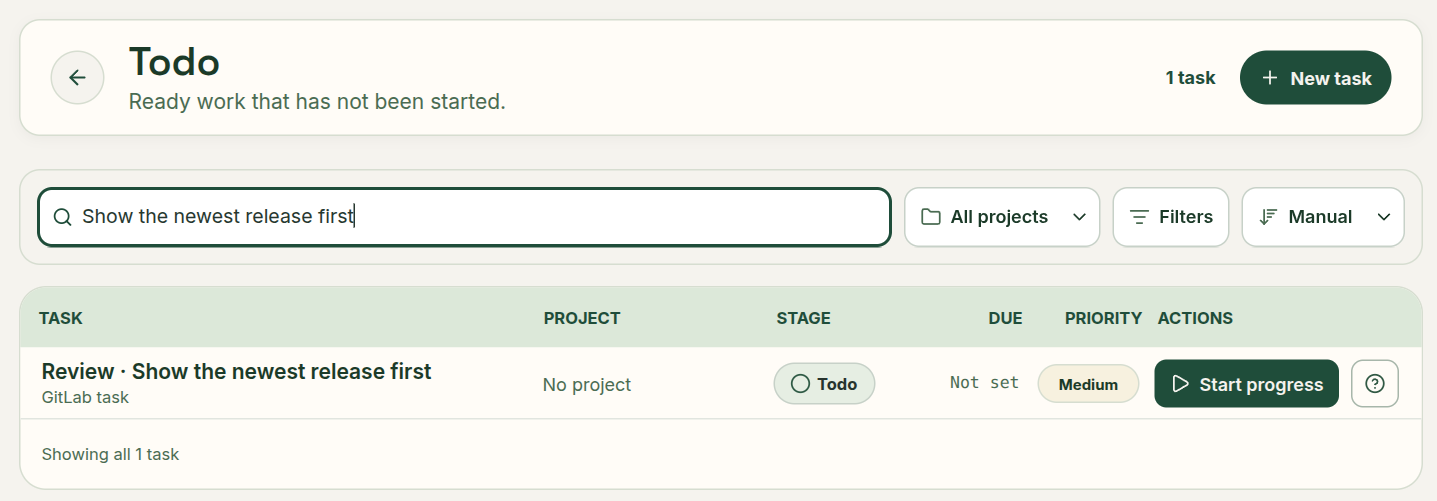
Open the task and copy its key. In this example it is S-33 — Review · Show the newest release first. With Codex connected to Seflo, open the repository in Codex with the MR branch checked out or its diff available locally. Give Codex your own task key and ask:
Open S-33 in Seflo and review the merge request diff in this folder. Run the relevant test, check whether the newest release really comes first, and draft one GitLab comment for me to review.
In the example, the pipeline is green. The existing test checks that v1.9 sorts ahead of v1.7. Codex tries v1.9 and v1.10 and finds that string sorting puts the older release first. Its draft asks the author to compare the version numbers numerically and add a test for v1.10. Open the draft in Seflo to check the wording and destination. Formal review approval and merging happen in GitLab.
Investigate a failed pipeline on your own merge request
Look for Failed pipeline · in Todo and open the linked pipeline to identify the failing job. In this example, S-31 — Failed pipeline · Preserve company names in CSV exports sits next to a spreadsheet check the developer added by hand.
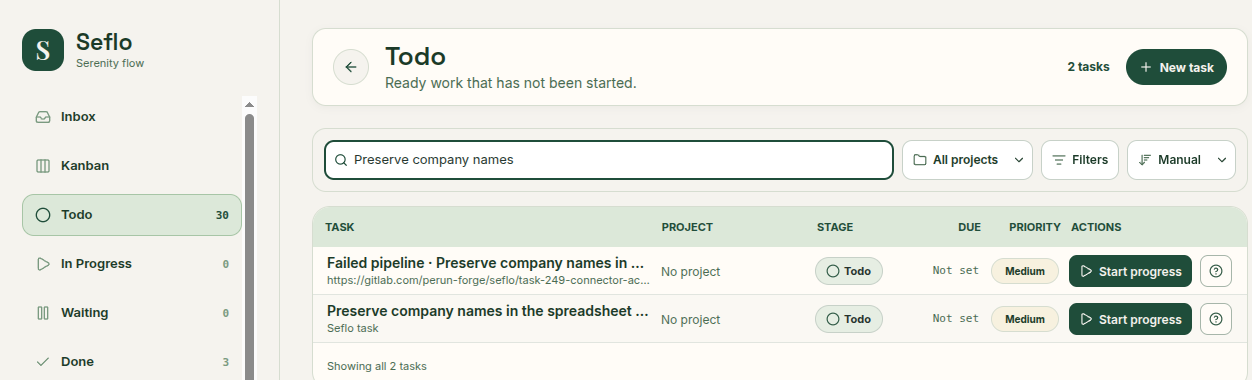
With the MR branch open locally, ask Codex to open the Seflo task, reproduce the failing test, fix the exporter and rerun the test. Review and push the change to your MR. Once GitLab reports a successful pipeline, the next Seflo sync completes the linked task.
Comment on an issue or merge request
Open the task and select Comment on GitLab, or open the draft prepared by your connected AI client. Check the posting account, project and issue or MR number. Edit the text and choose Add note when you want to post. People who can read the GitLab discussion can see the comment.
Comments support plain text and GitLab Markdown. Use GitLab directly for attachments or quick actions such as /close. If delivery is uncertain, check the linked discussion before sending again.
Disconnect or recover a connection
Open the GitLab connection in Sources, select Disconnect, and review the cleanup notice before confirming. Seflo stops importing from the account. You can check cleanup status by opening the disconnected source.
If the status page offers recovery, reconnect with the same GitLab account and confirm that you want to keep the previously imported data. Recovery is available only before destructive cleanup begins. Comments already posted to GitLab remain in the original discussion.
Connect GitHub
Bring assigned issues, individual review requests and requested changes into Seflo, and use Codex to review a pull request.
Connect Linear
Track assigned Linear issues and selected triage work on your Seflo board, investigate with Codex, and send a reviewed comment to the original issue.