
Codex
Use Seflo from Codex desktop, the command line or the IDE extension.
Choose your Codex surface
Have your Seflo account and a known task code ready. The CLI walkthrough below has been verified. Desktop and IDE captures remain planned.
Codex in the desktop app
Public Seflo plugin availability and this desktop walkthrough have not yet been verified. These steps describe the intended route after publication; they do not show a current public listing.
- Open the ChatGPT desktop app and choose Codex.
- If a published Seflo listing is available in the plugin directory, open its details and install it.
- Complete the Seflo connection prompt using your task-owning account.
- Start a Codex conversation, select Seflo and run the verification prompt below.
The plugin can include workflow skills as well as its connection. For terminal or IDE use, follow the direct connection below.
Codex CLI
Run these commands in the terminal on the machine where you use Codex:
codex mcp add seflo --url https://app.seflo.ai/mcp
codex mcp login seflo
codex mcp get seflo
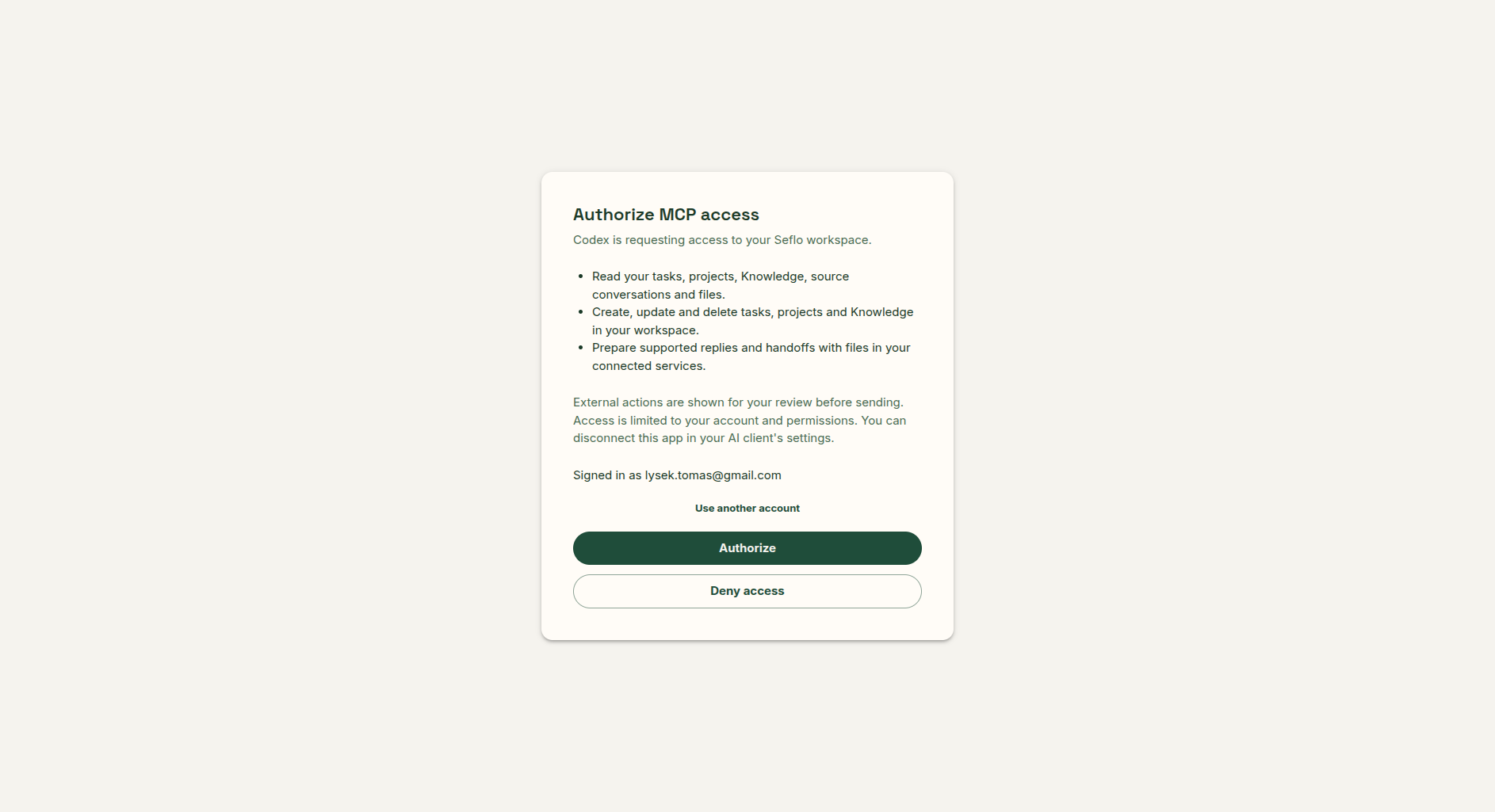
The login command opens an OAuth sign-in flow. Sign in to your Seflo account and return to the terminal after it completes. The final command lets you inspect the saved server configuration; it is not a substitute for reading a task to verify access.
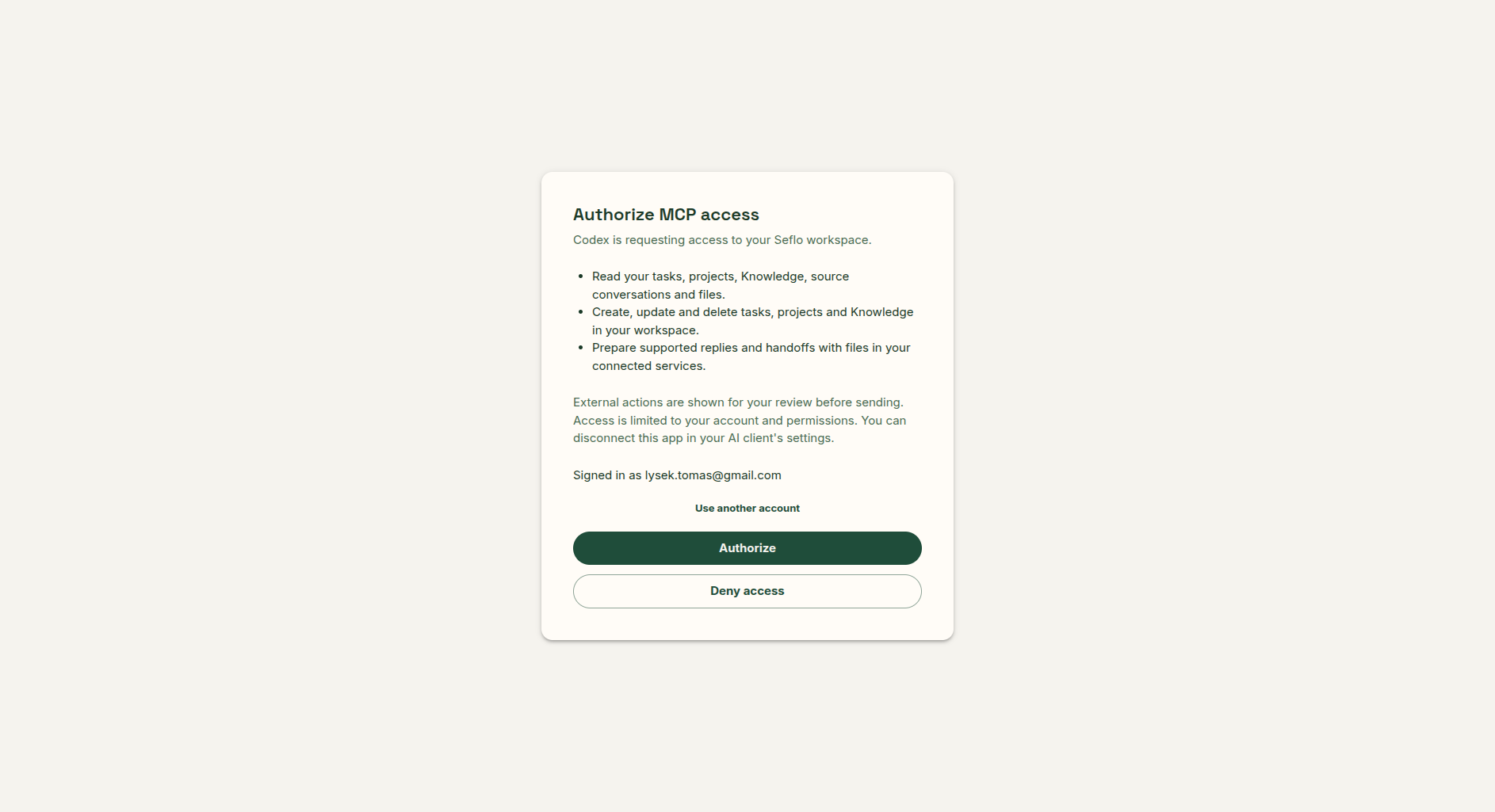
Check that the signed-in Seflo account owns your tasks before choosing Authorize. Open full-size image.
If a server named seflo is already configured, inspect it with codex mcp get seflo before trying to add it again. Start a new Codex session after configuration and use /mcp to inspect available servers.
Codex IDE extension
- Open the extension's gear menu, then MCP servers → Add server.
- Enter seflo as the name and choose Streamable HTTP.
- Enter
https://app.seflo.ai/mcpas the URL and save. - Choose Restart extension, then Authenticate for the OAuth connection.
- Complete Seflo sign-in and start a conversation.
If the IDE uses the same local Codex configuration as your CLI, check whether Seflo is already present before adding another entry. The IDE connection supplies tools; it does not install the desktop plugin's skills.
Verify the connection
Use the code of a task you can already open in Seflo:
Use Seflo to open task S-123. Tell me its title, stage and next action.
Read its available context. Do not change it or send anything.
Check the returned task link and title against Seflo. Then ask for a draft or analysis. For external replies, ask for a review before execution. If the client returns a review link, open it while signed in to the same Seflo account.
Screenshot planned — ai-codex. The configured MCP server and an authenticated task lookup, with no credential output.
Video planned — ai-codex-video. Separate desktop and IDE walkthroughs. The CLI tutorial is available below.
If something does not work
Check the server URL and run codex mcp login seflo again if sign-in expired. Complete browser login on the machine that started the flow; a remote terminal's local callback is not automatically available on another device. If the tools are missing after a configuration change, start a new session or restart the IDE extension.
In our recorded test with Codex CLI 0.165.0, OAuth completed but a fresh session initially exposed no task-reading tool. Running that verification session with codex --disable incremental_tools made the direct Seflo task lookup available. This is a workaround observed in that version, not a required account setting. Verify the returned task after reconnecting.
For current settings, see OpenAI's MCP guide.
Watch: Connect Seflo to Codex CLI
Follow the remote MCP setup, review the real OAuth consent and compare the returned task with Seflo. Command references and the actual result transcript are clearly labeled. The recorded CLI 0.165.0 session used the version-specific workaround described above.