
Claude on the web
Connect Seflo to Claude on the web through a remote MCP connection and verify your first task.
Before you start
Have your Seflo account and an existing task ready. Open claude.ai and sign in.
Install from the directory after publication
The intended main route is the public Claude connector directory. A public Seflo listing has not yet been verified, so this section describes the planned customer path rather than a completed installation:
- Open Customize → Connectors and browse Discover.
- Once a public Seflo listing is available, open it and check its publisher and details.
- Use the listing’s connection action and authorize the Seflo account containing your tasks.
- Return to Claude, enable Seflo in the conversation and run the verification prompt below.
The listing URL, exact installation controls and screenshots will be added after publication and a fresh installation check. If Seflo is absent, this route is not available yet. During the recorded verification, Seflo appeared under Yours as an existing custom connector and a private plugin; neither establishes a public listing.
Alternative: connect directly by server URL
You can also use a custom web connector:
- In Customize → Connectors, choose + Add → Add custom connector.
- Name it Seflo and enter
https://app.seflo.ai/mcpas the remote server URL. - Continue through detected authentication settings and use OAuth sign-in. Leave fixed request headers empty.
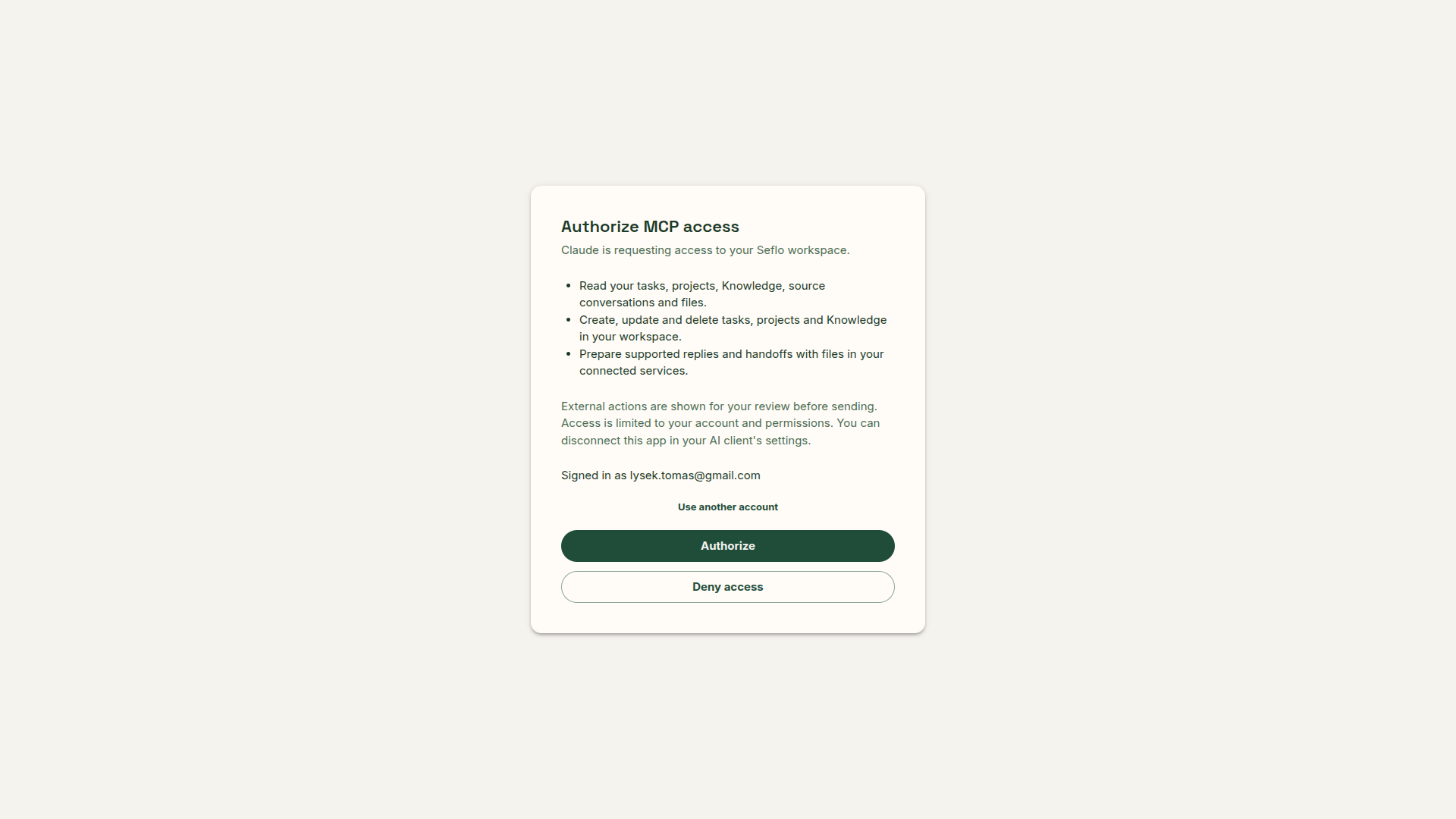
- Choose Connect if prompted. On Seflo’s authorization screen, check the signed-in identity and permissions, then authorize the intended account.
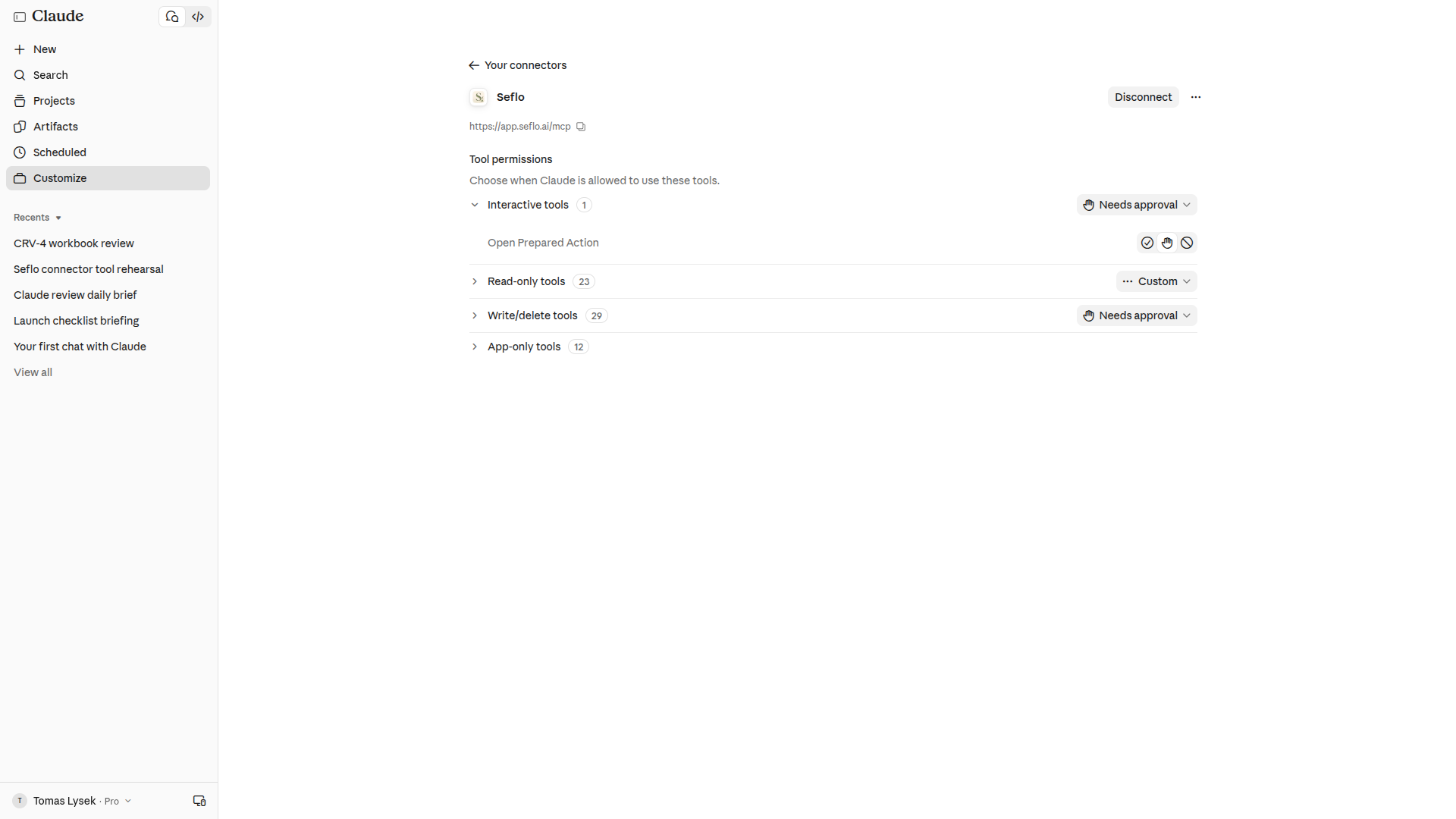
- Back in Claude, review Tool permissions. Keep approval enabled for actions that change or send work.
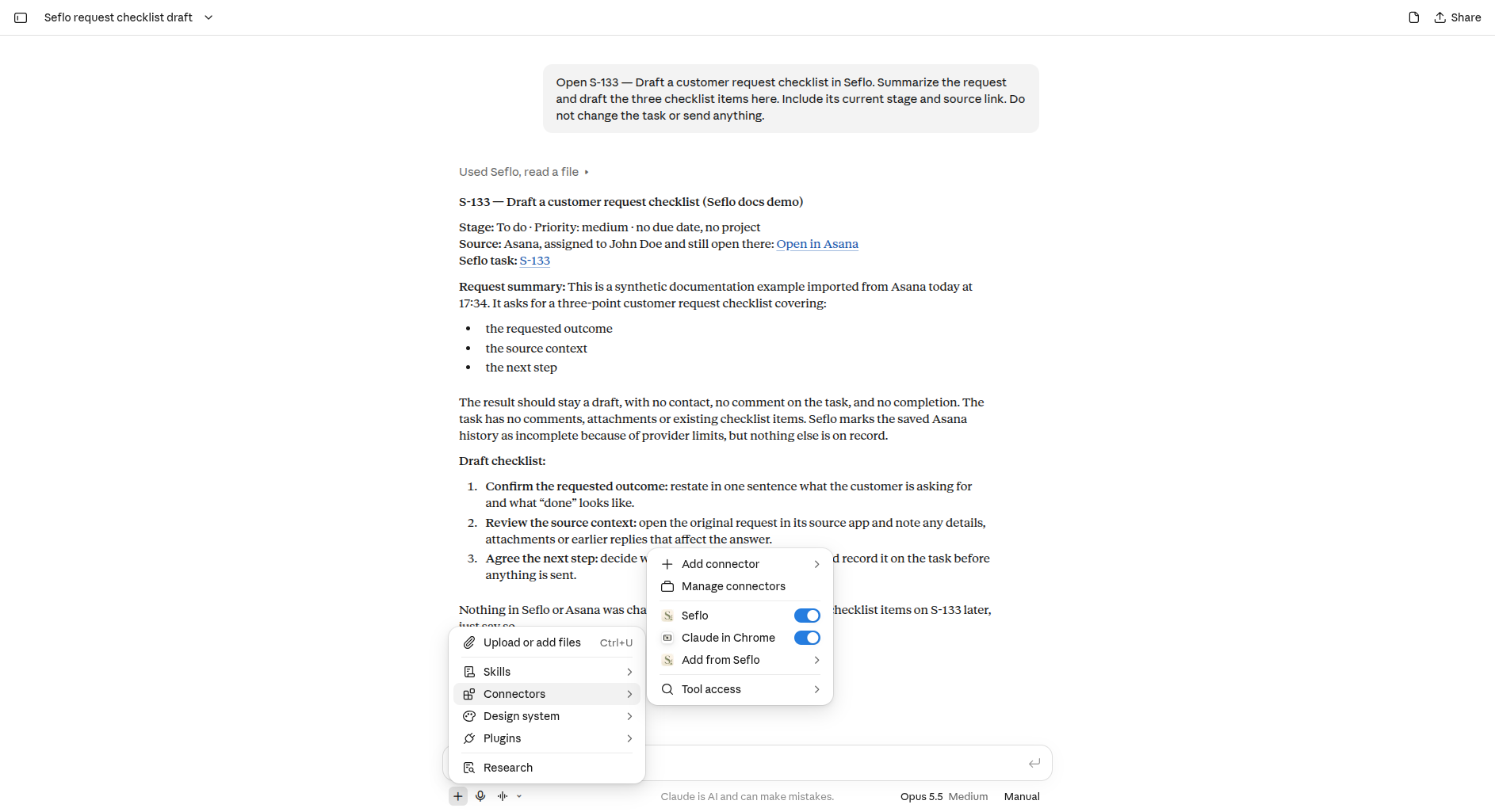
- In the conversation, open + → Connectors and make sure Seflo is enabled.
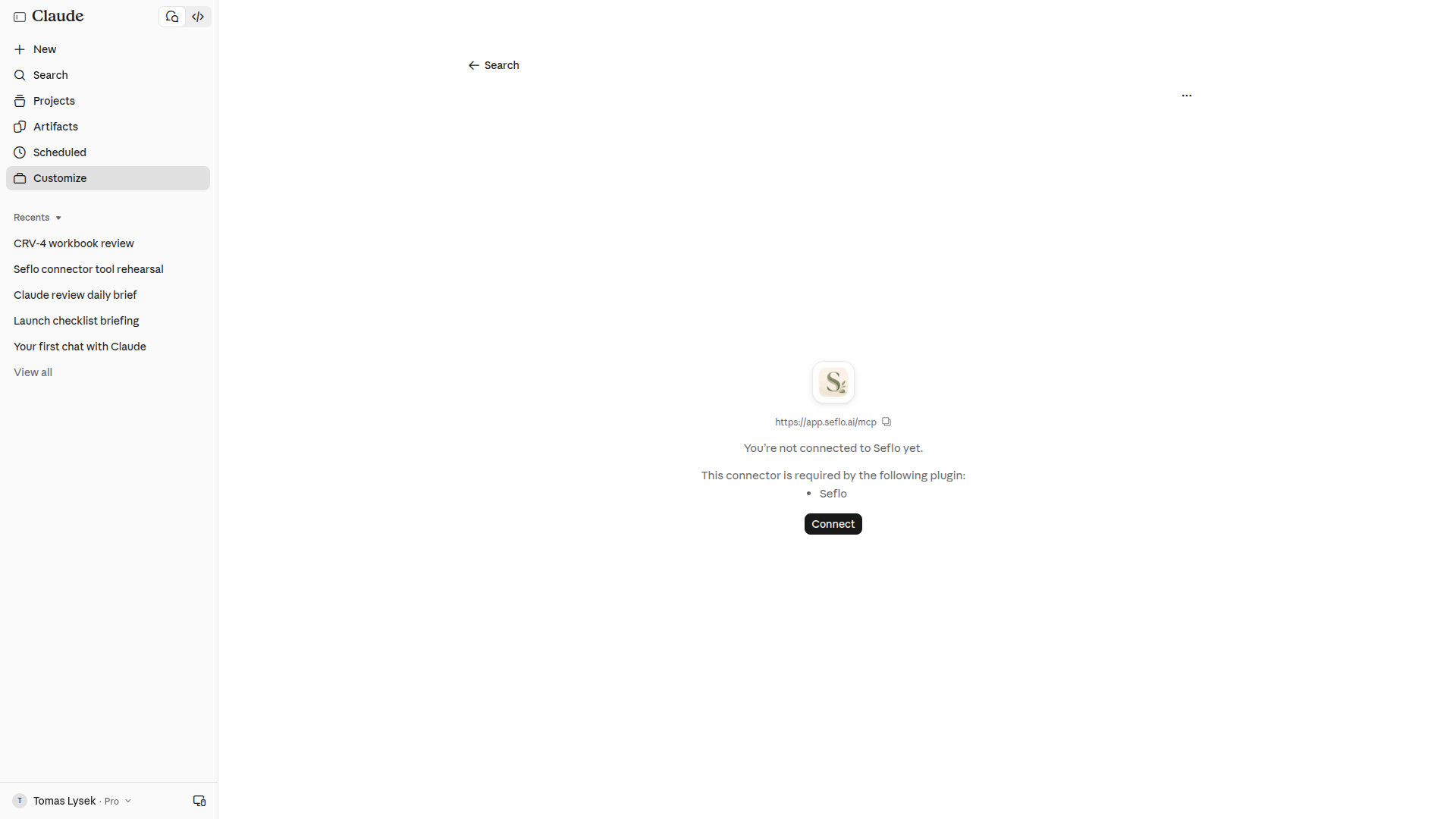
If Claude says a connector with this URL already exists, cancel the form and open Yours → Seflo. Use that connection instead of adding a duplicate.
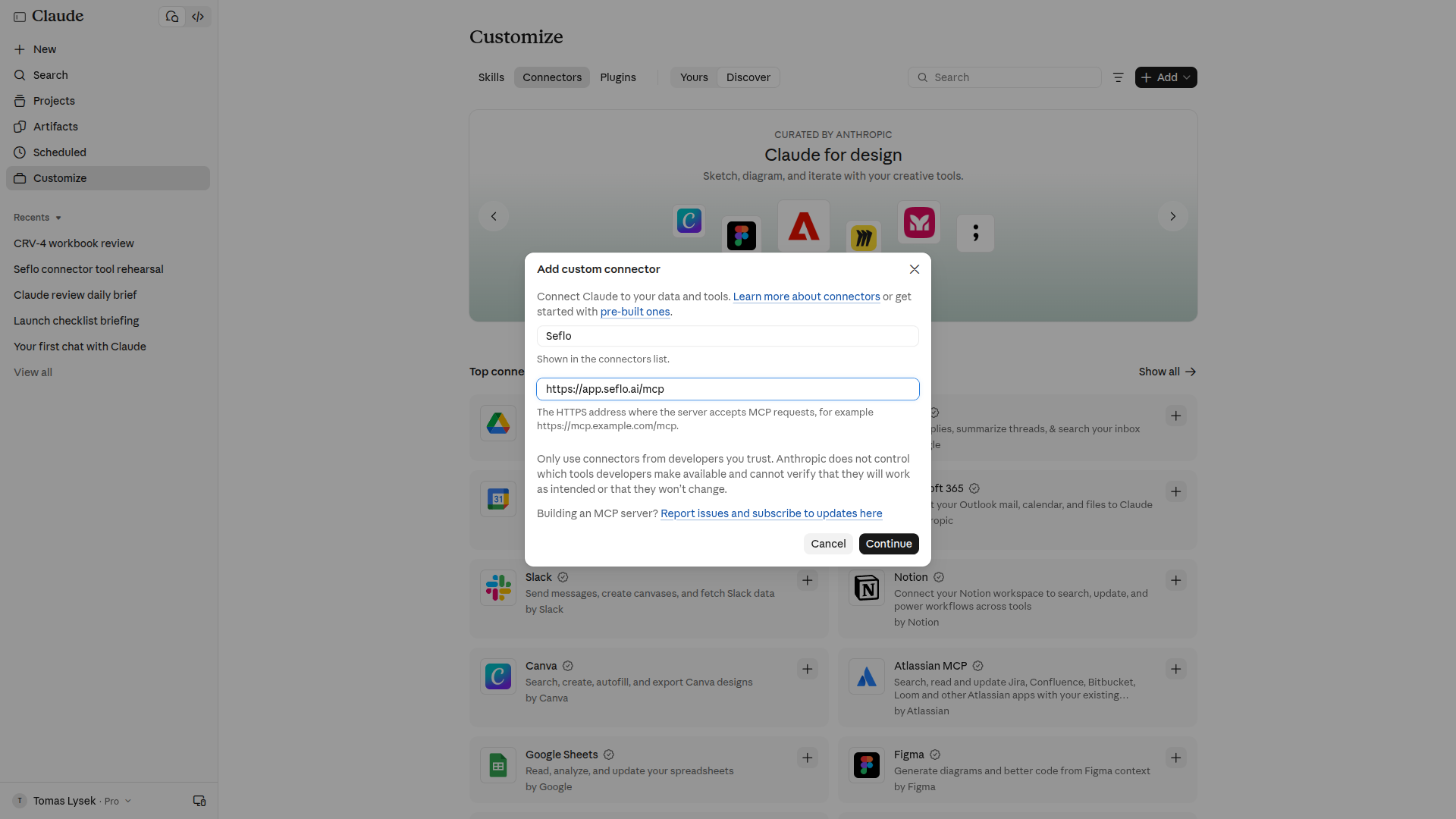
Use the exact HTTPS server address. Open full-size image.
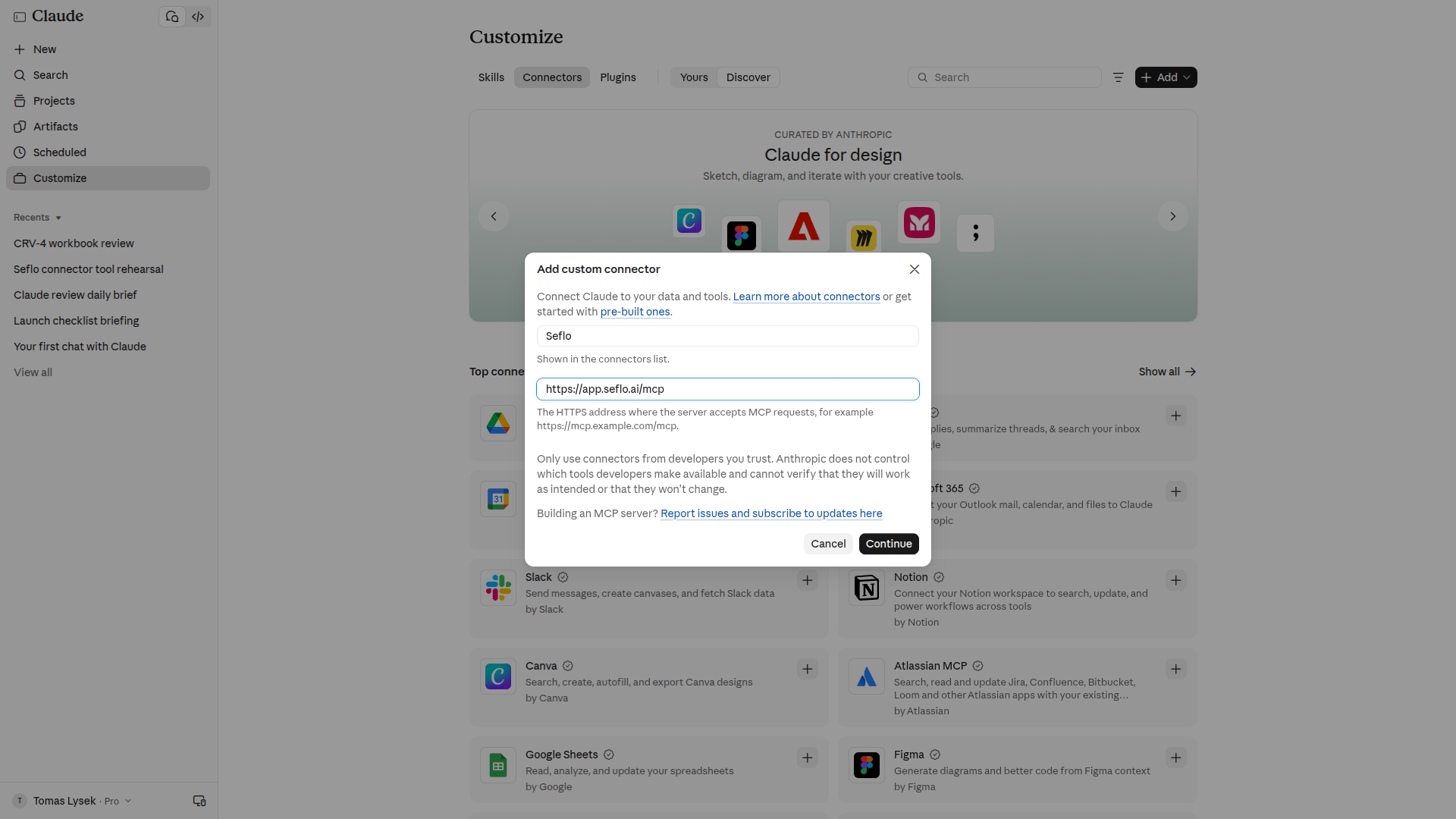
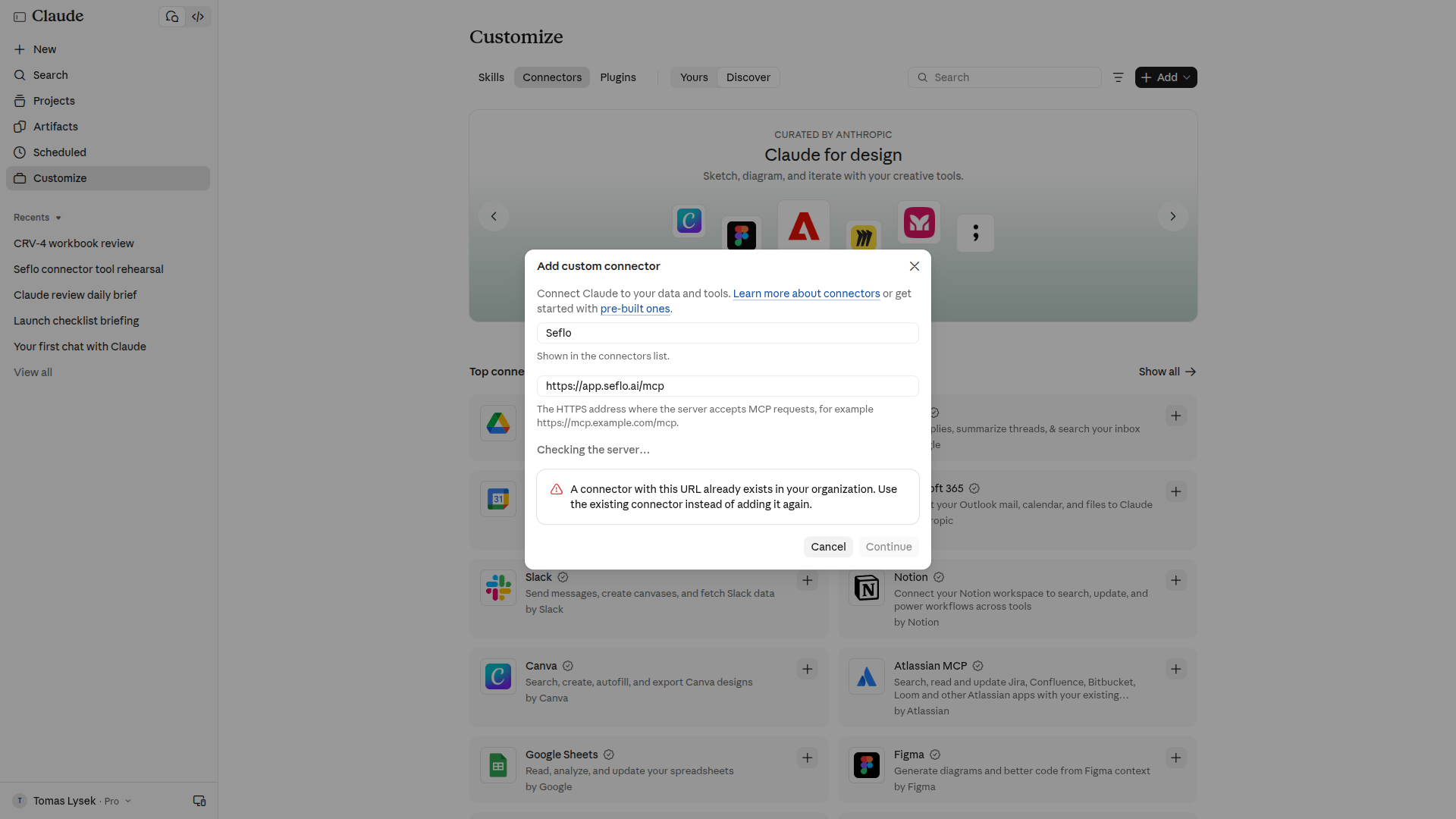
Reuse the existing connector when this message appears. Open full-size image.
This adds the remote tools. It does not install a separate set of workflow skills.
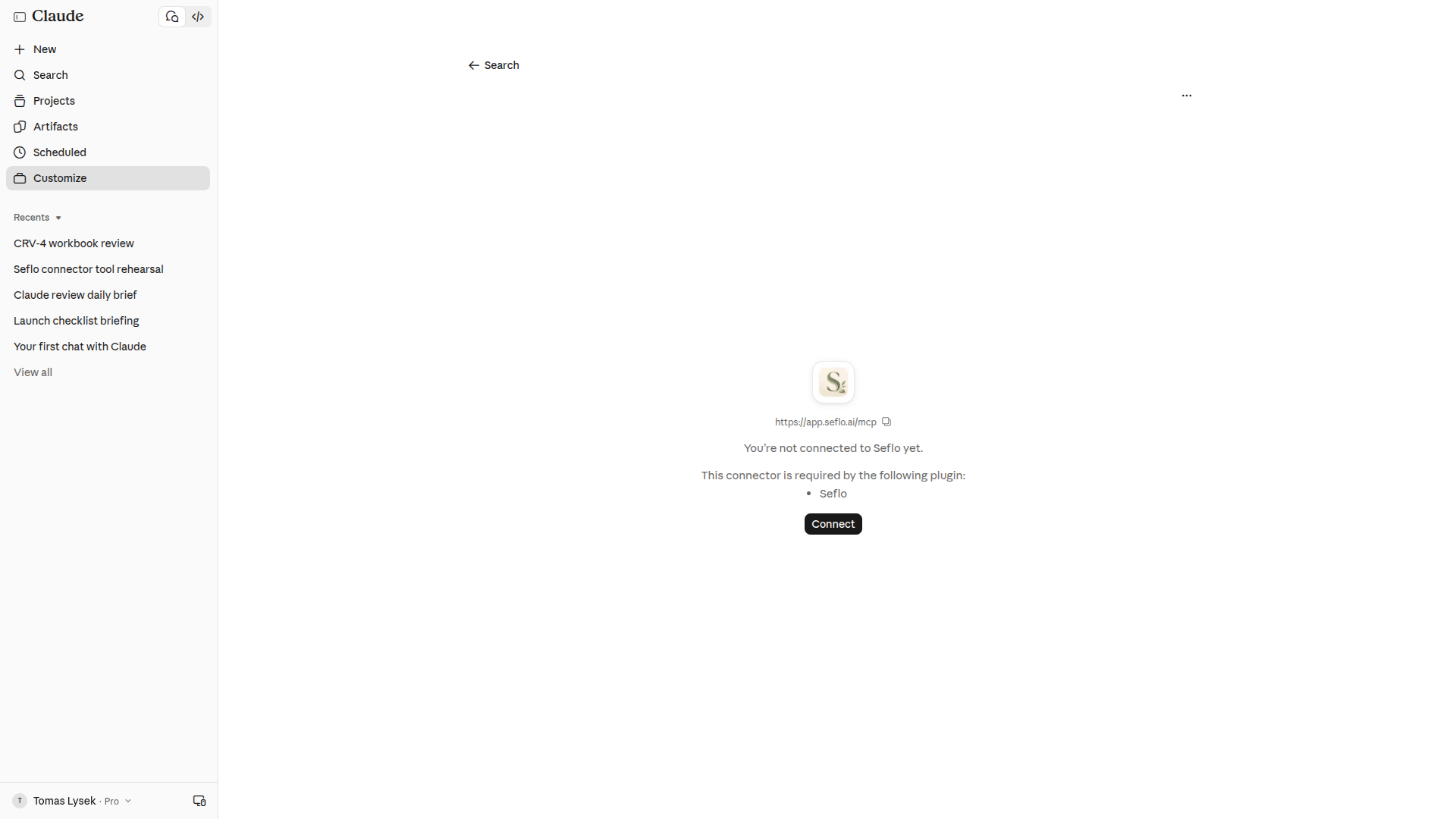
This account also has a private plugin. The notice is account-specific; a public plugin installation is not required for the custom connector. Open full-size image.
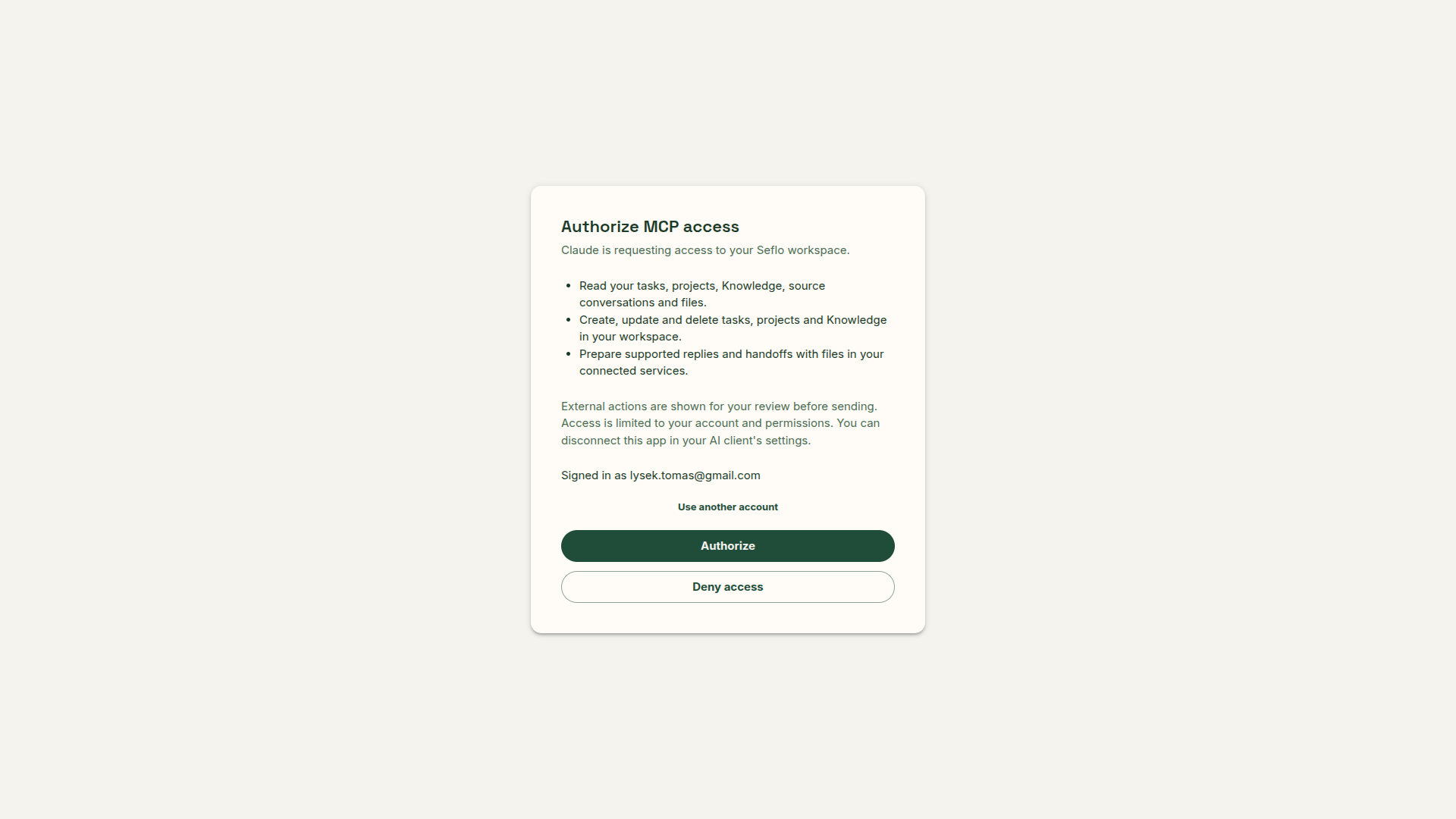
Check the signed-in Seflo identity before authorizing. Open full-size image.
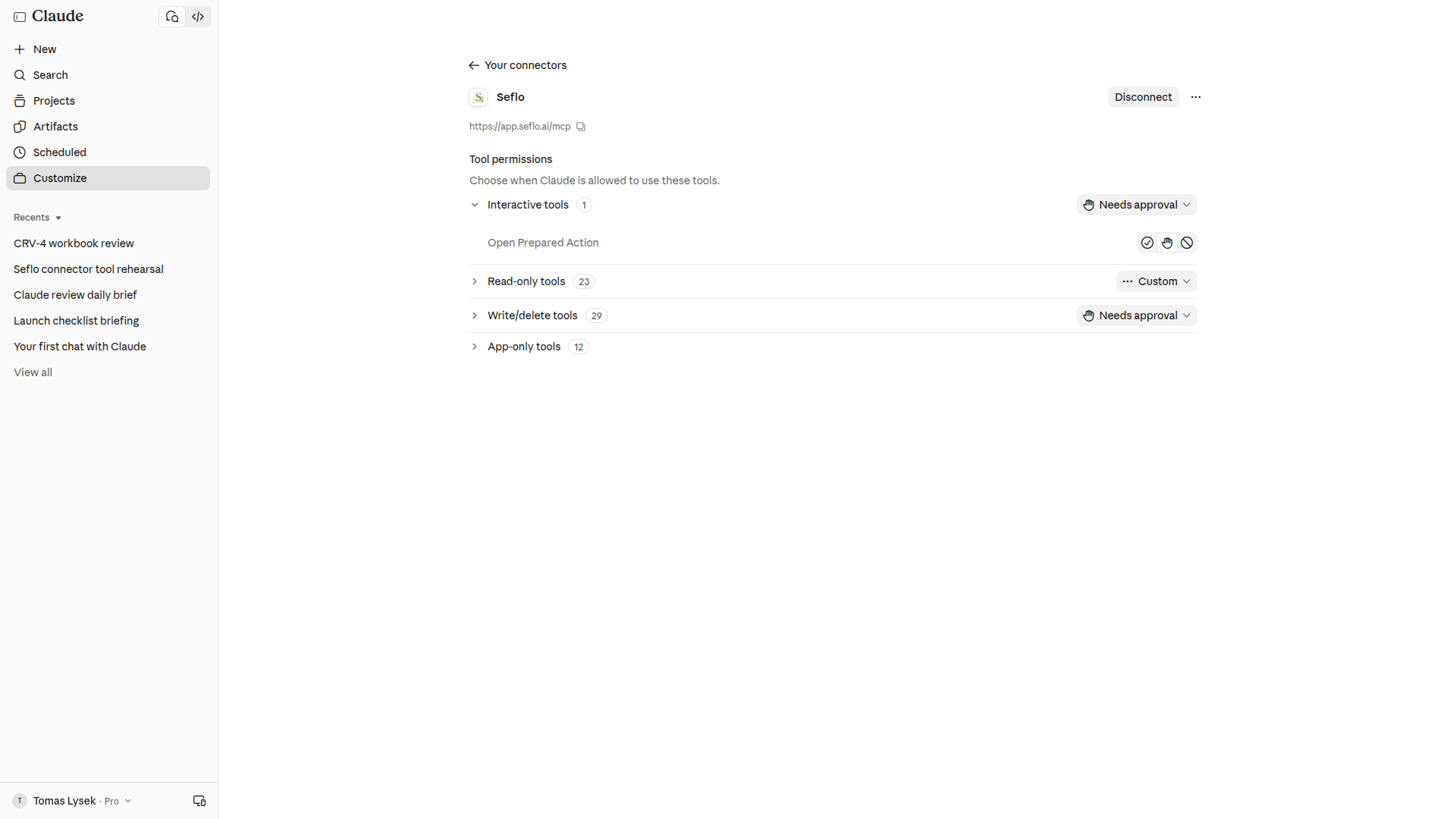
Review tool permissions. This example preserves the account’s existing settings. Open full-size image.
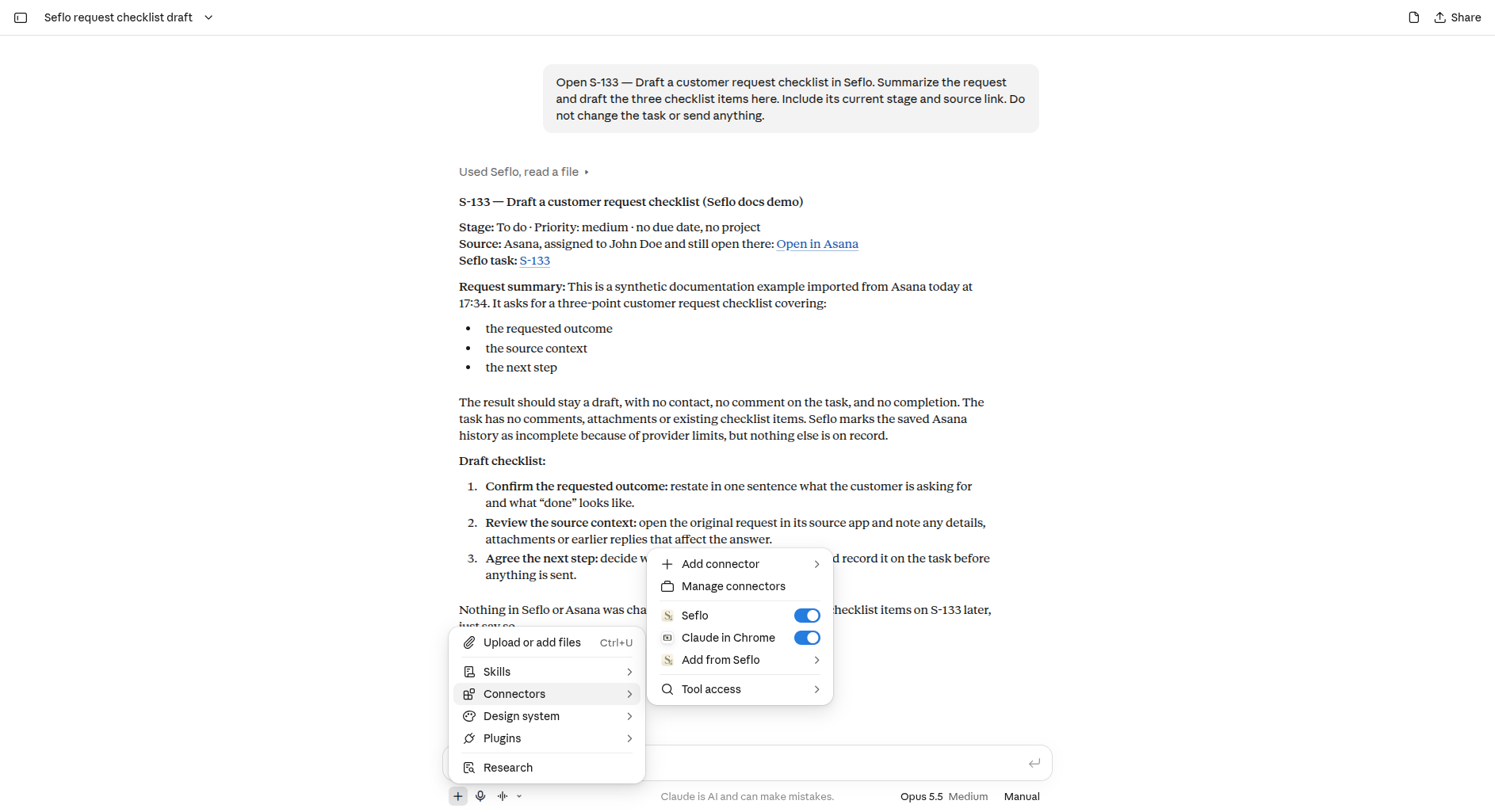
Enable Seflo in the conversation before requesting a task. Open full-size image.
Verify the connection
Use the code of a task you can already open in Seflo:
Use Seflo to open task S-123. Tell me its title, stage and next action.
Read its available context. Do not change it or send anything.
Check the returned task link and title against Seflo. Then ask for a draft or analysis. For external replies, ask for a review before execution. If the client returns a review link, open it while signed in to the same Seflo account.
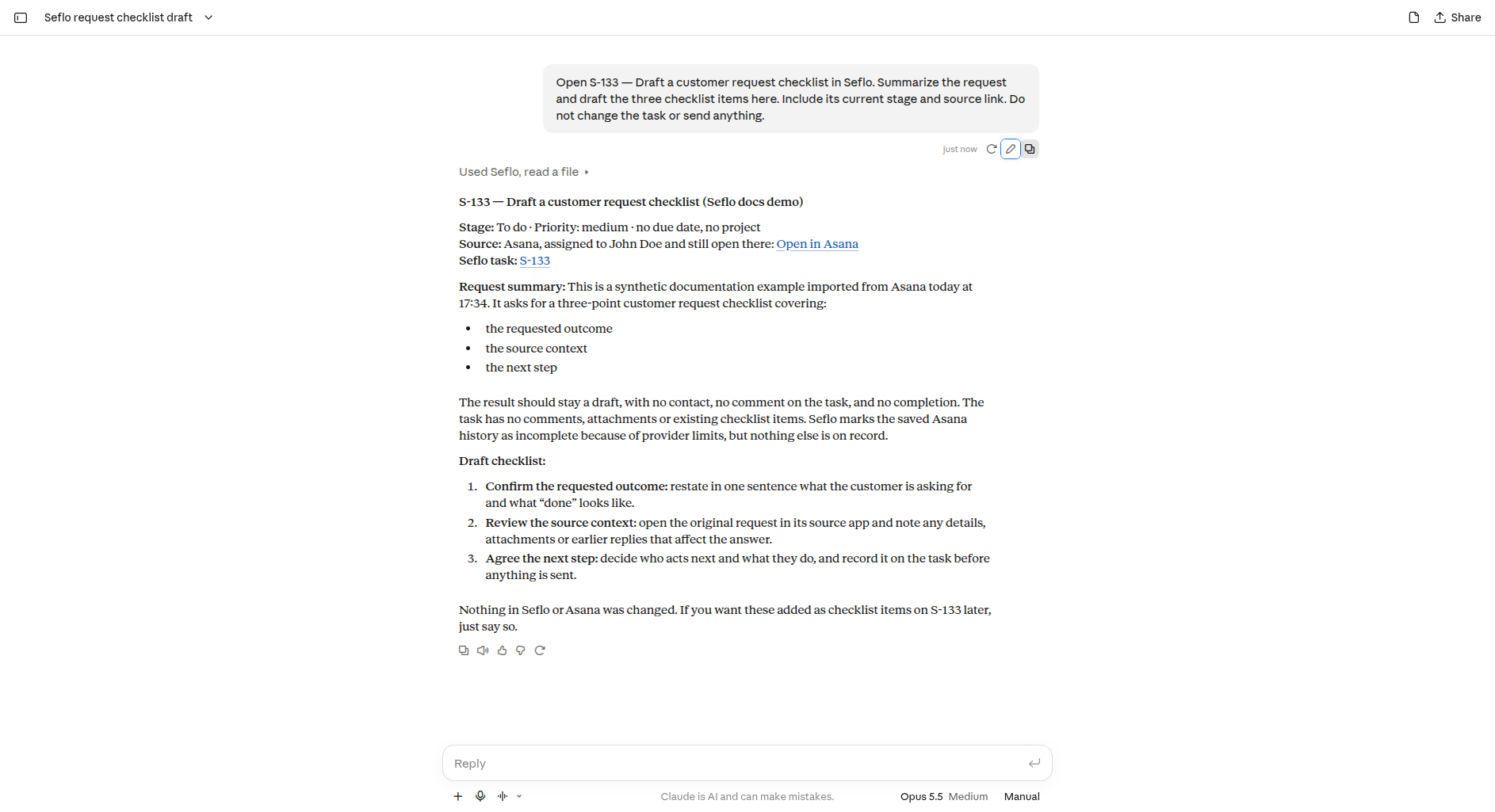
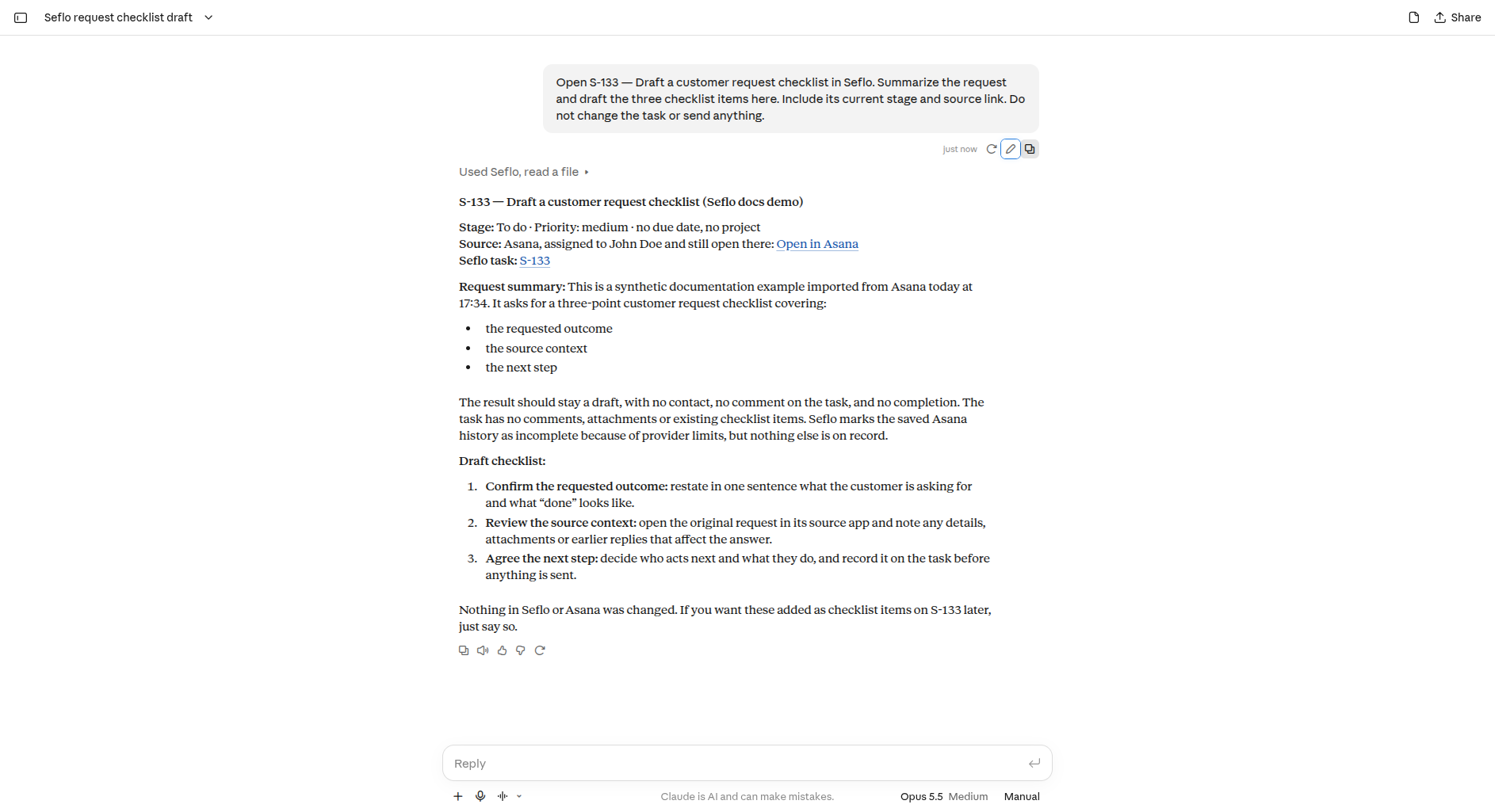
In this example, Claude fetched S-133 and returned its title, Todo stage, original Asana link and instructions, then drafted three checklist items in the conversation. The task was not updated. The prompt uses the task code and readable title. Open full-size image.
Catalog screenshots and video introduction planned — ai-claude-web-video. The primary public-directory installation will be captured after publication. The verified custom-connector alternative is available below.
If something does not work
Check that Seflo is enabled for the current conversation. If the tool needs sign-in, reconnect through Connectors using the intended Seflo identity. For a custom connection, check the exact HTTPS URL, including /mcp.
If an embedded review is not displayed, follow the Seflo review link. Check file availability before asking Claude to work on an attachment.
See Anthropic's connector guide and remote connector instructions for the client settings.
Watch the alternative custom MCP setup
This tutorial shows the existing custom connector, actual OAuth authorization and a verified task lookup with a draft. It is separate from the planned public-directory installation described above.