
Claude Code
Add Seflo as a remote HTTP MCP server and sign in through Claude Code.
Before you start
Have Claude Code installed, your Seflo account and one task code ready. Seflo runs remotely, so no local Seflo server or source-service API token is needed.
Verification status
Configuration, browser authorization, the Connected status and a real task read were verified with Claude Code 2.1.316. Seflo authorization and Claude account sign-in are separate; complete both before asking Claude Code to work with your tasks.
The Claude account sign-in completes separately from the Seflo authorization below. Open full-size image.
Add and authenticate the server
- Run this in your terminal:
claude mcp add --transport http --scope user seflo https://app.seflo.ai/mcp- Start Claude Code and run:
/mcp- Select seflo and follow its authentication flow. With Claude Code 2.1.316, you can also run
claude mcp login seflodirectly in an interactive terminal. - Sign in to the Seflo account containing your tasks and return to Claude Code.
- Run
/mcpagain to check the connection. You can inspect the configured server from a terminal with:
claude mcp get seflo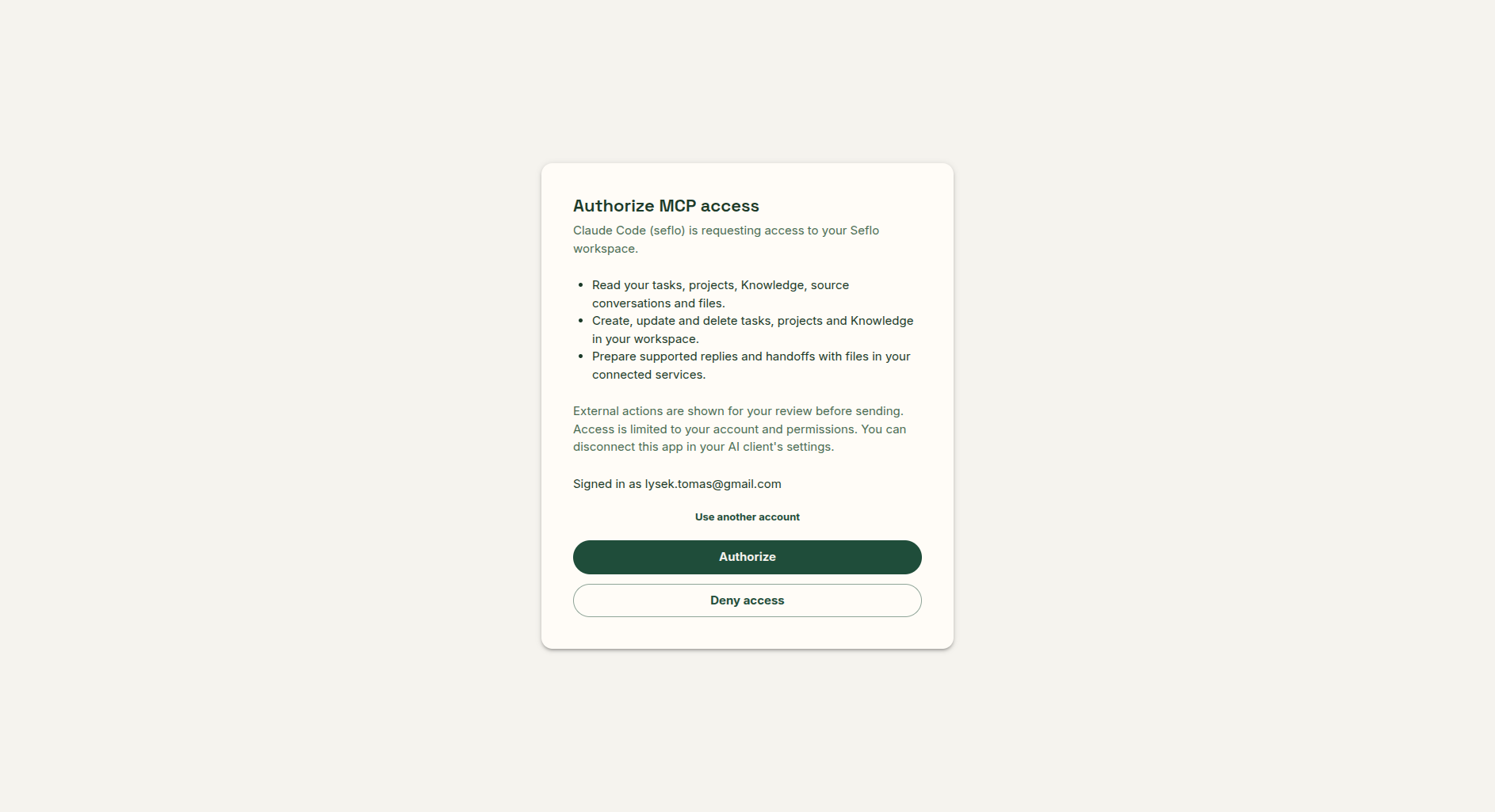
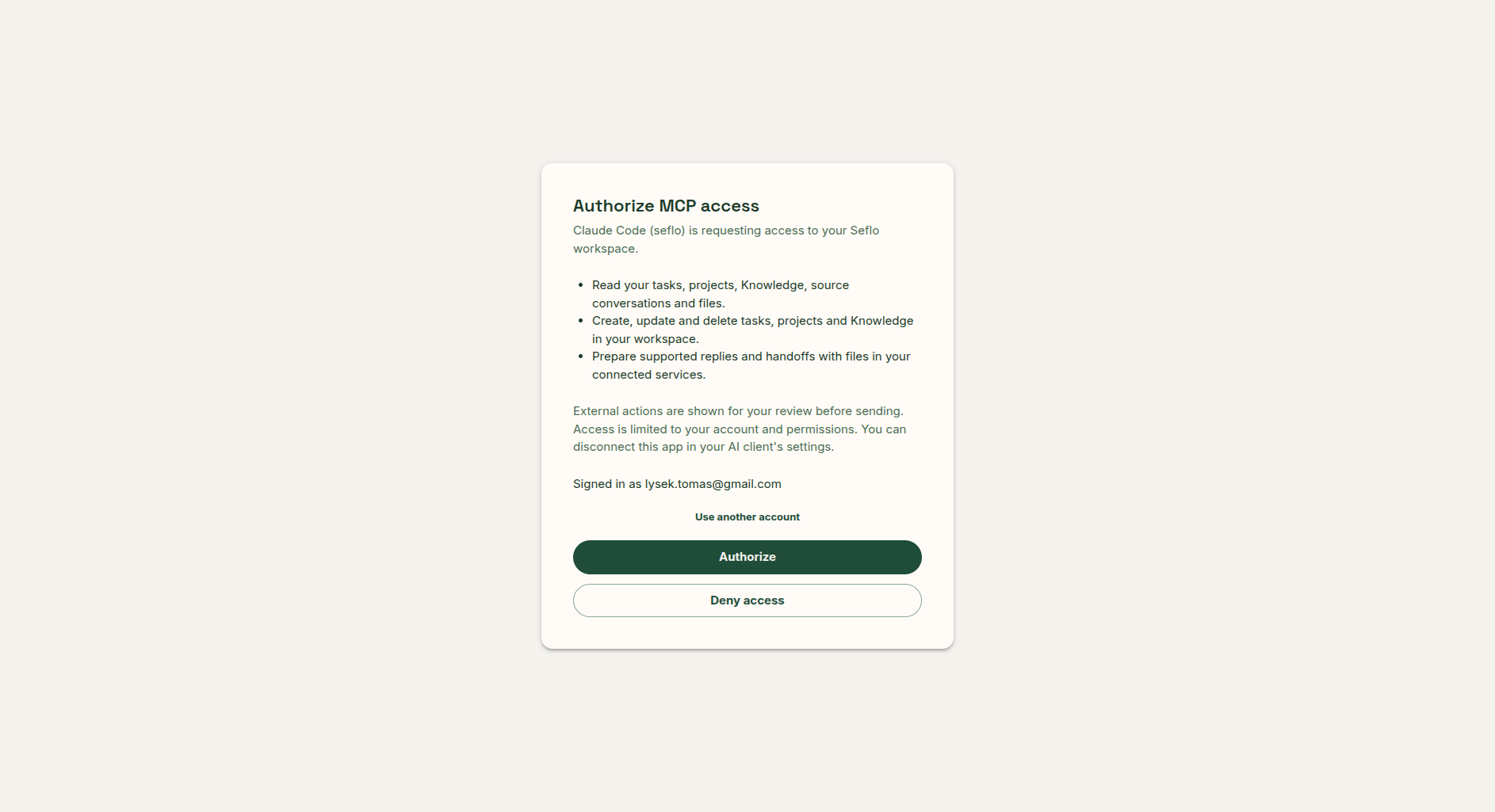
Check the Seflo account and requested access before choosing Authorize. Open full-size image.
The user scope makes this connection available across your local projects. If seflo already exists, inspect the existing configuration before adding it again.
Verify the connection
Use the code of a task you can already open in Seflo:
Use Seflo to open task S-123. Tell me its title, stage and next action.
Read its available context. Do not change it or send anything.
Check the returned task link and title against Seflo. Then ask for a draft or analysis. For external replies, ask for a review before execution. If the client returns a review link, open it while signed in to the same Seflo account.
Verified example
The read-only check returned S-79 — Please fill this excel, Done, Medium priority and a Teams source. Its three attachment records included Input data.xlsx and two separate Completed_data_S-79.xlsx records. These facts matched Seflo. The test did not open the file contents or compare the two completed files.
The verification allowed only the task-read tool. Claude also requested fuller task context, which was not allowed in this bounded test; the reported facts came from the standard task read. The task remained Done, and no message was sent.
claude mcp get seflo
Status: Connected
Type: http
URL: https://app.seflo.ai/mcp
Excerpt from the verified CLI output. This is a transcript, not a terminal screenshot.
Use tasks while working
Ask Claude Code to read a particular task before changing code or preparing a deliverable. Tell it which result should be saved in Seflo and which external actions need your review. A local generated file is not automatically attached to a Seflo reply.
If something does not work
Use /mcp to authenticate again or inspect the server error. If a copied authorization link returns Redirect URI is not allowed for MCP OAuth clients, retry the original browser link generated by the CLI. Copy only the URL, without terminal hyperlink control sequences or a second joined URL. Do not change the callback or bypass authorization. If it still fails, include the client version and exact error when reporting the problem; see Troubleshooting. Check the transport is HTTP and the URL ends in /mcp. If the server is configured only in another project, use the intended user-scoped connection. Reopen the session after configuration changes if the tool list has not refreshed.
See the official Claude Code MCP instructions for client configuration details.